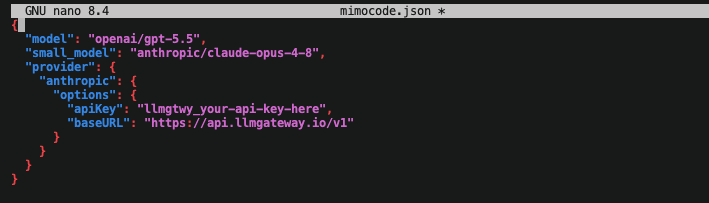
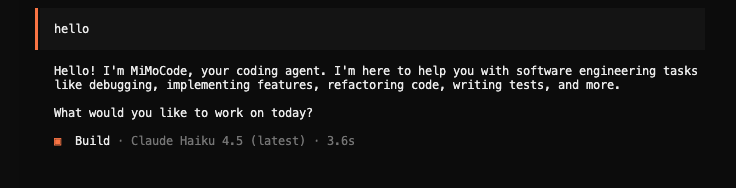
# LLM Gateway — Full Documentation > LLM Gateway is an open-source, OpenAI-compatible API gateway that routes, manages, and analyzes LLM requests across 20+ providers (OpenAI, Anthropic, Google, and more) through a single unified API. Switch providers without changing code, manage API keys centrally, track usage and cost, add caching and guardrails, and self-host or use the managed cloud. API base URL: https://api.llmgateway.io/v1 · Docs: https://docs.llmgateway.io · Site: https://llmgateway.io This file concatenates the full text of every documentation page below. # Introduction URL: https://docs.doteb.com/ LLM Gateway is an API gateway that sits between your applications and LLM providers like OpenAI, Anthropic, Google AI Studio, and more. It provides a unified, OpenAI-compatible API interface with built-in cost tracking, caching, and intelligent routing. ## Features [#features] ## AI Tooling [#ai-tooling] LLM Gateway is built to work seamlessly with AI agents and development tools. ## Next Steps [#next-steps] * [**Quickstart**](/quick-start) — Get up and running in minutes * [**Overview**](/overview) — Learn more about what LLM Gateway offers * [**Self-Host**](/self-host) — Deploy on your own infrastructure # Overview URL: https://docs.doteb.com/overview LLM Gateway is an API gateway for Large Language Models (LLMs). It acts as a middleware between your applications and various LLM providers, allowing you to: * Route requests to multiple LLM providers (OpenAI, Anthropic, Google AI Studio, and others) * Manage API keys for different providers in one place * Track token usage and costs across all your LLM interactions * Analyze performance metrics to optimize your LLM usage ## Analyzing Your LLM Requests [#analyzing-your-llm-requests] LLM Gateway provides detailed insights into your LLM usage: * **Usage Metrics**: Track the number of requests, tokens used, and response times * **Cost Analysis**: Monitor spending across different models and providers * **Performance Tracking**: Identify patterns and optimize your prompts based on actual usage data * **Breakdown by Model**: Compare different models' performance and cost-effectiveness All this data is automatically collected and presented in an intuitive dashboard, helping you make informed decisions about your LLM strategy. ## Getting Started [#getting-started] Using LLM Gateway is simple. Just swap out your current LLM provider URL with the LLM Gateway API endpoint: ```bash curl -X POST https://api.deepbus.cn/v1/chat/completions \ -H "Content-Type: application/json" \ -H "Authorization: Bearer $LLM_GATEWAY_API_KEY" \ -d '{ "model": "gpt-4o", "messages": [ {"role": "user", "content": "Hello, how are you?"} ] }' ``` LLM Gateway maintains compatibility with the OpenAI API format, making migration seamless. ## Hosted vs. Self-Hosted [#hosted-vs-self-hosted] You can use LLM Gateway in two ways: * **Hosted Version**: For immediate use without setup, visit [deepbus.cn](https://deepbus.cn) to create an account and get an API key. * **Self-Hosted**: Deploy LLM Gateway on your own infrastructure for complete control over your data and configuration. The self-hosted version offers additional customization options and ensures your LLM traffic never leaves your infrastructure if desired. # Quickstart URL: https://docs.doteb.com/quick-start Welcome to **LLM Gateway**—a single drop‑in endpoint that lets you call today’s best large‑language models while keeping **your existing code** and development workflow intact. > **TL;DR** — Point your HTTP requests to `https://api.deepbus.cn/v1/…`, supply your `LLM_GATEWAY_API_KEY`, and you’re done. *** ## 1 · Get an API key [#1get-an-api-key] 1. Sign in to the dashboard. 2. Create a new Project → *Copy the key*. 3. Export it in your shell (or a `.env` file): ```bash export LLM_GATEWAY_API_KEY="llmgtwy_XXXXXXXXXXXXXXXX" ``` *** ## 2 · Pick your language [#2--pick-your-language] *** ## 3 · SDK integrations [#3--sdk-integrations] ```ts title="ai-sdk.ts" import { llmgateway } from "@llmgateway/ai-sdk-provider"; import { generateText } from "ai"; const { text } = await generateText({ model: llmgateway("gpt-4o"), prompt: "Write a vegetarian lasagna recipe for 4 people.", }); ``` ```ts title="vercel-ai-sdk.ts" import { createOpenAI } from "@ai-sdk/openai"; const llmgateway = createOpenAI({ baseURL: "https://api.deepbus.cn/v1", apiKey: process.env.LLM_GATEWAY_API_KEY!, }); const completion = await llmgateway.chat({ model: "gpt-4o", messages: [{ role: "user", content: "Hello, how are you?" }], }); console.log(completion.choices[0].message.content); ``` ```ts title="openai-sdk.ts" import OpenAI from "openai"; const openai = new OpenAI({ baseURL: "https://api.deepbus.cn/v1", apiKey: process.env.LLM_GATEWAY_API_KEY, }); const completion = await openai.chat.completions.create({ model: "gpt-4o", messages: [{ role: "user", content: "Hello, how are you?" }], }); console.log(completion.choices[0].message.content); ``` *** ## 4 · Going further [#4going-further] * **Streaming**: pass `stream: true` to any request—Gateway will proxy the event stream unchanged. * **Monitoring**: Every call appears in the dashboard with latency, cost & provider breakdown. *** ## 5 · FAQ [#5faq] See the [Models page](https://deepbus.cn/models).

Unlike OpenRouter, we offer:

  • Full self-hosting capabilities, giving you complete control over your infrastructure
  • Enhanced analytics with deeper insights into your model usage and performance
  • No fees when using your own provider keys, maximizing cost efficiency
  • Greater flexibility and customization options for enterprise deployments
Our pricing structure is designed to be flexible and cost-effective: See the [Pricing section](https://deepbus.cn#pricing).
*** ## 6 · Next steps [#6next-steps] * Read [Self host docs](/self-host) guide. * Email [dotebceo@gmail.com](mailto:dotebceo@gmail.com?subject=%5BSupport%20Request%5D%20) for help or feature requests. Happy building! ✨ # Self Host LLMGateway URL: https://docs.doteb.com/self-host LLMGateway is a self-hostable platform that provides a unified API gateway for multiple LLM providers. This guide offers two simple options to get started. ## Prerequisites [#prerequisites] * Latest Docker * API keys for the LLM providers you want to use (OpenAI, Anthropic, etc.) ## Option 1: Unified Docker Image (Simplest) [#option-1-unified-docker-image-simplest] This option uses a single Docker container that includes all services (UI, API, Gateway, Database, Redis). ```bash # Set a strong secret first export LLM_GATEWAY_SECRET="your-secret-key-here" export GATEWAY_API_KEY_HASH_SECRET="your-api-key-hash-secret-here" # Run the container docker run -d \ --name llmgateway \ --restart unless-stopped \ -p 3002:3002 \ -p 3003:3003 \ -p 3005:3005 \ -p 3006:3006 \ -p 4001:4001 \ -p 4002:4002 \ -v llmgateway_postgres:/var/lib/postgresql/data \ -v llmgateway_redis:/var/lib/redis \ -e AUTH_SECRET="$LLM_GATEWAY_SECRET" \ -e GATEWAY_API_KEY_HASH_SECRET="$GATEWAY_API_KEY_HASH_SECRET" \ llmgateway-unified:latest ``` Docker will create the named volumes automatically on first run. Do not bind-mount a host directory directly to `/var/lib/postgresql/data`, because PostgreSQL initialization inside the container needs to manage permissions on that path. Note: for production, use the pinned image tag supplied with your deployment package instead of `latest`. ### Using Docker Compose (Alternative for unified image) [#using-docker-compose-alternative-for-unified-image] ```bash # Copy the compose files from your deployment package cp /path/to/deployment/docker-compose.unified.yml . cp /path/to/deployment/.env.unified.example . # Configure environment cp .env.unified.example .env # Edit .env with your configuration # Start the service docker compose -f docker-compose.unified.yml up -d ``` Note: for production, replace `latest` with the pinned image tag supplied with your deployment package. ## Option 2: Separate Services with Docker Compose [#option-2-separate-services-with-docker-compose] This option uses separate containers for each service, offering more flexibility. ```bash # Copy the split-service compose files from your deployment package cp /path/to/deployment/docker-compose.split.yml . cp /path/to/deployment/.env.example . # Configure environment cp .env.example .env # Edit .env with your configuration # Start the services docker compose -f docker-compose.split.yml up -d ``` Note: for production, replace `latest` in all images with the pinned image tags supplied with your deployment package. ## Accessing Your LLMGateway [#accessing-your-llmgateway] After starting either option, you can access: * **Web Interface**: [http://localhost:3002](http://localhost:3002) * **Documentation**: [http://localhost:3005](http://localhost:3005) * **API Endpoint**: [http://localhost:4002](http://localhost:4002) * **Gateway Endpoint**: [http://localhost:4001](http://localhost:4001) ## Required Configuration [#required-configuration] At minimum, you need to set these environment variables: ```bash # Database (change the password!) POSTGRES_PASSWORD=your_secure_password_here # Authentication AUTH_SECRET=your-secret-key-here GATEWAY_API_KEY_HASH_SECRET=your-api-key-hash-secret-here # LLM Provider API Keys (add the ones you need) LLM_OPENAI_API_KEY=sk-... LLM_ANTHROPIC_API_KEY=sk-ant-... ``` ## Basic Management Commands [#basic-management-commands] ### For Unified Docker (Option 1) [#for-unified-docker-option-1] ```bash # View logs docker logs llmgateway # Restart container docker restart llmgateway # Stop container docker stop llmgateway ``` ### For Docker Compose (Option 2) [#for-docker-compose-option-2] ```bash # View logs docker compose -f docker-compose.split.yml logs -f # Restart services docker compose -f docker-compose.split.yml restart # Stop services docker compose -f docker-compose.split.yml down ``` ## Build locally [#build-locally] Public source builds are not distributed. Use the published images or the private deployment bundle provided for your environment. ## All provider API keys [#all-provider-api-keys] You can set any of the following API keys: ```text LLM_OPENAI_API_KEY= LLM_ANTHROPIC_API_KEY= ``` ## Multiple API Keys and Load Balancing [#multiple-api-keys-and-load-balancing] LLMGateway supports multiple API keys per provider for load balancing and increased availability. Simply provide comma-separated values for your API keys: ```bash # Multiple OpenAI keys for load balancing LLM_OPENAI_API_KEY=sk-key1,sk-key2,sk-key3 # Multiple Anthropic keys LLM_ANTHROPIC_API_KEY=sk-ant-key1,sk-ant-key2 ``` ### Health-Aware Routing [#health-aware-routing] The gateway automatically tracks the health of each API key and routes requests to healthy keys. If a key experiences consecutive errors, it will be temporarily skipped. Keys that return authentication errors (401/403) are permanently blacklisted until restart. ### Related Configuration Values [#related-configuration-values] For providers that require additional configuration (like Google Vertex), you can specify multiple values that correspond to each API key. The gateway will always use the matching index: ```bash # Multiple Google Vertex configurations LLM_GOOGLE_VERTEX_API_KEY=key1,key2,key3 LLM_GOOGLE_CLOUD_PROJECT=project-a,project-b,project-c LLM_GOOGLE_VERTEX_REGION=us-central1,europe-west1,asia-east1 ``` When the gateway selects `key2`, it will automatically use `project-b` and `europe-west1`. If you have fewer configuration values than keys, the last value will be reused for remaining keys. ## Next Steps [#next-steps] Once your LLMGateway is running: 1. **Open the web interface** at [http://localhost:3002](http://localhost:3002) 2. **Create your first organization** and project 3. **Generate API keys** for your applications 4. **Test the gateway** by making API calls to [http://localhost:4001](http://localhost:4001) ## Helm Chart [#helm-chart] You can also deploy LLMGateway to Kubernetes using the Helm chart supplied with your deployment package or local checkout: ```bash helm install llmgateway ./infra/helm/llmgateway ``` Set `global.image.registry` and individual `*.image.repository` values when you publish images to a private registry. Use the chart values supplied with your deployment package for configuration. Contact support if you need environment-specific image or chart settings. # Health check URL: https://docs.doteb.com/health {/* This file was generated by Fumadocs. Do not edit this file directly. Any changes should be made by running the generation command again. */} # Prometheus metrics URL: https://docs.doteb.com/metrics {/* This file was generated by Fumadocs. Do not edit this file directly. Any changes should be made by running the generation command again. */} # Create speech URL: https://docs.doteb.com/v1_audio_speech {/* This file was generated by Fumadocs. Do not edit this file directly. Any changes should be made by running the generation command again. */} # Chat Completions URL: https://docs.doteb.com/v1_chat_completions {/* This file was generated by Fumadocs. Do not edit this file directly. Any changes should be made by running the generation command again. */} # Embeddings URL: https://docs.doteb.com/v1_embeddings {/* This file was generated by Fumadocs. Do not edit this file directly. Any changes should be made by running the generation command again. */} # Edit image URL: https://docs.doteb.com/v1_images_edits {/* This file was generated by Fumadocs. Do not edit this file directly. Any changes should be made by running the generation command again. */} # Create image URL: https://docs.doteb.com/v1_images_generations {/* This file was generated by Fumadocs. Do not edit this file directly. Any changes should be made by running the generation command again. */} # Anthropic Messages URL: https://docs.doteb.com/v1_messages {/* This file was generated by Fumadocs. Do not edit this file directly. Any changes should be made by running the generation command again. */} # Models URL: https://docs.doteb.com/v1_models {/* This file was generated by Fumadocs. Do not edit this file directly. Any changes should be made by running the generation command again. */} # Moderations URL: https://docs.doteb.com/v1_moderations {/* This file was generated by Fumadocs. Do not edit this file directly. Any changes should be made by running the generation command again. */} # Video content URL: https://docs.doteb.com/v1_videos_content {/* This file was generated by Fumadocs. Do not edit this file directly. Any changes should be made by running the generation command again. */} # Create video URL: https://docs.doteb.com/v1_videos_create {/* This file was generated by Fumadocs. Do not edit this file directly. Any changes should be made by running the generation command again. */} # Video log content URL: https://docs.doteb.com/v1_videos_log_content {/* This file was generated by Fumadocs. Do not edit this file directly. Any changes should be made by running the generation command again. */} # Retrieve video URL: https://docs.doteb.com/v1_videos_retrieve {/* This file was generated by Fumadocs. Do not edit this file directly. Any changes should be made by running the generation command again. */} # Anthropic API Compatibility URL: https://docs.doteb.com/features/anthropic-endpoint # Anthropic API Compatibility [#anthropic-api-compatibility] LLMGateway provides a native Anthropic-compatible endpoint at `/v1/messages` that allows you to use any model in our catalog while maintaining the familiar Anthropic API format This is especially useful for applications designed for Claude that you want to extend to use other models. Enjoy a 50% discount on our Anthropic models for a limited time. ## Overview [#overview] The Anthropic endpoint transforms requests from Anthropic's message format to the OpenAI-compatible format used by LLMGateway, then transforms the responses back to Anthropic's format. This means you can: * Use **any model** available in LLMGateway with Anthropic's API format * Maintain existing code that uses Anthropic's SDK or API format * Access models from OpenAI, Google, Cohere, and other providers through the Anthropic interface * Leverage LLMGateway's routing, caching, and cost optimization features ## Basic Usage [#basic-usage] ## Configuration for Claude Code [#configuration-for-claude-code] This endpoint is perfect for configuring Claude Code to use any model available in LLMGateway: ```bash export ANTHROPIC_BASE_URL=https://api.deepbus.cn export ANTHROPIC_AUTH_TOKEN=llmgtwy_your_api_key_here # optional: specify a model, otherwise it uses the default Claude model export ANTHROPIC_MODEL=gpt-5 # or any model from our catalog # now run claude! claude ``` ### Choosing Models [#choosing-models] You can use any model from the [models page](https://deepbus.cn/models). Popular options for Claude Code include: ```bash # Use OpenAI's latest model export ANTHROPIC_MODEL=gpt-5 # Use a cost-effective alternative export ANTHROPIC_MODEL=gpt-5-mini # Use Google's Gemini export ANTHROPIC_MODEL=gemini-2.5-pro # Use Anthropic's actual Claude models export ANTHROPIC_MODEL=claude-3-5-sonnet-20241022 ``` ## Environment Variables [#environment-variables] When configuring Claude Code or other Anthropic-compatible applications, you can use these environment variables: ### ANTHROPIC\_MODEL [#anthropic_model] Specifies the main model to use for primary requests. * **Default**: `claude-sonnet-4-20250514` * **Example**: `export ANTHROPIC_MODEL=gpt-5` ### ANTHROPIC\_SMALL\_FAST\_MODEL [#anthropic_small_fast_model] Specifies a smaller, faster model used for background functionality and internal operations. * **Default**: `claude-3-5-haiku-20241022` * **Example**: `export ANTHROPIC_SMALL_FAST_MODEL=gpt-5-nano` ```bash # Example configuration export ANTHROPIC_BASE_URL=https://api.deepbus.cn export ANTHROPIC_AUTH_TOKEN=llmgtwy_your_api_key_here export ANTHROPIC_MODEL=gpt-5 export ANTHROPIC_SMALL_FAST_MODEL=gpt-5-nano ``` ## Advanced Features [#advanced-features] ### Making a manual request [#making-a-manual-request] ```bash curl -X POST "https://api.deepbus.cn/v1/messages" \ -H "Authorization: Bearer $LLM_GATEWAY_API_KEY" \ -H "Content-Type: application/json" \ -d '{ "model": "gpt-5", "messages": [ {"role": "user", "content": "Hello, how are you?"} ], "max_tokens": 100 }' ``` ### Response Format [#response-format] The endpoint returns responses in Anthropic's message format: ```json { "id": "msg_abc123", "type": "message", "role": "assistant", "model": "gpt-5", "content": [ { "type": "text", "text": "Hello! I'm doing well, thank you for asking. How can I help you today?" } ], "stop_reason": "end_turn", "stop_sequence": null, "usage": { "input_tokens": 13, "output_tokens": 20 } } ``` # API Keys & IAM Rules URL: https://docs.doteb.com/features/api-keys # API Keys & IAM Rules [#api-keys--iam-rules] API keys are the primary method for authenticating with the LLM Gateway. This guide covers creating API keys, managing them, and configuring IAM rules for fine-grained access control. ## Overview [#overview] LLM Gateway provides comprehensive API key management with the following features: * **Basic API Key Management**: Create, list, update, and delete API keys * **Usage Limits**: Set lifetime and recurring spending limits on individual API keys * **Expiration (TTL)**: Give a key a time-to-live so it disables itself automatically * **IAM Rules**: Fine-grained access control for models, providers, and pricing * **Usage Tracking**: Monitor API key usage and costs * **Status Management**: Enable/disable keys without deletion ## Creating API Keys [#creating-api-keys] ### Via Dashboard [#via-dashboard] At this time, API keys can only be created via the dashboard. 1. Navigate to your project in the LLM Gateway dashboard 2. Go to the **API Keys** section 3. Click **Create API Key** 4. Provide a description for your key 5. Optionally set an all-time usage limit 6. Optionally set a recurring usage limit such as `$10 / day` or `$500 / month` 7. Optionally set an expiration (TTL) such as `30 minutes`, `12 hours`, or `7 days` 8. Click **Create** API keys are shown in full only once during creation. Make sure to copy and store them securely. ## Using API Keys [#using-api-keys] Once you have an API key, use it in the `Authorization` header of your requests: ```bash curl -X POST "https://api.deepbus.cn/v1/chat/completions" \ -H "Authorization: Bearer llmgtwy_your_api_key_here" \ -H "Content-Type: application/json" \ -d '{ "model": "gpt-4o", "messages": [{"role": "user", "content": "Hello!"}] }' ``` ## Disabling/Enabling API Keys [#disablingenabling-api-keys] You can disable an API key to stop it from being used, but the key is not deleted and can be re-enabled later. ## Expiration (TTL) [#expiration-ttl] You can give an API key a **time-to-live (TTL)** when you create it. Set how long the key should live — in **minutes**, **hours**, or **days** — and it will be disabled automatically once that time passes. This is ideal for short-lived integrations, demos, CI jobs, and temporary access. * A key works normally until its expiration time * Once expired, the gateway rejects requests with that key with a `401 Unauthorized` * A background job marks expired keys as **inactive**, so the dashboard reflects the disabled state * Keys created without a TTL never expire (the default) ### Reactivating an Expired Key [#reactivating-an-expired-key] An expired key is paused, not deleted. To bring it back online you must reactivate it **with a new future expiration** — an expired key cannot be re-enabled while its TTL is still in the past. Keys that have no TTL, or whose TTL is still in the future, can be enabled and disabled freely without setting a new expiration. Expiration is independent of usage limits. A key can hit its TTL before, or instead of, reaching a spend cap. ## Usage Limits [#usage-limits] Usage is tracked per API key on the API Keys page. Usage includes both costs from LLM Gateway credits and usage from your own provider keys when applicable, giving you complete visibility into total spending per key. You can set two independent limits for each key: * **All-time usage limit**: A lifetime spend cap * **Recurring usage limit**: A spend cap that resets every configured hour, day, week, or month When a key reaches either limit, requests using that key return `401 Unauthorized` until the key is updated or, for recurring limits, the next usage window starts. This is separate from IAM rule violations, which return `403 Forbidden`. Recurring windows support: * Minimum duration: **1 hour** * Maximum duration: **12 months** * Units: **hour**, **day**, **week**, **month** For the dashboard walkthrough and field-by-field details, see [API Keys in Learn](/learn/api-keys). ## IAM Rules [#iam-rules] IAM (Identity Access Management) rules provide fine-grained access control over what models, providers, and pricing tiers an API key can access. ### Rule Types [#rule-types] #### Model Access Rules [#model-access-rules] Control access to specific models: * **Allow Models**: Only allow access to specific models * **Deny Models**: Block access to specific models #### Provider Access Rules [#provider-access-rules] Control access to specific providers: * **Allow Providers**: Only allow access to specific providers * **Deny Providers**: Block access to specific providers #### Pricing Rules [#pricing-rules] Control access based on model pricing: * **Allow Pricing**: Set constraints on what pricing tiers are allowed * **Deny Pricing**: Block specific pricing tiers * **Free vs Paid**: Allow or deny access to free vs paid models #### IP Address Rules [#ip-address-rules] IP address rules are available on the **Enterprise** plan only. Contact us at [contact@deepbus.cn](mailto:contact@deepbus.cn) to enable them for your organization. Restrict where the API key can be used from by source IP, using CIDR ranges: * **Allow IP Ranges (CIDR)**: Only permit requests from the listed IPv4/IPv6 CIDRs * **Deny IP Ranges (CIDR)**: Block requests from the listed IPv4/IPv6 CIDRs Both IPv4 (e.g. `192.0.2.0/24`) and IPv6 (e.g. `2001:db8::/32`) ranges are supported, and you can mix both in a single rule. To restrict to a single address, use a `/32` (IPv4) or `/128` (IPv6) prefix. The gateway reads the client IP from the first entry in the `X-Forwarded-For` header (set by the GCP load balancer). When an `allow_ip_cidrs` rule is configured and the gateway cannot determine the client IP, the request is denied. Invalid CIDR syntax is rejected at rule-creation time with a `400` error. ## Error Handling [#error-handling] When API keys encounter IAM rule violations, the API returns a `403` with the standard OpenAI error envelope: ```json { "error": { "message": "Access denied: Model gpt-4 is not in the allowed models list", "type": "invalid_request_error", "param": null, "code": "permission_denied" } } ``` Common error scenarios: * Model not allowed by IAM rules * Provider blocked by IAM rules * Pricing limits exceeded * API key disabled or deleted * API key expired (TTL passed) * Usage limit reached ## Migration from Legacy Keys [#migration-from-legacy-keys] If you have existing API keys without IAM rules: 1. **Backward Compatibility**: Existing keys continue to work without restrictions 2. **Gradual Migration**: Add IAM rules incrementally 3. **Testing**: Test IAM rules in development before applying to production 4. **Monitoring**: Monitor for access denied errors after implementing rules API keys without IAM rules have unrestricted access to all models and providers. # Audit Logs URL: https://docs.doteb.com/features/audit-logs # Audit Logs [#audit-logs] Audit logs provide complete visibility into all actions within your organization. Track who did what, when, and to which resource. Audit logs are available on the [**Enterprise plan**](https://deepbus.cn/enterprise) for organization owners and admins. ## What's Tracked [#whats-tracked] Every significant action is logged with detailed metadata: | Field | Description | | ----------------- | -------------------------------------------------------- | | **Timestamp** | When the action occurred | | **User** | Who performed the action (name and email) | | **Action** | What was done (e.g., `api_key.create`, `project.update`) | | **Resource Type** | Category of the affected resource | | **Resource ID** | Unique identifier of the affected resource | | **Details** | Additional context like resource names or changed fields | ## Tracked Actions [#tracked-actions] ### Organization Management [#organization-management] * `organization.update` — Organization settings changed * `organization.delete` — Organization deleted ### Project Management [#project-management] * `project.create` — New project created * `project.update` — Project settings changed * `project.delete` — Project deleted ### Team Management [#team-management] * `team_member.add` — New member invited * `team_member.update` — Member role changed * `team_member.remove` — Member removed ### API Key Management [#api-key-management] * `api_key.create` — New API key created * `api_key.update_status` — API key enabled/disabled * `api_key.update_limit` — Usage limit changed * `api_key.delete` — API key deleted * `api_key.iam_rule.create` — IAM rule added * `api_key.iam_rule.update` — IAM rule modified * `api_key.iam_rule.delete` — IAM rule removed ### Provider Key Management [#provider-key-management] * `provider_key.create` — Provider key added * `provider_key.update` — Provider key status changed * `provider_key.delete` — Provider key removed ### Billing Events [#billing-events] * `subscription.create` — Subscription started * `subscription.cancel` — Subscription cancelled * `subscription.resume` — Subscription resumed * `payment.credit_topup` — Credits purchased ## Filtering and Search [#filtering-and-search] Filter logs by: * **Action** — Specific action type * **Resource Type** — Category of resource * **User** — Who performed the action * **Date Range** — Time period ## Data Retention [#data-retention] Audit logs are retained for **90 days** on the Enterprise plan. ## Access Control [#access-control] Only organization **owners** and **admins** can view audit logs. This ensures sensitive activity data is only visible to authorized personnel. ## Get Started [#get-started] Audit logs are an Enterprise feature. [Contact us](https://deepbus.cn/enterprise) to enable Enterprise for your organization. # Coding Agents URL: https://docs.doteb.com/features/coding-agents # Coding Agents [#coding-agents] The gateway detects which coding agent or tool a DevPass request comes from and records it as the `x-source` attribution in logs and the dashboard. Detection runs on every request. Source enforcement is gated behind the `DEVPASS_ENFORCE_SOURCE_RESTRICTION` environment variable and is **disabled by default**. While disabled, all sources are allowed and detection is used only for attribution. When enabled (`DEVPASS_ENFORCE_SOURCE_RESTRICTION=true`), requests from unrecognized sources (browsers, curl, generic HTTP clients) are rejected with a `403` response. ## How Detection Works [#how-detection-works] The gateway identifies coding agents using a multi-layer priority chain: 1. **`x-source` header** — Explicit source identifier sent by the client (also accepts full URLs like `https://hermes-agent.nousresearch.com`) 2. **`User-Agent` header** — Automatic detection via pattern matching 3. **`X-Title` / `X-OpenRouter-Title` header** — Title-based detection (e.g., "hermes agent") 4. **`HTTP-Referer` header** — Referer URL pattern matching (e.g., `hermes-agent.nousresearch.com`) 5. **User-Agent fallback** — If an unrecognized `x-source` is sent, falls back to UA detection If your tool sends a recognized `x-source` header, no further detection is needed. Otherwise, the gateway checks each subsequent layer until a match is found. If no layer produces a match, the request is rejected on DevPass plans only when source enforcement is enabled (see above); otherwise it is allowed and logged as an unrecognized source. ## Supported Agents [#supported-agents] The following agents are automatically detected and allowed on DevPass plans: | Agent | Source ID | Detection | | ------------------ | ------------------------ | --------------------------------------------------------------------------- | | Claude Code | `claude.com/claude-code` | UA: `claude-cli/...` or contains `claude-code` | | Codex CLI | `codex` | UA: `codex-cli/...`, `codex_cli_rs/...`, `codex-tui/...` | | OpenCode | `opencode` | UA: `opencode/...` or contains `opencode-cli` | | Roo Code | `roo-code` | UA: contains `roo-code` or `roo-cline` | | Cline | `cline` | UA: contains `cline` | | Cursor | `cursor` | UA: `Cursor/...` or contains `cursor-llm` | | Autohand Code | `autohand` | UA: `autohand/...` or contains `autohand-code` | | SoulForge | `soulforge` | UA: `soulforge/...` | | n8n | `n8n` | UA: `n8n/...` or contains `n8n-workflow` | | OpenClaw | `openclaw` | UA: `openclaw/...` | | Aider | `aider` | UA: `aider/...` or contains `aider` | | Continue | `continue` | UA: `continue/...` or contains `continue-dev` | | Windsurf / Codeium | `windsurf` | UA: `windsurf/...` or `codeium/...` | | Zed AI | `zed` | UA: `Zed/...` or contains `zed-editor` | | GitHub Copilot | `github-copilot` | UA: `github-copilot/...` or contains `copilot` | | Pi Agent | `pi-agent` | UA: `pi-agent/...` or contains `pi_agent` | | Hermes Agent | `hermes-agent` | UA: `HermesAgent/...`, Title: `hermes agent`, Referer: `*.nousresearch.com` | | OpenAI SDK | `openai-sdk` | UA: `OpenAI/Python ...` or `Is/JS ...` | | Any \*claw fork | *(varies)* | UA or source containing `claw` | ## Configuring Your Tool [#configuring-your-tool] ### Option 1: Send the `x-source` Header (Recommended) [#option-1-send-the-x-source-header-recommended] The most reliable way to identify your tool is to include the `x-source` header in every request: ```bash curl -X POST https://api.deepbus.cn/v1/chat/completions \ -H "Content-Type: application/json" \ -H "Authorization: Bearer $LLM_GATEWAY_API_KEY" \ -H "x-source: your-tool-name" \ -d '{ "model": "claude-sonnet-4-5-20250514", "messages": [...] }' ``` The `x-source` value must match one of the recognized source IDs listed above. For \*claw forks, any value containing "claw" is accepted. ### Option 2: Send an Identifiable User-Agent [#option-2-send-an-identifiable-user-agent] If you cannot set custom headers, ensure your tool sends a recognizable `User-Agent`: ```bash curl -X POST https://api.deepbus.cn/v1/chat/completions \ -H "User-Agent: my-tool/1.0.0" \ -H "Authorization: Bearer $LLM_GATEWAY_API_KEY" \ -d '{ "model": "claude-sonnet-4-5-20250514", "messages": [...] }' ``` The User-Agent must match one of the patterns in the detection table above. ## Error Response [#error-response] When a DevPass plan request comes from an unrecognized source, the gateway returns: ```json { "error": { "message": "DevPass coding plans are restricted to recognized coding agents. Your request was not identified as coming from a supported tool. Please ensure your coding tool sends an identifiable User-Agent header or x-source header. Supported agents: Claude Code, Codex CLI, OpenCode, ..., and any *claw fork.", "type": "gateway_error", "param": null, "code": "403" } } ``` ## Adding a New Agent [#adding-a-new-agent] To add support for a new coding agent, add an entry to the centralized registry at `packages/shared/src/coding-agents.ts`: ```typescript { id: "your-agent", label: "Your Agent", xSourceValues: ["your-agent"], userAgentPatterns: [/^your-agent\//i, /\byour-agent\b/i], titleValues: ["your agent"], // optional refererPatterns: [/your-agent\.com/i], // optional }, ``` **Fields:** | Field | Required | Description | | ------------------- | -------- | -------------------------------------------------------------------------------------------------------------------------------------------- | | `id` | Yes | Canonical identifier stored in `log.source`. Must be unique. | | `label` | Yes | Human-friendly display name shown in the UI and error messages. | | `xSourceValues` | Yes | Array of `x-source` header values that identify this agent. Include alternate spellings and domain forms (e.g., `"your-agent.example.com"`). | | `userAgentPatterns` | Yes | Array of regex patterns to match the User-Agent string. Patterns are tested in order; first match wins. | | `titleValues` | No | Array of lowercase title strings to match against `X-Title` or `X-OpenRouter-Title` headers. | | `refererPatterns` | No | Array of regex patterns to match the `HTTP-Referer` header URL. | After adding the entry: 1. The agent is automatically detected from User-Agent headers 2. The agent is automatically allowlisted for DevPass plans 3. The agent appears in the Agents activity view in the dashboard 4. The `x-source` values are normalized to the canonical `id` in logs No other code changes are required. ## Removing an Agent [#removing-an-agent] To remove an agent from the allowlist, delete its entry from `packages/shared/src/coding-agents.ts`. Once source enforcement is enabled, requests from that tool will be rejected on DevPass plans after deployment. ## Source Normalization [#source-normalization] Alternate `x-source` values are normalized to canonical IDs for consistent analytics: * `open-code` → `opencode` * `codeium` → `windsurf` * `roo-cline` → `roo-code` * `copilot` → `github-copilot` * `hermes` → `hermes-agent` * `hermes-agent.nousresearch.com` → `hermes-agent` Full URLs sent as `x-source` (e.g., `https://hermes-agent.nousresearch.com`) are automatically stripped of their protocol prefix before matching, so `https://hermes-agent.nousresearch.com` becomes `hermes-agent.nousresearch.com` which normalizes to `hermes-agent`. This ensures the same agent always appears under one name in logs and dashboards regardless of which header value the client sends. # Cost Breakdown URL: https://docs.doteb.com/features/cost-breakdown # Cost Breakdown [#cost-breakdown] LLM Gateway provides real-time cost information for each API request directly in the response's `usage` object. This allows you to track costs programmatically without needing to query the dashboard. Cost breakdown is available for all users on both hosted and self-hosted deployments. ## Response Format [#response-format] When cost breakdown is enabled, your API responses will include additional cost fields in the `usage` object: ```json { "id": "chatcmpl-123", "object": "chat.completion", "created": 1234567890, "model": "openai/gpt-4o", "choices": [ { "index": 0, "message": { "role": "assistant", "content": "Hello! How can I help you today?" }, "finish_reason": "stop" } ], "usage": { "prompt_tokens": 10, "completion_tokens": 15, "total_tokens": 25, "cost": 0.000125, "cost_details": { "upstream_inference_cost": 0.000125, "upstream_inference_prompt_cost": 0.000025, "upstream_inference_completions_cost": 0.0001, "total_cost": 0.000125, "input_cost": 0.000025, "output_cost": 0.0001, "cached_input_cost": 0, "request_cost": 0, "web_search_cost": 0, "image_input_cost": null, "image_output_cost": null, "data_storage_cost": 0.00000025 }, "prompt_tokens_details": { "cached_tokens": 0, "cache_write_tokens": 0, "audio_tokens": 0, "video_tokens": 0 }, "completion_tokens_details": { "reasoning_tokens": 0, "image_tokens": 0, "audio_tokens": 0 } } } ``` ## Cost Fields [#cost-fields] | Field | Description | | -------------------------------------------------- | ------------------------------------------------------------------------ | | `cost` | Total inference cost for the request in USD | | `cost_details.upstream_inference_cost` | Combined upstream inference cost in USD (prompt + completions) | | `cost_details.upstream_inference_prompt_cost` | Upstream cost for prompt tokens in USD (includes cached prompt discount) | | `cost_details.upstream_inference_completions_cost` | Upstream cost for completion tokens in USD | | `cost_details.total_cost` | Total request cost in USD (LLM Gateway extended field) | | `cost_details.input_cost` | Cost for non-cached prompt tokens in USD | | `cost_details.output_cost` | Cost for completion tokens in USD | | `cost_details.cached_input_cost` | Cost for cached prompt tokens in USD | | `cost_details.request_cost` | Per-request flat fee in USD (when the model applies one) | | `cost_details.web_search_cost` | Cost for web search tool calls in USD | | `cost_details.image_input_cost` | Cost for image inputs in USD | | `cost_details.image_output_cost` | Cost for image outputs in USD | | `cost_details.data_storage_cost` | Storage cost for retained request/response payloads in USD | ## Token Detail Fields [#token-detail-fields] The `usage` object also includes detailed token counters that mirror OpenAI's extended format: | Field | Description | | -------------------------------------------- | ---------------------------------------------------------------- | | `prompt_tokens_details.cached_tokens` | Number of prompt tokens served from the provider's prompt cache | | `prompt_tokens_details.cache_write_tokens` | Number of prompt tokens written into the provider's prompt cache | | `prompt_tokens_details.audio_tokens` | Number of audio prompt tokens | | `prompt_tokens_details.video_tokens` | Number of video prompt tokens | | `completion_tokens_details.reasoning_tokens` | Number of reasoning tokens produced by reasoning models | | `completion_tokens_details.image_tokens` | Number of image tokens produced | | `completion_tokens_details.audio_tokens` | Number of audio tokens produced | ## Streaming Responses [#streaming-responses] Cost information is also available in streaming responses. The cost fields are included in the final usage chunk sent before the `[DONE]` message: ``` data: {"id":"chatcmpl-123","object":"chat.completion.chunk","choices":[...],"usage":{"prompt_tokens":10,"completion_tokens":15,"total_tokens":25,"cost":0.000125,"cost_details":{"upstream_inference_cost":0.000125,"upstream_inference_prompt_cost":0.000025,"upstream_inference_completions_cost":0.0001,"total_cost":0.000125,"input_cost":0.000025,"output_cost":0.0001,"cached_input_cost":0,"request_cost":0,"web_search_cost":0,"image_input_cost":null,"image_output_cost":null,"data_storage_cost":0.00000025}}} data: [DONE] ``` ## Example: Tracking Costs in Code [#example-tracking-costs-in-code] Here's an example of how to track costs programmatically using the cost breakdown feature: ```typescript import OpenAI from "openai"; const client = new OpenAI({ apiKey: process.env.LLM_GATEWAY_API_KEY, baseURL: "https://api.deepbus.cn/v1", }); async function trackCosts() { const response = await client.chat.completions.create({ model: "gpt-4o", messages: [{ role: "user", content: "Hello!" }], }); const usage = response.usage as any; if (usage.cost !== undefined) { console.log(`Request cost: $${usage.cost.toFixed(6)}`); console.log( ` Prompt: $${usage.cost_details.upstream_inference_prompt_cost.toFixed(6)}`, ); console.log( ` Completions: $${usage.cost_details.upstream_inference_completions_cost.toFixed(6)}`, ); const cachedTokens = usage.prompt_tokens_details?.cached_tokens ?? 0; if (cachedTokens > 0) { console.log(` Cached prompt tokens: ${cachedTokens}`); } } return response; } ``` ## Use Cases [#use-cases] ### Budget Monitoring [#budget-monitoring] Track costs in real-time and implement budget limits in your application: ```typescript let totalSpent = 0; const BUDGET_LIMIT = 10.0; // $10 budget async function makeRequest(messages: Message[]) { const response = await client.chat.completions.create({ model: "gpt-4o", messages, }); const cost = (response.usage as any).cost || 0; totalSpent += cost; if (totalSpent > BUDGET_LIMIT) { throw new Error(`Budget exceeded: $${totalSpent.toFixed(2)}`); } return response; } ``` ### Per-User Cost Allocation [#per-user-cost-allocation] Track costs per user for billing or analytics: ```typescript const userCosts: Map = new Map(); async function makeRequestForUser(userId: string, messages: Message[]) { const response = await client.chat.completions.create({ model: "gpt-4o", messages, }); const cost = (response.usage as any).cost || 0; const currentCost = userCosts.get(userId) || 0; userCosts.set(userId, currentCost + cost); return response; } ``` ### Cost Analytics [#cost-analytics] Aggregate costs by model, time period, or any other dimension: ```typescript interface CostEntry { timestamp: Date; model: string; promptCost: number; completionsCost: number; totalCost: number; } const costLog: CostEntry[] = []; async function loggedRequest(model: string, messages: Message[]) { const response = await client.chat.completions.create({ model, messages, }); const usage = response.usage as any; costLog.push({ timestamp: new Date(), model: response.model, promptCost: usage.cost_details?.upstream_inference_prompt_cost || 0, completionsCost: usage.cost_details?.upstream_inference_completions_cost || 0, totalCost: usage.cost || 0, }); return response; } ``` ## Self-Hosted Deployments [#self-hosted-deployments] If you're running a self-hosted LLM Gateway deployment, cost breakdown is always included in API responses regardless of plan. This allows you to track internal costs and allocate them across teams or projects. # Custom Providers URL: https://docs.doteb.com/features/custom-providers # Custom Providers [#custom-providers] LLMGateway supports integrating custom OpenAI-compatible providers, allowing you to use any API that follows the OpenAI chat completions format. This feature is perfect for: * Private or self-hosted LLM deployments * Specialized AI providers not natively supported * Internal AI services within your organization * Testing against different model endpoints Custom providers must be OpenAI-compatible, supporting the `/v1/chat/completions` endpoint format. ## Quick Setup [#quick-setup] ### 1. Add a Custom Provider Key [#1-add-a-custom-provider-key] Navigate to your organization's provider settings and add a custom provider via the UI. Provide a lowercase name, OpenAI-compatible base URL, and API token for the custom provider. ### 2. Make Requests [#2-make-requests] Once configured, make requests using the format `{customName}/{modelName}`: ```bash curl -X POST "https://api.deepbus.cn/v1/chat/completions" \ -H "Authorization: Bearer $LLM_GATEWAY_API_KEY" \ -H "Content-Type: application/json" \ -d '{ "model": "mycompany/custom-gpt-4", "messages": [ { "role": "user", "content": "Hello from my custom provider!" } ] }' ``` ## Configuration Requirements [#configuration-requirements] ### Custom Provider Name [#custom-provider-name] * **Format**: Lowercase letters only (`a-z`) * **Examples**: `mycompany`, `internal`, `testing` * **Invalid**: `MyCompany`, `my-company`, `my_company`, `123test` The custom provider name must match the regex pattern `/^[a-z]+$/` exactly. ### Base URL [#base-url] * Must be a valid HTTPS URL * Should point to your provider's base endpoint * LLMGateway will append `/v1/chat/completions` automatically * **Example**: `https://api.example.com` → `https://api.example.com/v1/chat/completions` ### API Token [#api-token] * Provider-specific authentication token * Used in the `Authorization: Bearer {token}` header Unlike built-in providers, custom provider models are not validated, giving you complete flexibility. ## Supported Features [#supported-features] Custom providers inherit full LLMGateway functionality. # Data Retention URL: https://docs.doteb.com/features/data-retention # Data Retention [#data-retention] LLM Gateway offers configurable data retention policies that allow you to store full request and response payloads. This enables powerful debugging capabilities, detailed analytics, and compliance with data governance requirements. ## Retention Levels [#retention-levels] LLM Gateway supports two retention levels that can be configured per organization: | Level | Description | Storage Cost | | ------------------- | ---------------------------------------------------------------------------------------------- | --------------- | | **Metadata Only** | Stores request metadata (timestamps, model, tokens, costs) without full payloads. Default. | Free | | **Retain All Data** | Stores complete request and response payloads including messages, tool calls, and attachments. | $0.01/1M tokens | Metadata-only retention is enabled by default and provides usage analytics without additional storage costs. ## Storage Pricing [#storage-pricing] When full data retention is enabled, storage is billed at **$0.01 per 1 million tokens**. This rate applies to: * Input tokens (prompt) * Cached input tokens * Output tokens (completion) * Reasoning tokens Storage costs are calculated per request and billed separately from inference. When "Retain All Data" is enabled, each response's `usage.cost_details` object includes a `data_storage_cost` field with the per-request storage cost in USD. See [Cost Breakdown](/features/cost-breakdown) for the full list of cost fields. ### Example Cost Calculation [#example-cost-calculation] For a request with: * 1,000 input tokens * 500 output tokens * 1,500 total tokens Storage cost = 1,500 / 1,000,000 × $0.01 = **$0.000015** ## Configuring Retention [#configuring-retention] Data retention is configured at the organization level in your dashboard settings: 1. Navigate to **Organization Settings** → **Policies** 2. Select your preferred **Data Retention Level** 3. Save changes Changing retention settings applies to new requests only. Existing stored data follows the retention period active when it was created. ## Retention Periods [#retention-periods] Data is retained for 30 days for all users. Enterprise plans can have custom retention periods. After the retention period expires, data is automatically deleted. ## Accessing Stored Data [#accessing-stored-data] When data retention is enabled, you can access your stored requests through the dashboard: * View request history with full payload inspection * Filter by model and date range * Inspect complete request and response payloads ## Use Cases [#use-cases] ### Debugging [#debugging] Full data retention enables you to: * Inspect exact prompts sent to models * Review complete responses including tool calls * Trace conversation histories * Identify issues in production ### Analytics [#analytics] With stored payloads, you can: * Analyze prompt patterns and effectiveness * Track response quality over time * Build custom dashboards and reports * Measure model performance across use cases ### Compliance [#compliance] Data retention helps meet compliance requirements by: * Maintaining audit trails of AI interactions * Enabling data governance policies * Supporting incident investigation * Providing records for regulatory requirements ## Billing Considerations [#billing-considerations] ### Credit Usage [#credit-usage] In **API keys mode** (using your own provider keys): * Only storage costs are deducted from LLM Gateway credits * Inference costs are billed directly to your provider In **credits mode**: * Both inference and storage costs are deducted from credits ### Monitoring Storage Costs [#monitoring-storage-costs] Storage costs appear in: * Usage dashboard under "Storage" category * Billing invoices as a separate line item Enable [auto top-up](/dashboard) in billing settings to ensure uninterrupted service when storage costs accumulate. ## Self-Hosted Deployments [#self-hosted-deployments] Self-hosted deployments have full control over data retention: * Configure retention periods in environment variables * Data is stored in your own PostgreSQL database * No additional storage costs (you manage your own infrastructure) ## Privacy and Security [#privacy-and-security] * All stored data is encrypted at rest * Access is restricted to organization members with appropriate permissions * Data is automatically deleted after the retention period * You can request immediate deletion of specific records through support # Document Reading URL: https://docs.doteb.com/features/documents # Document Reading [#document-reading] LLMGateway supports sending documents (PDFs and other file types) to document-capable models using OpenAI's `file` content block format. The gateway forwards the document to the underlying provider so the model can read and reason over its contents. ## Document-Capable Models [#document-capable-models] Document input is currently supported on Google Gemini models via Google AI Studio. You can find document-capable models on the [models page with the document filter](https://deepbus.cn/models?filters=1\&document=true). ## Sending a Document [#sending-a-document] Add a `file` content block to a user message. The `file_data` field must be a base64-encoded data URL that includes the document's MIME type. ```bash curl -X POST "https://api.deepbus.cn/v1/chat/completions" \ -H "Authorization: Bearer $LLM_GATEWAY_API_KEY" \ -H "Content-Type: application/json" \ -d '{ "model": "gemini-2.5-flash", "messages": [ { "role": "user", "content": [ { "type": "text", "text": "Summarize this document." }, { "type": "file", "file": { "filename": "report.pdf", "file_data": "data:application/pdf;base64,JVBERi0xLjQKJ..." } } ] } ] }' ``` ### Content Block Fields [#content-block-fields] * **`type`**: must be `"file"`. * **`file.filename`** *(optional)*: original filename, shown in the playground and forwarded for context. * **`file.file_data`**: base64-encoded data URL of the form `data:;base64,`. The `file.file_id` field (for referencing files uploaded via a provider's Files API) is accepted by the schema but not currently supported by the Google transform. Use `file_data` with an inline base64 data URL. ## Supported File Types [#supported-file-types] The accepted MIME types depend on the target model. Gemini models commonly support: * `application/pdf` * `text/plain` * `text/html` * `text/css` * `text/javascript` * `text/csv` * `text/markdown` * `text/xml` If the upstream provider rejects the MIME type, the gateway surfaces a `400` error including the unsupported MIME type and the provider it was sent to. To use a different file type, encode the file with the matching MIME type in the data URL prefix. ## Encoding a File as a Data URL [#encoding-a-file-as-a-data-url] Any tool that can produce base64 output works. For example, in a shell: ```bash DATA=$(base64 -i report.pdf | tr -d '\n') echo "data:application/pdf;base64,$DATA" ``` Or in JavaScript: ```javascript import { readFileSync } from "node:fs"; const buffer = readFileSync("report.pdf"); const fileData = `data:application/pdf;base64,${buffer.toString("base64")}`; ``` Then pass `fileData` as the `file.file_data` value in your request. ## Multiple Documents [#multiple-documents] You can include multiple `file` blocks in a single message, optionally mixed with text and image content: ```bash curl -X POST "https://api.deepbus.cn/v1/chat/completions" \ -H "Authorization: Bearer $LLM_GATEWAY_API_KEY" \ -H "Content-Type: application/json" \ -d '{ "model": "gemini-2.5-pro", "messages": [ { "role": "user", "content": [ { "type": "text", "text": "Compare these two reports." }, { "type": "file", "file": { "filename": "q1.pdf", "file_data": "data:application/pdf;base64,JVBERi0x..." } }, { "type": "file", "file": { "filename": "q2.pdf", "file_data": "data:application/pdf;base64,JVBERi0x..." } } ] } ] }' ``` ## Error Handling [#error-handling] The gateway returns `400` for the following document-related errors: * The selected model does not support document input. * The `file` block is missing both `file_data` and `file_id`. * `file_data` is not a valid base64 data URL. * The upstream provider rejects the document's MIME type for the selected model. # Embeddings URL: https://docs.doteb.com/features/embeddings # Embeddings [#embeddings] LLMGateway exposes an OpenAI-compatible `/v1/embeddings` endpoint for generating vector representations of text — useful for semantic search, clustering, recommendations, and RAG. Browse available embedding models on the [models page](https://deepbus.cn/models?filters=1\&embedding=true). ## Supported providers [#supported-providers] * **OpenAI** — `text-embedding-3-small`, `text-embedding-3-large`, `text-embedding-ada-002` * **Google AI Studio** — `gemini-embedding-2` (recommended), `gemini-embedding-001` (legacy) * **Google Vertex AI** — `gemini-embedding-001`, `text-embedding-005` The gateway translates between provider-native request/response shapes (e.g. Google's `:embedContent` / `:batchEmbedContents`) and the OpenAI-compatible payload, so you can swap models without changing your client code. ## cURL [#curl] ```bash curl -X POST "https://api.deepbus.cn/v1/embeddings" \ -H "Authorization: Bearer $LLM_GATEWAY_API_KEY" \ -H "Content-Type: application/json" \ -d '{ "model": "text-embedding-3-small", "input": "The quick brown fox jumps over the lazy dog." }' ``` ## OpenAI JS SDK [#openai-js-sdk] ```ts import OpenAI from "openai"; const client = new OpenAI({ apiKey: process.env.LLM_GATEWAY_API_KEY, baseURL: "https://api.deepbus.cn/v1", }); const response = await client.embeddings.create({ model: "text-embedding-3-small", input: "The quick brown fox jumps over the lazy dog.", }); console.log(response.data[0].embedding); ``` Embedding models are billed only for input tokens. There are no output tokens since embeddings are fixed-size vectors. # Guardrails URL: https://docs.doteb.com/features/guardrails # Guardrails [#guardrails] Guardrails protect your organization by automatically detecting and blocking harmful content in LLM requests before they reach the model. Guardrails are available on the [**Enterprise plan**](https://deepbus.cn/enterprise). ## Overview [#overview] Guardrails run on every API request, scanning message content for: * Security threats (prompt injection, jailbreak attempts) * Sensitive data (PII, secrets, credentials) * Policy violations (blocked terms, restricted topics) When a violation is detected, you control what happens: block the request, redact the content, or log a warning. ## System Rules [#system-rules] Built-in rules protect against common threats: ### Prompt Injection Detection [#prompt-injection-detection] Detects attempts to override or manipulate system instructions. Common patterns include: * "Ignore all previous instructions" * "You are now a different AI" * Hidden instructions in encoded text ### Jailbreak Detection [#jailbreak-detection] Identifies attempts to bypass safety measures: * DAN (Do Anything Now) prompts * Roleplay-based bypasses * Instruction override attempts ### PII Detection [#pii-detection] Identifies personal information: * Email addresses * Phone numbers * Social Security Numbers * Credit card numbers * IP addresses When the action is set to **redact**, PII is replaced with placeholders like `[EMAIL_REDACTED]`. ### Secrets Detection [#secrets-detection] Detects credentials and API keys: * AWS access keys and secrets * Generic API keys * Passwords in common formats * Private keys ### File Type Restrictions [#file-type-restrictions] Control which file types can be uploaded: * Configure allowed MIME types * Set maximum file size limits * Block potentially dangerous file types ### Document Leakage Prevention [#document-leakage-prevention] Detects attempts to extract confidential documents or internal data. ## Configurable Actions [#configurable-actions] For each rule, choose how to respond: | Action | Behavior | | ---------- | --------------------------------------------------- | | **Block** | Reject the request with a content policy error | | **Redact** | Remove or mask the sensitive content, then continue | | **Warn** | Log the violation but allow the request to proceed | ## Custom Rules [#custom-rules] Create organization-specific rules for your use case: ### Blocked Terms [#blocked-terms] Prevent specific words or phrases from being used: * Match type: exact, contains, or regex * Case-sensitive matching option * Multiple terms per rule ### Custom Regex [#custom-regex] Match patterns unique to your organization: * Internal project codenames * Customer identifiers * Domain-specific sensitive data ### Topic Restrictions [#topic-restrictions] Block content related to specific topics: * Define restricted topics * Keyword-based detection ## Security Events Dashboard [#security-events-dashboard] Monitor all guardrail violations with a dedicated dashboard: * **Total violations** — Overall count and trends * **By action** — Breakdown of blocked, redacted, and warned * **By category** — Which rules are being triggered * **Detailed logs** — Individual violations with timestamps and matched patterns ## How It Works [#how-it-works] ``` Request → Guardrails Check → Action Based on Rules → Forward to Model (if allowed) ↓ Log Violation ``` 1. **Request received** — API request comes in with messages 2. **Content scanned** — All text content is checked against enabled rules 3. **Violations detected** — Matches are identified and logged 4. **Action taken** — Based on rule configuration (block/redact/warn) 5. **Request proceeds** — If not blocked, the (potentially redacted) request continues ## Best Practices [#best-practices] 1. **Start with warnings** — Enable rules in warn mode first to understand your traffic patterns 2. **Review violations** — Check the Security Events dashboard regularly 3. **Tune custom rules** — Adjust blocked terms and regex patterns based on false positives 4. **Layer defenses** — Use multiple rule types together for comprehensive protection ## Get Started [#get-started] Guardrails are an Enterprise feature. [Contact us](https://deepbus.cn/enterprise) to enable Enterprise for your organization. # Image Generation URL: https://docs.doteb.com/features/image-generation # Image Generation [#image-generation] LLMGateway supports image generation through two APIs: 1. **`/v1/images/generations`** — OpenAI-compatible images endpoint (recommended for simple image generation) 2. **`/v1/images/edits`** — OpenAI-compatible image editing endpoint 3. **`/v1/chat/completions`** — Chat completions with image generation models (for conversational image generation and editing) For asynchronous video generation, see [Video Generation](/features/video-generation). ## Available Models [#available-models] You can find all available image generation models on our [models page](https://deepbus.cn/models?filters=1\&imageGeneration=true). ## OpenAI Images API [#openai-images-api] The `/v1/images/generations` endpoint provides a drop-in replacement for OpenAI's image generation API. It works with any OpenAI-compatible client library. ### Parameters [#parameters] | Parameter | Type | Default | Description | | ----------------- | ------- | ------------ | ---------------------------------------------------------------------------------------------------------------- | | `prompt` | string | required | A text description of the desired image(s) | | `model` | string | `"auto"` | The model to use. `auto` resolves to `gemini-3-pro-image-preview` | | `n` | integer | `1` | Number of images to generate (1-10) | | `size` | string | — | Image dimensions. Supported sizes depend on the model/provider — see [Image Configuration](#image-configuration) | | `quality` | string | — | Image quality. Supported values depend on the model/provider — see [Image Configuration](#image-configuration) | | `response_format` | string | `"b64_json"` | Only `b64_json` is supported | | `style` | string | — | Image style: `vivid` or `natural` | ### curl [#curl] ```bash curl -X POST "https://api.deepbus.cn/v1/images/generations" \ -H "Authorization: Bearer $LLM_GATEWAY_API_KEY" \ -H "Content-Type: application/json" \ -d '{ "model": "gemini-3-pro-image-preview", "prompt": "A cute cat wearing a tiny top hat", "n": 1, "size": "1024x1024" }' ``` ### OpenAI SDK [#openai-sdk] Works with the standard OpenAI client library — just point the base URL to LLMGateway. ```ts import OpenAI from "openai"; import { writeFileSync } from "fs"; const client = new OpenAI({ baseURL: "https://api.deepbus.cn/v1", apiKey: process.env.LLM_GATEWAY_API_KEY, }); const response = await client.images.generate({ model: "gemini-3-pro-image-preview", prompt: "A futuristic city skyline at sunset with flying cars", n: 1, size: "1024x1024", }); response.data.forEach((image, i) => { if (image.b64_json) { const buf = Buffer.from(image.b64_json, "base64"); writeFileSync(`image-${i}.png`, buf); } }); ``` ### Vercel AI SDK [#vercel-ai-sdk] Use the `@llmgateway/ai-sdk-provider` with `generateImage`. ```ts import { createLLMGateway } from "@llmgateway/ai-sdk-provider"; import { generateImage } from "ai"; import { writeFileSync } from "fs"; const llmgateway = createLLMGateway({ apiKey: process.env.LLM_GATEWAY_API_KEY, }); const result = await generateImage({ model: llmgateway.image("gemini-3-pro-image-preview"), prompt: "A cozy cabin in a snowy mountain landscape at night with aurora borealis", size: "1024x1024", n: 1, // aspectRatio and quality are model-specific — only some providers honor them. // aspectRatio works on Gemini image models; OpenAI gpt-image-2 ignores it // (use a literal WxH `size` instead). aspectRatio: "16:9", // quality works on OpenAI gpt-image-2 ("low" | "medium" | "high" | "auto"). // The AI SDK only forwards it through providerOptions. providerOptions: { llmgateway: { quality: "high" }, }, }); result.images.forEach((image, i) => { const buf = Buffer.from(image.base64, "base64"); writeFileSync(`image-${i}.png`, buf); }); ``` ## OpenAI Images Edit API [#openai-images-edit-api] The `/v1/images/edits` endpoint is OpenAI-compatible and supports a focused subset of `images.edit` parameters. ### Parameters [#parameters-1] | Parameter | Type | Required | Description | | -------------------- | ------------------------ | -------- | ------------------------------------------------------------------ | | `images` | array of `{ image_url }` | yes | Input images. `image_url` supports HTTPS URLs and base64 data URLs | | `prompt` | string | yes | A text description of the desired image edit | | `model` | string | no | Image editing model | | `background` | enum | no | `transparent`, `opaque`, or `auto` | | `input_fidelity` | enum | no | `high` or `low` | | `n` | integer | no | Number of edited images to generate | | `output_format` | enum | no | `png`, `jpeg`, or `webp` | | `output_compression` | integer | no | Compression level for `jpeg`/`webp` | | `quality` | enum | no | `low`, `medium`, `high`, or `auto` | | `size` | string | no | Output size. Examples: `1024x1024`, `1536x1024`, `1K`, `2K`, `4K` | | `aspect_ratio` | string | no | Aspect ratio override. Examples: `1:1`, `16:9`, `4:3`, `5:4` | `mask` is not supported yet on `/v1/images/edits`. ### curl (HTTPS image URL) [#curl-https-image-url] ```bash curl -X POST "https://api.deepbus.cn/v1/images/edits" \ -H "Authorization: Bearer $LLM_GATEWAY_API_KEY" \ -H "Content-Type: application/json" \ -d '{ "images": [ { "image_url": "https://example.com/source-image.png" } ], "prompt": "Add a watercolor effect to this image", "model": "gemini-3-pro-image-preview", "aspect_ratio": "16:9", "quality": "high", "size": "4K" }' ``` ### curl (base64 data URL) [#curl-base64-data-url] ```bash curl -X POST "https://api.deepbus.cn/v1/images/edits" \ -H "Authorization: Bearer $LLM_GATEWAY_API_KEY" \ -H "Content-Type: application/json" \ -d '{ "images": [ { "image_url": "data:image/png;base64,iVBORw0KGgoAAAANSUhEUgAA..." } ], "prompt": "Turn this into a pixel-art style image" }' ``` ## Chat Completions API [#chat-completions-api] Image generation also works through the `/v1/chat/completions` endpoint, which is useful for conversational image generation, image editing with vision, and multi-turn interactions. ### Making Requests [#making-requests] Simply use an image generation model and provide a text prompt describing the image you want to create. ```bash curl -X POST "https://api.deepbus.cn/v1/chat/completions" \ -H "Authorization: Bearer $LLM_GATEWAY_API_KEY" \ -H "Content-Type: application/json" \ -d '{ "model": "gemini-3-pro-image-preview", "messages": [ { "role": "user", "content": "Generate an image of a cute golden retriever puppy playing in a sunny meadow" } ] }' ``` ### Response Format [#response-format] Image generation models return responses in the standard chat completions format, with generated images included in the `images` array within the assistant message: ```json { "id": "chatcmpl-1756234109285", "object": "chat.completion", "created": 1756234109, "model": "gemini-3-pro-image-preview", "choices": [ { "index": 0, "message": { "role": "assistant", "content": "Here's an image of a cute dog for you: ", "images": [ { "type": "image_url", "image_url": { "url": "data:image/png;base64," } } ] }, "finish_reason": "stop" } ], "usage": { "prompt_tokens": 8, "completion_tokens": 1303, "total_tokens": 1311 } } ``` ### Vision support [#vision-support] You can edit or modify images by combining image generation with [vision models](/features/vision) by including the image in the `messages` array. ### Response Structure [#response-structure] #### Images Array [#images-array] The `images` array contains one or more generated images with the following structure: * `type`: Always `"image_url"` for generated images * `image_url.url`: A data URL containing the base64-encoded image data (format: `data:image/png;base64,`) #### Content Field [#content-field] The `content` field may contain descriptive text about the generated image, depending on the model's behavior. ### AI SDK (Chat Completions) [#ai-sdk-chat-completions] You can use the AI SDK to generate images with your existing generateText or streamText calls using the LLMGateway provider. #### Example [#example] ```ts title="/api/chat/route.ts" import { streamText, type UIMessage, convertToModelMessages } from "ai"; import { createLLMGateway } from "@llmgateway/ai-sdk-provider"; interface ChatRequestBody { messages: UIMessage[]; } export async function POST(req: Request) { const body = await req.json(); const { messages }: ChatRequestBody = body; const llmgateway = createLLMGateway({ apiKey: "llmgateway_api_key", baseUrl: "https://api.deepbus.cn/v1", }); try { const result = streamText({ model: llmgateway.chat("gemini-3-pro-image-preview"), messages: convertToModelMessages(messages), }); return result.toUIMessageStreamResponse(); } catch { return new Response( JSON.stringify({ error: "LLM Gateway Chat request failed" }), { status: 500, }, ); } } ``` Then you can render the image in your frontend using the `Image` component from the [ai-elements](https://ai-sdk.dev/elements/components/image). Here is a full example of how to use the AI SDK to generate images in your frontend: ```tsx title="/app/page.tsx" "use client"; import { useState, useRef } from "react"; import { useChat } from "@ai-sdk/react"; import { parseImagePartToDataUrl } from "@/lib/image-utils"; import { PromptInput, PromptInputBody, PromptInputButton, PromptInputSubmit, PromptInputTextarea, PromptInputToolbar, } from "@/components/ai-elements/prompt-input"; import { Conversation, ConversationContent, } from "@/components/ai-elements/conversation"; import { Image } from "@/components/ai-elements/image"; import { Loader } from "@/components/ai-elements/loader"; import { Message, MessageContent } from "@/components/ai-elements/message"; import { Response } from "@/components/ai-elements/response"; export const ChatUI = () => { const textareaRef = useRef(null); const [text, setText] = useState(""); const { messages, status, stop, regenerate, sendMessage } = useChat(); return ( <>
{messages.length === 0 ? (

How can I help you?

) : ( messages.map((m, messageIndex) => { const isLastMessage = messageIndex === messages.length - 1; if (m.role === "assistant") { const textContent = m.parts .filter((p) => p.type === "text") .map((p) => p.text) .join(""); // Combine all image parts (both image_url and file types) const imageParts = m.parts.filter( (p) => p.type === "file" && p.mediaType?.startsWith("image/"), ); return (
{textContent ? {textContent} : null} {imageParts.length > 0 ? (
{imageParts.map((part, idx: number) => { const { base64Only, mediaType } = parseImagePartToDataUrl(part); if (!base64Only) { return null; } return ( {part.name ); })}
) : null} {isLastMessage && (status === "submitted" || status === "streaming") && ( )}
); } else { return ( {m.parts.map((p, i) => { if (p.type === "text") { return
{p.text}
; } return null; })}
{isLastMessage && (status === "submitted" || status === "streaming") && ( )}
); } }) )}
{ if (status === "streaming") { return; } try { const textContent = message.text ?? ""; if (!textContent.trim()) { return; } setText(""); // Clear input immediately const parts = [{ type: "text", text: textContent }]; // Call sendMessage which will handle adding the user message and API request sendMessage({ role: "user", parts, }); } catch (error) { // Throw error here } }} > setText(e.currentTarget.value)} placeholder="Message" />
{status === "streaming" ? ( stop()} variant="ghost"> Stop ) : null}
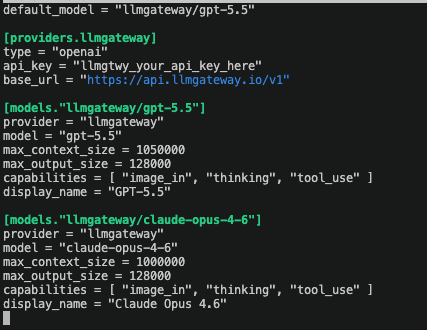
); }; ``` ```ts title="/lib/image-utils.ts" /** * Parses a file object containing image data and returns a properly formatted data URL * and normalized media type. * * Handles: * - Normalizing mediaType from various property names (mediaType, mime_type) * - Detecting existing data: URLs * - Detecting base64-looking content * - Stripping whitespace from base64 content * - Building proper data:...;base64,... URLs */ export function parseImageFile(file: { url?: string; mediaType?: string; mime_type?: string; }): { dataUrl: string; mediaType: string } { const mediaType = file.mediaType || file.mime_type || "image/png"; let url = String(file.url || ""); const isDataUrl = url.startsWith("data:"); const looksLikeBase64 = !isDataUrl && /^[A-Za-z0-9+/=\s]+$/.test(url.slice(0, 200)); if (looksLikeBase64) { url = url.replace(/\s+/g, ""); } const dataUrl = isDataUrl ? url : looksLikeBase64 ? `data:${mediaType};base64,${url}` : url; return { dataUrl, mediaType }; } /** * Extracts base64-only content from a data URL. * Returns empty string if the input is not a valid data URL. */ export function extractBase64FromDataUrl(dataUrl: string): string { if (!dataUrl.startsWith("data:")) { return ""; } const comma = dataUrl.indexOf(","); return comma >= 0 ? dataUrl.slice(comma + 1) : ""; } /** * Parses an image part (either image_url or file type) and returns * dataUrl, base64Only, and mediaType ready for rendering. * * Handles error cases gracefully by returning empty base64Only string * when parsing fails, allowing the renderer to skip invalid images. */ export function parseImagePartToDataUrl(part: any): { dataUrl: string; base64Only: string; mediaType: string; } { try { // Handle image_url parts if (part.type === "image_url" && part.image_url?.url) { const url = part.image_url.url; const mediaType = "image/png"; // Default for image_url parts if (url.startsWith("data:")) { // Extract media type from data URL if present const match = url.match(/data:([^;]+)/); const extractedMediaType = match?.[1] || mediaType; return { dataUrl: url, base64Only: extractBase64FromDataUrl(url), mediaType: extractedMediaType, }; } return { dataUrl: url, base64Only: "", mediaType, }; } // Handle file parts (AI SDK format) if (part.type === "file") { const { dataUrl, mediaType } = parseImageFile(part); return { dataUrl, base64Only: extractBase64FromDataUrl(dataUrl), mediaType, }; } return { dataUrl: "", base64Only: "", mediaType: "image/png", }; } catch { return { dataUrl: "", base64Only: "", mediaType: "image/png", }; } } ``` ## Image Configuration [#image-configuration] You can customize the generated image using the optional `image_config` parameter (for chat completions) or `size`/`quality`/`style` parameters (for the images API). The supported parameters vary by provider. ### Google Models [#google-models] Available Google models: | Model | Description | | -------------------------------- | ----------------------------------------------------------------------------------- | | `gemini-3-pro-image-preview` | Gemini 3 Pro with native image generation. Supports aspect ratios and 1K–4K sizes. | | `gemini-3.1-flash-image-preview` | Gemini 3.1 Flash with native image generation. Supports 0.5K–4K sizes (default 1K). | #### gemini-3-pro-image-preview [#gemini-3-pro-image-preview] ```bash curl -X POST "https://api.deepbus.cn/v1/chat/completions" \ -H "Authorization: Bearer $LLM_GATEWAY_API_KEY" \ -H "Content-Type: application/json" \ -d '{ "model": "gemini-3-pro-image-preview", "messages": [ { "role": "user", "content": "Generate an image of a mountain landscape at sunset" } ], "image_config": { "aspect_ratio": "16:9", "image_size": "4K" } }' ``` | Parameter | Type | Description | | -------------- | ------ | --------------------------------------------------------------------------------------------------------------------------------------------- | | `aspect_ratio` | string | The aspect ratio of the generated image. Options: `"1:1"`, `"2:3"`, `"3:2"`, `"3:4"`, `"4:3"`, `"4:5"`, `"5:4"`, `"9:16"`, `"16:9"`, `"21:9"` | | `image_size` | string | The resolution of the generated image. Options: `"1K"` (1024x1024), `"2K"` (2048x2048), `"4K"` (4096x4096) | #### gemini-3.1-flash-image-preview [#gemini-31-flash-image-preview] ```bash curl -X POST "https://api.deepbus.cn/v1/chat/completions" \ -H "Authorization: Bearer $LLM_GATEWAY_API_KEY" \ -H "Content-Type: application/json" \ -d '{ "model": "gemini-3.1-flash-image-preview", "messages": [ { "role": "user", "content": "Generate an image of a mountain landscape at sunset" } ], "image_config": { "image_size": "1K" } }' ``` | Parameter | Type | Description | | -------------- | ------ | --------------------------------------------------------------------------------------------------------------------------------------------------------------------------------- | | `aspect_ratio` | string | The aspect ratio of the generated image. Options: `"1:1"`, `"1:4"`, `"1:8"`, `"2:3"`, `"3:2"`, `"3:4"`, `"4:1"`, `"4:3"`, `"4:5"`, `"5:4"`, `"8:1"`, `"9:16"`, `"16:9"`, `"21:9"` | | `image_size` | string | The resolution of the generated image. Options: `"0.5K"` (512x512), `"1K"` (1024x1024, default), `"2K"` (2048x2048), `"4K"` (4096x4096) | `gemini-3.1-flash-image-preview` uniquely supports `"0.5K"` resolution, which is not available on other Google image models. ### Alibaba Models [#alibaba-models] ```bash curl -X POST "https://api.deepbus.cn/v1/chat/completions" \ -H "Authorization: Bearer $LLM_GATEWAY_API_KEY" \ -H "Content-Type: application/json" \ -d '{ "model": "alibaba/qwen-image-plus", "messages": [ { "role": "user", "content": "Generate an image of a mountain landscape at sunset" } ], "image_config": { "image_size": "1024x1536", "n": 1, "seed": 42 } }' ``` | Parameter | Type | Description | | ------------ | ------- | ------------------------------------------------------------------------------------------------ | | `image_size` | string | Image dimensions in `WIDTHxHEIGHT` format. Examples: `"1024x1024"`, `"1024x1536"`, `"1536x1024"` | | `n` | integer | Number of images to generate (1-4) | | `seed` | integer | Random seed for reproducible generation | Available Alibaba models: | Model | Price | Description | | ------------------------- | ------------ | --------------------------------- | | `alibaba/qwen-image` | $0.035/image | Standard quality image generation | | `alibaba/qwen-image-plus` | $0.03/image | Good balance of quality and cost | | `alibaba/qwen-image-max` | $0.075/image | Highest quality image generation | Alibaba models use explicit pixel dimensions (e.g., `"1024x1536"`) instead of aspect ratios. For portrait orientation use `"1024x1536"`, for landscape use `"1536x1024"`. ### Z.AI Models [#zai-models] ```bash curl -X POST "https://api.deepbus.cn/v1/chat/completions" \ -H "Authorization: Bearer $LLM_GATEWAY_API_KEY" \ -H "Content-Type: application/json" \ -d '{ "model": "zai/cogview-4", "messages": [ { "role": "user", "content": "Generate an image of a futuristic city skyline" } ], "image_config": { "image_size": "1024x1024" } }' ``` | Parameter | Type | Description | | ------------ | ------- | ------------------------------------------------------------------------------------------------ | | `image_size` | string | Image dimensions in `WIDTHxHEIGHT` format. Examples: `"1024x1024"`, `"2048x1024"`, `"1024x2048"` | | `n` | integer | Number of images to generate | Available Z.AI models: | Model | Price | Description | | --------------- | ------------ | ------------------------------------------------------------------------------------------------------------------- | | `zai/cogview-4` | $0.01/image | CogView-4 with bilingual support and excellent text rendering | | `zai/glm-image` | $0.015/image | GLM-Image with hybrid auto-regressive architecture, excellent for text-rendering and knowledge-intensive generation | CogView-4 supports both Chinese and English prompts and excels at generating images with embedded text. ### OpenAI Models [#openai-models] ```bash curl -X POST "https://api.deepbus.cn/v1/chat/completions" \ -H "Authorization: Bearer $LLM_GATEWAY_API_KEY" \ -H "Content-Type: application/json" \ -d '{ "model": "openai/gpt-image-2", "messages": [ { "role": "user", "content": "Generate a photo-real cinematic landscape at golden hour" } ], "image_config": { "image_size": "3072x2160", "image_quality": "low" } }' ``` | Parameter | Type | Description | | --------------- | ------ | ------------------------------------------------------------------------------------- | | `image_size` | string | Image dimensions in `WIDTHxHEIGHT` format, or `"auto"` to let the model choose. | | `image_quality` | string | One of `"low"`, `"medium"`, `"high"`, or `"auto"`. Defaults to `"auto"` when omitted. | OpenAI image models do **not** accept `aspect_ratio`. Always specify `image_size` as `WIDTHxHEIGHT` (e.g. `"1024x1024"`, `"3072x2160"`). OpenAI requires both width and height to be divisible by 16, the longest edge to be ≤ 3840, and the total pixel count to fit within the model's pixel budget; requests outside these bounds are rejected with HTTP 400. Available OpenAI image models: | Model | Description | | -------------------- | ------------------------------------------------------------------------------------------------------------ | | `openai/gpt-image-2` | OpenAI's next-generation image model with improved quality and prompt adherence, supporting text and vision. | ### ByteDance Models [#bytedance-models] ```bash curl -X POST "https://api.deepbus.cn/v1/chat/completions" \ -H "Authorization: Bearer $LLM_GATEWAY_API_KEY" \ -H "Content-Type: application/json" \ -d '{ "model": "bytedance/seedream-4-5", "messages": [ { "role": "user", "content": "Generate an image of a futuristic cyberpunk city at night" } ], "image_config": { "image_size": "2048x2048" } }' ``` | Parameter | Type | Description | | ------------ | ------ | ------------------------------------------------------------------------------------------------ | | `image_size` | string | Image dimensions in `WIDTHxHEIGHT` format. Examples: `"1024x1024"`, `"2048x2048"`, `"4096x4096"` | Available ByteDance models: | Model | Price | Description | | ------------------------ | ------------ | --------------------------------------------------------------- | | `bytedance/seedream-4-0` | $0.035/image | High-quality text-to-image generation with 2K default output | | `bytedance/seedream-4-5` | $0.045/image | Enhanced quality and consistency with improved prompt adherence | Seedream models support up to 2-10 reference images for multi-image fusion and generation. The default output resolution is 2048×2048 (2K), with support up to 4096×4096 (4K). ## Usage Notes [#usage-notes] Image generation models typically have higher token costs compared to text-only models due to the computational requirements of image synthesis. Generated images are returned as base64-encoded data URLs, which can be large. Consider the payload size when integrating image generation into your applications. # LLM SDK URL: https://docs.doteb.com/features/llm-sdk # LLM SDK [#llm-sdk] The LLM SDK lets you drop **AI + in-app credit purchases** into your product the same way Stripe Elements lets you drop in payments. Your end-users get their **own wallet**, buy credits **inside your app**, and chat with any model the gateway supports. LLM Gateway is the merchant of record; you set a markup and keep the margin. It ships as three packages: | Package | Runs in | Use it for | | ---------------------- | ------------------------- | ------------------------------------------------------------------------------------ | | `@llmgateway/server` | Your backend (secret key) | Mint end-user sessions, manage wallets/customers, verify webhooks, trigger payouts | | `@llmgateway/client` | Browser (headless) | Framework-agnostic chat/image/embeddings + balance/top-up, with auto session refresh | | `@llmgateway/elements` | React | Drop-in ``, ``, `` + hooks | A complete, runnable Next.js example is available from the [Templates page](https://deepbus.cn/templates). ## How it works [#how-it-works] ``` Your backend ──(secret key sk_)──▶ POST /v1/sessions ──▶ ephemeral session token (es_, ~15 min) │ │ └────────── returns es_ to your frontend ◀────────────────┘ │ Browser (es_ + pk_) ──▶ chat / images / embeddings ──▶ debits the end-user wallet └──▶ buy credits (Stripe Elements) ─▶ credits land in the wallet ``` * Your **secret key** (`sk_…`) never leaves your backend. It mints short-lived **ephemeral session tokens** (`es_…`) scoped to one end-user wallet. * The **browser** only ever holds the `es_…` token (and a publishable Stripe key). It calls the gateway directly; usage is billed to that user's wallet. * **Markup is applied at top-up time**: if you set a 20% markup and a user buys $10, their wallet is credited the net spend power and your **margin accrues to your organization** for later payout. ## Set up in the dashboard [#set-up-in-the-dashboard] Before you write any code, configure the project you want to embed: 1. Open the LLM Gateway dashboard and select your project. 2. Go to **Settings → SDK** and turn on **End-user sessions**. 3. *(Optional)* Set a **markup percent** — the margin you earn on every top-up. 4. Add the browser origins allowed to call the gateway, one per line (e.g. `https://app.example.com`), then click **Save Settings**. 5. Under **Platform Secret Keys**, click **Create Live Key** (or **Create Test Key**) and copy the `sk_…` value immediately. 6. Store it as a server-side environment variable, for example `LLMGATEWAY_SECRET_KEY`. The platform secret key (`sk_…`) is different from a regular gateway API key (`llmgtwy_…`): it mints end-user sessions and must only ever be used from your backend. **Test mode.** A `sk_test_…` key is a sandbox key: end-user wallet top-ups go through Stripe's sandbox (use Stripe [test cards](https://docs.stripe.com/testing), no real charges), and its wallets are fully segregated from live ones — the same end-user gets independent test and live wallets. To keep sandbox money from buying real inference, **test-mode wallets can only call free models**: use the `auto` route (it picks a free model automatically) or a free model id; paid models return a `403`. Pair a test secret key on your backend with `mode="test"` on `` (see below) — the two must match. The platform secret key is shown only once. Do not put it in frontend code, browser bundles, mobile apps, or public repos. ## 1. Install [#1-install] ```bash # backend npm install @llmgateway/server # frontend (pick one) npm install @llmgateway/elements # React drop-in components npm install @llmgateway/client # headless / non-React ``` ## 2. Mint a session on your backend [#2-mint-a-session-on-your-backend] Identify your signed-in user and mint a session bound to their wallet. Scope which models they may call. ```ts // app/api/llmgateway/session/route.ts (Next.js Route Handler) import { LLMGateway } from "@llmgateway/server"; const lg = new LLMGateway({ secretKey: process.env.LLMGATEWAY_SECRET_KEY! }); export async function POST() { const session = await lg.sessions.create({ customer: { externalId: "user_123" }, // your stable user id scope: { models: ["openai/gpt-4o-mini"] }, // lock down what they can call ttlSeconds: 900, // optional, default 15 min }); return Response.json(session); // { sessionToken, walletId, endCustomerId, expiresAt, publishableKey } } ``` Always mint sessions server-side. Never ship your `sk_…` secret key to the browser. ## 3a. Drop in the React components [#3a-drop-in-the-react-components] Wrap your UI in `` and use the components. `fetchSession` is how the client refreshes the short-lived token before it expires. ```tsx "use client"; import { LLMGatewayProvider, Chat, CreditBalance, BuyCredits, } from "@llmgateway/elements"; const fetchSession = () => fetch("/api/llmgateway/session", { method: "POST" }).then((r) => r.json()); export default function Assistant({ session }) { return ( ); } ``` Need full control over rendering? Use the hooks instead of the components: * `useBalance()` → `{ balance, currency, recentLedger, loading, error, refetch, refetchUntilChange }` * `useChat({ model })` → `{ turns, send, streaming, ... }` `useBalance().refetchUntilChange()` polls until the balance actually changes — use it after a purchase, since the wallet is credited asynchronously once the Stripe webhook lands. ## 3b. Or go headless (any framework) [#3b-or-go-headless-any-framework] ```ts import { LLMGatewayClient } from "@llmgateway/client"; const client = new LLMGatewayClient({ session: { token: session.sessionToken, expiresAt: session.expiresAt }, refresh: fetchSession, // auto-refreshes ~60s before expiry }); // stream a completion (billed to the user's wallet) for await (const delta of client.stream({ model: "openai/gpt-4o-mini", messages: [{ role: "user", content: "Hello!" }], })) { process.stdout.write(delta); } const { balance } = await client.getBalance(); ``` The headless client also exposes `chat()`, `image()`, `embeddings()`, `getBalance()`, `createTopUp(amount)`, and `getConfig()`. ## Buying credits [#buying-credits] `` creates a Stripe PaymentIntent scoped to the user's wallet, renders Stripe's `PaymentElement`, and confirms the payment. Once LLM Gateway's webhook processes it, the wallet is credited the **net** amount (after your markup) and your margin accrues to your organization. `@llmgateway/elements` bundles LLM Gateway's browser-safe Stripe publishable keys. Pass `mode="test"` to `` while developing to use Stripe test mode; omit it or pass `mode="prod"` for live payments (`"prod"` is the default). You never need to provide LLM Gateway's Stripe publishable key yourself, and the end-user never sees your `sk_…` secret key. The frontend `mode` prop and the backend secret key must match. A `sk_test_…` key creates the top-up PaymentIntent in the Stripe sandbox, which only the `mode="test"` publishable key can confirm — mixing a test key with `mode="prod"` (or vice versa) makes `` fail to confirm. ## Managing wallets & customers (server-side) [#managing-wallets--customers-server-side] ```ts // grant credits directly (e.g. free trial) await lg.wallets.credit({ walletId, amount: 5, reason: "Signup bonus" }); const wallet = await lg.wallets.retrieve(walletId); // analytics: customers with balances + lifetime spend const { customers } = await lg.customers.list(); const detail = await lg.customers.retrieve(endCustomerId); ``` ## Webhooks [#webhooks] Register an endpoint to react to wallet events. Events are signed (`X-LLMGateway-Signature`); verify them like Stripe. ```ts await lg.webhookEndpoints.create({ url: "https://yourapp.com/webhooks/llmgateway", enabledEvents: ["wallet.credited", "wallet.low_balance"], }); // in your handler const event = lg.webhooks.constructEvent( rawBody, signatureHeader, endpointSecret, ); ``` Webhook URLs must be **https** and public — requests to private/internal addresses are rejected (SSRF protection), both at registration and at delivery time. ## Margin payouts (Stripe Connect) [#margin-payouts-stripe-connect] Your accrued markup is held as a margin balance. Onboard a connected account and pay it out: ```ts const { url } = await lg.connect.createOnboardingLink({ refreshUrl: "https://yourapp.com/settings/payouts", returnUrl: "https://yourapp.com/settings/payouts?done=1", }); // redirect the developer to `url`, then later: const status = await lg.connect.status(); // { onboarded, payoutsEnabled, marginBalance } const payout = await lg.connect.payout(); // transfer the accrued margin out ``` ## Security model [#security-model] * **Ephemeral tokens** (`es_…`) are short-lived and revocable; mint them per-user from your backend. * **Model scopes** restrict each session to an allow-list of models. * **Origin allowlist** (configured on the project) blocks browser calls from unexpected origins. * **Per-session spend caps** (`scope.maxSpend`) bound how much a single session can spend. ## Full example [#full-example] The end-to-end Next.js app — backend session route, provider, chat, and buy-credits — is available from the Templates page: ➡️ [**LLM SDK credits template**](https://deepbus.cn/templates) # Master Keys URL: https://docs.doteb.com/features/master-keys # Master Keys [#master-keys] Master keys are org-scoped bearer tokens that let you create projects and gateway API keys programmatically — without going through the dashboard. They are intended for server-to-server provisioning (e.g. multi-tenant onboarding from your own backend). Master keys are available on the **Enterprise** plan only. Contact us at [contact@deepbus.cn](mailto:contact@deepbus.cn) to enable them for your organization. ## Security [#security] * Master keys are stored as **HMAC-SHA256 hashes** in the database (using the `GATEWAY_API_KEY_HASH_SECRET` secret). The plain token is shown to you **only once** at creation time. * Each master key is scoped to a single organization and cannot access resources in other organizations. * Deleting or deactivating a master key revokes all programmatic access immediately. * All creates/deletes/status changes are recorded in your organization audit log. ## Limits [#limits] * Maximum **10 active master keys per organization**. * Programmatic project and API-key creation enforces the same per-org and per-project limits as the dashboard flow. ## Managing master keys [#managing-master-keys] In the dashboard, go to **Organization → Master Keys**. From there you can: * Create a new master key (the plain token is shown once — copy it immediately). * View the masked token, status, creator, and last-used timestamp for each existing key. * Activate / deactivate or delete keys. ## Authentication [#authentication] All programmatic endpoints live under `/v1/master/*` and require a master key in the `Authorization` header: ``` Authorization: Bearer llmgmk_... ``` A request with a missing, invalid, inactive, or non-enterprise master key receives a 401 / 403 response. ## Endpoints [#endpoints] ### List projects [#list-projects] `GET /v1/master/projects` Returns all non-deleted projects in the master key's organization. ```bash curl https://internal.deepbus.cn/v1/master/projects \ -H "Authorization: Bearer $MASTER_KEY" ``` Response (200): ```json { "projects": [ { "id": "proj_...", "name": "Customer ACME", "organizationId": "org_...", "cachingEnabled": false, "cacheDurationSeconds": 60, "mode": "hybrid", "status": "active", "createdAt": "...", "updatedAt": "..." } ] } ``` ### Create a project [#create-a-project] `POST /v1/master/projects` ```bash curl -X POST https://internal.deepbus.cn/v1/master/projects \ -H "Authorization: Bearer $MASTER_KEY" \ -H "Content-Type: application/json" \ -d '{ "name": "Customer ACME", "cachingEnabled": false, "mode": "hybrid" }' ``` Body parameters: | Field | Type | Description | | ---------------------- | ------------------------------------------------ | -------------------------- | | `name` | string | Project name (1–255 chars) | | `cachingEnabled` | boolean (optional) | Default `false` | | `cacheDurationSeconds` | number (optional) | 10–31536000, default 60 | | `mode` | `"api-keys" \| "credits" \| "hybrid"` (optional) | Default `"hybrid"` | Response (201): the created project. ### Update a project [#update-a-project] `PATCH /v1/master/projects/{id}` Updates a project owned by the master key's organization. All body fields are optional; provide only the ones you want to change. ```bash curl -X PATCH https://internal.deepbus.cn/v1/master/projects/proj_... \ -H "Authorization: Bearer $MASTER_KEY" \ -H "Content-Type: application/json" \ -d '{ "name": "Customer ACME (renamed)", "cachingEnabled": true, "status": "inactive" }' ``` Body parameters (all optional, at least one required): | Field | Type | Description | | ---------------------- | ------------------------------------- | ----------------------------------- | | `name` | string | 1–255 chars | | `cachingEnabled` | boolean | | | `cacheDurationSeconds` | number | 10–31536000 | | `mode` | `"api-keys" \| "credits" \| "hybrid"` | | | `status` | `"active" \| "inactive"` | Toggle the project without deleting | Response (200): the updated project. ### Delete a project [#delete-a-project] `DELETE /v1/master/projects/{id}` Soft-deletes a project (sets `status` to `"deleted"`). Cascades to its API keys. ```bash curl -X DELETE https://internal.deepbus.cn/v1/master/projects/proj_... \ -H "Authorization: Bearer $MASTER_KEY" ``` Response (200): ```json { "message": "Project deleted successfully" } ``` ### Create a gateway API key [#create-a-gateway-api-key] `POST /v1/master/keys` ```bash curl -X POST https://internal.deepbus.cn/v1/master/keys \ -H "Authorization: Bearer $MASTER_KEY" \ -H "Content-Type: application/json" \ -d '{ "projectId": "proj_...", "description": "Customer ACME — production key" }' ``` Body parameters: | Field | Type | Description | | -------------------------- | ------------------------------------------------- | -------------------------------------------- | | `projectId` | string | Must belong to the master key's organization | | `description` | string | API key description (1–255 chars) | | `usageLimit` | string (optional) | Lifetime usage limit | | `periodUsageLimit` | string (optional) | Recurring period usage limit | | `periodUsageDurationValue` | number (optional) | Required if `periodUsageLimit` is set | | `periodUsageDurationUnit` | `"hour" \| "day" \| "week" \| "month"` (optional) | Required if `periodUsageLimit` is set | The created gateway API key's plain token is returned in the response **only once**. Persist it immediately on your side. Response (201): ```json { "apiKey": { "id": "ak_...", "token": "llmgtwy_...", "description": "Customer ACME — production key", "status": "active", "projectId": "proj_...", "createdBy": "usr_...", "createdAt": "...", "updatedAt": "..." } } ``` ### Update a gateway API key [#update-a-gateway-api-key] `PATCH /v1/master/keys/{id}` Updates an API key in a project owned by the master key's organization. All body fields are optional; provide only the ones you want to change. ```bash curl -X PATCH https://internal.deepbus.cn/v1/master/keys/ak_... \ -H "Authorization: Bearer $MASTER_KEY" \ -H "Content-Type: application/json" \ -d '{ "status": "inactive", "usageLimit": "100.00" }' ``` Body parameters (all optional, at least one required): | Field | Type | Description | | -------------------------- | -------------------------------------- | -------------------------------------- | | `description` | string | 1–255 chars | | `status` | `"active" \| "inactive"` | | | `usageLimit` | string \| null | Lifetime usage limit (null to clear) | | `periodUsageLimit` | string \| null | Recurring period limit (null to clear) | | `periodUsageDurationValue` | number \| null | Required if `periodUsageLimit` is set | | `periodUsageDurationUnit` | `"hour" \| "day" \| "week" \| "month"` | Required if `periodUsageLimit` is set | Response (200): the updated API key (the plain token is **not** included — it is only returned at creation). ### Delete a gateway API key [#delete-a-gateway-api-key] `DELETE /v1/master/keys/{id}` Soft-deletes the API key (sets `status` to `"deleted"`). Any in-flight requests using the key will be rejected immediately on next auth check. ```bash curl -X DELETE https://internal.deepbus.cn/v1/master/keys/ak_... \ -H "Authorization: Bearer $MASTER_KEY" ``` Response (200): ```json { "message": "API key deleted successfully" } ``` The auto-generated playground API key cannot be deleted via the master API. ## IAM rules [#iam-rules] Each gateway API key can have one or more IAM rules that restrict which models, providers, or pricing tiers it is allowed to use. Rules are evaluated at request time by the gateway. A key with no active rules has no IAM restrictions. Rule types: | `ruleType` | Description | | ----------------- | ----------------------------------------------------------- | | `allow_models` | Only the listed models are permitted | | `deny_models` | The listed models are blocked | | `allow_providers` | Only the listed providers are permitted | | `deny_providers` | The listed providers are blocked | | `allow_pricing` | Only models matching the pricing constraint are permitted | | `deny_pricing` | Models matching the pricing constraint are blocked | | `allow_ip_cidrs` | Only requests from the listed IPv4/IPv6 CIDRs are permitted | | `deny_ip_cidrs` | Requests from the listed IPv4/IPv6 CIDRs are blocked | The `ruleValue` JSON object holds the rule's parameters. The fields it accepts depend on the `ruleType`: | Field | Type | Used by | | ---------------- | ------------------ | ----------------------------------- | | `models` | string\[] | `allow_models`, `deny_models` | | `providers` | string\[] | `allow_providers`, `deny_providers` | | `pricingType` | `"free" \| "paid"` | `allow_pricing`, `deny_pricing` | | `maxInputPrice` | number | `allow_pricing`, `deny_pricing` | | `maxOutputPrice` | number | `allow_pricing`, `deny_pricing` | | `ipCidrs` | string\[] | `allow_ip_cidrs`, `deny_ip_cidrs` | ### IP CIDR rules [#ip-cidr-rules] IP CIDR rules restrict gateway requests by source IP. Both IPv4 (e.g. `192.0.2.0/24`) and IPv6 (e.g. `2001:db8::/32`) ranges are supported, and you can mix both in a single rule. To restrict to a single address, use a `/32` (IPv4) or `/128` (IPv6) prefix. The gateway reads the client IP from the first entry in the `X-Forwarded-For` header, which is set by the GCP load balancer. IPv4-mapped IPv6 addresses (`::ffff:1.2.3.4`) are normalized to IPv4 so a single `1.2.3.0/24` rule still matches when the upstream connection happens to be IPv6. When an `allow_ip_cidrs` rule is configured and the gateway cannot determine the client IP, the request is denied. Invalid CIDR syntax is rejected at rule-creation time with a `400` error. All endpoints scope by the master key's organization: a `404` is returned if the API key (or rule) is not part of the authenticated master key's organization. ### List IAM rules [#list-iam-rules] `GET /v1/master/keys/{id}/iam` ```bash curl https://internal.deepbus.cn/v1/master/keys/ak_.../iam \ -H "Authorization: Bearer $MASTER_KEY" ``` Response (200): ```json { "rules": [ { "id": "iam_...", "apiKeyId": "ak_...", "ruleType": "allow_models", "ruleValue": { "models": ["openai/gpt-4o", "anthropic/claude-3-5-sonnet"] }, "status": "active", "createdAt": "...", "updatedAt": "..." } ] } ``` ### Create an IAM rule [#create-an-iam-rule] `POST /v1/master/keys/{id}/iam` ```bash curl -X POST https://internal.deepbus.cn/v1/master/keys/ak_.../iam \ -H "Authorization: Bearer $MASTER_KEY" \ -H "Content-Type: application/json" \ -d '{ "ruleType": "allow_models", "ruleValue": { "models": ["openai/gpt-4o", "anthropic/claude-3-5-sonnet"] } }' ``` Body parameters: | Field | Type | Description | | ----------- | ------------------------ | ------------------------------------------------------- | | `ruleType` | rule type enum (above) | Required | | `ruleValue` | object (see table above) | Must include the fields appropriate for the chosen type | | `status` | `"active" \| "inactive"` | Optional, defaults to `"active"` | Restricting by source IP: ```bash curl -X POST https://internal.deepbus.cn/v1/master/keys/ak_.../iam \ -H "Authorization: Bearer $MASTER_KEY" \ -H "Content-Type: application/json" \ -d '{ "ruleType": "allow_ip_cidrs", "ruleValue": { "ipCidrs": ["192.0.2.0/24", "2001:db8::/32"] } }' ``` Response (201): the created IAM rule. ### Update an IAM rule [#update-an-iam-rule] `PATCH /v1/master/keys/{id}/iam/{ruleId}` All body fields are optional; provide only the ones you want to change. ```bash curl -X PATCH https://internal.deepbus.cn/v1/master/keys/ak_.../iam/iam_... \ -H "Authorization: Bearer $MASTER_KEY" \ -H "Content-Type: application/json" \ -d '{ "status": "inactive" }' ``` Body parameters (all optional, at least one required): | Field | Type | Description | | ----------- | ------------------------ | --------------------------------------- | | `ruleType` | rule type enum (above) | Change the rule type | | `ruleValue` | object (see table above) | Replace the rule value | | `status` | `"active" \| "inactive"` | Activate or deactivate without deleting | Response (200): the updated IAM rule. ### Delete an IAM rule [#delete-an-iam-rule] `DELETE /v1/master/keys/{id}/iam/{ruleId}` Permanently removes an IAM rule from the API key. ```bash curl -X DELETE https://internal.deepbus.cn/v1/master/keys/ak_.../iam/iam_... \ -H "Authorization: Bearer $MASTER_KEY" ``` Response (200): ```json { "message": "IAM rule deleted successfully" } ``` # Metadata URL: https://docs.doteb.com/features/metadata # Metadata [#metadata] LLM Gateway supports sending additional metadata with your requests using custom headers. This allows you to include information like user sessions, application versions, tenant IDs, or other contextual data that can be useful for analytics and monitoring. Later, you can filter by specific values to return, such as for a specific user or session. Additionally, in the future, you will be able to segment your analytics and monitoring based on this metadata. For example, you could show cost and latency breakdowns per user, application, country, feature, or any other dimension you want to track. ## Custom Headers [#custom-headers] You can include custom headers with the `X-LLMGateway-` prefix to send metadata alongside your LLM requests: ```bash curl -X POST https://api.deepbus.cn/v1/chat/completions \ -H "Content-Type: application/json" \ -H "Authorization: Bearer $LLM_GATEWAY_API_KEY" \ -H "X-LLMGateway-Country: US" \ -H "X-LLMGateway-User-ID: 9403f741-a524-4b18-b1b2-dbb71cdff2a4" \ -d '{ "model": "gpt-4o", "messages": [ { "role": "user", "content": "Hello, how are you?" } ] }' ``` ## Best Practices [#best-practices] ### Header Naming [#header-naming] * Use the `X-LLMGateway-` prefix for all custom metadata * Use descriptive, consistent naming conventions * Avoid special characters; use hyphens to separate words ### Data Privacy [#data-privacy] * Be mindful of sensitive data in headers * Consider hashing or anonymizing user identifiers * Follow your organization's data privacy policies ### Performance [#performance] * Keep header values reasonably short * Avoid sending unnecessary metadata that won't be used for analytics * Consider the impact on request size, especially for high-volume applications ## Example: Multi-tenant Application [#example-multi-tenant-application] For a multi-tenant application, you might use metadata headers like this: ```bash curl -X POST https://api.deepbus.cn/v1/chat/completions \ -H "Content-Type: application/json" \ -H "Authorization: Bearer $LLM_GATEWAY_API_KEY" \ -H "X-LLMGateway-Tenant-ID: acme-corp" \ -H "X-LLMGateway-User-ID: user-12345" \ -H "X-LLMGateway-App-Version: 2.1.4" \ -H "X-LLMGateway-Feature: chat-assistant" \ -d '{ "model": "gpt-4o", "messages": [ { "role": "user", "content": "Summarize this document..." } ] }' ``` This allows you to track usage and costs per tenant, user, application version, and feature, providing detailed insights into how your LLM integration is being used across your platform. # Moderations URL: https://docs.doteb.com/features/moderations # Moderations [#moderations] LLMGateway supports the OpenAI-compatible `/v1/moderations` endpoint for text and multimodal safety classification. Use it when you want to: * Screen user prompts before they reach a model * Review generated output before displaying it * Apply the same moderation API shape you already use with OpenAI clients For the full request and response schema, see the [API reference](/v1/moderations). ## Endpoint [#endpoint] `POST https://api.deepbus.cn/v1/moderations` Authenticate with your LLMGateway API key: ```bash -H "Authorization: Bearer $LLM_GATEWAY_API_KEY" ``` ## Supported Inputs [#supported-inputs] The `input` field accepts: * A single string * An array of strings * An array of multimodal content items with `text` and `image_url` The default model is `omni-moderation-latest`. ## curl [#curl] ### Single text input [#single-text-input] ```bash curl -X POST "https://api.deepbus.cn/v1/moderations" \ -H "Authorization: Bearer $LLM_GATEWAY_API_KEY" \ -H "Content-Type: application/json" \ -d '{ "input": "I want to harm someone." }' ``` ### Multiple text inputs [#multiple-text-inputs] ```bash curl -X POST "https://api.deepbus.cn/v1/moderations" \ -H "Authorization: Bearer $LLM_GATEWAY_API_KEY" \ -H "Content-Type: application/json" \ -d '{ "model": "omni-moderation-latest", "input": [ "This is a harmless sentence.", "I want to attack somebody." ] }' ``` ### Multimodal input [#multimodal-input] ```bash curl -X POST "https://api.deepbus.cn/v1/moderations" \ -H "Authorization: Bearer $LLM_GATEWAY_API_KEY" \ -H "Content-Type: application/json" \ -d '{ "input": [ { "type": "text", "text": "Check this image for violent content." }, { "type": "image_url", "image_url": { "url": "https://example.com/image.png" } } ] }' ``` ## OpenAI SDK [#openai-sdk] ```ts import OpenAI from "openai"; const client = new OpenAI({ baseURL: "https://api.deepbus.cn/v1", apiKey: process.env.LLM_GATEWAY_API_KEY, }); const response = await client.moderations.create({ model: "omni-moderation-latest", input: "I want to harm someone.", }); console.log(response.results[0]?.flagged); ``` ## Response Shape [#response-shape] The response follows the standard OpenAI moderation format: ```json { "id": "modr-123", "model": "omni-moderation-latest", "results": [ { "flagged": true, "categories": { "violence": true, "self_harm": false }, "category_scores": { "violence": 0.98, "self_harm": 0.01 } } ] } ``` ## When To Use This Instead Of Chat Content Filtering [#when-to-use-this-instead-of-chat-content-filtering] Use `/v1/moderations` when you want an explicit moderation decision in your own application flow. If you want moderation to happen automatically as part of model requests, use LLMGateway content filtering on `/v1/chat/completions` instead. # Reasoning URL: https://docs.doteb.com/features/reasoning # Reasoning [#reasoning] LLMGateway supports reasoning-capable models that can show their step-by-step thought process before providing a final answer. This feature is particularly useful for complex problem-solving tasks, mathematical calculations, and logical reasoning. ## Reasoning-Enabled Models [#reasoning-enabled-models] You can find all reasoning-enabled models on our [models page with reasoning filter](https://deepbus.cn/models?filters=1\&reasoning=true). These models include: * OpenAI's GPT-5 series (e.g., `gpt-5`, `gpt-5-mini`) * Note: GPT-5 models use reasoning but currently do not return the reasoning content in the response. * Anthropic's Claude 3.7 Sonnet * Google's Gemini 2.0 Flash Thinking and Gemini 2.5 Pro * GPT OSS models such as `gpt-oss-120b` and `gpt-oss-20b` * Z.AI's reasoning models Some models may reason internally even if the `reasoning_effort` parameter is not specified. ## Using the Reasoning Parameter [#using-the-reasoning-parameter] There are two ways to control reasoning effort: ### Option 1: Top-level `reasoning_effort` [#option-1-top-level-reasoning_effort] Add the `reasoning_effort` parameter directly to your request: * `none` - Disable reasoning. Supported by OpenAI's newer reasoning models (e.g. `gpt-5.4-mini` and later, which accept `none` instead of `minimal`). For other providers this turns reasoning off. * `minimal` - Fastest reasoning with minimal thought process (only for GPT-5 models) * `low` - Light reasoning for simpler tasks * `medium` - Balanced reasoning for most tasks * `high` - Deep reasoning for complex problems * `xhigh` - Maximum reasoning depth for the most complex problems OpenAI's reasoning models do not all accept the same effort values. The original GPT-5 models support `minimal`, while newer models (e.g. `gpt-5.4-mini` and later) replace it with `none`. If you send an effort value the target model doesn't support, OpenAI returns an `unsupported_value` error. ```bash curl -X POST "https://api.deepbus.cn/v1/chat/completions" \ -H "Authorization: Bearer $LLM_GATEWAY_API_KEY" \ -H "Content-Type: application/json" \ -d '{ "model": "gpt-oss-120b", "messages": [ { "role": "user", "content": "What is 2/3 + 1/4 + 5/6?" } ], "reasoning_effort": "medium" }' ``` ### Option 2: Using the `reasoning` object [#option-2-using-the-reasoning-object] Use the unified `reasoning` configuration object with an `effort` field: * `none` - Disable reasoning * `minimal` - Fastest reasoning with minimal thought process * `low` - Light reasoning for simpler tasks * `medium` - Balanced reasoning for most tasks * `high` - Deep reasoning for complex problems * `xhigh` - Maximum reasoning depth for the most complex problems ```bash curl -X POST "https://api.deepbus.cn/v1/chat/completions" \ -H "Authorization: Bearer $LLM_GATEWAY_API_KEY" \ -H "Content-Type: application/json" \ -d '{ "model": "gpt-5", "messages": [ { "role": "user", "content": "What is 2/3 + 1/4 + 5/6?" } ], "reasoning": { "effort": "medium" } }' ``` You cannot use both `reasoning_effort` and `reasoning.effort` in the same request. Choose one approach. However, you can combine `reasoning_effort` or `reasoning.effort` with `reasoning.max_tokens` — when `max_tokens` is specified, it takes priority over the effort level. ### Example Response [#example-response] The response will include a `reasoning` field in the message object containing the model's step-by-step thought process: ```json { "id": "chatcmpl-abc123", "object": "chat.completion", "created": 1234567890, "model": "gpt-oss-120b", "choices": [ { "index": 0, "message": { "role": "assistant", "content": "The answer is 1.75 or 7/4.", "reasoning": "First, I need to find a common denominator for 2/3, 1/4, and 5/6. The LCD is 12. Converting: 2/3 = 8/12, 1/4 = 3/12, 5/6 = 10/12. Adding: 8/12 + 3/12 + 10/12 = 21/12 = 1.75 or 7/4." }, "finish_reason": "completed" } ], "usage": { "prompt_tokens": 20, "completion_tokens": 45, "reasoning_tokens": 35, "total_tokens": 65 } } ``` ## Specifying Reasoning Token Budget [#specifying-reasoning-token-budget] For models that support it, you can specify an exact token budget for reasoning using the `reasoning` object with `max_tokens`. This gives you precise control over how many tokens the model allocates to its thinking process. When `reasoning.max_tokens` is specified, it overrides `reasoning.effort` and `reasoning_effort`. Supported by Anthropic Claude and Google Gemini thinking models. ### Example Request [#example-request] ```bash curl -X POST "https://api.deepbus.cn/v1/chat/completions" \ -H "Authorization: Bearer $LLM_GATEWAY_API_KEY" \ -H "Content-Type: application/json" \ -d '{ "model": "anthropic/claude-sonnet-4-20250514", "messages": [ { "role": "user", "content": "Explain the P vs NP problem and why it matters." } ], "reasoning": { "max_tokens": 8000 } }' ``` ### Supported Models [#supported-models] The `reasoning.max_tokens` parameter is supported by: * **Anthropic Claude**: Claude 3.7 Sonnet, Claude Sonnet 4, Claude Opus 4, Claude Opus 4.5 * **Google Gemini**: Gemini 2.5 Pro, Gemini 2.5 Flash, Gemini 3 Pro Preview When using auto-routing or root models with `reasoning.max_tokens`, only providers that support this feature will be considered. ### Provider-Specific Constraints [#provider-specific-constraints] * **Anthropic**: Reasoning budget must be between 1,024 and 128,000 tokens. Values outside this range are automatically clamped. * **Google**: No specific constraints on the reasoning budget. ### Error Handling [#error-handling] If you specify `reasoning.max_tokens` for a model that doesn't support it, you'll receive an error: ```json { "error": { "message": "Model gpt-4o does not support reasoning.max_tokens. Remove the reasoning parameter or use a model that supports explicit reasoning token budgets.", "type": "invalid_request_error", "code": "model_not_supported" } } ``` ## Streaming Reasoning Content [#streaming-reasoning-content] When streaming is enabled, reasoning content will be streamed as part of the response chunks: ```bash curl -X POST "https://api.deepbus.cn/v1/chat/completions" \ -H "Authorization: Bearer $LLM_GATEWAY_API_KEY" \ -H "Content-Type: application/json" \ -d '{ "model": "gpt-oss-120b", "messages": [ { "role": "user", "content": "Solve this logic puzzle: If all roses are flowers and some flowers fade quickly, can we conclude that some roses fade quickly?" } ], "reasoning_effort": "high", "stream": true }' ``` The reasoning content will appear in the stream chunks before the final answer, allowing you to display the model's thought process in real-time. Example: ``` data: { "id": "chatcmpl-fb266880-1016-4797-9a70-f21a538edaf6", "object": "chat.completion.chunk", "created": 1761048126, "model": "openai/gpt-oss-20b", "choices": [ { "index": 0, "delta": { "reasoning": "It's ", "role": "assistant" }, "finish_reason": null } ] } ``` ## Usage Tracking [#usage-tracking] ### Response Payload [#response-payload] The `usage` object in the response includes reasoning-specific token counts: * `reasoning_tokens` - Number of tokens used for the reasoning process * `completion_tokens` - Number of tokens in the final answer * `prompt_tokens` - Number of tokens in the input * `total_tokens` - Sum of all token counts ### Logs and Analytics [#logs-and-analytics] All requests using the `reasoning_effort` parameter are tracked in your dashboard logs with: * The `reasoningContent` field containing the full reasoning text * Separate token counts for reasoning vs. completion * Performance metrics for reasoning-enabled requests You can view detailed logs for each request in the [dashboard](https://deepbus.cn/dashboard) to analyze how models are reasoning through problems. ## Auto-Routing with Reasoning [#auto-routing-with-reasoning] When using auto-routing (specifying a model like `gpt-5` without a specific version), LLMGateway will: 1. Automatically set `reasoning_effort` to `minimal` for GPT-5 models 2. Set `reasoning_effort` to `low` for other auto-routed reasoning models 3. Only route to providers that support reasoning when `reasoning_effort` is specified This ensures optimal performance and cost when using auto-routing with reasoning-capable models. ## Model-Specific Behavior [#model-specific-behavior] Not all reasoning models return reasoning content in the same way. Some models (like OpenAI models) may reason internally but not expose the reasoning content in the response. LLMGateway makes sure the response is unified across different providers, but the depth and format of reasoning may vary. ## Best Practices [#best-practices] 1. **Choose appropriate reasoning effort**: Use `low` or `minimal` for simple tasks, `medium` for most tasks, and `high` only for complex problems that require deep reasoning 2. **Monitor token usage**: Reasoning can significantly increase token consumption - monitor your `reasoning_tokens` in the usage object 3. **Stream for better UX**: When building user-facing applications, enable streaming to show the reasoning process in real-time 4. **Check logs**: Review the `reasoningContent` in your dashboard logs to understand how models are solving problems ## Error Handling [#error-handling-1] If you specify `reasoning_effort` for a model that doesn't support reasoning, you'll receive an error: ```json { "error": { "message": "Model gpt-4o does not support reasoning. Remove the reasoning_effort parameter or use a reasoning-capable model.", "type": "invalid_request_error", "code": "model_not_supported" } } ``` To avoid this error, only use the `reasoning_effort` parameter with [reasoning-enabled models](https://deepbus.cn/models?filters=1\&reasoning=true). # Response Healing URL: https://docs.doteb.com/features/response-healing # Response Healing [#response-healing] Response Healing is a plugin that automatically validates and repairs malformed JSON responses from AI models. When enabled, LLM Gateway ensures that API responses conform to your specified schemas even when the model's formatting is imperfect. ## Why Response Healing? [#why-response-healing] Large language models occasionally produce invalid JSON, especially in complex scenarios: * **Markdown wrapping**: Models often wrap JSON in code blocks like \`\`\`json...\`\`\` * **Mixed content**: JSON may be preceded or followed by explanatory text * **Syntax errors**: Trailing commas, unquoted keys, or single quotes instead of double quotes * **Truncated output**: Token limits may cut off responses mid-JSON Response Healing automatically detects and fixes these issues, saving you from implementing error handling for every possible malformed response. ## Enabling Response Healing [#enabling-response-healing] To enable Response Healing, add `response-healing` to the `plugins` array in your request: ```bash curl -X POST "https://api.deepbus.cn/v1/chat/completions" \ -H "Authorization: Bearer $LLM_GATEWAY_API_KEY" \ -H "Content-Type: application/json" \ -d '{ "model": "gpt-4o", "messages": [{"role": "user", "content": "Return a JSON object with name and age"}], "response_format": {"type": "json_object"}, "plugins": [{"id": "response-healing"}] }' ``` Response Healing only activates when `response_format` is set to `json_object` or `json_schema`. For regular text responses, the plugin has no effect. ## How It Works [#how-it-works] When Response Healing is enabled, LLM Gateway applies a series of repair strategies to malformed JSON responses: ### 1. Markdown Extraction [#1-markdown-extraction] Extracts JSON from markdown code blocks: ```text Here's the data: \`\`\`json {"name": "Alice", "age": 30} \`\`\` ``` Becomes: ```json { "name": "Alice", "age": 30 } ``` ### 2. Mixed Content Extraction [#2-mixed-content-extraction] Separates JSON from surrounding text: ```text Sure! Here is the JSON you requested: {"name": "Alice", "age": 30} Let me know if you need anything else. ``` Becomes: ```json { "name": "Alice", "age": 30 } ``` ### 3. Syntax Fixes [#3-syntax-fixes] Repairs common JSON syntax violations: | Issue | Before | After | | --------------- | ------------------- | ------------------- | | Trailing commas | `{"a": 1,}` | `{"a": 1}` | | Unquoted keys | `{name: "Alice"}` | `{"name": "Alice"}` | | Single quotes | `{'name': 'Alice'}` | `{"name": "Alice"}` | ### 4. Truncation Completion [#4-truncation-completion] Adds missing closing brackets for truncated responses: ```text {"name": "Alice", "data": {"nested": true ``` Becomes: ```json { "name": "Alice", "data": { "nested": true } } ``` ## Usage Examples [#usage-examples] ### With JSON Object Format [#with-json-object-format] Request a structured response with automatic healing: ```typescript const response = await fetch("https://api.deepbus.cn/v1/chat/completions", { method: "POST", headers: { Authorization: `Bearer ${process.env.LLM_GATEWAY_API_KEY}`, "Content-Type": "application/json", }, body: JSON.stringify({ model: "gpt-4o", messages: [ { role: "user", content: "Return a JSON object with fields: name (string) and age (number)", }, ], response_format: { type: "json_object" }, plugins: [{ id: "response-healing" }], }), }); const result = await response.json(); // Response is guaranteed to be valid JSON const data = JSON.parse(result.choices[0].message.content); ``` ### With JSON Schema [#with-json-schema] For stricter validation, combine with `json_schema`: ```typescript const response = await fetch("https://api.deepbus.cn/v1/chat/completions", { method: "POST", headers: { Authorization: `Bearer ${process.env.LLM_GATEWAY_API_KEY}`, "Content-Type": "application/json", }, body: JSON.stringify({ model: "gpt-4o", messages: [ { role: "user", content: "Generate a user profile", }, ], response_format: { type: "json_schema", json_schema: { name: "user_profile", schema: { type: "object", required: ["name", "email"], properties: { name: { type: "string" }, email: { type: "string" }, age: { type: "number" }, }, }, }, }, plugins: [{ id: "response-healing" }], }), }); const result = await response.json(); ``` ## Healing Metadata [#healing-metadata] When a response is healed, the healing method is logged for debugging. The following healing methods may be applied: | Method | Description | | -------------------------- | ------------------------------------------- | | `markdown_extraction` | JSON extracted from markdown code blocks | | `mixed_content_extraction` | JSON extracted from surrounding text | | `syntax_fix` | Trailing commas, quotes, or keys were fixed | | `truncation_completion` | Missing closing brackets were added | | `combined_strategies` | Multiple strategies were applied | ## Limitations [#limitations] Response Healing is only available for non-streaming requests. Streaming responses are returned as-is without healing. Response Healing works best for: * Simple to moderately complex JSON structures * Common formatting issues from LLMs It may not be able to repair: * Severely corrupted or nonsensical output * Complex nested structures with multiple issues * Responses that don't contain any recognizable JSON ## Best Practices [#best-practices] ### Use with Structured Prompts [#use-with-structured-prompts] Combine Response Healing with clear instructions for best results: ```typescript const response = await fetch("https://api.deepbus.cn/v1/chat/completions", { method: "POST", headers: { Authorization: `Bearer ${process.env.LLM_GATEWAY_API_KEY}`, "Content-Type": "application/json", }, body: JSON.stringify({ model: "gpt-4o", messages: [ { role: "system", content: "Always respond with valid JSON. No explanations.", }, { role: "user", content: "List three colors as a JSON array", }, ], response_format: { type: "json_object" }, plugins: [{ id: "response-healing" }], }), }); const result = await response.json(); ``` ### Validate Critical Data [#validate-critical-data] For critical applications, validate the healed JSON in your code: ```typescript const result = await response.json(); const content = result.choices[0].message.content; const data = JSON.parse(content); // Add your own validation if (!data.name || typeof data.name !== "string") { throw new Error("Invalid response: missing name"); } ``` ### Monitor Healing Rates [#monitor-healing-rates] If you notice frequent healing in your logs, consider: * Improving your prompts to request cleaner JSON * Using models with better JSON output (e.g., GPT-4o, Claude 3.5) * Adding explicit JSON examples in your prompts # Routing URL: https://docs.doteb.com/features/routing # Routing [#routing] LLMGateway provides flexible and intelligent routing options to help you get the best performance and cost efficiency from your AI applications. Whether you want to use specific models, providers, or let our system automatically optimize your requests, we've got you covered. LLMGateway also includes **automatic retry and fallback** — if a provider fails, your request is seamlessly retried on the next best provider, all within the same API call. ## Model Selection [#model-selection] ### Any Model Name [#any-model-name] You can use any model name from our [models page](https://deepbus.cn/models) or discover available models programmatically through the [/v1/models endpoint](/v1_models). ```bash curl -X POST "https://api.deepbus.cn/v1/chat/completions" \ -H "Authorization: Bearer $LLM_GATEWAY_API_KEY" \ -H "Content-Type: application/json" \ -d '{ "model": "gpt-4o", "messages": [{"role": "user", "content": "Hello!"}] }' ``` ### Model ID Routing [#model-id-routing] Choose a specific model ID to route to the **best available provider** for that model. LLMGateway's smart routing algorithm considers multiple factors to find the optimal provider across all configured options. #### Smart Routing Algorithm [#smart-routing-algorithm] When you use a model ID without a provider prefix, LLMGateway's intelligent routing system analyzes multiple factors to select the best provider. **Weighted Scoring System**: Each factor has a **relative weight**. The factors are scored as ratios against the best provider in the candidate set (e.g. a provider that is twice as expensive as the cheapest scores `1.0` on price), and each ratio is multiplied by its weight divided by the sum of all active weights. The provider with the lowest (best) total score wins. The default weights are: | Factor | Default weight | Notes | | --------------- | -------------- | -------------------------------------------------------------------------- | | **Price** | `0.6` | Cost efficiency (average of input and output price) | | **Uptime** | `0.5` | Provider reliability / low error rate | | **Throughput** | `0.05` | Tokens per second generation speed | | **Latency** | `0.025` | Time to first token — **only applied for streaming requests** | | **Cache** | `0.2` | Prompt-cache support — **only applied for large prompts** (≥ 5,000 tokens) | | **Image price** | `1.0` | Replaces the price weight for image-generation models | Because the weights are relative and normalized by the sum of the active weights, price and uptime dominate routing decisions in practice, while throughput and latency act as tie-breakers between otherwise comparable providers. **Latency Weight for Non-Streaming Requests**: The latency weight only applies to streaming requests (time-to-first-token is only measured there). For non-streaming requests the latency weight is dropped and its share is redistributed proportionally across the remaining factors. **Time-Decayed Metrics Window**: Provider metrics (uptime, throughput, latency) are not a flat "last N minutes" snapshot. They are aggregated over a rolling **60-minute window** with a time-decay weighting so very recent behavior dominates while older data still contributes: * The most recent **1 minute** is weighted **10×** * The most recent **5 minutes** are weighted **3×** * The remainder of the 60-minute window is weighted **1×** This makes routing react quickly to a provider that just started failing or slowing down, without overreacting to a single noisy data point. **Cache Support for Large Prompts**: When the estimated prompt is at least 5,000 tokens, the **cache weight** (default `0.2`) is factored into the score based on whether each provider supports prompt caching (advertised via a cached input price). Providers that support caching score better than ones that do not, since caching can substantially reduce the cost of large or repeated prompts. Below the 5,000-token threshold, this weight is dropped entirely — caching has little impact on small prompts, so cache support is ignored. The selected provider's cache support is exposed as `cacheSupported` on the routing metadata. **Exponential Uptime Penalty**: Providers with uptime below 95% receive an additional exponential penalty that increases rapidly as uptime drops: * 95-100% uptime: No penalty * 90% uptime: \~0.07 penalty * 80% uptime: \~0.62 penalty * 70% uptime: \~1.73 penalty * 50% uptime: \~5.61 penalty This ensures providers experiencing significant issues are strongly deprioritized while minor fluctuations have minimal impact. The penalty threshold (default `95%`) is configurable. **Provider Priority**: Each provider has a **priority** value (default `1`) that nudges routing toward or away from it independently of live metrics: * A provider's priority is applied as a `(1 - priority)` adjustment to its score — higher priority lowers the score (more preferred), lower priority raises it (less preferred). * A priority of **0** disables the provider entirely, removing it from routing for that model. Provider priorities are surfaced in the routing metadata so you can see how they influenced a decision. **Epsilon-Greedy Exploration** (1% of requests by default): To solve the "cold start problem" where new or unused providers never get traffic to build up metrics, the system randomly explores different providers a small fraction of the time (default 1%, configurable). This ensures: * All providers periodically receive traffic * New providers can prove their reliability * The system adapts to changing provider performance * You benefit from improved routing decisions over time The exploration rate is configurable per project through the routing configuration (`thresholds.explorationRate`), and self-hosted deployments can override it globally with the `EXPLORATION_RATE` environment variable (a number between `0` and `1`). **Stable Provider Preference**: To avoid unnecessary churn between providers that score similarly, LLMGateway remembers the best provider chosen for each model and sticks with it across requests — even if another provider edges ahead slightly on the next score calculation. On every routing decision, the system checks whether the previously selected provider is still acceptable: * **Uptime hard switch**: if the preferred provider's uptime drops below **85%**, routing switches to the current best-scoring provider immediately. * **Score margin soft switch**: the preferred provider is replaced only when a better option's score is more than **0.15** ahead. Small fluctuations caused by metric noise or minor price differences do not trigger a switch. * **Periodic re-evaluation**: the preference expires after **1 hour**, at which point the next request picks the best-scoring provider fresh and stores it as the new preferred. Requests that are part of the epsilon-greedy exploration bypass this preference entirely so that all providers continue to receive periodic traffic and build up metrics. The selection reason in routing metadata will show `stable-preferred` when a request was served by the stored preference rather than the top-scored provider at that moment. Self-hosted deployments can tune this behavior with three environment variables: `PREFERRED_PROVIDER_TTL` (preference lifetime in seconds, default `3600`), `PREFERRED_PROVIDER_UPTIME_THRESHOLD` (hard-switch uptime floor, default `85`), and `PREFERRED_PROVIDER_SCORE_MARGIN` (soft-switch score gap, default `0.15`). On the **Enterprise plan**, these same values can be customized per project from the dashboard — see [Per-Project Routing Configuration](#per-project-routing-configuration-enterprise). **Routing Metadata**: Every request includes detailed routing metadata in the logs, showing: * Available providers that were considered * Selected provider and selection reason * Scores for each provider (including uptime, throughput, latency, price, priority, and cache support) This transparency allows you to understand and debug routing decisions. Using model IDs without a provider prefix automatically routes to the optimal provider based on reliability, speed, and cost. The system continuously learns and adapts based on real-time performance metrics. Smart routing prioritizes reliability over cost, ensuring your requests are routed to providers with proven uptime and performance, while still considering cost efficiency. ### Routing Strategy [#routing-strategy] By default, model-ID routing uses the full weighted score described above (`routing: "auto"`). When you care about a single dimension, set the `routing` field — named after the factor it optimizes — to bias provider selection toward it: | Strategy | Behavior | | ---------------------------- | ------------------------------------------------------------------------------------ | | `auto` *(default)* | Full weighted smart-routing score (price, uptime, throughput, latency, cache). | | `price` | Gives price a **90% relative weight**, so the cheapest provider almost always wins. | | `throughput` | Gives throughput a **90% relative weight**, so the fastest-generating provider wins. | | `latency` | Gives latency a **90% relative weight**, so the lowest time-to-first-token wins. | Each non-`auto` strategy keeps a small (10%) uptime weight, and the [exponential uptime penalty](#smart-routing-algorithm) still applies on top. This means the dominant pick is still skipped in favor of another provider when it has extremely bad uptime — you get the cheapest (or fastest) provider that is actually healthy, not one that is effectively down. Because time-to-first-token is only measured for streaming requests, `routing: "latency"` only biases streaming requests; for non-streaming requests it falls back to selecting on uptime. ```bash # Always pick the cheapest healthy provider for this model curl -X POST "https://api.deepbus.cn/v1/chat/completions" \ -H "Authorization: Bearer $LLM_GATEWAY_API_KEY" \ -H "Content-Type: application/json" \ -d '{ "model": "deepseek-v3.2", "messages": [{"role": "user", "content": "Hello!"}], "routing": "price" }' ``` ```bash # Always pick the highest-throughput healthy provider for this model curl -X POST "https://api.deepbus.cn/v1/chat/completions" \ -H "Authorization: Bearer $LLM_GATEWAY_API_KEY" \ -H "Content-Type: application/json" \ -d '{ "model": "deepseek-v3.2", "messages": [{"role": "user", "content": "Hello!"}], "routing": "throughput" }' ``` The `routing` field only applies to model-id routing. Combining it with a specific provider (e.g. `openai/gpt-4o`) returns a `400` error, since the strategy can't influence a pinned provider — remove the provider prefix to use a strategy. On **coding (dev) plans**, only `auto` and `price` are allowed; the other strategies return a `400` error because they would bypass the prompt-cache–aware routing those plans depend on. ### Sticky Session Routing [#sticky-session-routing] When a model is served by multiple providers, every request is normally scored independently — so a multi-turn conversation can bounce between providers. That defeats provider-side **prompt caching**, which only pays off when consecutive requests with a shared prefix hit the **same** provider. Sticky session routing solves this: attach a session identifier and LLMGateway pins all requests for that session to a single provider (and region), keeping the upstream prompt cache warm across the whole conversation. #### Setting the session id [#setting-the-session-id] For chat completions, the session key is resolved in priority order: 1. The `x-session-id` header 2. The `prompt_cache_key` body field (OpenAI-compatible) 3. The `user` body field (OpenAI-compatible) ```bash curl -X POST "https://api.deepbus.cn/v1/chat/completions" \ -H "Authorization: Bearer $LLM_GATEWAY_API_KEY" \ -H "Content-Type: application/json" \ -H "x-session-id: conversation-9f8e7d6c" \ -d '{ "model": "claude-sonnet-4-6", "messages": [{"role": "user", "content": "Hello!"}] }' ``` For the Anthropic Messages endpoint (`/v1/messages`), the session key is derived automatically from `metadata.user_id` — coding agents such as Claude Code embed the session id there — and forwarded internally. An explicit `x-session-id` header still takes precedence. #### How pinning works [#how-pinning-works] On a session's **first** request the provider is chosen by the normal weighted smart-routing score — the same price-, priority-, uptime-, and throughput-aware algorithm used for non-sticky requests. That choice is then **persisted for the session** and reused on every subsequent request, so the upstream prompt cache stays warm without bouncing the conversation between providers. Because the pinned provider is replayed directly, sticky requests **skip the epsilon-greedy exploration** — a session is never randomly bounced to a different provider mid-conversation. #### Falling back when a provider is down [#falling-back-when-a-provider-is-down] An established pin yields only when its provider can no longer serve the session well. A session is re-scored and re-pinned to the current weighted-best provider when its provider: * Drops below the session uptime threshold (default 85%), * Is filtered out by health checks (e.g. excluded for low uptime), or * Fails the request and is dropped by the [automatic retry & fallback](#automatic-retry--fallback) loop. Re-pinning runs the same weighted algorithm again, so the replacement is the best currently available provider — not an arbitrary one. The selection reason in routing metadata shows `session-sticky` when a request was pinned via a session id. Sticky routing optimizes for cache locality over per-request churn. Once a session is pinned it stays on its provider even if a cheaper or faster alternative becomes momentarily available, since the prompt-cache savings typically outweigh the difference — but the initial pick still respects price and priority. Requests without a session id are unaffected and continue to use the weighted smart-routing algorithm. ### Provider-Specific Routing [#provider-specific-routing] To use a specific provider without any fallbacks, prefix the model name with the provider name followed by a slash: ```bash # Use OpenAI specifically curl -X POST "https://api.deepbus.cn/v1/chat/completions" \ -H "Authorization: Bearer $LLM_GATEWAY_API_KEY" \ -H "Content-Type: application/json" \ -d '{ "model": "openai/gpt-4o", "messages": [{"role": "user", "content": "Hello!"}] }' # Use DeepSeek provider specifically curl -X POST "https://api.deepbus.cn/v1/chat/completions" \ -H "Authorization: Bearer $LLM_GATEWAY_API_KEY" \ -H "Content-Type: application/json" \ -d '{ "model": "deepseek/deepseek-v3.2", "messages": [{"role": "user", "content": "Hello!"}] }' ``` #### Regions [#regions] Some providers expose the same model in multiple regions. In that case, LLMGateway supports two routing modes: * `provider/model` selects the best eligible region for that provider using the same routing inputs used elsewhere: recent uptime, throughput, latency, and price * `provider/model:region` pins the request to one exact region ```bash # Let LLMGateway choose the best Alibaba region for DeepSeek V3.2 curl -X POST "https://api.deepbus.cn/v1/chat/completions" \ -H "Authorization: Bearer $LLM_GATEWAY_API_KEY" \ -H "Content-Type: application/json" \ -d '{ "model": "alibaba/deepseek-v3.2", "messages": [{"role": "user", "content": "Hello!"}] }' # Force a specific Alibaba region curl -X POST "https://api.deepbus.cn/v1/chat/completions" \ -H "Authorization: Bearer $LLM_GATEWAY_API_KEY" \ -H "Content-Type: application/json" \ -d '{ "model": "alibaba/deepseek-v3.2:cn-beijing", "messages": [{"role": "user", "content": "Hello!"}] }' ``` If your provider key stores an explicit region, that region acts like a lock and LLMGateway will only use that region for provider-specific requests. If no explicit region is configured on the provider key, provider-specific requests can still score all eligible regions for that provider. Routing metadata reflects this: * Dynamic provider-region selection shows all eligible regional scores that were considered * Explicitly pinned regions show only the pinned region in the score list Region-aware routing only compares regions that are actually available for the current project mode and provider setup. In credits mode, that means only regions backed by configured environment keys. In API keys and hybrid mode, an explicit provider-key region restricts the request to that region. #### Low-Uptime Protection [#low-uptime-protection] When you specify a provider explicitly, LLMGateway checks the provider's recent uptime (from the time-decayed metrics window described above). If the uptime falls below 90%, the system automatically routes your request to the best available alternative provider to ensure reliability. This protects your application from providers experiencing temporary issues. The fallback threshold (default `90%`) is configurable. If the requested provider has low uptime but no alternative providers are available for that model, the request will still be sent to the originally requested provider. #### Disabling Fallback with X-No-Fallback Header [#disabling-fallback-with-x-no-fallback-header] If you need to bypass this protection and always use the exact provider you specified regardless of its current uptime, you can use the `X-No-Fallback` header: ```bash # Force use of a specific provider even if it has low uptime curl -X POST "https://api.deepbus.cn/v1/chat/completions" \ -H "Authorization: Bearer $LLM_GATEWAY_API_KEY" \ -H "Content-Type: application/json" \ -H "X-No-Fallback: true" \ -d '{ "model": "openai/gpt-4o", "messages": [{"role": "user", "content": "Hello!"}] }' ``` Using `X-No-Fallback: true` disables automatic provider failover. Your requests will be sent to the specified provider even if it is experiencing issues, which may result in higher error rates. Retries may still occur against another key for the same provider when multiple keys are configured. When the `X-No-Fallback` header is used, the routing metadata in logs will include `noFallback: true` to indicate that fallback was disabled for that request. ## Automatic Retry & Fallback [#automatic-retry--fallback] When using model ID routing (without a provider prefix), LLMGateway automatically retries failed requests on alternate providers. This happens transparently within the same API call — your application receives the successful response as if nothing went wrong. ### How Retry Works [#how-retry-works] 1. Your request is routed to the best available provider using the smart routing algorithm 2. If that provider returns a server error (5xx), times out, or has a connection failure, the gateway marks the provider as failed 3. The next best available provider is selected and the request is retried 4. Up to **2 retries** are attempted before returning an error to the client ``` Request → Provider A (500 error) → Provider B (200 OK) → Response ``` Both streaming and non-streaming requests support automatic retry. ### What Triggers a Retry [#what-triggers-a-retry] Retries are triggered by **server-side failures** only: * **5xx errors** (500 Internal Server Error, 502 Bad Gateway, 503 Service Unavailable, etc.) * **Timeouts** (upstream provider took too long to respond) * **Connection failures** (network errors, DNS failures, etc.) Retries are **not** triggered by: * **4xx client errors** (400 Bad Request, 401 Unauthorized, 403 Forbidden, 422 Unprocessable Entity) * **Content filter responses** (Azure ResponsibleAI, etc.) ### When Retry Is Disabled [#when-retry-is-disabled] Automatic retry to a different provider is disabled when: * The `X-No-Fallback: true` header is set * A specific provider is requested (e.g., `openai/gpt-4o`) * No alternative providers are available for the requested model * The maximum retry count (2) has been exhausted Retries can still happen within the same provider when multiple keys are configured and the current key fails with a retryable error. ### Routing Transparency [#routing-transparency] Every provider attempt — both failed and successful — is recorded in the `routing` array in the response metadata and activity logs: ```json { "metadata": { "routing": [ { "provider": "openai", "model": "gpt-4o", "status_code": 500, "error_type": "server_error", "succeeded": false }, { "provider": "azure", "model": "gpt-4o", "status_code": 200, "error_type": "none", "succeeded": true } ] } } ``` ### Retried Log Tracking [#retried-log-tracking] Each provider attempt creates its own log entry. Failed attempts that were retried are marked with: * **`retried: true`** — indicates this failed request was retried on another provider * **`retriedByLogId`** — the ID of the final successful log entry This allows you to distinguish between unrecovered failures and failures that were transparently recovered via retry. In the dashboard, retried logs display a "Retried" badge with a link to the successful log. ### Impact on Provider Health [#impact-on-provider-health] Failed attempts still count against the provider's uptime score, even when the request was successfully retried on another provider. This means: * A provider that keeps failing will see its uptime score drop * The exponential uptime penalty kicks in below 95% (see [Smart Routing Algorithm](#smart-routing-algorithm)) * Future requests are automatically routed away from unreliable providers * Your application stays reliable without any code changes on your side Automatic retry and fallback works together with smart routing to provide self-healing behavior. Failing providers are automatically avoided, and your requests are transparently recovered on reliable alternatives. ## Per-Project Routing Configuration (Enterprise) [#per-project-routing-configuration-enterprise] The values described above — scoring weights, thresholds, retry behavior, the metrics window, sticky-routing, and per-provider priorities — are the **defaults** that apply to every project. On the **Enterprise plan**, you can override any of them **per project** from the dashboard under **Project Settings → Routing**. Projects on other plans always use the defaults. Overrides are merged on top of the defaults, so you only set the values you want to change. When a custom configuration is disabled, the project falls back to the defaults. The following groups can be customized per project: | Group | What it controls | Defaults | | ----------------------- | --------------------------------------------------------------------------------------------------------------------------------------- | ---------------------------------------------------------------------------------------------------------------------------------------- | | **Weights** | Relative importance of each scoring factor | `price 0.6`, `imagePrice 1.0`, `uptime 0.5`, `throughput 0.05`, `latency 0.025`, `cache 0.2` | | **Thresholds** | Cache prompt-size threshold, uptime-penalty threshold, exploration rate, and the assumed defaults used when no metrics exist | `cachePromptTokens 5000`, `uptimePenalty 95`, `defaultUptime 100`, `defaultLatency 1000`, `defaultThroughput 50`, `explorationRate 0.01` | | **Retry** | Max cross-provider fallback attempts and the low-uptime reroute threshold | `maxRetries 2`, `lowUptimeFallbackThreshold 90` | | **Timeouts** | Per-request time limits (end-to-end, streaming, non-streaming). Capped at the infrastructure defaults — an override can only lower them | `gatewayMs 1,500,000`, `streamingMs 1,200,000`, `plainMs 600,000` | | **History** | The metrics window and the time-decay tier boundaries and weights | `windowMinutes 60` (max 120), `tier1Minutes 1`, `tier2Minutes 5`, `tier1Weight 10`, `tier2Weight 3`, `tier3Weight 1` | | **Sticky** | Stable-provider preference: on/off, TTL, hard-switch uptime floor, soft-switch score margin | `enabled true`, `ttlSeconds 3600`, `uptimeThreshold 85`, `scoreMargin 0.15` | | **Provider priorities** | Per-provider priority multipliers; set a provider to `0` to disable it for that project | `1` for every provider | Per-project routing configuration requires the Enterprise plan. If you'd like to tune routing for your workloads, contact us at [contact@deepbus.cn](mailto:contact@deepbus.cn). ## Optimized Auto Routing [#optimized-auto-routing] Auto routing automatically selects the best model for your specific use case without you having to specify a model at all. ### Current Implementation [#current-implementation] The auto routing system currently: * **Chooses cost-effective models** by default for optimal price-to-performance ratio * **Automatically scales to more powerful models** based on your request's context size * **Handles large contexts intelligently** by selecting models with appropriate context windows ```bash # Let LLMGateway choose the optimal model curl -X POST "https://api.deepbus.cn/v1/chat/completions" \ -H "Authorization: Bearer $LLM_GATEWAY_API_KEY" \ -H "Content-Type: application/json" \ -d '{ "model": "auto", "messages": [{"role": "user", "content": "Your request here..."}] }' ``` ### Free Models Only [#free-models-only] When using auto routing, you can restrict the selection to only free models (models with zero input and output pricing) by setting the `free_models_only` parameter to `true`: ```bash # Auto route to free models only curl -X POST "https://api.deepbus.cn/v1/chat/completions" \ -H "Authorization: Bearer $LLM_GATEWAY_API_KEY" \ -H "Content-Type: application/json" \ -d '{ "model": "auto", "messages": [{"role": "user", "content": "Hello!"}], "free_models_only": true }' ``` Adding even a small amount of credits to your account (e.g., $10) will immediately upgrade your free model rate limits from 5 requests per 10 minutes to 20 requests per minute. The `free_models_only` parameter only works with auto routing (`"model": "auto"`). If no free models are available that meet your request requirements, the API will return an error. ### Reasoning models only [#reasoning-models-only] Just specify the `reasoning_effort` value and only a model which supports reasoning will be chosen. This parameter is not specific to the auto model. ```bash # Auto route only to reasoning models curl -X POST "https://api.deepbus.cn/v1/chat/completions" \ -H "Authorization: Bearer $LLM_GATEWAY_API_KEY" \ -H "Content-Type: application/json" \ -d '{ "model": "auto", "messages": [{"role": "user", "content": "Hello!"}], "reasoning_effort": "medium" }' ``` ### Exclude Reasoning Models [#exclude-reasoning-models] When using auto routing, you can exclude reasoning models from selection by setting the `no_reasoning` parameter to `true`. This is useful when you want faster responses or need to avoid the additional cost and latency of reasoning models: ```bash # Auto route excluding reasoning models curl -X POST "https://api.deepbus.cn/v1/chat/completions" \ -H "Authorization: Bearer $LLM_GATEWAY_API_KEY" \ -H "Content-Type: application/json" \ -d '{ "model": "auto", "messages": [{"role": "user", "content": "Hello!"}], "no_reasoning": true }' ``` The `no_reasoning` parameter only works with auto routing (`"model": "auto"`). If no non-reasoning models are available that meet your request requirements, the API will return an error. Auto routing analyzes your payload and automatically chooses between cost-effective models for simple requests and more powerful models for complex or large-context requests. ### Coming Soon: Advanced Optimization [#coming-soon-advanced-optimization] We're continuously improving our auto routing capabilities. Soon you'll benefit from: * **Tool call optimization**: Automatically select models that excel at function calling and structured outputs * **Content-aware routing**: Analyze message content to determine the best model for specific types of requests (coding, creative writing, analysis, etc.) * **Performance-based routing**: Route based on historical performance data for similar requests * **Multi-model orchestration**: Intelligently combine multiple models for complex workflows ### How It Works [#how-it-works] 1. **Request Analysis**: The system analyzes your request including message content, context size, and any special parameters 2. **Model Selection**: Based on the analysis, it selects the most appropriate model considering cost, performance, and capabilities 3. **Transparent Routing**: Your request is seamlessly routed to the chosen model and provider 4. **Optimized Response**: You receive the best possible response while maintaining cost efficiency Auto routing decisions are transparent in your usage logs, so you can always see which model was selected for each request. ## Best Practices [#best-practices] ### For Development [#for-development] * Use specific model names during development and testing * Leverage auto routing for production workloads to optimize costs ### For Production [#for-production] * Use auto routing (`"model": "auto"`) for the best balance of cost and performance * Monitor your usage patterns through the dashboard to understand routing decisions * Set up provider keys for multiple providers to maximize routing options ### For Cost Optimization [#for-cost-optimization] * Let auto routing handle model selection to automatically use the most cost-effective options * Use model IDs without provider prefixes to always get the cheapest available provider * Monitor your usage analytics to track cost savings from intelligent routing # Service Tiers URL: https://docs.doteb.com/features/service-tiers # Service Tiers [#service-tiers] Some OpenAI and Google models support selectable **processing tiers** that trade latency and availability against price. You pick one per request with the OpenAI-compatible `service_tier` parameter, and LLM Gateway forwards it only when the selected provider/model mapping supports that tier. | Tier | `service_tier` | Cost vs. standard | Latency / availability | | ------------ | ------------------------- | ----------------- | ------------------------------------------- | | Standard | `default` / `auto` / omit | baseline | Normal on-demand latency | | **Flex** | `flex` | **−50%** | Best-effort; may be preempted under load | | **Priority** | `priority` | varies by model | Prioritized above standard and flex traffic | ## Using the `service_tier` parameter [#using-the-service_tier-parameter] ```bash curl -X POST "https://api.deepbus.cn/v1/chat/completions" \ -H "Authorization: Bearer $LLM_GATEWAY_API_KEY" \ -H "Content-Type: application/json" \ -d '{ "model": "google-vertex/gemini-2.5-pro", "service_tier": "priority", "messages": [ { "role": "user", "content": "Summarize this incident report." } ] }' ``` Accepted values are `flex`, `priority`, and `default`/`auto` (standard). If you request `flex` or `priority` for a provider/model mapping that does not support that tier, the gateway returns a 400 `unsupported_service_tier` error and logs the request as a client error. ## Supported providers [#supported-providers] Service tiers are explicit per provider/model mapping. Check the model page for the exact tiers exposed by each provider card. * **OpenAI** (`openai`) — sent as the OpenAI `service_tier` request field for supported OpenAI models. Flex is billed at 0.5x standard token prices and Priority uses the model-specific multiplier shown on the model page. * **Google Vertex AI** (`google-vertex`) — sent as the `X-Vertex-AI-LLM-Shared-Request-Type` request header. Flex and Priority are served only on the **global** endpoint, which is the gateway default. Google Flex PayGo applies a 0.5x multiplier; Google Priority PayGo applies a 1.8x multiplier. * **Google AI Studio / Gemini API** (`google-ai-studio`) — sent as a `service_tier` field in the request body for configured models that opt in. Tiers are supported on a **subset** of models, and the Flex and Priority subsets differ by provider. For example, Google Flex PayGo lists Gemini 3 image / Nano Banana models, but Google Priority PayGo does not; those configured image mappings are Flex-only. ## Pricing uses multipliers [#pricing-uses-multipliers] Service tiers do not define separate model prices in LLM Gateway. They multiply the provider mapping's standard token prices: * Standard / `default` / `auto`: 1x * Flex: 0.5x * Priority: model/provider-specific, shown on the model page The multiplier scales per-token costs, including input, output, cached, and image tokens. Flat per-request and web-search fees are not tier-scaled. ## Billing follows the served tier [#billing-follows-the-served-tier] When a provider reports the tier that was actually served, LLM Gateway bills that returned tier instead of blindly billing the requested value: * A `priority` request that runs as priority is billed at 2.5x. * A `flex` request that runs as flex is billed at 0.5x. * A request that is served as standard is billed at the standard 1x rate. The served tier is read back from the provider response — Vertex reports it in `usageMetadata.trafficType` (`ON_DEMAND_PRIORITY` / `ON_DEMAND_FLEX` / `ON_DEMAND`), Google AI Studio reports it in the `x-gemini-service-tier` response header, and OpenAI can return `service_tier` in response payloads or stream events. LLM Gateway rejects unsupported tier requests before provider routing. For example, `gemini-3-pro-image-preview` currently exposes Flex for Google AI Studio and Vertex, but not Priority. You can see per-tier pricing for each model on its [model page](https://deepbus.cn/models). Supported provider cards include a Service Tier selector in the card header and show the active multiplier next to each tier. ## Sources [#sources] * [OpenAI API pricing](https://openai.com/api/pricing/) * [Google Flex PayGo](https://docs.cloud.google.com/vertex-ai/generative-ai/docs/flex-paygo) * [Google Priority PayGo](https://docs.cloud.google.com/gemini-enterprise-agent-platform/models/priority-paygo) # Sessions URL: https://docs.doteb.com/features/sessions # Sessions [#sessions] A **session** ties together the requests that belong to the same conversation or workflow. By attaching a stable session identifier to your requests, LLMGateway can treat them as a unit — keeping provider routing consistent across turns and letting you trace and filter the whole conversation in the dashboard. Sessions are the foundation for several features. Today they power **sticky provider routing** and **session-level observability**; more session-scoped capabilities will build on the same identifier over time. ## Setting the session id [#setting-the-session-id] For chat completions, the session key is resolved in priority order — the first present value wins: 1. The `x-session-id` header 2. The `x-session-affinity` header (sent automatically by coding agents such as opencode) 3. The `prompt_cache_key` body field (OpenAI-compatible) 4. The `user` body field (OpenAI-compatible) ```bash curl -X POST "https://api.deepbus.cn/v1/chat/completions" \ -H "Authorization: Bearer $LLM_GATEWAY_API_KEY" \ -H "Content-Type: application/json" \ -H "x-session-id: conversation-9f8e7d6c" \ -d '{ "model": "claude-sonnet-4-6", "messages": [{"role": "user", "content": "Hello!"}] }' ``` Reuse the same session id for every request in a conversation. If you don't set any of the values above, the request simply has no session and behaves exactly as before. ### Anthropic Messages endpoint [#anthropic-messages-endpoint] For the [Anthropic Messages endpoint](/features/anthropic-endpoint) (`/v1/messages`), the session key is derived automatically from `metadata.user_id`. Coding agents such as Claude Code send a JSON object there (e.g. `{"session_id":"",…}`); the gateway uses its `session_id` field. An explicit `x-session-id` header still takes precedence. ## Sticky provider routing [#sticky-provider-routing] When a model is served by multiple providers, requests are normally scored independently, so a multi-turn conversation can bounce between providers. That defeats provider-side **prompt caching**, which only pays off when consecutive requests with a shared prefix reach the **same** provider. With a session id set, LLMGateway scores the session's first request with the normal weighted smart-routing algorithm (price, priority, uptime, throughput) and then **pins that provider for the session**, reusing it on every subsequent request to keep the prompt cache warm. The session stays on that provider — skipping the epsilon-greedy exploration — and only moves when its provider drops below the session uptime threshold or leaves the available pool (health filtering or a failed request dropped by retry/fallback), at which point the session is re-scored and re-pinned to the current best provider. See [Routing → Sticky Session Routing](/features/routing) for the full algorithm, fallback behavior, and the `session-sticky` routing-metadata reason. Session stickiness is **on by default**. Enterprise projects can turn it off per project under **Settings → Routing → Session Stickiness**; when disabled, every request is scored independently regardless of session id (the id is still recorded for observability). Sticky routing optimizes for cache locality over per-request price. A session stays on its provider even if a cheaper or faster alternative is momentarily available, since the prompt-cache savings typically outweigh the difference. ## Observing sessions in the activity log [#observing-sessions-in-the-activity-log] Every request is logged with its resolved session id. In the dashboard **Activity** view you can: * See the **Session ID** on each request's metadata, alongside the request and trace IDs. * **Filter by session id** using the search field next to the custom-metadata search, to pull up every request that belongs to a conversation in one place. This makes it easy to follow a full conversation end-to-end — inspecting how each turn was routed, what it cost, and which provider served it. The session id is distinct from freeform [metadata](/features/metadata). Use metadata custom headers for arbitrary tags (user, tenant, app version); use the session id for the one value that should keep a conversation pinned and traceable. # Source Attribution URL: https://docs.doteb.com/features/source # Source Attribution [#source-attribution] The `X-Source` header allows you to identify your domain when making requests to LLM Gateway. This information is used to generate public usage statistics showing how LLM Gateway is being used across different websites and applications. ## X-Source Header [#x-source-header] Include the `X-Source` header with your domain name in your requests: ```bash curl -X POST https://api.deepbus.cn/v1/chat/completions \ -H "Content-Type: application/json" \ -H "Authorization: Bearer $LLM_GATEWAY_API_KEY" \ -H "X-Source: example.com" \ -d '{ "model": "gpt-4o", "messages": [ { "role": "user", "content": "Hello, how are you?" } ] }' ``` ## Domain Format [#domain-format] The `X-Source` header accepts domain names in various formats. All of the following are valid and will be normalized to the same domain: * `example.com` * `https://example.com` * `https://www.example.com` * `www.example.com` All variations will be stripped down to the base domain (`example.com`) for aggregation purposes. ## Public Statistics [#public-statistics] Data from the `X-Source` header is used to generate public statistics about LLM Gateway usage, including: * **Popular Domains**: Which websites and applications are using LLM Gateway most frequently * **Model Usage**: What models are being used by different domains * **Geographic Distribution**: Where requests are coming from across different sources * **Growth Trends**: How usage is growing over time for different domains These statistics help demonstrate the adoption and impact of LLM Gateway across the ecosystem. ## Privacy Considerations [#privacy-considerations] ### What's Public [#whats-public] * Domain names (stripped of protocol and www prefixes) * Aggregated request counts and model usage * General geographic regions (country-level data) ### What's Private [#whats-private] * Individual request content or responses * User identifiers or personal information * Detailed usage patterns beyond aggregated counts * API keys or authentication details ## Benefits [#benefits] Including the `X-Source` header provides several benefits: ### For Your Project [#for-your-project] * **Recognition**: Your domain will appear in public usage statistics * **Credibility**: Demonstrates real-world usage of your application * **Community**: Contributes to the broader LLM Gateway ecosystem ### For the Community [#for-the-community] * **Transparency**: Shows real adoption and usage patterns * **Inspiration**: Other developers can see successful implementations * **Growth**: Helps demonstrate the value of open-source LLM infrastructure ## Optional but Recommended [#optional-but-recommended] While the `X-Source` header is optional, we strongly encourage its use to: * Support transparency in the LLM Gateway ecosystem * Help showcase successful integrations * Contribute to understanding of LLM usage patterns * Demonstrate the real-world impact of your application Your participation helps build a more transparent and collaborative LLM ecosystem. # Speech Generation URL: https://docs.doteb.com/features/speech-generation # Speech Generation [#speech-generation] LLMGateway supports text-to-speech (TTS) through the OpenAI-compatible **`/v1/audio/speech`** endpoint, powered by ElevenLabs, Google Gemini, and OpenAI speech models. Want to hear the voices before writing code? The [Audio Studio](https://chat.deepbus.cn/audio) in the Playground generates speech from up to three models side by side, with per-model voice, format, and speed controls. ## Available Models [#available-models] Browse all speech generation models, with up-to-date pricing, on the [models page](https://deepbus.cn/models?filters=1\&audioGeneration=true). Billing varies by model family. Some models are billed on token usage reported by the provider (input text tokens and output audio tokens), while others are billed on input character count (those return audio bytes without usage data). See the [models page](https://deepbus.cn/models?filters=1\&audioGeneration=true) for each model's exact pricing. ## Parameters [#parameters] | Parameter | Type | Default | Description | | ----------------- | ------ | -------- | ------------------------------------------------------------------------------------------------------------------------------------------------------------- | | `model` | string | required | The speech model to use | | `input` | string | required | The text to synthesize into speech | | `voice` | string | model | A prebuilt voice. Defaults to `Kore` (Gemini), `alloy` (OpenAI), or `Sarah` (ElevenLabs) | | `response_format` | string | model | Audio format. OpenAI: `mp3` (default), `opus`, `aac`, `flac`, `wav`, `pcm`. ElevenLabs: `mp3` (default), `wav`, `pcm`, `opus`. Gemini: `wav` (default), `pcm` | | `instructions` | string | — | Optional style/delivery directive prepended to the input (e.g. `"Say cheerfully"`) | | `speed` | number | — | Accepted for OpenAI compatibility, but not applied by Gemini speech models | Gemini speech models return raw PCM audio. LLMGateway wraps it in a WAV container by default (`response_format: "wav"`), or returns the raw 16-bit little-endian PCM at 24 kHz when `response_format: "pcm"` is requested. Other formats such as `mp3` are only available on the OpenAI models, which return the audio already encoded in the requested format. ## curl [#curl] ```bash curl -X POST "https://api.deepbus.cn/v1/audio/speech" \ -H "Authorization: Bearer $LLM_GATEWAY_API_KEY" \ -H "Content-Type: application/json" \ -d '{ "model": "gemini-2.5-flash-preview-tts", "input": "Hello, welcome to LLM Gateway!", "voice": "Kore" }' \ --output speech.wav ``` ## OpenAI SDK [#openai-sdk] Works with the standard OpenAI client library — just point the base URL to LLMGateway. ```ts import OpenAI from "openai"; import { writeFileSync } from "fs"; const openai = new OpenAI({ apiKey: process.env.LLM_GATEWAY_API_KEY, baseURL: "https://api.deepbus.cn/v1", }); const response = await openai.audio.speech.create({ model: "gemini-2.5-flash-preview-tts", voice: "Kore", input: "Hello, welcome to LLM Gateway!", }); const buffer = Buffer.from(await response.arrayBuffer()); writeFileSync("speech.wav", buffer); ``` ## Streaming [#streaming] Streaming speech responses (chunked audio or `stream_format: "sse"`) are not supported yet. The endpoint always returns the complete audio file in a single response, so there is no low-latency, play-as-you-go output for now. ## Voices [#voices] Gemini exposes 30 prebuilt voices. A few common ones: `Kore`, `Puck`, `Zephyr`, `Charon`, `Fenrir`, `Leda`, `Orus`, `Aoede`. When `voice` is omitted on a Gemini model, `Kore` is used. OpenAI voices include `alloy`, `ash`, `ballad`, `coral`, `echo`, `fable`, `nova`, `onyx`, `sage`, `shimmer`, and `verse`. When `voice` is omitted on an OpenAI model, `alloy` is used. ElevenLabs models accept 20 named voices, including `Sarah`, `Aria`, `Roger`, `Laura`, `Charlie`, `George`, `Charlotte`, `Jessica`, `Brian`, and `Lily`. When `voice` is omitted on an ElevenLabs model, `Sarah` is used. A raw ElevenLabs voice id is also accepted directly. ## ElevenLabs [#elevenlabs] The four ElevenLabs models are billed per **input character** (see the [models page](https://deepbus.cn/models?filters=1\&audioGeneration=true) for rates): * `eleven-multilingual-v2` — most lifelike, rich emotional expression, 29 languages * `eleven-v3` — most expressive and human-like, 70+ languages * `eleven-flash-v2-5` — ultra-low latency, 32 languages * `eleven-turbo-v2-5` — fast and balanced, 32 languages ```bash curl -X POST "https://api.deepbus.cn/v1/audio/speech" \ -H "Authorization: Bearer $LLM_GATEWAY_API_KEY" \ -H "Content-Type: application/json" \ -d '{ "model": "eleven-multilingual-v2", "input": "Hello, welcome to LLM Gateway!", "voice": "Sarah" }' \ --output speech.mp3 ``` # Video Generation URL: https://docs.doteb.com/features/video-generation # Video Generation [#video-generation] LLMGateway supports asynchronous video generation through an OpenAI-compatible `POST /v1/videos` flow. Currently available models: * **Veo 3.1** through `avalanche` (1080p, 4k) and `google-vertex` (720p, 1080p, 4k) * **Seedance 2.0**, **Seedance 2.0 Fast**, and **Seedance 1.5 Pro** through `bytedance` (720p, 1080p) You can find the current list of video-capable models on our [models page with the video filter enabled](https://deepbus.cn/models?filters=1\&videoGeneration=true) or programmatically through the [/v1/models endpoint](/v1_models). ## What Works Today [#what-works-today] * `POST /v1/videos` * `GET /v1/videos/{video_id}` * `GET /v1/videos/{video_id}/content` * Optional signed callbacks with `callback_url` and `callback_secret` ## Request Format [#request-format] LLMGateway currently supports a focused subset of the OpenAI video API. ### Supported fields [#supported-fields] | Field | Type | Required | Description | | ------------------ | ------- | -------- | -------------------------------------------------------------------------------------------------------------------------- | | `model` | string | yes | Any video-capable model from the filtered models page | | `prompt` | string | yes | Text prompt for the video | | `seconds` | number | yes | Duration in seconds. Supported values depend on the model (see below) | | `size` | string | no | `widthxheight`, limited to the sizes supported by the selected model and provider | | `audio` | boolean | no | Whether to include audio in the output (default `true`). Only honored when the model supports both audio and silent output | | `image` | object | no | Optional first frame for image-to-video generation | | `last_frame` | object | no | Optional ending frame when `image` is provided | | `reference_images` | array | no | One to three provider-specific image inputs | | `input_reference` | object | no | Alias for one or more `reference_images` | | `reference_videos` | array | no | One to three reference video HTTPS URLs (Seedance 2.0 only, see below) | | `reference_audios` | array | no | One to three reference audio HTTPS URLs (Seedance 2.0 only, see below) | | `callback_url` | string | no | LLMGateway extension for completion webhooks | | `callback_secret` | string | no | LLMGateway extension used to sign webhook deliveries | ### Sizes and durations by model [#sizes-and-durations-by-model] | Model family | Provider | Supported sizes | Supported durations | | --------------------------------- | --------------- | -------------------------------------------------------------------------- | ------------------- | | Veo 3.1 | `google-vertex` | `1280x720`, `720x1280`, `1920x1080`, `1080x1920`, `3840x2160`, `2160x3840` | `4`, `6`, `8`, `10` | | Veo 3.1 | `avalanche` | `1920x1080`, `1080x1920`, `3840x2160`, `2160x3840` | `8` | | Seedance 2.0 / 2.0 Fast / 1.5 Pro | `bytedance` | `1280x720`, `720x1280`, `1920x1080`, `1080x1920` | `5`, `10` | Requests return `400` when the selected provider cannot serve the requested `size` or `seconds`. Seedance derives `aspect_ratio` from the requested `size` (16:9 for landscape, 9:16 for portrait). ### Reference-guided generation (Seedance 2.0) [#reference-guided-generation-seedance-20] Seedance 2.0 (`seedance-2-0`, `seedance-2-0-fast`) can generate a video that is guided by reference **images**, **videos**, and **audio** — sometimes called omni-reference. You attach references as top-level fields in the same `POST /v1/videos` payload; the gateway forwards each one to the provider tagged with the correct role, so you don't set roles yourself. | Reference type | Payload field | Count | Accepted input | Available on | | -------------- | -------------------------------------------- | ----- | -------------------------------- | ---------------------------------------------------- | | Image | `reference_images` (`input_reference` alias) | 1–3 | HTTPS URL **or** base64 data URL | Seedance 2.0, Veo 3.1 (`google-vertex`, `avalanche`) | | Video | `reference_videos` | 1–3 | HTTPS URL only | Seedance 2.0 | | Audio | `reference_audios` | 1–3 | HTTPS URL only | Seedance 2.0 | Each list item accepts either a bare URL string or an object form: * `reference_images`: `"https://…/subject.png"` or `{ "image_url": "https://…/subject.png" }` * `reference_videos`: `"https://…/motion.mp4"` or `{ "video_url": "https://…/motion.mp4" }` * `reference_audios`: `"https://…/track.mp3"` or `{ "audio_url": "https://…/track.mp3" }` You can mix all three reference types in one request. The `prompt` can be a light instruction (for example `"adapt this to show more detail"`) — the references drive the result. #### Rules and limits [#rules-and-limits] * **HTTPS only for video and audio.** `reference_videos` and `reference_audios` must be publicly reachable HTTPS URLs (the provider fetches them). base64 data URLs are rejected for video/audio; images may be HTTPS URLs or base64 data URLs. * **Reference video resolution.** Seedance requires reference video frames to be at least \~409,600 pixels (roughly 480p or larger). Low-resolution clips such as 360p are rejected with a `400`. * **Not combinable with frames.** Reference inputs (`reference_images`, `reference_videos`, `reference_audios`) cannot be combined with the first/last frame inputs (`image`, `last_frame`). * **Provider scope.** Reference videos and audio are only supported on Seedance 2.0 models; sending them to other models returns a `400`. * **Moderation still applies.** The output is subject to the provider's content moderation. Blocked generations finish as `failed` and are logged with a `content_filter` finish reason. #### Examples [#examples] Reference images only (subjects / style): ```bash curl -X POST "https://api.deepbus.cn/v1/videos" \ -H "Authorization: Bearer $LLM_GATEWAY_API_KEY" \ -H "Content-Type: application/json" \ -d '{ "model": "seedance-2-0", "prompt": "The subject walks through a neon-lit market at night", "seconds": 5, "size": "1280x720", "reference_images": [ { "image_url": "https://example.com/subject.png" }, { "image_url": "https://example.com/style.png" } ] }' ``` Reference video only (motion / scene — let the clip drive the output): ```bash curl -X POST "https://api.deepbus.cn/v1/videos" \ -H "Authorization: Bearer $LLM_GATEWAY_API_KEY" \ -H "Content-Type: application/json" \ -d '{ "model": "seedance-2-0", "prompt": "adapt this to show more detail", "seconds": 5, "size": "1280x720", "reference_videos": ["https://example.com/reference-motion.mp4"] }' ``` All three reference types combined: ```bash curl -X POST "https://api.deepbus.cn/v1/videos" \ -H "Authorization: Bearer $LLM_GATEWAY_API_KEY" \ -H "Content-Type: application/json" \ -d '{ "model": "seedance-2-0", "prompt": "The subject performs the choreography from the reference video", "seconds": 5, "size": "1280x720", "reference_images": [ { "image_url": "https://example.com/subject.png" } ], "reference_videos": [ "https://example.com/reference-motion.mp4" ], "reference_audios": [ "https://example.com/reference-track.mp3" ] }' ``` ### Not supported yet [#not-supported-yet] * multipart uploads * `n` values other than `1` * remix/list/delete video endpoints ## Create a Video [#create-a-video] Video generation requires at least `$1.00` in available organization credits before the job is submitted upstream. Pricing is per second of generated video. For Seedance, enabling audio can increase the per-second rate on models that price audio and video separately. Veo 3.1: | Model | Provider | Supported sizes | Price | | ------------------------------- | --------------- | ------------------------------------------------ | ---------------- | | `veo-3.1-generate-preview` | `google-vertex` | `1280x720`, `720x1280`, `1920x1080`, `1080x1920` | `$0.40 / second` | | `veo-3.1-fast-generate-preview` | `google-vertex` | `1280x720`, `720x1280`, `1920x1080`, `1080x1920` | `$0.15 / second` | | `veo-3.1-generate-preview` | `google-vertex` | `3840x2160`, `2160x3840` | `$0.60 / second` | | `veo-3.1-fast-generate-preview` | `google-vertex` | `3840x2160`, `2160x3840` | `$0.35 / second` | | `veo-3.1-generate-preview` | `avalanche` | `1920x1080`, `1080x1920` | `$0.40 / second` | | `veo-3.1-fast-generate-preview` | `avalanche` | `1920x1080`, `1080x1920` | `$0.15 / second` | | `veo-3.1-generate-preview` | `avalanche` | `3840x2160`, `2160x3840` | `$0.60 / second` | | `veo-3.1-fast-generate-preview` | `avalanche` | `3840x2160`, `2160x3840` | `$0.35 / second` | Seedance (ByteDance): | Model | Provider | Resolution | With audio | Video only | | ------------------- | ----------- | ---------- | ------------------- | ------------------- | | `seedance-2-0` | `bytedance` | 720p | `$0.1512 / second` | `$0.1512 / second` | | `seedance-2-0` | `bytedance` | 1080p | `$0.3402 / second` | `$0.3402 / second` | | `seedance-2-0-fast` | `bytedance` | 720p | `$0.121 / second` | `$0.121 / second` | | `seedance-2-0-fast` | `bytedance` | 1080p | `$0.2722 / second` | `$0.2722 / second` | | `seedance-1-5-pro` | `bytedance` | 720p | `$0.05184 / second` | `$0.02592 / second` | | `seedance-1-5-pro` | `bytedance` | 1080p | `$0.1166 / second` | `$0.05832 / second` | ```bash curl -X POST "https://api.deepbus.cn/v1/videos" \ -H "Authorization: Bearer $LLM_GATEWAY_API_KEY" \ -H "Content-Type: application/json" \ -d '{ "model": "veo-3.1-generate-preview", "prompt": "A cinematic aerial shot flying above a rainforest waterfall at sunrise", "seconds": 8, "size": "1920x1080" }' ``` Example response: ```json { "id": "v_123", "object": "video", "model": "veo-3.1-generate-preview", "status": "queued", "progress": 0, "created_at": 1773600000, "completed_at": null, "expires_at": null, "error": null } ``` ## Retrieve Job Status [#retrieve-job-status] ```bash curl "https://api.deepbus.cn/v1/videos/v_123" \ -H "Authorization: Bearer $LLM_GATEWAY_API_KEY" ``` Typical statuses: * `queued` * `in_progress` * `completed` * `failed` * `canceled` * `expired` `avalanche` requests for `1080p` and `4k` stay `in_progress` until the upgraded output is ready. The gateway keeps polling the upstream upgrade endpoints and only marks the job `completed` once the requested resolution is available. `google-vertex` follows Vertex AI's long-running operation flow. The gateway submits Veo generation with `predictLongRunning`, polls with `fetchPredictOperation`, and streams the final bytes through the gateway content endpoint once the operation is done. `bytedance` uses the ModelArk `/contents/generations/tasks` endpoint. The gateway submits the job, polls the upstream task status, and exposes the final video bytes through the gateway content endpoint once the task succeeds. ## Download the Video [#download-the-video] Once the job is complete, stream the resulting video bytes from the content endpoint: ```bash curl "https://api.deepbus.cn/v1/videos/v_123/content" \ -H "Authorization: Bearer $LLM_GATEWAY_API_KEY" \ --output video.mp4 ``` ## Signed Callbacks [#signed-callbacks] LLMGateway can notify your application when the job reaches a terminal state. ```bash curl -X POST "https://api.deepbus.cn/v1/videos" \ -H "Authorization: Bearer $LLM_GATEWAY_API_KEY" \ -H "Content-Type: application/json" \ -d '{ "model": "veo-3.1-fast-generate-preview", "prompt": "A slow-motion close-up of waves crashing against black volcanic rock", "seconds": 8, "callback_url": "https://example.com/webhooks/video", "callback_secret": "whsec_your_secret_here" }' ``` ### Delivery behavior [#delivery-behavior] * Callbacks are sent only for terminal states in v1 * Event types are `video.completed` and `video.failed` * Deliveries retry with exponential backoff on network errors, timeouts, and non-2xx responses * Each attempt is recorded internally in the webhook delivery log table ### Headers [#headers] * `webhook-id` * `webhook-timestamp` * `webhook-signature` ### Signature format [#signature-format] LLMGateway signs the string: ```text {webhook-id}.{webhook-timestamp}.{raw-request-body} ``` using HMAC-SHA256 with your `callback_secret`, then sends: ```text webhook-signature: v1,{base64_signature} ``` ### Verification example [#verification-example] ```ts import { createHmac, timingSafeEqual } from "node:crypto"; function verifyWebhook( body: string, webhookId: string, webhookTimestamp: string, webhookSignature: string, secret: string, ) { const expected = createHmac("sha256", secret) .update(`${webhookId}.${webhookTimestamp}.${body}`) .digest("base64"); const provided = webhookSignature.replace(/^v1,/, ""); return timingSafeEqual(Buffer.from(expected), Buffer.from(provided)); } ``` ## Related Docs [#related-docs] * [Image Generation](/features/image-generation) * [Routing](/features/routing) * [Models API](/v1_models) # Vision Support URL: https://docs.doteb.com/features/vision # Vision Support [#vision-support] LLMGateway supports vision-enabled models that can analyze and describe images. You can provide images via HTTPS URLs or inline base64-encoded data. ## Vision-Enabled Models [#vision-enabled-models] You can find all vision-enabled models on our [models page with vision filter](https://deepbus.cn/models?filters=1\&vision=true). These models can process both text and image content in the same request. ## Image Formats [#image-formats] ### Using HTTPS URLs [#using-https-urls] You can provide any publicly accessible HTTPS URL pointing to an image: ```bash curl -X POST "https://api.deepbus.cn/v1/chat/completions" \ -H "Authorization: Bearer $LLM_GATEWAY_API_KEY" \ -H "Content-Type: application/json" \ -d '{ "model": "gpt-4o", "messages": [ { "role": "user", "content": [ { "type": "text", "text": "What do you see in this image?" }, { "type": "image_url", "image_url": { "url": "https://example.com/image.jpg" } } ] } ] }' ``` ### Using Base64 Inline Data [#using-base64-inline-data] You can also provide images as base64-encoded data URIs: ```bash curl -X POST "https://api.deepbus.cn/v1/chat/completions" \ -H "Authorization: Bearer $LLM_GATEWAY_API_KEY" \ -H "Content-Type: application/json" \ -d '{ "model": "gpt-4o", "messages": [ { "role": "user", "content": [ { "type": "text", "text": "Describe this image" }, { "type": "image_url", "image_url": { "url": "data:image/jpeg;base64,/9j/4AAQSkZJRgABAQEASABIAAD..." } } ] } ] }' ``` ## Content Array Format [#content-array-format] When using vision models, the `content` field should be an array containing both text and image content blocks: * **Text content**: `{"type": "text", "text": "Your message"}` * **Image content**: `{"type": "image_url", "image_url": {"url": "image_url_or_data_uri"}}` ## Multiple Images [#multiple-images] You can include multiple images in a single request: ```bash curl -X POST "https://api.deepbus.cn/v1/chat/completions" \ -H "Authorization: Bearer $LLM_GATEWAY_API_KEY" \ -H "Content-Type: application/json" \ -d '{ "model": "gpt-4o", "messages": [ { "role": "user", "content": [ { "type": "text", "text": "Compare these two images" }, { "type": "image_url", "image_url": { "url": "https://example.com/image1.jpg" } }, { "type": "image_url", "image_url": { "url": "https://example.com/image2.jpg" } } ] } ] }' ``` ## Simple String Content [#simple-string-content] For vision models, you can still use simple string content for text-only messages. The array format is only required when including images. ```bash curl -X POST "https://api.deepbus.cn/v1/chat/completions" \ -H "Authorization: Bearer $LLM_GATEWAY_API_KEY" \ -H "Content-Type: application/json" \ -d '{ "model": "gpt-4o", "messages": [ { "role": "user", "content": "Hello! How can you help me today?" } ] }' ``` ## Supported Image Types [#supported-image-types] Vision models typically support common image formats including: * JPEG (.jpg, .jpeg) * PNG (.png) * WebP (.webp) * GIF (.gif) The specific formats supported may vary by model provider. Check the individual model documentation for format limitations and file size restrictions. ## Error Handling [#error-handling] If an image URL is inaccessible or the image format is unsupported, the gateway will handle the error gracefully and may substitute a placeholder or error message in the request to the underlying model. # Native Web Search URL: https://docs.doteb.com/features/web-search # Native Web Search [#native-web-search] LLM Gateway supports native web search capabilities that allow models to access real-time information from the internet. This feature is useful for answering questions about current events, recent news, live data, and other time-sensitive information that may not be in the model's training data. ## How It Works [#how-it-works] When you include the `web_search` tool in your request, the model can search the web to gather relevant information before generating a response: 1. You send a request with the `web_search` tool enabled 2. The model determines if web search is needed based on the query 3. If needed, the model performs web searches to gather current information 4. The model synthesizes the search results and generates a response 5. Citations are included in the response to show information sources ## Supported Providers [#supported-providers] Native web search is available on select models. See all models with native web search support on our [models page](https://deepbus.cn/models?filters=1\&webSearch=true). ## Basic Usage [#basic-usage] To enable web search, add the `web_search` tool to your request: ```bash curl -X POST "https://api.deepbus.cn/v1/chat/completions" \ -H "Authorization: Bearer $LLM_GATEWAY_API_KEY" \ -H "Content-Type: application/json" \ -d '{ "model": "gpt-5.2", "messages": [ { "role": "user", "content": "What is the current weather in San Francisco?" } ], "tools": [ { "type": "web_search" } ] }' ``` ### Example Response [#example-response] ```json { "id": "chatcmpl-abc123", "object": "chat.completion", "created": 1234567890, "model": "openai/gpt-5.2", "choices": [ { "index": 0, "message": { "role": "assistant", "content": "The current weather in San Francisco is 57°F (14°C) with mostly cloudy skies...", "annotations": [ { "type": "url_citation", "url": "https://weather.com/...", "title": "San Francisco Weather" } ] }, "finish_reason": "stop" } ], "usage": { "prompt_tokens": 15, "completion_tokens": 150, "total_tokens": 165, "cost": 0.0315 } } ``` ## Web Search Options [#web-search-options] The `web_search` tool accepts optional configuration parameters: ### User Location [#user-location] Provide location context to get more relevant local search results: ```json { "type": "web_search", "user_location": { "city": "San Francisco", "region": "California", "country": "US", "timezone": "America/Los_Angeles" } } ``` ### Search Context Size [#search-context-size] Control the amount of web content retrieved (OpenAI only): ```json { "type": "web_search", "search_context_size": "medium" } ``` Available values: * `low` - Minimal search context, faster responses * `medium` - Balanced context (default) * `high` - Maximum search context, more comprehensive ### Max Uses [#max-uses] Limit the number of searches per request (provider-dependent): ```json { "type": "web_search", "max_uses": 3 } ``` ## Using with SDKs [#using-with-sdks] ### OpenAI SDK (Python) [#openai-sdk-python] ```python from openai import OpenAI client = OpenAI( base_url="https://api.deepbus.cn/v1", api_key="your-api-key" ) response = client.chat.completions.create( model="gpt-5.2", messages=[ {"role": "user", "content": "What are the latest news headlines today?"} ], tools=[{"type": "web_search"}] ) print(response.choices[0].message.content) ``` ### OpenAI SDK (TypeScript) [#openai-sdk-typescript] ```typescript import OpenAI from "openai"; const client = new OpenAI({ baseURL: "https://api.deepbus.cn/v1", apiKey: "your-api-key", }); const response = await client.chat.completions.create({ model: "gpt-5.2", messages: [{ role: "user", content: "What are the latest tech news?" }], tools: [{ type: "web_search" }], }); console.log(response.choices[0].message.content); ``` ## Streaming [#streaming] Web search works with streaming responses. Citations are included in the final chunks: ```bash curl -X POST "https://api.deepbus.cn/v1/chat/completions" \ -H "Authorization: Bearer $LLM_GATEWAY_API_KEY" \ -H "Content-Type: application/json" \ -d '{ "model": "gpt-5.2", "messages": [ {"role": "user", "content": "What is the current stock price of Apple?"} ], "tools": [{"type": "web_search"}], "stream": true }' ``` ## Citations and Sources [#citations-and-sources] Web search responses include citations to show where information was sourced from. These appear in the `annotations` field of the message: ```json { "annotations": [ { "type": "url_citation", "url": "https://example.com/article", "title": "Article Title", "start_index": 0, "end_index": 50 } ] } ``` Citation format may vary slightly between providers, but LLM Gateway normalizes them into a consistent structure. ## Cost Tracking [#cost-tracking] Web search costs are rolled into the total `cost` reported in the usage object: ```json { "usage": { "prompt_tokens": 15, "completion_tokens": 150, "total_tokens": 165, "cost": 0.0125, "cost_details": { "upstream_inference_cost": 0.0115, "upstream_inference_prompt_cost": 0.0015, "upstream_inference_completions_cost": 0.01, "total_cost": 0.0125, "input_cost": 0.0015, "output_cost": 0.01, "web_search_cost": 0.001 } } } ``` Web search is billed at $0.01 per search call for reasoning models (GPT-5, o-series) and $0.025 per call for non-reasoning models. The web search charge is included in the top-level `cost` value and surfaced separately as `cost_details.web_search_cost`. ## Combining with Function Tools [#combining-with-function-tools] You can use web search alongside regular function tools: ```json { "tools": [ { "type": "web_search" }, { "type": "function", "function": { "name": "get_weather", "description": "Get weather for a location", "parameters": { "type": "object", "properties": { "location": { "type": "string" } } } } } ] } ``` Some dedicated search models only support web search and do not support additional function tools. Use `gpt-5.2` or other GPT-5 series models if you need both web search and function tools. ## Use Cases [#use-cases] ### Current Events and News [#current-events-and-news] ```json { "messages": [ { "role": "user", "content": "What are the major news stories today?" } ], "tools": [{ "type": "web_search" }] } ``` ### Real-Time Data [#real-time-data] ```json { "messages": [ { "role": "user", "content": "What is the current price of Bitcoin?" } ], "tools": [{ "type": "web_search" }] } ``` ### Research and Fact-Checking [#research-and-fact-checking] ```json { "messages": [ { "role": "user", "content": "What are the latest findings on climate change?" } ], "tools": [{ "type": "web_search" }] } ``` ### Local Information [#local-information] ```json { "messages": [ { "role": "user", "content": "What restaurants are open near me right now?" } ], "tools": [ { "type": "web_search", "user_location": { "city": "New York", "country": "US" } } ] } ``` ## Best Practices [#best-practices] 1. **Use GPT-5.2**: For the best web search experience with full tool support, use `gpt-5.2` 2. **Provide location context**: When queries are location-dependent, include `user_location` for more relevant results 3. **Monitor costs**: Web search incurs per-query costs in addition to token costs 4. **Check citations**: Always review the citations in responses to verify information sources 5. **Use streaming**: For user-facing applications, enable streaming to show responses as they're generated ## Error Handling [#error-handling] If you try to use web search with a model that doesn't support it: ```json { "error": { "message": "Model gpt-4o does not support native web search. Remove the web_search tool or use a model that supports it. See https://deepbus.cn/models?features=webSearch for supported models.", "type": "invalid_request_error" } } ``` To avoid this error, only use the `web_search` tool with [native web search enabled models](https://deepbus.cn/models?filters=1\&webSearch=true). # Agent Skills URL: https://docs.doteb.com/guides/agent-skills **Agent Skills** are structured guidelines for AI coding agents, optimized for use with LLM Gateway and the AI SDK. They provide best practices and reusable instructions that help AI agents generate higher-quality code. ## What Are Agent Skills? [#what-are-agent-skills] Agent Skills are packaged sets of rules and guidelines that teach AI coding agents how to implement specific features correctly. Each skill covers: * API integration patterns * Frontend rendering best practices * Error handling strategies * Performance optimization techniques ## Available Skills [#available-skills] ### Image Generation [#image-generation] The Image Generation skill teaches AI agents how to properly implement image generation features: * **API Integration** — correctly calling image generation APIs * **Frontend Rendering** — displaying generated images efficiently * **Error Handling** — graceful degradation and retry logic * **Performance** — caching, lazy loading, and optimization ## Installation [#installation] ### Prerequisites [#prerequisites] Ensure you have Node.js 18+ and pnpm 9+ installed: ```bash node --version # v18.0.0 or higher pnpm --version # 9.0.0 or higher ``` ### Prepare the Skills Bundle [#prepare-the-skills-bundle] Use the skills bundle supplied with your deployment package. The commands below assume you are inside that bundle directory. ### Install Dependencies [#install-dependencies] ```bash pnpm install ``` ### Build Skills [#build-skills] Build all skills to generate the documentation: ```bash pnpm build:all ``` Or build a specific skill: ```bash pnpm build ``` ## Using Skills in Your Project [#using-skills-in-your-project] After building, each skill generates an `AGENTS.md` file that can be used with AI coding agents like Claude, Cursor, or Copilot. ### With Claude Code [#with-claude-code] Add the generated `AGENTS.md` content to your project's `CLAUDE.md` file: ```bash cat skills/image-generation/AGENTS.md >> CLAUDE.md ``` ### With Cursor [#with-cursor] Add the skill content to your `.cursorrules` file: ```bash cat skills/image-generation/AGENTS.md >> .cursorrules ``` ### With Other AI Agents [#with-other-ai-agents] Most AI coding tools support custom instructions. Copy the skill content into your tool's configuration. ## Project Structure [#project-structure] ``` agent-skills/ ├── packages/ │ └── skills-build/ # Build tooling ├── skills/ │ └── image-generation/ # Individual skill │ ├── rules/ # Rule files │ ├── AGENTS.md # Generated documentation │ └── metadata.json # Skill metadata └── package.json ``` ## Contributing [#contributing] ### Adding New Rules [#adding-new-rules] ### Fork and Clone [#fork-and-clone] Fork the repository and create a feature branch: ```bash git checkout -b feat/new-rule ``` ### Create a Rule File [#create-a-rule-file] Rules follow a standardized template with YAML frontmatter containing `title`, `impact` (high/medium/low), and `tags`. The body includes sections for Context, Incorrect examples, and Correct examples with TypeScript code blocks. See existing rules in `skills/image-generation/rules/` for reference. ### Validate and Build [#validate-and-build] ```bash pnpm validate pnpm build:all ``` ### Submit a Pull Request [#submit-a-pull-request] Push your changes and open a PR. ### Impact Levels [#impact-levels] When creating rules, use these impact levels: * **high** — Critical for correctness or security * **medium** — Important for quality and maintainability * **low** — Nice-to-have improvements ## Development Commands [#development-commands] | Command | Description | | ---------------- | --------------------------- | | `pnpm install` | Install dependencies | | `pnpm build:all` | Build all skills | | `pnpm build` | Build a specific skill | | `pnpm validate` | Validate rule files | | `pnpm dev` | Development mode with watch | ## More Resources [#more-resources] * [LLM Gateway CLI](/guides/cli) — Project scaffolding tool * [Templates](https://deepbus.cn/templates) — Production-ready starter projects Want to request a new skill or rule? Email [dotebceo@gmail.com](mailto:dotebceo@gmail.com?subject=%5BAgent%20Skill%20Request%5D%20). # Autohand Code Integration URL: https://docs.doteb.com/guides/autohand Autohand Code is an autonomous AI coding agent that works in your terminal, IDE, and Slack. With LLM Gateway, you can route all Autohand Code requests through a single gateway—use any of 180+ models from 60+ providers, with full cost tracking and smart routing. ## Setup [#setup] ### Sign Up for LLM Gateway [#sign-up-for-llm-gateway] [Sign up free](https://deepbus.cn/signup) — no credit card required. Copy your API key from the dashboard. ### Set Environment Variables [#set-environment-variables] Configure Autohand Code to use LLM Gateway: ```bash export OPENAI_BASE_URL=https://api.deepbus.cn/v1 export OPENAI_API_KEY=llmgtwy_your_api_key_here ``` ### Run Autohand Code [#run-autohand-code] ```bash autohand ``` All requests will now be routed through LLM Gateway. ## Why Use LLM Gateway with Autohand Code [#why-use-llm-gateway-with-autohand-code] * **180+ models** — GPT-5, Claude Opus, Gemini, Llama, and more from 60+ providers * **Smart routing** — Automatically selects the best provider based on uptime, throughput, price, and latency * **Cost tracking** — Monitor exactly how much each autonomous agent costs * **Single bill** — No need to manage multiple API provider accounts * **Response caching** — Repeated requests hit cache automatically * **Automatic failover** — If one provider is down, requests route to another ## Configuration File [#configuration-file] You can also configure LLM Gateway in Autohand Code's config file: ```json { "provider": { "llmgateway": { "baseUrl": "https://api.deepbus.cn/v1", "apiKey": "llmgtwy_your_api_key_here" } }, "model": "gpt-5" } ``` ## Choosing Models [#choosing-models] You can use any model from the [models page](https://deepbus.cn/models). | Model | Best For | | ------------------- | ------------------------------------------- | | `gpt-5` | Latest OpenAI flagship, highest quality | | `claude-opus-4-6` | Anthropic's most capable model | | `claude-sonnet-4-6` | Fast reasoning with extended thinking | | `gemini-2.5-pro` | Google's latest flagship, 1M context window | | `o3` | Advanced reasoning tasks | | `gpt-5-mini` | Cost-effective, quick responses | | `gemini-2.5-flash` | Fast responses, good for high-volume | | `deepseek-v3.1` | Open-source with vision and tools | ## Autohand Code Features with LLM Gateway [#autohand-code-features-with-llm-gateway] ### Terminal (CLI) [#terminal-cli] Autohand Code CLI works seamlessly with LLM Gateway. Set the environment variables and use all Autohand Code commands as normal—multi-file editing, agentic search, and autonomous code generation all work out of the box. ### IDE Integration [#ide-integration] Autohand Code's VS Code and Zed extensions respect the same environment variables. Set them in your shell profile and the IDE integration will automatically route through LLM Gateway. ### Slack Integration [#slack-integration] When using Autohand Code through Slack, configure the LLM Gateway base URL in your Autohand Code server settings to route all Slack-triggered coding tasks through the gateway. ## Monitoring Usage [#monitoring-usage] Once configured, all Autohand Code requests appear in your LLM Gateway dashboard: * **Request logs** — See every prompt and response * **Cost breakdown** — Track spending by model and time period * **Usage analytics** — Understand your AI usage patterns View all available models on the [models page](https://deepbus.cn/models). Need help? Email [dotebceo@gmail.com](mailto:dotebceo@gmail.com?subject=%5BSupport%20Request%5D%20) for support and troubleshooting assistance. # Claude Code Integration URL: https://docs.doteb.com/guides/claude-code Claude Code is locked to Anthropic's API by default. With LLM Gateway, you can point it at any model—GPT-5, Gemini, Llama, or 180+ others—while keeping the same Anthropic API format Claude Code expects. Three environment variables. No code changes. Full cost tracking in your dashboard. ## Setup [#setup] ### Sign Up for LLM Gateway [#sign-up-for-llm-gateway] [Sign up free](https://deepbus.cn/signup) — no credit card required. Copy your API key from the dashboard. ### Set Environment Variables [#set-environment-variables] Configure Claude Code to use LLM Gateway: ```bash export ANTHROPIC_BASE_URL=https://api.deepbus.cn export ANTHROPIC_AUTH_TOKEN=llmgtwy_your_api_key_here # optional: specify a model, otherwise it uses the default Claude model export ANTHROPIC_MODEL=gpt-5 # or any model from our catalog ``` ### Run Claude Code [#run-claude-code] ```bash claude ``` All requests will now be routed through LLM Gateway. ## Why This Works [#why-this-works] LLM Gateway's `/v1/messages` endpoint speaks Anthropic's API format natively. We handle the translation to each provider behind the scenes. This means: * **Use any model** — GPT-5, Gemini, Llama, or Claude itself * **Keep your workflow** — Claude Code doesn't know the difference * **Track costs** — Every request appears in your LLM Gateway dashboard * **Automatic caching** — Repeated requests hit cache, saving money ## Choosing Models [#choosing-models] You can use any model from the [models page](https://deepbus.cn/models). ### Use OpenAI's Latest Models [#use-openais-latest-models] ```bash # Use the latest GPT model export ANTHROPIC_MODEL=gpt-5 # Use a cost-effective alternative export ANTHROPIC_MODEL=gpt-5-mini ``` ### Use Google's Gemini [#use-googles-gemini] ```bash export ANTHROPIC_MODEL=gemini-2.5-pro ``` ### Use Anthropic's Claude Models [#use-anthropics-claude-models] ```bash export ANTHROPIC_MODEL=anthropic/claude-3-5-sonnet-20241022 ``` ## Environment Variables [#environment-variables] ### ANTHROPIC\_MODEL [#anthropic_model] Specifies the main model to use for primary requests. ```bash export ANTHROPIC_MODEL=gpt-5 ``` ### Complete Configuration Example [#complete-configuration-example] ```bash export ANTHROPIC_BASE_URL=https://api.deepbus.cn export ANTHROPIC_AUTH_TOKEN=llmgtwy_your_api_key_here export ANTHROPIC_MODEL=gpt-5 export ANTHROPIC_SMALL_FAST_MODEL=gpt-5-nano ``` ## Making Manual API Requests [#making-manual-api-requests] If you want to test the endpoint directly, you can make manual requests: ```bash curl -X POST "https://api.deepbus.cn/v1/messages" \ -H "Authorization: Bearer $LLM_GATEWAY_API_KEY" \ -H "Content-Type: application/json" \ -d '{ "model": "gpt-5", "messages": [ {"role": "user", "content": "Hello, how are you?"} ], "max_tokens": 100 }' ``` ### Response Format [#response-format] The endpoint returns responses in Anthropic's message format: ```json { "id": "msg_abc123", "type": "message", "role": "assistant", "model": "gpt-5", "content": [ { "type": "text", "text": "Hello! I'm doing well, thank you for asking. How can I help you today?" } ], "stop_reason": "end_turn", "stop_sequence": null, "usage": { "input_tokens": 13, "output_tokens": 20 } } ``` ## What You Get [#what-you-get] * **Any model in Claude Code** — GPT-5 for heavy lifting, GPT-4o Mini for routine tasks * **Cost visibility** — See exactly what each coding agent costs * **One bill** — Stop managing separate accounts for OpenAI, Anthropic, Google * **Response caching** — Repeated requests (like linting the same file) hit cache * **Discounts** — Check [discounted models](https://deepbus.cn/models?discounted=true) for savings up to 90% View all available models on the [models page](https://deepbus.cn/models). Need help? Email [dotebceo@gmail.com](mailto:dotebceo@gmail.com?subject=%5BSupport%20Request%5D%20) for support and troubleshooting assistance. # LLM Gateway CLI URL: https://docs.doteb.com/guides/cli The **LLM Gateway CLI** (`@llmgateway/cli`) is a command-line utility for scaffolding projects, discovering models, and managing your LLM Gateway account — API keys, spending budgets, and usage analytics — straight from the terminal. ## Installation [#installation] Run commands directly without installation: ```bash npx @llmgateway/cli init ``` Install globally for faster access: ```bash npm install -g @llmgateway/cli ``` Then run commands directly (`lg` works as a shorthand alias): ```bash llmgateway init lg init ``` ## Quick Start [#quick-start] ### Initialize a Project [#initialize-a-project] Create a new project from a template: ```bash npx @llmgateway/cli init ``` Or specify the template and name directly: ```bash npx @llmgateway/cli init --template image-generation --name my-ai-app ``` ### Sign In [#sign-in] Sign in with your LLM Gateway account to unlock key management, budgets, and usage analytics: ```bash npx @llmgateway/cli auth login --email you@example.com ``` Or store a gateway API key only (enough for making gateway requests): ```bash npx @llmgateway/cli auth login --key ``` Credentials are stored in `~/.llmgateway/config.json`. The `LLMGATEWAY_API_KEY` environment variable takes precedence over a stored key. ### Start Development [#start-development] Navigate to your project and start the development server: ```bash cd my-ai-app npx @llmgateway/cli dev ``` Or specify a custom port: ```bash npx @llmgateway/cli dev --port 3000 ``` ## Project Commands [#project-commands] ### `init` [#init] Initialize a new project from a template. ```bash npx @llmgateway/cli init [directory] [options] ``` **Options:** * `-t, --template ` — Template to use (default: `image-generation`) * `-n, --name ` — Project name **Examples:** ```bash # Interactive mode npx @llmgateway/cli init # With options npx @llmgateway/cli init --template image-generation --name my-app ``` ### `list` [#list] Display available project templates, grouped by category. Alias: `ls`. ```bash npx @llmgateway/cli list ``` **Options:** * `--json` — Output in JSON format ### `models` [#models] Browse and filter available AI models. ```bash npx @llmgateway/cli models [options] ``` **Options:** * `-c, --capability ` — Filter by capability (e.g., `image`, `text`) * `-p, --provider ` — Filter by provider (e.g., `openai`, `anthropic`) * `-s, --search ` — Search models by name * `--json` — Output in JSON format **Examples:** ```bash # List all models npx @llmgateway/cli models # Filter by provider npx @llmgateway/cli models --provider openai # Search models npx @llmgateway/cli models --search gpt ``` ### `add` [#add] Add tools or API routes to an existing project. ```bash npx @llmgateway/cli add [type] [name] ``` Runs interactively when `type` (`tool` or `route`) and `name` are omitted. **Tools available:** * `weather` — Weather lookup functionality * `search` — Web search capability * `calculator` — Mathematical operations **API routes available:** * `generate` — Text generation endpoint * `chat` — Chat completion endpoint with streaming ### `dev` [#dev] Start the local development server using your project's package manager. ```bash npx @llmgateway/cli dev [options] ``` **Options:** * `-p, --port ` — Port to run on ### `upgrade` [#upgrade] Update LLM Gateway dependencies (`@llmgateway/ai-sdk-provider`, `@llmgateway/models`, `@llmgateway/cli`) in your project. ```bash npx @llmgateway/cli upgrade [options] ``` **Options:** * `--check` — Check for updates without installing ### `docs` [#docs] Open the documentation in your browser. ```bash npx @llmgateway/cli docs [topic] ``` **Topics:** `models`, `api`, `sdk`, `quickstart` — omit to open the docs home and see all topics. ## Account Commands [#account-commands] The commands below require a dashboard session — sign in first with `llmgateway auth login --email`. A gateway API key alone is not enough for account management. ### `auth` [#auth] Manage authentication (dashboard session and gateway API key). ```bash # Sign in with email & password (full access), or paste an API key npx @llmgateway/cli auth login npx @llmgateway/cli auth login --email you@example.com npx @llmgateway/cli auth login --key # Check authentication status (session + API key) npx @llmgateway/cli auth status # Show the signed-in user npx @llmgateway/cli auth whoami # Remove stored session and API key npx @llmgateway/cli auth logout ``` ### `keys` [#keys] Create and manage gateway API keys. ```bash npx @llmgateway/cli keys ``` #### `keys create` [#keys-create] Create a new API key, optionally with spending limits and an expiry. ```bash npx @llmgateway/cli keys create --description "CI key" --limit 100 --expires 30d ``` **Options:** * `-p, --project ` — Project the key belongs to * `-d, --description ` — Key description * `-l, --limit ` — Total spending limit in USD (e.g. `100` or `49.99`) * `--period-limit ` — Spending limit per rolling period in USD * `--period ` — Rolling period for `--period-limit` (`12h`, `1d`, `2w`, `1mo`; default `1mo`) * `-e, --expires ` — TTL as a duration (`30d`, `12h`) or an ISO date * `--json` — Output in JSON format The token is only displayed once at creation time — save it immediately. #### `keys list` [#keys-list] List API keys with spend, budget, and expiry. Alias: `keys ls`. **Options:** * `-p, --project ` — Filter by project * `--all` — Show all keys in the org (admin/owner only) * `--json` — Output in JSON format #### `keys update ` [#keys-update-id] Activate or deactivate an API key. **Options:** * `--activate` — Set the key to active * `--deactivate` — Set the key to inactive * `-e, --expires ` — New expiry as a duration (`30d`) or ISO date (needed to reactivate expired keys) #### `keys limit ` [#keys-limit-id] Set spending limits on an API key (same as `budget set`). **Options:** * `-l, --limit ` — Total spending limit in USD * `--period-limit ` — Spending limit per rolling period in USD * `--period ` — Rolling period (`12h`, `1d`, `2w`, `1mo`; default `1mo`) * `--clear` — Remove all spending limits #### `keys roll ` [#keys-roll-id] Regenerate the token for an API key. The old token becomes invalid immediately. **Options:** * `-y, --yes` — Skip confirmation #### `keys delete ` [#keys-delete-id] Delete an API key. Alias: `keys rm`. **Options:** * `-y, --yes` — Skip confirmation ### `budget` [#budget] Manage API key spending limits. ```bash # Set a total and/or rolling-period budget npx @llmgateway/cli budget set --limit 100 --period-limit 25 --period 1w # Remove all spending limits npx @llmgateway/cli budget set --clear # Show budget and current spend npx @llmgateway/cli budget get ``` **`budget set` options:** `-l, --limit `, `--period-limit `, `--period `, `--clear` **`budget get` options:** `-p, --project `, `--json` ### `usage` [#usage] View usage and cost analytics. ```bash npx @llmgateway/cli usage [options] ``` **Options:** * `-o, --org ` — Aggregate usage across an organization * `-p, --project ` — Filter by project * `-k, --api-key ` — Filter by API key * `--by ` — Break down by `model` or `key` * `-r, --range ` — Time range: `1h`, `4h`, `24h`, `7d`, `30d`, `365d` (default `7d`) * `--days ` — Look back N days instead of `--range` * `--from ` / `--to ` — Custom date range (`YYYY-MM-DD`) * `--json` — Output in JSON format **Examples:** ```bash # Last 7 days for the default project npx @llmgateway/cli usage # Cost per model over the last 30 days npx @llmgateway/cli usage --by model --range 30d # Whole-org aggregate npx @llmgateway/cli usage --org ``` #### `usage sources` [#usage-sources] Break down usage by session/agent source to see which agents or sessions are spending. ```bash npx @llmgateway/cli usage sources [options] ``` **Options:** `-p, --project `, `-r, --range ` (`7d`, `30d`), `--from `, `--to `, `--json` ### `orgs` [#orgs] List your organizations with plan and credit balance. Alias: `orgs ls`. ```bash npx @llmgateway/cli orgs list [--json] ``` ### `projects` [#projects] Manage projects and the CLI's default project. ```bash # List projects (optionally filtered by org) npx @llmgateway/cli projects list [--org ] [--json] # Set the default project used by keys/budget/usage commands npx @llmgateway/cli projects use ``` ### `credits` [#credits] Show organization credit balances. ```bash npx @llmgateway/cli credits [--org ] [--json] ``` ## Available Templates [#available-templates] ### Web Applications [#web-applications] * **`image-generation`** — Full-stack AI image generation app (Next.js 16, React 19). Multi-provider support with a unified API. * **`ai-chatbot`** — AI chatbot with streaming responses. * **`og-image-generator`** — AI-powered OG image generator. * **`feedback-dashboard`** — Customer feedback sentiment dashboard. * **`writing-assistant`** — AI writing assistant with text actions. * **`qa-agent`** — AI-powered QA testing agent with browser automation, real-time action timeline, and live browser preview. ### CLI Agents [#cli-agents] * **`weather-agent`** — Answers weather queries using tool calling. * **`lead-agent`** — Researches people and posts results through a configurable webhook. * **`changelog-generator-agent`** — Generates changelogs from git history. * **`email-drafter-agent`** — Drafts polished emails from rough notes. * **`sentiment-analyzer-agent`** — Analyzes text sentiment. * **`data-extractor-agent`** — Extracts structured entities from text. ```bash npx @llmgateway/cli init --template qa-agent ``` ## Configuration [#configuration] The CLI stores configuration in `~/.llmgateway/config.json`: ```json { "apiKey": "llmgtwy_...", "defaultTemplate": "image-generation", "sessionEmail": "you@example.com", "defaultOrgId": "org_...", "defaultProjectId": "proj_..." } ``` Signing in with `auth login --email` also stores a dashboard session used by the account commands (`keys`, `budget`, `usage`, `orgs`, `projects`, `credits`). ### Environment Variables [#environment-variables] * `LLMGATEWAY_API_KEY` — Gateway API key; takes precedence over the config file: ```bash export LLMGATEWAY_API_KEY="llmgtwy_..." ``` * `LLMGATEWAY_API_URL` — Override the management API base URL (defaults to `https://internal.deepbus.cn`), useful for self-hosted deployments. ## More Resources [#more-resources] * [Agents](https://deepbus.cn/agents) — Pre-built AI agents * [Templates](https://deepbus.cn/templates) — Production-ready starter projects Need help or want to request a feature? Email us at [dotebceo@gmail.com](mailto:dotebceo@gmail.com?subject=%5BFeature%20Request%5D%20). # Cline Integration URL: https://docs.doteb.com/guides/cline [Cline](https://cline.bot) is an autonomous AI coding assistant that lives in your VS Code editor. It can create and edit files, run terminal commands, and help you build complex projects. You can configure Cline to use LLM Gateway for access to multiple AI providers with unified billing and cost tracking. ## Prerequisites [#prerequisites] * VS Code based IDE installed * An LLM Gateway API key ## Setup [#setup] Cline supports OpenAI-compatible API endpoints, making it straightforward to integrate with LLM Gateway. ### Install Cline Extension [#install-cline-extension] 1. Open VS Code 2. Go to the Extensions view (Cmd/Ctrl + Shift + X) 3. Search for "Cline" 4. Click **Install** on the Cline extension Install Cline Extension ### Open Cline Settings [#open-cline-settings] 1. Click on the Cline icon in the VS Code sidebar 2. Click the settings gear icon in the Cline panel Cline Settings ### Configure API Provider [#configure-api-provider] 1. In the API Provider dropdown, select **OpenAI Compatible** 2. Enter the following details: * **Base URL**: `https://api.deepbus.cn/v1` * **API Key**: Your LLM Gateway API key * **Model ID**: Choose a model (e.g., `claude-opus-4-5-20251101`, `gpt-5.2`, `gemini-3-pro-preview`, `deepseek-3.2`). See [provider-specific routing](/features/routing#provider-specific-routing) for more options. Configure API Provider ### Test the Integration [#test-the-integration] 1. Open a project in VS Code 2. Click on the Cline icon in the sidebar 3. Type a message like "Create a hello world function in Python" 4. Cline should respond and offer to create the file Test Cline All requests will now be routed through LLM Gateway. View all available models on the [models page](https://deepbus.cn/models). ## Features [#features] Once configured, you can use all of Cline's features with LLM Gateway: ### Autonomous Coding [#autonomous-coding] * Create new files and projects from scratch * Edit existing code based on natural language instructions * Refactor and improve code quality ### Terminal Commands [#terminal-commands] * Run build commands, tests, and scripts * Install dependencies * Execute any terminal operation ### File Management [#file-management] * Create, read, and modify files * Navigate your codebase * Search for relevant code ## Model Selection Tips [#model-selection-tips] ### Using Provider-Specific Models [#using-provider-specific-models] To use a specific provider's version of a model, prefix the model ID with the provider name. See [provider-specific routing](/features/routing#provider-specific-routing) for more options. ### Using Discounted Models [#using-discounted-models] LLM Gateway offers discounted access to some models. Find them on the [models page](https://deepbus.cn/models?view=grid\&filters=1\&discounted=true) and copy the model ID. ### Using Free Models [#using-free-models] Some models are available for free. Browse them on the [models page](https://deepbus.cn/models?view=grid\&filters=1\&free=true). Need help? Email [dotebceo@gmail.com](mailto:dotebceo@gmail.com?subject=%5BSupport%20Request%5D%20) for support and troubleshooting assistance. ## Benefits of Using LLM Gateway with Cline [#benefits-of-using-llm-gateway-with-cline] * **Multi-Provider Access**: Use models from OpenAI, Anthropic, Google, and more through a single API * **Cost Control**: Track and limit your AI spending with detailed usage analytics * **Unified Billing**: One account for all providers instead of managing multiple API keys * **Caching**: Reduce costs with response caching for repeated requests * **Analytics**: Monitor usage patterns and costs in the dashboard # Codex CLI Integration URL: https://docs.doteb.com/guides/codex-cli Codex CLI is OpenAI's open-source terminal coding agent. By default it connects to OpenAI's API, but with LLM Gateway you can route it through a single gateway—use GPT-5.3 Codex, Gemini, Claude, or any of 180+ models while keeping full cost visibility. One config file. No code changes. Full cost tracking in your dashboard. ## Setup [#setup] ### Sign Up for LLM Gateway [#sign-up-for-llm-gateway] [Sign up free](https://deepbus.cn/signup) — no credit card required. Copy your API key from the dashboard. ### Log Out of ChatGPT [#log-out-of-chatgpt] If you're logged into ChatGPT in Codex CLI, the stored session will override your custom config. Log out first: ```bash codex logout ``` ### Create Config File [#create-config-file] Create or edit `~/.codex/config.toml`: ```bash model = "auto" model_reasoning_effort = "high" openai_base_url = "https://api.deepbus.cn/v1" ``` ### Run Codex CLI [#run-codex-cli] ```bash codex ``` On first launch, Codex will prompt you for authentication. Select **Provide your own API key**, then enter your LLM Gateway API key (starts with `llmgtwy_`). All requests will now be routed through LLM Gateway. ## Why This Works [#why-this-works] LLM Gateway's `/v1` endpoint is fully OpenAI-compatible. Codex CLI sends requests to our gateway instead of OpenAI directly, and we route them to the right provider behind the scenes. This means: * **Use any model** — GPT-5.3 Codex, Gemini, Claude, or 180+ others * **Keep your workflow** — Codex CLI doesn't know the difference * **Track costs** — Every request appears in your LLM Gateway dashboard * **Automatic caching** — Repeated requests hit cache, saving money ## Configuration Explained [#configuration-explained] ### Base URL [#base-url] The `openai_base_url` field points Codex CLI to LLM Gateway instead of OpenAI: ```bash openai_base_url = "https://api.deepbus.cn/v1" ``` ### Model Selection [#model-selection] Use `auto` to let LLM Gateway pick the best model, or set a specific one from the [models page](https://deepbus.cn/models): ```bash model = "auto" # or pick a specific model model = "gpt-5.3-codex" ``` ### Reasoning Effort [#reasoning-effort] Control how much reasoning the model uses. Options are `low`, `medium`, and `high`: ```bash model_reasoning_effort = "high" ``` ## Choosing Models [#choosing-models] Use `auto` to let LLM Gateway pick the best model automatically, or choose a specific one from the [models page](https://deepbus.cn/models): ```bash # let LLM Gateway pick the best model model = "auto" # or pick a specific model model = "gpt-5.3-codex" ``` ## What You Get [#what-you-get] * **Any model in Codex CLI** — GPT-5.3 Codex for heavy lifting, lighter models for routine tasks * **Cost visibility** — See exactly what each coding agent costs * **One bill** — Stop managing separate accounts for OpenAI, Anthropic, Google * **Response caching** — Repeated requests hit cache automatically * **Discounts** — Check [discounted models](https://deepbus.cn/models?discounted=true) for savings up to 90% ## Troubleshooting [#troubleshooting] ### Data retention required [#data-retention-required] If you see an error like: ``` The Responses API requires data retention to be enabled. ``` Codex CLI uses the OpenAI Responses API (`/v1/responses`), which requires data retention to be enabled. To fix this: 1. Go to your [organization settings](https://deepbus.cn/dashboard) and navigate to **Settings > Policies** 2. Select **Retain All Data** and click **Save Settings** If you prefer not to enable data retention, you can configure Codex CLI to use the Chat Completions API instead by setting the `OPENAI_CHAT_COMPLETIONS_PATH` environment variable, if supported by your Codex CLI version. ### Authentication errors [#authentication-errors] If you see `401 Unauthorized` or requests going to `api.openai.com` instead of LLM Gateway: 1. Make sure you've run `codex logout` to clear any ChatGPT session 2. Verify `openai_base_url` is set in `~/.codex/config.toml` 3. When Codex prompts for authentication, select **Provide your own API key** and enter your LLM Gateway key (starts with `llmgtwy_`) ### Model not found [#model-not-found] Verify the model ID matches exactly what's listed on the [models page](https://deepbus.cn/models). Model IDs are case-sensitive. ### Connection issues [#connection-issues] Check that `openai_base_url` is set to `https://api.deepbus.cn/v1` (note the `/v1` at the end). View all available models on the [models page](https://deepbus.cn/models). Need help? Email [dotebceo@gmail.com](mailto:dotebceo@gmail.com?subject=%5BSupport%20Request%5D%20) for support and troubleshooting assistance. # Continue CLI Integration URL: https://docs.doteb.com/guides/continue [Continue](https://docs.continue.dev) is an open-source AI code assistant available as a CLI tool. By configuring it to use LLM Gateway, you get access to 210+ models from 60+ providers with unified cost tracking. One config file. Any model. Full cost visibility. ## Prerequisites [#prerequisites] * An LLM Gateway API key — [sign up free](https://deepbus.cn/signup) (no credit card required) ## Setup [#setup] ### Install Continue CLI [#install-continue-cli] Install Continue CLI globally: ```bash npm install -g @continuedev/cli ``` Installing Continue CLI ### Get Your API Key [#get-your-api-key] [Sign up](https://deepbus.cn/signup) or log in to your LLM Gateway dashboard. Navigate to **API Keys** and create a new key. Copy it — it starts with `llmgtwy_`. ### Create a Config File [#create-a-config-file] Create the Continue config directory and config file: ```bash mkdir -p ~/.continue ``` Then create `~/.continue/config.yaml` with your LLM Gateway configuration: ```yaml name: llmgateway version: 0.0.1 models: - name: claude-sonnet-4-6 provider: openai model: claude-sonnet-4-6 apiBase: https://api.deepbus.cn/v1 apiKey: llmgtwy_your-api-key-here ``` Editing config.yaml Replace `llmgtwy_your-api-key-here` with your actual API key from the dashboard. ### Add More Models (Optional) [#add-more-models-optional] Add as many models as you want from the [models page](https://deepbus.cn/models): ```yaml name: llmgateway version: 0.0.1 models: - name: claude-sonnet-4-6 provider: openai model: claude-sonnet-4-6 apiBase: https://api.deepbus.cn/v1 apiKey: llmgtwy_your-api-key-here - name: gpt-5.5 provider: openai model: gpt-5.5 apiBase: https://api.deepbus.cn/v1 apiKey: llmgtwy_your-api-key-here - name: gemini-3.1-pro provider: openai model: gemini-3.1-pro apiBase: https://api.deepbus.cn/v1 apiKey: llmgtwy_your-api-key-here ``` All models use `provider: openai` since LLM Gateway exposes an OpenAI-compatible API. ### Start Using Continue [#start-using-continue] Launch Continue CLI with the `--config` flag pointing to your config file: ```bash cn --config ~/.continue/config.yaml ``` Continue CLI running with LLM Gateway All requests now route through LLM Gateway. You'll see usage, costs, and logs in your dashboard. ## Why Use LLM Gateway with Continue [#why-use-llm-gateway-with-continue] * **210+ models** — Claude, GPT, Gemini, Llama, DeepSeek, and more * **One API key** — Stop managing separate keys for each provider * **Cost tracking** — See exactly what each session costs in your dashboard * **Response caching** — Repeated requests hit cache automatically * **Automatic fallback** — If a provider is down, requests route to an alternative * **Volume discounts** — Check [discounted models](https://deepbus.cn/models?discounted=true) for savings up to 90% ## Configuration Details [#configuration-details] ### Provider Setting [#provider-setting] Always use `provider: openai` in your Continue config. LLM Gateway exposes an OpenAI-compatible API, so Continue's OpenAI provider handles all models correctly — including Claude, Gemini, and others. ### Project-Specific Config [#project-specific-config] Place a `.continue/config.yaml` in your project root to override the global config for that project: ```yaml name: project-config version: 0.0.1 models: - name: gpt-5.5 provider: openai model: gpt-5.5 apiBase: https://api.deepbus.cn/v1 apiKey: llmgtwy_your-api-key-here ``` ### Using with the --config Flag [#using-with-the---config-flag] Point to any config file: ```bash cn --config path/to/config.yaml ``` ## Switching Models [#switching-models] Add multiple models to your config and switch between them in the Continue interface. In the CLI, you can specify a model with the `--model` flag if supported, or update your config file. ## Locking to a Specific Provider [#locking-to-a-specific-provider] By default, LLM Gateway automatically fails over to alternative providers if your chosen provider is experiencing downtime. To disable fallback, add a custom header: ```yaml models: - name: claude-sonnet-4-6 provider: openai model: claude-sonnet-4-6 apiBase: https://api.deepbus.cn/v1 apiKey: llmgtwy_your-api-key-here requestOptions: headers: X-No-Fallback: "true" ``` Disabling fallback means requests will fail if the chosen provider is down. See the [routing docs](/docs/features/routing) for details. ## Troubleshooting [#troubleshooting] ### "Failed to parse config" error [#failed-to-parse-config-error] Make sure your config file includes `name` and `version` fields at the top level: ```yaml name: llmgateway version: 0.0.1 models: - ... ``` ### Onboarding wizard still appears [#onboarding-wizard-still-appears] If running `cn` without `--config` shows an onboarding prompt, create the sentinel file to skip it: ```bash touch ~/.continue/.onboarding_complete ``` Or always launch with the `--config` flag to bypass onboarding entirely. ### Model not found [#model-not-found] Verify the model ID matches exactly what's listed on the [models page](https://deepbus.cn/models). Model IDs are case-sensitive. ### Connection timeout [#connection-timeout] Check that `apiBase` is set to `https://api.deepbus.cn/v1` (note the `/v1` at the end). ### Authentication errors [#authentication-errors] Make sure your `apiKey` starts with `llmgtwy_` and is valid. Check your [dashboard](https://deepbus.cn/dashboard) to confirm the key is active. ### Provider must be "openai" [#provider-must-be-openai] LLM Gateway uses an OpenAI-compatible API. Even when using Claude or Gemini models, set `provider: openai` in your Continue config. The gateway handles routing to the correct upstream provider. View all available models on the [models page](https://deepbus.cn/models). Need help? Email [dotebceo@gmail.com](mailto:dotebceo@gmail.com?subject=%5BSupport%20Request%5D%20) for support and troubleshooting assistance. # Cursor Integration URL: https://docs.doteb.com/guides/cursor Cursor is an AI-powered code editor built on VSCode. You can point Cursor's custom OpenAI base URL at LLM Gateway to use any of our 210+ models for **plan mode** (the chat / planning panel). **Plan mode only.** Cursor's coding agent (Composer, inline edit, autocomplete, apply/edit) does **not** work with external OpenAI-compatible endpoints — those features are locked to Cursor's own backend and will not route through LLM Gateway. Only the chat / plan panel honors the custom API key + base URL. If you need a full coding agent backed by LLM Gateway, use [Claude Code](/guides/claude-code), [Codex CLI](/guides/codex-cli), [Cline](/guides/cline), [Continue CLI](/guides/continue), or [Hermes Agent](/guides/hermes-agent) instead. Cursor with LLM Gateway ## Prerequisites [#prerequisites] * An LLM Gateway account with an API key * Cursor IDE installed * Basic understanding of Cursor's AI features ## Setup [#setup] Cursor supports OpenAI-compatible API endpoints, making it easy to integrate with LLM Gateway. ### Get Your API Key [#get-your-api-key] 1. Log in to your [LLM Gateway dashboard](https://deepbus.cn/dashboard) 2. Navigate to **API Keys** section 3. Create a new API key and copy the key LLM Gateway API Keys ### Configure Cursor Settings [#configure-cursor-settings] 1. Open Cursor and go to **Settings** then Click on "Cursor Settings" 2. Click on "Models" 3. Click on "Add OpenAI API Key" Cursor Settings 3. Scroll down to **OpenAI API Key** section 4. Click on **Add OpenAI API Key** Cursor API Key Input 5. Enter your LLM Gateway API key 6. In the same Models settings, find the **Override OpenAI Base URL** option 7. Enable the override option 8. Enter the LLM Gateway endpoint: `https://api.deepbus.cn/v1` ### Select Models [#select-models] 1. In the **Models** section, you can now select from available models 2. Choose any [LLM Gateway supported model](https://deepbus.cn/models): Cursor Model Selection * For chat: Use models like `gpt-5`, `gpt-4o`, `claude-sonnet-4-5` * For custom models: Add the provider name before the model name (e.g. `custom/my-model`) * For discounted models: copy the ids from from the [models page](https://deepbus.cn/models?view=grid\&filters=1\&discounted=true) * For free models: copy the ids from from the [models page](https://deepbus.cn/models?view=grid\&filters=1\&free=true) * For reasoning models: copy the ids from from the [models page](https://deepbus.cn/models?view=grid\&filters=1\&reasoning=true) ### Test the Integration [#test-the-integration] 1. Open any code file in Cursor 2. Try using the AI chat (Cmd/Ctrl + L) 3. Or test the autocomplete feature while typing Cursor AI Chat Cursor AI Chat 2 All AI requests will now be routed through LLM Gateway. ## What Works (and What Doesn't) [#what-works-and-what-doesnt] Cursor only honors the custom OpenAI base URL for **plan mode** — the chat / planning panel (Cmd/Ctrl + L). Everything else still uses Cursor's own backend, even after you save the LLM Gateway key. ### Works through LLM Gateway [#works-through-llm-gateway] * **AI Chat / Plan mode (Cmd/Ctrl + L)** — Ask questions, plan changes, get explanations, debug. All requests route through LLM Gateway and appear in your dashboard. ### Does NOT work through LLM Gateway [#does-not-work-through-llm-gateway] * **Composer / Coding agent** — Locked to Cursor's backend. * **Inline Edit (Cmd/Ctrl + K)** — Locked to Cursor's backend. * **Autocomplete / Tab completion** — Locked to Cursor's backend. * **Apply / Edit suggestions** — Locked to Cursor's backend. If you need a full coding agent that routes through LLM Gateway, use [Claude Code](/guides/claude-code), [Codex CLI](/guides/codex-cli), [Cline](/guides/cline), [Continue CLI](/guides/continue), or [Hermes Agent](/guides/hermes-agent). ### Model Routing [#model-routing] With LLM Gateway's [routing features](/features/routing), you can: * **Chooses cost-effective models** by default for optimal price-to-performance ratio * **Automatically scales to more powerful models** based on your request's context size * **Handles large contexts intelligently** by selecting models with appropriate context windows ## Troubleshooting [#troubleshooting] ### Authentication Errors [#authentication-errors] If you see authentication errors: * Verify your API key is correct * Check that the base URL is set to `https://api.deepbus.cn/v1` * Ensure your LLM Gateway account has sufficient credits ### Model Not Found [#model-not-found] If you see "model not found" errors: * Verify the model ID exists in the [models page](https://deepbus.cn/models) * Check that you're using the correct model name format * Some models may require specific provider configurations in your LLM Gateway dashboard ### Slow Responses [#slow-responses] If responses are slow: * Check your internet connection * Monitor your usage in the LLM Gateway dashboard * Switch to a faster chat model from the [models page](https://deepbus.cn/models) ### Composer / agent / autocomplete still uses Cursor's models [#composer--agent--autocomplete-still-uses-cursors-models] This is expected. Cursor only routes the chat / plan panel through the custom API key — Composer, inline edit, and autocomplete are locked to Cursor's own backend. See [What Works (and What Doesn't)](#what-works-and-what-doesnt) above. Need help? Email [dotebceo@gmail.com](mailto:dotebceo@gmail.com?subject=%5BSupport%20Request%5D%20) for support and troubleshooting assistance. ## Benefits of Using LLM Gateway with Cursor [#benefits-of-using-llm-gateway-with-cursor] * **Multi-Provider Access**: Use models from OpenAI, Anthropic, Google, Open-source models and more * **Cost Control**: Track and limit your AI spending with detailed usage analytics * **Caching**: Reduce costs with response caching * **Analytics**: Monitor usage patterns and costs # Hermes Agent Integration URL: https://docs.doteb.com/guides/hermes-agent Hermes Agent is an AI coding agent for your terminal built by Nous Research. It supports tool use, browser automation, multi-provider routing, skills, and MCP servers. By pointing it at LLM Gateway you get access to 210+ models from 60+ providers, all tracked in one dashboard. One config change. No code changes. Full cost tracking. ## Prerequisites [#prerequisites] * Hermes Agent installed — see [installation](#installation) below * An LLM Gateway API key — [sign up free](https://deepbus.cn/signup) (no credit card required) ## Installation [#installation] Install Hermes Agent using the official package for your environment. After installation, reload your shell and verify: ```bash source ~/.bashrc hermes --version ``` The installer handles Python 3.11, Node.js, ripgrep, and other dependencies automatically. Use the package instructions for your operating system when you need Windows (PowerShell) or manual install options. ## Setup [#setup] ### Run the Setup Wizard [#run-the-setup-wizard] Run `hermes setup` to launch the interactive setup wizard. You can choose either **Quick setup** (option 1) for provider, model, and messaging configuration, or **Full setup** (option 2) to configure everything including tools, skills, and advanced options: ```bash hermes setup ``` Hermes Agent Setup Wizard In this guide we use Quick setup, but Full setup works the same way — it just includes additional configuration steps. ### Configure Inference Provider [#configure-inference-provider] The wizard will ask you to configure your inference provider. Select **Custom OpenAI-compatible endpoint** and enter the LLM Gateway base URL: ``` API base URL: https://api.deepbus.cn/v1 ``` Then paste your LLM Gateway API key (starts with `llmgtwy_`): Inference Provider Configuration ### Choose a Model [#choose-a-model] The wizard presents a list of 200+ available models. Type a model name or select from the list. Popular choices include `claude-sonnet-4-6`, `gpt-5.5`, or `gemini-3.1-pro`: Model Selection List ### Set Context Length [#set-context-length] Leave the context length blank to auto-detect (recommended), or specify a custom value: Context Length Configuration ### Set Display Name [#set-display-name] Give your provider configuration a display name. This appears in the Hermes status bar when chatting: Display Name Configuration ### Select Terminal Backend [#select-terminal-backend] Choose your terminal backend. In this guide we use **Local** (run directly on this machine), but you can pick any option based on your requirements — Docker for isolated containers, SSH for remote machines, Modal for serverless sandboxes, Daytona for cloud dev environments, and more: Terminal Backend Selection ### Setup Complete [#setup-complete] Once done, Hermes shows you where your config files are stored and how to edit them. It will prompt **"Launch hermes chat now? \[Y/n]"** — press `Y` to start an interactive agent session immediately: Setup Complete Your configuration files: * **Settings:** `~/.hermes/config.yaml` * **API Keys:** `~/.hermes/.env` * **Data:** `~/.hermes/cron/`, `sessions/`, `logs/` Once you press `Y`, Hermes launches a full agent session connected to LLM Gateway. You can start chatting right away. ## DevPass Compatibility [#devpass-compatibility] Hermes Agent is fully compatible with [DevPass coding plans](/docs/features/coding-agents). The gateway automatically detects Hermes via multiple signals: * **X-Source header** — Hermes sends `X-Source: https://hermes-agent.nousresearch.com` (auto-detected) * **User-Agent** — `HermesAgent/` is recognized * **X-Title** — Title containing "hermes agent" is matched * **HTTP-Referer** — Any referer URL containing `hermes-agent.nousresearch.com` No configuration is needed on your side — DevPass plans automatically allow Hermes traffic. Native LLM Gateway provider support is being added to Hermes Agent upstream. Once merged, you'll be able to select "LLM Gateway" directly as a provider in `hermes setup` instead of using "Custom OpenAI-compatible endpoint". ## Using Hermes with LLM Gateway [#using-hermes-with-llm-gateway] Once configured, all requests route through LLM Gateway. You'll see the provider name (e.g., "LLMGATEWAY") in the Hermes status bar. ### Switching Models at Runtime [#switching-models-at-runtime] You can switch models mid-session using the `/model` slash command (similar to how Claude Code uses slash commands). Just type `/model` followed by the model name: Switching to Claude Haiku via LLM Gateway Switch to any model available through LLM Gateway — from Claude to GPT to open-source models — without leaving your session: Switching to GPT-5.4-nano via LLM Gateway Add `--global` to persist the model change across sessions. ### CLI Model Override [#cli-model-override] You can also override the model from the command line: ```bash # Use a specific model for this session hermes chat --model gpt-5.5 # Use a powerful model for complex tasks hermes chat --model claude-opus-4-6 ``` ## Why Use LLM Gateway with Hermes Agent [#why-use-llm-gateway-with-hermes-agent] * **210+ models** — Claude, GPT, Gemini, Llama, DeepSeek, and more * **One API key** — Stop managing separate keys for each provider * **Cost tracking** — See exactly what each session costs in your dashboard * **Response caching** — Repeated requests hit cache automatically * **Automatic fallback** — If a provider is down, requests route to an alternative * **Volume discounts** — Check [discounted models](https://deepbus.cn/models?discounted=true) for savings up to 90% ## One-Shot Mode [#one-shot-mode] For scripting or CI pipelines, use the `-q` flag for a one-shot prompt: ```bash hermes chat -q "Explain what this function does" -Q ``` The `-Q` flag enables quiet mode, suppressing the banner and spinner for clean output. For pure one-shot mode (no interactive session): ```bash hermes chat -z "Generate a README for this project" ``` ## Useful Hermes Commands [#useful-hermes-commands] | Command | Purpose | | ---------------------- | --------------------------------------- | | `hermes` | Start interactive chat (default) | | `hermes setup` | Run the setup wizard | | `hermes setup model` | Change model/provider | | `hermes chat -q "..."` | One-shot prompt | | `hermes model` | Choose provider and model interactively | | `hermes config edit` | Open config in your editor | | `hermes doctor` | Diagnose connection/config issues | | `hermes sessions` | Browse and manage past sessions | | `hermes --continue` | Resume most recent session | | `hermes update` | Update to latest version | ## Locking to a Specific Provider [#locking-to-a-specific-provider] By default, LLM Gateway automatically fails over to alternative providers if your chosen provider is experiencing downtime. To disable fallback and always route to one provider, you can add the header via Hermes's request configuration. Disabling fallback means requests will fail if the chosen provider is down. See the [routing docs](/docs/features/routing) for details. ## Troubleshooting [#troubleshooting] ### Model not found [#model-not-found] If you get a "model not supported" error, check that your model ID matches exactly what's listed on the [models page](https://deepbus.cn/models). Model IDs are case-sensitive. ### Connection timeout [#connection-timeout] Verify your `base_url` is set to `https://api.deepbus.cn/v1` (note the `/v1` at the end). You can also check the `HERMES_API_TIMEOUT` environment variable if you're hitting timeouts on long-running requests. ### Authentication errors [#authentication-errors] Make sure your `api_key` starts with `llmgtwy_` and is valid. Check your [dashboard](https://deepbus.cn/dashboard) to confirm the key is active. ### Diagnosing issues [#diagnosing-issues] Run `hermes doctor` to check your configuration, connectivity, and credentials: ```bash hermes doctor ``` ### Old config overrides [#old-config-overrides] If you previously used a different provider (e.g., OpenRouter), make sure to update both `provider` and `base_url` fields. The `provider` must be set to `"custom"` for LLM Gateway. Also check `~/.hermes/.env` for any leftover `OPENROUTER_API_KEY` or other provider keys that might take precedence. View all available models on the [models page](https://deepbus.cn/models). Need help? Email [dotebceo@gmail.com](mailto:dotebceo@gmail.com?subject=%5BSupport%20Request%5D%20) for support and troubleshooting assistance. # Kilo Code Integration URL: https://docs.doteb.com/guides/kilo-code [Kilo Code](https://kilo.ai/) is an AI coding assistant that runs as a VS Code extension. It supports autonomous coding, file editing, terminal commands, and browser automation. LLM Gateway is a built-in provider in Kilo Code, so setup takes under a minute — no manual base URL configuration required. ## Prerequisites [#prerequisites] * VS Code or a VS Code-based editor (Cursor, Windsurf, etc.) * An LLM Gateway API key — [sign up free](https://deepbus.cn/signup) (no credit card required) ## Setup [#setup] ### Install Kilo Code [#install-kilo-code] Open VS Code, go to the Extensions view (Ctrl+Shift+X / Cmd+Shift+X), search for **Kilo Code**, and click **Install**. Alternatively, install from the [VS Code Marketplace](https://marketplace.visualstudio.com/items?itemName=kilocode.kilo-code). ### Open Providers Settings [#open-providers-settings] Click the Kilo Code icon in the VS Code sidebar, then open **Settings > Providers**. You'll see the list of popular providers: Kilo Code Providers screen ### Find LLM Gateway [#find-llm-gateway] Click **Show more providers** at the bottom of the list. In the "Connect provider" dialog, type `llm` in the search box — **LLM Gateway** will appear: Searching for LLM Gateway Click the **+** button next to LLM Gateway. ### Enter Your API Key [#enter-your-api-key] Kilo Code will show the **Connect LLM Gateway** dialog. Paste your LLM Gateway API key (starts with `llmgtwy_`) and click **Submit**: Connect LLM Gateway — enter API key [Sign up](https://deepbus.cn/signup) or log in to your LLM Gateway dashboard and navigate to **API Keys** to get your key. ### Start Coding [#start-coding] Once connected, select an LLM Gateway model from the model picker at the bottom of the chat panel. All requests now route through LLM Gateway — you'll see usage, costs, and logs in your [dashboard](https://deepbus.cn/dashboard): Kilo Code chat active with LLM Gateway ## Why Use LLM Gateway with Kilo Code [#why-use-llm-gateway-with-kilo-code] * **210+ models** — Claude, GPT, Gemini, Llama, DeepSeek, and more from 60+ providers * **One API key** — Stop managing separate keys for each provider * **Cost tracking** — See exactly what each session costs in your dashboard * **Response caching** — Repeated requests hit cache automatically * **Automatic fallback** — If a provider is down, requests route to an alternative * **Volume discounts** — Check [discounted models](https://deepbus.cn/models?discounted=true) for savings up to 90% ## Features [#features] Once configured, you can use all of Kilo Code's features with LLM Gateway: * **Autonomous coding** — Create and edit files, build features from natural language * **Terminal commands** — Run builds, tests, and scripts directly from the chat * **Browser automation** — Preview and interact with web apps * **Checkpoints** — Save and restore session states * **Multiple modes** — Switch between Code, Architect, Ask, and Debug modes ## Switching Models [#switching-models] Click the model name at the bottom of the Kilo Code chat panel to open the model picker. Select any LLM Gateway model — the switch takes effect immediately for the next message. ## Troubleshooting [#troubleshooting] ### LLM Gateway not in provider list [#llm-gateway-not-in-provider-list] Click **Show more providers** at the bottom of the Providers page. In the search dialog, type "llm" or "gateway" to find it. ### Authentication errors [#authentication-errors] Make sure your API key starts with `llmgtwy_` and is active. Check your [dashboard](https://deepbus.cn/dashboard) to confirm the key is valid. ### Model not found [#model-not-found] Verify the model ID matches exactly what's listed on the [models page](https://deepbus.cn/models). Model IDs are case-sensitive. View all available models on the [models page](https://deepbus.cn/models). Need help? Email [dotebceo@gmail.com](mailto:dotebceo@gmail.com?subject=%5BSupport%20Request%5D%20) for support and troubleshooting assistance. # Kimi Code Integration URL: https://docs.doteb.com/guides/kimi-code Kimi Code CLI is an AI-powered coding agent developed by Moonshot AI designed to automate software development tasks directly within your terminal. It can read and edit code, execute shell commands, search files, and autonomously manage complex coding workflows. By configuring Kimi Code CLI to use LLM Gateway, you can point it at any model—GPT-5, Gemini, Llama, Claude, or 210+ others—while keeping the same API formats Kimi Code expects, with full cost tracking in your dashboard. ## Prerequisites [#prerequisites] * An LLM Gateway API key — [sign up free](https://deepbus.cn/signup) (no credit card required) ## Setup [#setup] ### Install Kimi Code CLI [#install-kimi-code-cli] If you haven't already, install Kimi Code CLI. * **macOS or Linux**: ```bash curl -fsSL https://code.kimi.com/kimi-code/install.sh | bash ``` * **Homebrew (macOS/Linux)**: ```bash brew install kimi-code ``` * **Windows (PowerShell)**: ```powershell irm https://code.kimi.com/kimi-code/install.ps1 | iex ``` Confirm the installation: ```bash kimi --version ``` ### Configure config.toml [#configure-configtoml] Create or edit your Kimi Code configuration file at `~/.kimi-code/config.toml` (on Windows, this is typically under `C:\Users\\.kimi-code\config.toml`). Add the `llmgateway` provider and define the models you want to use. Here is an example configuration that sets up **GPT-5.5**, **Claude Opus 4.6**, **DeepSeek V4 Pro**, **MiniMax M3**, and **Qwen3.7 Max**: ```toml default_model = "llmgateway/gpt-5.5" [providers.llmgateway] type = "openai" api_key = "llmgtwy_your_api_key_here" base_url = "https://api.deepbus.cn/v1" [models."llmgateway/gpt-5.5"] provider = "llmgateway" model = "gpt-5.5" max_context_size = 1050000 max_output_size = 128000 capabilities = [ "image_in", "thinking", "tool_use" ] display_name = "GPT-5.5" [models."llmgateway/claude-opus-4-6"] provider = "llmgateway" model = "claude-opus-4-6" max_context_size = 1000000 max_output_size = 128000 capabilities = [ "image_in", "thinking", "tool_use" ] display_name = "Claude Opus 4.6" [models."llmgateway/deepseek-v4-pro"] provider = "llmgateway" model = "deepseek-v4-pro" max_context_size = 1050000 max_output_size = 393216 capabilities = [ "thinking", "tool_use" ] display_name = "DeepSeek V4 Pro" [models."llmgateway/minimax-m3"] provider = "llmgateway" model = "minimax-m3" max_context_size = 1048576 max_output_size = 131072 capabilities = [ "image_in", "thinking", "tool_use" ] display_name = "MiniMax M3" [models."llmgateway/qwen3.7-max"] provider = "llmgateway" model = "qwen3.7-max" max_context_size = 1000000 max_output_size = 65536 capabilities = [ "thinking", "tool_use" ] display_name = "Qwen3.7 Max" ``` Configuring config.toml Replace `llmgtwy_your_api_key_here` with your actual LLM Gateway API key from the dashboard. ### Run Kimi Code CLI [#run-kimi-code-cli] Navigate to your project folder and launch the interactive terminal: ```bash kimi ``` All requests will now be routed through LLM Gateway, allowing you to use advanced models for local autonomous coding while showing real-time usage and cost statistics on your LLM Gateway dashboard. Running Kimi Code with LLM Gateway ## Configuration Details [#configuration-details] ### The Providers Section [#the-providers-section] To connect to LLM Gateway, define a custom provider with `type = "openai"` and specify the base URL pointing to the LLM Gateway endpoint. ```toml [providers.llmgateway] type = "openai" api_key = "llmgtwy_your_api_key_here" base_url = "https://api.deepbus.cn/v1" ``` ### Defining Custom Models [#defining-custom-models] For each model you want to access, add a `[models."/"]` block: * **provider**: Must match the provider key under `[providers.]` (e.g. `llmgateway`). * **model**: The exact model ID from the LLM Gateway catalog. * **capabilities**: An array containing capabilities the model supports, such as `"image_in"`, `"thinking"`, and `"tool_use"`. * **max\_context\_size**: The maximum context window of the model. ## Why Use LLM Gateway with Kimi Code CLI [#why-use-llm-gateway-with-kimi-code-cli] * **210+ models** — Access GPT-5, Gemini, Llama, DeepSeek, and more in a single CLI configuration. * **Unified cost tracking** — Get a detailed breakdown of costs per prompt and session in your dashboard. * **Response caching** — Automatically cache repeated requests (such as parsing or building commands) to save API costs. * **Automatic fallback** — Keep coding even if a provider encounters temporary downtime. * **Volume discounts** — Access selected models with up to 90% savings compared to standard pricing. View all available models on the [models page](https://deepbus.cn/models). Need help? Email [dotebceo@gmail.com](mailto:dotebceo@gmail.com?subject=%5BSupport%20Request%5D%20) for support and troubleshooting assistance. # Model Context Protocol (MCP) URL: https://docs.doteb.com/guides/mcp LLM Gateway provides a Model Context Protocol (MCP) server that enables AI assistants like Claude Code to access multiple LLM providers through a unified interface. This allows you to use any model from OpenAI, Anthropic, Google, and more directly from your AI coding assistant. ## What is MCP? [#what-is-mcp] The Model Context Protocol (MCP) is an open standard that allows AI assistants to connect with external tools and data sources. LLM Gateway's MCP server exposes tools for: * **Chat completions** - Send messages to any supported LLM * **Image generation** - Generate images using models like Qwen Image * **Nano Banana image generation** - Generate images with Gemini 3 Pro Image Preview and optionally save to disk * **Model discovery** - List available models with capabilities and pricing ## Available Tools [#available-tools] ### `chat` [#chat] Send a message to any LLM and get a response. **Parameters:** * `model` (string) - The model to use (e.g., `"gpt-4o"`, `"claude-sonnet-4-20250514"`) * `messages` (array) - Array of messages with `role` and `content` * `temperature` (number, optional) - Sampling temperature (0-2) * `max_tokens` (number, optional) - Maximum tokens to generate **Example:** ```json { "model": "gpt-4o", "messages": [{ "role": "user", "content": "Explain quantum computing" }], "temperature": 0.7 } ``` ### `generate-image` [#generate-image] Generate images from text prompts using AI image models. **Parameters:** * `prompt` (string) - Text description of the image to generate * `model` (string, optional) - Image model (default: `"qwen-image-plus"`) * `size` (string, optional) - Image size (default: `"1024x1024"`) * `n` (number, optional) - Number of images (1-4, default: 1) **Example:** ```json { "prompt": "A serene mountain landscape at sunset", "model": "qwen-image-max", "size": "1024x1024" } ``` ### `generate-nano-banana` [#generate-nano-banana] Generate an image using Gemini 3 Pro Image Preview ("Nano Banana"). Returns an inline image preview, and optionally saves the image to disk when the server is configured with an upload directory. **Parameters:** * `prompt` (string) - Text description of the image to generate * `filename` (string, optional) - Filename for the saved image, no path separators allowed (default: `nano-banana-{timestamp}.png`) * `aspect_ratio` (string, optional) - Aspect ratio: `"1:1"`, `"16:9"`, `"4:3"`, or `"5:4"` **Example:** ```json { "prompt": "A pixel-art cat sitting on a rainbow", "filename": "hero-image.png", "aspect_ratio": "16:9" } ``` **Saving images to disk** requires the `UPLOAD_DIR` environment variable to be set on the MCP server. When set, images are saved to that directory. Without it, images are returned inline only — no files are written to disk. See [Enabling local image saving](#enabling-local-image-saving) for setup instructions. ### `list-models` [#list-models] List available LLM models with capabilities and pricing. **Parameters:** * `include_deactivated` (boolean, optional) - Include deactivated models * `exclude_deprecated` (boolean, optional) - Exclude deprecated models * `limit` (number, optional) - Maximum models to return (default: 20) * `family` (string, optional) - Filter by family (e.g., `"openai"`, `"anthropic"`) ### `list-image-models` [#list-image-models] List all available image generation models. **Example output:** ``` # Image Generation Models ## Qwen Image Plus - **Model ID:** `qwen-image-plus` - **Description:** Text-to-image with excellent text rendering - **Price:** $0.03 per request ## Qwen Image Max - **Model ID:** `qwen-image-max` - **Description:** Highest quality text-to-image - **Price:** $0.075 per request ``` ## Setup [#setup] ### Get Your API Key [#get-your-api-key] 1. Log in to your [LLM Gateway dashboard](https://deepbus.cn/dashboard) 2. Navigate to **API Keys** section 3. Create a new API key and copy it ### Configure Claude Code [#configure-claude-code] Run the following command in your terminal: ```bash claude mcp add --transport http --scope user llmgateway https://api.deepbus.cn/mcp \ --header "Authorization: Bearer your-api-key-here" ``` **Alternative: Manual configuration** You can also add the MCP server manually by editing `~/.claude.json` (user scope) or `.mcp.json` in your project root (project scope): ```json { "mcpServers": { "llmgateway": { "url": "https://api.deepbus.cn/mcp", "headers": { "Authorization": "Bearer your-api-key-here" } } } } ``` Restart Claude Code after manual configuration changes. ### Test the Integration [#test-the-integration] Try using the tools in Claude Code: * "Use the chat tool to ask GPT-4o about TypeScript best practices" * "Generate an image of a futuristic city using the generate-image tool" * "Use generate-nano-banana to create a hero image for my landing page" * "List all available models from Anthropic" ### Get Your API Key [#get-your-api-key-1] 1. Log in to your [LLM Gateway dashboard](https://deepbus.cn/dashboard) 2. Navigate to **API Keys** section 3. Create a new API key and copy it 4. Set it as an environment variable: `export LLM_GATEWAY_API_KEY="your-api-key-here"` ### Configure Codex [#configure-codex] Run the following command in your terminal: ```bash codex mcp add llmgateway --url https://api.deepbus.cn/mcp \ --bearer-token-env-var LLM_GATEWAY_API_KEY ``` **Alternative: Manual configuration** You can also add the MCP server manually by editing `~/.codex/config.toml`: ```toml [mcp_servers.llmgateway] url = "https://api.deepbus.cn/mcp" bearer_token_env_var = "LLM_GATEWAY_API_KEY" ``` ### Test the Integration [#test-the-integration-1] Run `/mcp` in the Codex TUI to confirm the `llmgateway` server is connected. Try: * "Use the chat tool to ask GPT-4o about TypeScript best practices" * "Generate an image of a futuristic city using the generate-image tool" * "Use generate-nano-banana to create a hero image for my landing page" * "List all available models from Anthropic" ### Get Your API Key [#get-your-api-key-2] 1. Log in to your [LLM Gateway dashboard](https://deepbus.cn/dashboard) 2. Navigate to **API Keys** section 3. Create a new API key and copy it ### Configure Cursor [#configure-cursor] Add the following to your Cursor MCP configuration file (`~/.cursor/mcp.json`): ```json { "mcpServers": { "llmgateway": { "url": "https://api.deepbus.cn/mcp", "headers": { "Authorization": "Bearer your-api-key-here" } } } } ``` Or open the Command Palette (`Cmd/Ctrl + Shift + P`), search for **"Cursor Settings"**, then go to **Tools & Integrations** > **Add Custom MCP** and paste the configuration above. Cursor v0.48.0+ is required for Streamable HTTP MCP support. ### Test the Integration [#test-the-integration-2] Open a chat in **Agent Mode**, click the **Select Tools** icon, and verify the LLM Gateway tools appear. Try: * "Use the chat tool to ask GPT-4o about TypeScript best practices" * "Generate an image of a futuristic city using the generate-image tool" * "Use generate-nano-banana to create a hero image for my landing page" * "List all available models from Anthropic" LLM Gateway's MCP server supports the standard HTTP Streamable transport. Configure your client with: * **Endpoint:** `https://api.deepbus.cn/mcp` * **Authentication:** Bearer token via `Authorization` header or `x-api-key` header * **Protocol Version:** 2024-11-05 **Direct HTTP Example:** ```bash curl -X POST https://api.deepbus.cn/mcp \ -H "Content-Type: application/json" \ -H "Authorization: Bearer your-api-key" \ -d '{ "jsonrpc": "2.0", "id": 1, "method": "tools/list" }' ``` **Server-Sent Events (SSE):** For real-time updates, connect with `Accept: text/event-stream`: ```bash curl -N https://api.deepbus.cn/mcp \ -H "Accept: text/event-stream" \ -H "Authorization: Bearer your-api-key" ``` ## Use Cases [#use-cases] ### Multi-Model Access in Claude Code [#multi-model-access-in-claude-code] Use Claude Code to interact with models it doesn't natively support: ``` Use the chat tool with model "gpt-4o" to analyze this code for security issues. ``` ### Image Generation [#image-generation] Generate images directly from your AI assistant: ``` Use generate-image to create a logo for my new startup. It should be minimalist, blue and white, representing AI and cloud computing. ``` ### Nano Banana (Gemini Image Generation) [#nano-banana-gemini-image-generation] Generate images with Gemini 3 Pro for use in your project: ``` Use generate-nano-banana to create a hero image for my landing page with a 16:9 aspect ratio. ``` ### Cost-Effective Model Selection [#cost-effective-model-selection] Query available models to find the best option for your task: ``` List models from OpenAI and Anthropic, then use the cheapest one for this simple task. ``` ## Authentication [#authentication] The MCP server supports two authentication methods: 1. **Bearer Token** - `Authorization: Bearer your-api-key` 2. **API Key Header** - `x-api-key: your-api-key` Your API key is the same one you use for the REST API and works across all LLM Gateway services. ## OAuth Support [#oauth-support] For applications that prefer OAuth authentication, LLM Gateway's MCP server implements OAuth 2.0: * **Authorization Endpoint:** `/oauth/authorize` * **Token Endpoint:** `/oauth/token` * **Registration Endpoint:** `/oauth/register` * **Supported Flows:** Authorization Code, Client Credentials ## Enabling Local Image Saving [#enabling-local-image-saving] By default, `generate-nano-banana` returns images inline without writing to disk. To enable saving generated images to the server filesystem, the `UPLOAD_DIR` environment variable must be set on the **gateway host** at startup. This is a server-side setting — it cannot be configured from the client. This is only possible for **self-hosted** MCP deployments. Configure `UPLOAD_DIR` using your deployment method: * **Docker:** Pass `-e UPLOAD_DIR=/data/images` or add it to your `docker-compose.yml` environment section. * **systemd:** Add `Environment=UPLOAD_DIR=/data/images` to your service unit file. * **.env file:** Add `UPLOAD_DIR=/data/images` to the `.env` file loaded by your gateway process. The shared hosted endpoint (`api.deepbus.cn`) does not support configuring `UPLOAD_DIR`. On the hosted service, images are always returned inline — no files are written to disk. To enable server-side image saving, you must self-host the MCP server and set `UPLOAD_DIR` at startup. ## Troubleshooting [#troubleshooting] ### Connection Errors [#connection-errors] If you're having trouble connecting: 1. Verify your API key is valid 2. Check the endpoint URL is correct: `https://api.deepbus.cn/mcp` 3. Ensure your firewall allows outbound HTTPS connections ### Tool Not Found [#tool-not-found] If tools aren't appearing: 1. Restart your MCP client 2. Check the configuration syntax 3. Verify the MCP server is responding: `GET https://api.deepbus.cn/mcp` ### Rate Limiting [#rate-limiting] The MCP server respects your account's rate limits. If you're hitting limits: 1. Check your usage in the dashboard 2. Consider upgrading your plan 3. Implement request queuing in your application Need help? Email [dotebceo@gmail.com](mailto:dotebceo@gmail.com?subject=%5BSupport%20Request%5D%20) for support and troubleshooting assistance. ## Benefits [#benefits] * **Unified Access** - Use 200+ models from 20+ providers through one interface * **Cost Tracking** - Monitor usage and costs in the LLM Gateway dashboard * **Caching** - Automatic response caching reduces costs and latency * **Fallback** - Automatic provider failover ensures reliability * **Image Generation** - Generate images directly from your AI assistant # MiMo Code Integration URL: https://docs.doteb.com/guides/mimocode [MiMo Code](https://mimo.xiaomi.com/mimocode) is an AI-powered coding agent command-line tool developed by Xiaomi. It can understand your code repository, plan changes, safely execute shell commands, edit files, and autonomously manage complex software development tasks in your terminal. By configuring MiMo Code to route through LLM Gateway, you can point it at any model—GPT-5.5, Gemini, Llama, Claude, or 210+ others—while keeping the same API format MiMo Code expects, with full cost tracking in your dashboard. ## Prerequisites [#prerequisites] * An LLM Gateway API key — [sign up free](https://deepbus.cn/signup) (no credit card required) ## Setup [#setup] ### Install MiMo Code [#install-mimo-code] If you haven't already, install MiMo Code by running the official installation command in your terminal: ```bash curl -fsSL https://mimo.xiaomi.com/install | bash ``` Confirm the installation by checking the help command: ```bash mimo --help ``` ### Configure mimocode.json [#configure-mimocodejson] Create or edit your MiMo Code configuration file at `~/.config/mimocode/mimocode.json` (on Linux/macOS) or `~/.mimocode/mimocode.json`. Specify the default models you want to use and route the `anthropic` provider to your LLM Gateway endpoint. Here is an example configuration that sets up **Claude Opus 4.8**, **GPT-5.5**, **DeepSeek V4 Pro**, **MiniMax M3**, and **Qwen3.7 Max**: ```json { "model": "anthropic/claude-opus-4-8", "small_model": "anthropic/claude-4-5-haiku-latest", "provider": { "anthropic": { "options": { "apiKey": "llmgtwy_your_api_key_here", "baseURL": "https://api.deepbus.cn/v1" }, "models": { "gpt-5.5": { "name": "gpt-5.5" }, "claude-opus-4-8": { "name": "claude-opus-4-8" }, "deepseek-v4-pro": { "name": "deepseek-v4-pro" }, "minimax-m3": { "name": "minimax-m3" }, "qwen3.7-max": { "name": "qwen3.7-max" } } } } } ``` Configuring mimocode.json Replace `llmgtwy_your_api_key_here` with your actual LLM Gateway API key from the dashboard. ### Alternatively: Use Environment Variables [#alternatively-use-environment-variables] If you prefer to configure the provider dynamically, you can export the standard Anthropic environment variables before starting MiMo Code: ```bash export ANTHROPIC_API_KEY=llmgtwy_your_api_key_here export ANTHROPIC_BASE_URL=https://api.deepbus.cn/v1 ``` ### Run MiMo Code [#run-mimo-code] Navigate to your project folder and launch the TUI or run a prompt directly: ```bash mimo ``` Or run it with a message: ```bash mimo run "Your coding prompt here" ``` All requests will now be routed through LLM Gateway, allowing you to use advanced models for local autonomous coding while showing real-time usage and cost statistics on your LLM Gateway dashboard. Running MiMo Code with LLM Gateway ## Configuration Details [#configuration-details] ### The Provider Options [#the-provider-options] To point MiMo Code to LLM Gateway, you define the `baseURL` and `apiKey` inside the `options` of the `anthropic` provider block. ```json "provider": { "anthropic": { "options": { "apiKey": "llmgtwy_your_api_key_here", "baseURL": "https://api.deepbus.cn/v1" } } } ``` ### Defining Custom Models [#defining-custom-models] Because MiMo Code CLI restricts requests to built-in models by default, any custom model you wish to target (such as `gpt-5.5` or `deepseek-v4-pro`) must be registered in the `models` dictionary within the `anthropic` provider config: ```json "models": { "gpt-5.5": { "name": "gpt-5.5" } } ``` Once registered, you can set them as your default model or small model using the `anthropic/` prefix (e.g. `"model": "anthropic/gpt-5.5"`). ## Why Use LLM Gateway with MiMo Code [#why-use-llm-gateway-with-mimo-code] * **210+ models** — Access GPT-5.5, Gemini, Llama, DeepSeek, and more in a single CLI configuration. * **Unified cost tracking** — Get a detailed breakdown of costs per prompt and session in your dashboard. * **Response caching** — Automatically cache repeated requests (such as parsing or building commands) to save API costs. * **Automatic fallback** — Keep coding even if a provider encounters temporary downtime. * **Volume discounts** — Access selected models with up to 90% savings compared to standard pricing. View all available models on the [models page](https://deepbus.cn/models). Need help? Email [dotebceo@gmail.com](mailto:dotebceo@gmail.com?subject=%5BSupport%20Request%5D%20) for support and troubleshooting assistance. # N8n Integration URL: https://docs.doteb.com/guides/n8n n8n is a powerful workflow automation tool that can be enhanced with AI capabilities through LLM Gateway. This guide shows how to integrate LLM Gateway into your n8n workflows. n8n workflow with LLM Gateway ## Prerequisites [#prerequisites] * An LLM Gateway account with an API key * n8n instance (self-hosted or cloud) * Basic understanding of n8n workflows ## Setup [#setup] The easiest way to use LLM Gateway with n8n is through the OpenAI node with custom configuration. ### Add OpenAI Credentials [#add-openai-credentials] 1. In n8n, go to **Settings** → **Credentials** n8n credentials 2. Click **Add Credential** → **OpenAI** n8n credentials 3. Configure as follows: * **API Key**: Your LLM Gateway API key * **Base URL**: `https://api.deepbus.cn/v1` * **Organization ID**: Leave blank n8n credentials ### Configure OpenAI Node [#configure-openai-node] 1. Add an **AI Agent** node to your workflow 2. Add a **Chat Model** edge to the node n8n credentials 3. Configure the node to use the LLMGateway provider n8n credentials Note: You have to toggle off the responses API. LLMGateway does not support it. responses api 4. Select your desired options * **Model**: Use any [LLMGateway model](https://deepbus.cn/models) ID (e.g., `gpt-5`) * **Options**: Optionally, configure LLM parameters n8n credentials ### Test Workflow [#test-workflow] Finally, try running your workflow with a test prompt. n8n credentials # OpenClaw Integration URL: https://docs.doteb.com/guides/openclaw [OpenClaw](https://docs.openclaw.ai/) is a self-hosted gateway that connects supported chat apps to AI coding agents. With LLM Gateway as a custom provider, you can route all your OpenClaw traffic through a single API, use any of 180+ models, and keep full visibility into usage and costs. ## Setup [#setup] ### Sign Up for LLM Gateway [#sign-up-for-llm-gateway] [Sign up free](https://deepbus.cn/signup) — no credit card required. Copy your API key from the dashboard. ### Set Your API Key [#set-your-api-key] ```bash export LLMGATEWAY_API_KEY=llmgtwy_your_api_key_here ``` ### Configure OpenClaw [#configure-openclaw] Add LLM Gateway as a custom provider in your `~/.openclaw/openclaw.json`: ```json { "models": { "mode": "merge", "providers": { "llmgateway": { "baseUrl": "https://api.deepbus.cn/v1", "apiKey": "${LLMGATEWAY_API_KEY}", "api": "openai-completions", "models": [ { "id": "gpt-5.4", "name": "GPT-5.4", "contextWindow": 128000, "maxTokens": 32000 }, { "id": "claude-opus-4-6", "name": "Claude Opus 4.6", "contextWindow": 200000, "maxTokens": 8192 }, { "id": "gemini-3-1-pro-preview", "name": "Gemini 3.1 Pro", "contextWindow": 1000000, "maxTokens": 8192 } ] } } }, "agents": { "defaults": { "model": { "primary": "llmgateway/gpt-5.4" } } } } ``` ### Start Chatting [#start-chatting] Launch OpenClaw and start chatting across your connected channels. All requests will be routed through LLM Gateway. ## Why Use LLM Gateway with OpenClaw [#why-use-llm-gateway-with-openclaw] * **Model flexibility** — Switch between GPT-5.4, Claude Opus, Gemini, or any of 180+ models * **Cost tracking** — Monitor exactly how much your chat agents cost to run * **Single bill** — No need to manage multiple API provider accounts * **Response caching** — Repeated queries hit cache, reducing costs * **Rate limit handling** — Automatic fallback between providers ## Switching Models [#switching-models] Change the primary model in your config to switch between any model: ```json { "agents": { "defaults": { "model": { "primary": "llmgateway/claude-opus-4-6" } } } } ``` ## Model Fallback Chain [#model-fallback-chain] OpenClaw supports fallback models. If the primary model is unavailable, it automatically falls back: ```json { "agents": { "defaults": { "model": { "primary": "llmgateway/gpt-5.4", "fallbacks": ["llmgateway/claude-opus-4-6"] } } } } ``` ## Available Models [#available-models] LLM Gateway uses root model IDs with smart routing—automatically selecting the best provider based on uptime, throughput, price, and latency. You can use any model from the [models page](https://deepbus.cn/models). Flagship models include: | Model | Best For | | ------------------------ | ------------------------------------------- | | `gpt-5.4` | Latest OpenAI flagship, highest quality | | `claude-opus-4-6` | Anthropic's most capable model | | `claude-sonnet-4-6` | Fast reasoning with extended thinking | | `gemini-3-1-pro-preview` | Google's latest flagship, 1M context window | | `o3` | Advanced reasoning tasks | | `gpt-5.4-pro` | Premium tier with extended reasoning | | `gemini-2.5-flash` | Fast responses, good for high-volume | | `claude-haiku-4-5` | Cost-effective, quick responses | | `grok-3` | xAI flagship | | `deepseek-v3.1` | Open-source with vision and tools | For more details on routing behavior, see [routing](/features/routing). View all available models on the [models page](https://deepbus.cn/models). ## Tips for Chat Agents [#tips-for-chat-agents] ### Optimize Costs [#optimize-costs] 1. **Use smaller models for simple tasks** — Claude Haiku or Gemini Flash handle basic Q\&A well 2. **Enable caching** — LLM Gateway caches identical requests automatically 3. **Set token limits** — Configure max tokens to prevent runaway costs ### Improve Response Quality [#improve-response-quality] 1. **Choose the right model** — Claude Opus excels at nuanced conversation, GPT-5.4 at general tasks 2. **Use system prompts** — Configure your agent's personality and capabilities 3. **Test multiple models** — LLM Gateway makes it easy to A/B test different providers Need help? Email [dotebceo@gmail.com](mailto:dotebceo@gmail.com?subject=%5BSupport%20Request%5D%20) for support and troubleshooting assistance. # OpenCode Desktop Integration URL: https://docs.doteb.com/guides/opencode-desktop [OpenCode Desktop](https://opencode.ai/download) is the GUI desktop app version of OpenCode — an open-source AI coding agent with a full visual interface for managing providers, models, and sessions. LLM Gateway is a built-in provider, so setup takes under a minute with no config files required. Looking for the CLI version? See the [OpenCode CLI guide](/guides/opencode). ## Prerequisites [#prerequisites] * OpenCode Desktop installed — [download for Windows or macOS](https://opencode.ai/download) * An LLM Gateway API key — [sign up free](https://deepbus.cn/signup) (no credit card required) ## Installation [#installation] Download OpenCode Desktop from [opencode.ai/download](https://opencode.ai/download) and install it for your platform: * **macOS (Apple Silicon)** — `.dmg` installer * **macOS (Intel)** — `.dmg` installer * **Windows** — `.exe` installer You can also install on macOS via Homebrew: ```bash brew install --cask opencode-desktop ``` ## Setup [#setup] ### Open Providers Settings [#open-providers-settings] Launch OpenCode Desktop. Click the **Providers** section in the left sidebar under **Server**. You'll see the list of built-in providers: OpenCode Desktop Providers screen ### Find LLM Gateway [#find-llm-gateway] Click **Show more providers** at the bottom of the list, or click **+ Connect** on any entry to open the provider search. Type `LLM` in the search box — **LLM Gateway** will appear under "Other": Searching for LLM Gateway Select **LLM Gateway** from the list. ### Enter Your API Key [#enter-your-api-key] OpenCode will show the **Connect LLM Gateway** dialog. Paste your LLM Gateway API key (starts with `llmgtwy_`) and click **Continue**: Connect LLM Gateway — enter API key [Sign up](https://deepbus.cn/signup) or log in to your LLM Gateway dashboard and navigate to **API Keys** to get your key. ### Select a Model [#select-a-model] Once connected, open the model picker from the chat input bar. Type `llm` to filter LLM Gateway models — you'll see all available models including Claude Opus 4.7, Claude Sonnet 4.6, DeepSeek, Gemini, and more: LLM Gateway model selection ### Start Building [#start-building] Select a model and start chatting. All requests route through LLM Gateway — you'll see usage, costs, and logs in your [dashboard](https://deepbus.cn/dashboard): OpenCode Desktop chat active with LLM Gateway ## Why Use LLM Gateway with OpenCode Desktop [#why-use-llm-gateway-with-opencode-desktop] * **210+ models** — Claude, GPT, Gemini, Llama, DeepSeek, and more from 60+ providers * **One API key** — Stop managing separate keys for each provider * **Cost tracking** — See exactly what each session costs in your dashboard * **Response caching** — Repeated requests hit cache automatically * **Automatic fallback** — If a provider is down, requests route to an alternative * **Volume discounts** — Check [discounted models](https://deepbus.cn/models?discounted=true) for savings up to 90% ## Switching Models [#switching-models] You can switch models at any time from the model picker in the chat input bar. Click the current model name, type `llm` to filter to LLM Gateway models, and select a new one. The switch takes effect immediately for the next message. ## Locking to a Specific Provider [#locking-to-a-specific-provider] By default, LLM Gateway automatically fails over to alternative providers if your chosen provider is experiencing downtime. To disable fallback for a specific model, you can pass the `X-No-Fallback` header via a custom `opencode.json` in your project root: ```json { "provider": { "llmgateway": { "options": { "headers": { "X-No-Fallback": "true" } } } } } ``` Disabling fallback means requests will fail if the chosen provider is down. See the [routing docs](/docs/features/routing) for details. ## Troubleshooting [#troubleshooting] ### LLM Gateway doesn't appear in provider list [#llm-gateway-doesnt-appear-in-provider-list] Click **Show more providers** at the bottom of the Providers page to expand the full list, then search for "LLM". ### Authentication errors [#authentication-errors] Make sure your API key starts with `llmgtwy_` and is active. Check your [dashboard](https://deepbus.cn/dashboard) to confirm the key is valid. ### Models not loading after connect [#models-not-loading-after-connect] Try disconnecting and reconnecting the provider from Settings > Providers. If models still don't load, check your internet connection and verify the key is valid. View all available models on the [models page](https://deepbus.cn/models). Need help? Email [dotebceo@gmail.com](mailto:dotebceo@gmail.com?subject=%5BSupport%20Request%5D%20) for support and troubleshooting assistance. # OpenCode Integration URL: https://docs.doteb.com/guides/opencode [OpenCode](https://opencode.ai) is an open-source AI coding agent for your terminal, IDE, or desktop. LLM Gateway is a built-in provider in OpenCode, so setup takes under a minute — no config files or npm adapters required. You get access to 210+ models from 60+ providers, all tracked in one dashboard. ## Prerequisites [#prerequisites] * OpenCode installed — visit the [OpenCode download page](https://opencode.ai/download) for your platform * An LLM Gateway API key ## Setup [#setup] ### Launch OpenCode [#launch-opencode] Start OpenCode from your terminal: ```bash opencode ``` **In VS Code/Cursor:** 1. Install the OpenCode extension from the marketplace 2. Open Command Palette (Ctrl+Shift+P or Cmd+Shift+P) 3. Type "OpenCode" and select "Open opencode" ### Open the Provider List [#open-the-provider-list] Once OpenCode launches, run the `/providers` or `/connect` command to open the provider selection screen. ### Select LLM Gateway [#select-llm-gateway] LLM Gateway is listed as a built-in provider. Select "LLM Gateway" from the provider list. ### Enter Your API Key [#enter-your-api-key] OpenCode will prompt you for your API key. Enter your LLM Gateway API key and press Enter. OpenCode will automatically save your credentials securely. [Sign up for LLM Gateway](https://deepbus.cn/signup) and create an API key from your dashboard. ### Start Using OpenCode [#start-using-opencode] You're all set! OpenCode is now connected to LLM Gateway. You can start asking questions and building with AI. ## Why Use LLM Gateway with OpenCode [#why-use-llm-gateway-with-opencode] * **210+ models** — GPT-5, Claude, Gemini, Llama, and more from 60+ providers * **One API key** — Stop juggling credentials for every provider * **Cost tracking** — See what each coding agent costs in your dashboard * **Response caching** — Repeated requests hit cache automatically * **Volume discounts** — The more you use, the more you save ## Adding Custom Models [#adding-custom-models] The built-in provider gives you access to all standard LLM Gateway models. If you want to add custom model aliases or configure models not yet listed in the built-in provider, you can create a `config.json` in your OpenCode configuration directory: **macOS/Linux:** `~/.config/opencode/config.json` **Windows:** `C:\Users\YourUsername\.config\opencode\config.json` ```json { "provider": { "llmgateway": { "npm": "@ai-sdk/openai-compatible", "name": "LLM Gateway", "options": { "baseURL": "https://api.deepbus.cn/v1" }, "models": { "deepseek/deepseek-chat": { "name": "DeepSeek Chat" }, "meta/llama-3.3-70b": { "name": "Llama 3.3 70B" } } } } } ``` After updating `config.json`, restart OpenCode to see the new models. ## Locking to a Specific Provider [#locking-to-a-specific-provider] By default, LLM Gateway automatically fails over to alternative providers if your chosen provider is experiencing downtime. If you want to lock into a specific provider/model mapping — for example to guarantee a fixed price or to always use a single provider — pass the `X-No-Fallback` header. Requests will then be sent only to the provider you specified, with no automatic fallback. ```json { "provider": { "llmgateway": { "npm": "@ai-sdk/openai-compatible", "name": "LLM Gateway", "options": { "baseURL": "https://api.deepbus.cn/v1", "headers": { "X-No-Fallback": "true" } } } } } ``` Disabling fallback means requests will fail if the chosen provider is down. See the [routing docs](/docs/features/routing) for details. ## Switching Models [#switching-models] Select a different model directly in the OpenCode interface, or update the `model` field in your configuration: ```json { "model": "llmgateway/gpt-5-mini" } ``` View all available models on the [models page](https://deepbus.cn/models). ## Troubleshooting [#troubleshooting] ### Connection timeout [#connection-timeout] Check that you have an active internet connection and that your API key is valid from the [dashboard](https://deepbus.cn/dashboard). ### Custom models not showing up [#custom-models-not-showing-up] After editing `config.json`, restart OpenCode completely for changes to take effect. ### 404 Not Found errors with custom config [#404-not-found-errors-with-custom-config] If you are using a custom `config.json`, verify your `baseURL` is set to `https://api.deepbus.cn/v1` (note the `/v1` at the end). ## Configuration Tips [#configuration-tips] * **Global configuration**: Use `~/.config/opencode/config.json` to apply settings across all projects * **Project-specific**: Place `opencode.json` in your project root to override global settings for that project * **Model selection**: You can specify different models for different types of tasks using OpenCode's agent configuration Need help? Email [dotebceo@gmail.com](mailto:dotebceo@gmail.com?subject=%5BSupport%20Request%5D%20) for support and troubleshooting assistance. # Pi Integration URL: https://docs.doteb.com/guides/pi [Pi](https://pi.dev) is a minimal terminal-based coding agent that gives an AI full access to read, write, edit, and run shell commands in your project. By pointing Pi at LLM Gateway, you can use any of our 200+ models — GPT-5.5, Gemini 3.1 Pro, Claude Opus 4.7, DeepSeek V4, and more — with full cost tracking and caching. ## Prerequisites [#prerequisites] * An LLM Gateway account with an API key * Pi installed (`curl -fsSL https://pi.dev/install.sh | bash`) * Basic terminal familiarity ## Setup [#setup] Pi uses a `models.json` configuration file to define providers and models. We'll add LLM Gateway as a custom provider. ### Get Your API Key [#get-your-api-key] 1. Log in to your [LLM Gateway dashboard](https://deepbus.cn/dashboard) 2. Navigate to **API Keys** section 3. Create a new API key and copy the key ### Configure Pi [#configure-pi] Open (or create) the Pi models configuration file at `~/.pi/agent/models.json` and add LLM Gateway as a provider: ```json { "providers": { "llmgateway": { "baseUrl": "https://api.deepbus.cn/v1", "api": "openai-completions", "apiKey": "llmgtwy_your_api_key_here", "models": [ { "id": "gpt-5.5", "name": "GPT-5.5" }, { "id": "claude-opus-4-7", "name": "Claude Opus 4.7" }, { "id": "gemini-3.1-pro", "name": "Gemini 3.1 Pro" }, { "id": "deepseek-v4", "name": "DeepSeek V4", "reasoning": true } ] } } } ``` Replace `llmgtwy_your_api_key_here` with your actual API key from Step 1. Pi models.json Configuration Pi reloads `models.json` when you open the `/model` menu — no restart needed after editing. ### Select Your Model [#select-your-model] 1. Run `pi` in any project directory 2. Type `/model` to open the model selector 3. Select your LLM Gateway model from the list All requests now route through LLM Gateway with full cost tracking. ### Test the Integration [#test-the-integration] Ask Pi to do something in your project to verify everything works: ``` > hello ``` Pi Test with LLM Gateway You should see the response streaming from your chosen model. Check your [LLM Gateway dashboard](https://deepbus.cn/dashboard) to confirm the request appears in your usage logs. ## Adding More Models [#adding-more-models] You can add any model from the [LLM Gateway models page](https://deepbus.cn/models) to your `models.json`. Just add entries to the `models` array: ```json { "providers": { "llmgateway": { "baseUrl": "https://api.deepbus.cn/v1", "api": "openai-completions", "apiKey": "llmgtwy_your_api_key_here", "models": [ { "id": "gpt-5.5", "name": "GPT-5.5" }, { "id": "gpt-5.5-mini", "name": "GPT-5.5 Mini" }, { "id": "claude-opus-4-7", "name": "Claude Opus 4.7" }, { "id": "claude-sonnet-4-6", "name": "Claude Sonnet 4.6" }, { "id": "gemini-3.1-pro", "name": "Gemini 3.1 Pro" }, { "id": "gemini-3.1-flash", "name": "Gemini 3.1 Flash" }, { "id": "deepseek-v4", "name": "DeepSeek V4", "reasoning": true }, { "id": "deepseek-v4-mini", "name": "DeepSeek V4 Mini", "reasoning": true } ] } } } ``` ## Using Environment Variables for the API Key [#using-environment-variables-for-the-api-key] Instead of hardcoding your key, you can reference an environment variable: ```json { "providers": { "llmgateway": { "baseUrl": "https://api.deepbus.cn/v1", "api": "openai-completions", "apiKey": "LLM_GATEWAY_API_KEY", "models": [{ "id": "gpt-5.5", "name": "GPT-5.5" }] } } } ``` Then set the variable in your shell profile: ```bash export LLM_GATEWAY_API_KEY=llmgtwy_your_api_key_here ``` ## Troubleshooting [#troubleshooting] ### Authentication Errors [#authentication-errors] * Verify your API key is correct in `~/.pi/agent/models.json` * Check that the base URL is set to `https://api.deepbus.cn/v1` * Ensure your LLM Gateway account has sufficient credits ### Model Not Found [#model-not-found] * Verify the model ID exists on the [models page](https://deepbus.cn/models) * Model IDs are case-sensitive — copy them exactly as shown ### Connection Issues [#connection-issues] * Check your internet connection * Ensure `api` is set to `"openai-completions"` (not `"openai-responses"`) * Monitor your usage in the LLM Gateway dashboard Need help? Email [dotebceo@gmail.com](mailto:dotebceo@gmail.com?subject=%5BSupport%20Request%5D%20) for support and troubleshooting assistance. ## Benefits of Using LLM Gateway with Pi [#benefits-of-using-llm-gateway-with-pi] * **Any Model**: Use GPT-5.5, Claude Opus 4.7, Gemini 3.1 Pro, DeepSeek V4, or 200+ others * **Cost Tracking**: Every Pi request appears in your dashboard with token counts and costs * **Caching**: Repeated requests hit cache automatically, saving money * **One Key**: Manage all providers through a single API key * **No Vendor Lock-in**: Switch models by changing one line in your config # AWS Bedrock Integration URL: https://docs.doteb.com/integrations/aws-bedrock AWS Bedrock is Amazon's fully managed service that provides access to foundation models from leading AI companies. This guide shows how to create AWS Bedrock Long-Term API Keys and integrate them with LLM Gateway. ## Prerequisites [#prerequisites] * An AWS account with Bedrock access enabled * LLM Gateway account or self-hosted instance ## Overview [#overview] AWS Bedrock supports **Long-Term API Keys** for simplified authentication. These keys provide direct API access without requiring IAM credentials or complex authentication flows. ## Create AWS Bedrock Long-Term API Key [#create-aws-bedrock-long-term-api-key] ### Enable Model Access in Bedrock [#enable-model-access-in-bedrock] 1. Log into the **AWS Console** 2. Navigate to **AWS Bedrock** service 3. Go to **Model access** in the left sidebar 4. Click **Manage model access** 5. Enable the models you want to use (e.g., Claude 3.5, Llama 3) 6. Wait for access to be granted (usually instant for most models) ### Create Long-Term API Key [#create-long-term-api-key] 1. In AWS Bedrock console, navigate to **API Keys** in the left sidebar 2. Click **Create Long-Term API Key** 3. Set expiry date ("Never expires" is recommended) 4. Click **Generate** 5. **Important**: Copy the API key immediately - it's only shown once! ## Add to LLM Gateway [#add-to-llm-gateway] ### Navigate to Provider Keys [#navigate-to-provider-keys] 1. Log into [LLM Gateway Dashboard](https://deepbus.cn/dashboard) 2. Select your organization and project 3. Go to **Provider Keys** in the sidebar ### Add AWS Bedrock Provider Key [#add-aws-bedrock-provider-key] 1. Click **Add** for **AWS Bedrock** 2. Paste your Long-Term API Key 3. **Select Region Prefix** based on where you want to use your models: * **us.** - For US regions (`us-east-1`, `us-west-2`) * **eu.** - For European regions (`eu-central-1`, `eu-west-1`) * **global.** - For global/cross-region endpoints 4. Click **Add Key** The system will validate your key and confirm the connection. ### Test the Integration [#test-the-integration] Test your integration with a simple API call: ```bash curl -X POST https://api.deepbus.cn/v1/chat/completions \ -H "Authorization: Bearer YOUR_LLMGATEWAY_API_KEY" \ -H "Content-Type: application/json" \ -d '{ "model": "aws-bedrock/claude-3-5-sonnet", "messages": [ { "role": "user", "content": "Hello from AWS Bedrock!" } ] }' ``` Replace `YOUR_LLMGATEWAY_API_KEY` with your LLM Gateway API key. ## Available Models [#available-models] Once configured, you can access all AWS Bedrock models through LLM Gateway: * **Anthropic Claude**: `aws-bedrock/claude-3-5-sonnet`, `aws-bedrock/claude-3-5-haiku` * **Meta Llama**: `aws-bedrock/llama-3-2-90b`, `aws-bedrock/llama-3-2-11b` * **Amazon Titan**: `aws-bedrock/amazon.titan-text-express-v1` * **And more...** Browse all available models at [deepbus.cn/models](https://deepbus.cn/models?provider=aws-bedrock) ## Troubleshooting [#troubleshooting] ### "Model not available" error [#model-not-available-error] * Verify you've enabled model access in AWS Bedrock console * Check that the region where you created your key has access to the model * Some models are only available in specific regions ### Rate limiting [#rate-limiting] * AWS Bedrock has request quotas per model and region * Monitor usage in AWS Bedrock console * Consider requesting quota increases for high-volume workloads # Azure Integration URL: https://docs.doteb.com/integrations/azure Azure provides access to OpenAI's powerful language models through Microsoft's enterprise cloud infrastructure. This guide shows how to create an Azure resource, deploy models, and integrate them with LLM Gateway. Only OpenAI models are supported via Azure at this time. [Email us](mailto:dotebceo@gmail.com?subject=%5BAzure%20Model%20Support%20Request%5D%20) to request support for other model types. ## Prerequisites [#prerequisites] * An Azure account with an active subscription * LLM Gateway account or self-hosted instance ## Overview [#overview] Azure provides enterprise-grade access to OpenAI models with enhanced security, compliance, and regional availability. LLM Gateway integrates seamlessly with Azure deployments. ## Create Azure Resource [#create-azure-resource] ### Create an Azure OpenAI Resource [#create-an-azure-openai-resource] 1. Log into the **Azure Portal** ([https://portal.azure.com](https://portal.azure.com)) 2. Click **Create a resource** 3. Search for **Azure OpenAI** and select it 4. Click **Create** 5. Configure the resource: * **Subscription**: Select your Azure subscription * **Resource group**: Create new or select existing * **Region**: Choose a region (e.g., East US, West Europe) * **Name**: Enter a unique resource name (this will be your ``) * **Pricing tier**: Select Standard S0 6. Click **Review + create**, then **Create** 7. Wait for deployment to complete **Important**: Note your resource name - it will be used in the base URL: `https://.openai.azure.com` ### Deploy Models [#deploy-models] 1. Navigate to your Azure resource in the Azure Portal 2. Click **Go to Azure OpenAI Studio** or visit [https://oai.azure.com](https://oai.azure.com) 3. In Azure Studio, select **Deployments** from the left sidebar 4. Click **Create new deployment** 5. Configure your deployment: * **Model**: Select a model (e.g., gpt-4o, gpt-4o-mini, gpt-4-turbo) * **Deployment name**: Enter a name (this must match the model identifier you'll use – use the pre-filled name) * **Model version**: Select the latest version * **Deployment type**: Global Standard 6. Click **Create** 7. Repeat for additional models you want to use **Note**: The deployment name must match the expected model name: * For `gpt-4o-mini` → deployment name should be `gpt-4o-mini` * For `gpt-35-turbo` → deployment name should be `gpt-35-turbo` etc. ### Get API Key [#get-api-key] 1. In the Azure Portal, go to your Azure resource 2. Click **Keys and Endpoint** in the left sidebar 3. Copy **Key 1** or **Key 2** 4. Note your **Endpoint** URL (should be `https://.openai.azure.com`) **Important**: Keep your API key secure - it provides access to your Azure deployments. ## Add to LLM Gateway [#add-to-llm-gateway] ### Navigate to Provider Keys [#navigate-to-provider-keys] 1. Log into [LLM Gateway Dashboard](https://deepbus.cn/dashboard) 2. Select your organization and project 3. Go to **Provider Keys** in the sidebar ### Add Azure Provider Key [#add-azure-provider-key] 1. Click **Add** for **Azure** 2. Enter your **API Key** from Azure Portal 3. Enter your **Resource Name** (the name from your Azure endpoint URL) * Example: If your endpoint is `https://my-openai-resource.openai.azure.com`, enter `my-openai-resource` 4. Select your preferred **type** (Azure OpenAI or AI Foundry) 5. Adapt the **Validation Model** to a model that you already deployed and is available This is a one time check to ensure the API key is valid and the model can be accessed. 6. Click **Add Key** The system will validate your key and confirm the connection. ### Test the Integration [#test-the-integration] Test your integration with a simple API call: ```bash curl -X POST https://api.deepbus.cn/v1/chat/completions \ -H "Authorization: Bearer YOUR_LLMGATEWAY_API_KEY" \ -H "Content-Type: application/json" \ -d '{ "model": "azure/gpt-4o-mini", "messages": [ { "role": "user", "content": "Hello from Azure!" } ] }' ``` Replace `YOUR_LLMGATEWAY_API_KEY` with your LLM Gateway API key. ## Available Models [#available-models] Once configured, you can access your Azure deployments through LLM Gateway: * **GPT-4o**: `azure/gpt-4o` * **GPT-4o Mini**: `azure/gpt-4o-mini` * **GPT-3.5 Turbo**: `azure/gpt-3.5-turbo` (note: use gpt-3.5-turbo as llmgateway model name instead of gpt-35-turbo) **Note**: Only models you have deployed in Azure Studio will be available. Ensure your deployment names match the expected model identifiers. Browse all available models at [deepbus.cn/models](https://deepbus.cn/models?provider=azure) ## Troubleshooting [#troubleshooting] ### "Deployment not found" error [#deployment-not-found-error] * Verify you've created a deployment in Azure Studio * Ensure the deployment name exactly matches the model name you're requesting * Check that the deployment is in the same resource as your API key ### "Resource not found" error [#resource-not-found-error] * Verify the resource name is correct (check your Azure Portal endpoint URL) * Ensure your API key belongs to the correct Azure resource * Confirm the resource is in an active state in Azure Portal ### Rate limiting [#rate-limiting] * Azure has Tokens Per Minute (TPM) quotas per deployment * Monitor usage in Azure Studio under **Quotas** * Request quota increases through Azure Portal if needed for high-volume workloads ### Region availability [#region-availability] * Not all models are available in all Azure regions * Check [Azure model availability](https://learn.microsoft.com/en-us/azure/ai-services/openai/concepts/models#model-summary-table-and-region-availability) for your region * Consider creating resources in multiple regions for better availability # Vertex AI Anthropic Integration URL: https://docs.doteb.com/integrations/vertex-anthropic Run Claude models (Sonnet, Opus, Haiku) on Google Cloud Vertex AI through LLM Gateway. This guide shows how to set up a GCP service account and integrate it with LLM Gateway using automatic OAuth2 token management — no manual token rotation required. ## Prerequisites [#prerequisites] * A Google Cloud project with billing enabled * LLM Gateway account or self-hosted instance ## Set up Google Cloud [#set-up-google-cloud] ### Enable the Vertex AI API [#enable-the-vertex-ai-api] In the [Google Cloud Console](https://console.cloud.google.com/apis/library/aiplatform.googleapis.com), enable the **Vertex AI API** for your project. ### Enable Claude Models in Model Garden [#enable-claude-models-in-model-garden] Navigate to **Vertex AI > Model Garden** in the Cloud Console. Search for the Claude models you want to use and click **Enable** on each one. Available models: * `claude-sonnet-4-6` * `claude-sonnet-4-5` * `claude-haiku-4-5` * `claude-opus-4-5` * `claude-opus-4-6` * `claude-opus-4-7` ### Create a Service Account [#create-a-service-account] Create a service account with the required permissions: ```bash # Create the service account gcloud iam service-accounts create vertex-ai-caller \ --display-name="Vertex AI Caller" \ --project=YOUR_PROJECT_ID # Grant the Vertex AI User role gcloud projects add-iam-policy-binding YOUR_PROJECT_ID \ --member="serviceAccount:vertex-ai-caller@YOUR_PROJECT_ID.iam.gserviceaccount.com" \ --role="roles/aiplatform.user" ``` ### Download the Service Account Key [#download-the-service-account-key] ```bash gcloud iam service-accounts keys create service-account.json \ --iam-account=vertex-ai-caller@YOUR_PROJECT_ID.iam.gserviceaccount.com ``` Then convert it to a single-line string: ```bash cat service-account.json | tr -d '\n' ``` Keep the output handy — you'll paste it into LLM Gateway in the next steps. ## Add to LLM Gateway [#add-to-llm-gateway] ### Navigate to Provider Keys [#navigate-to-provider-keys] 1. Log into [LLM Gateway Dashboard](https://deepbus.cn/dashboard) 2. Select your organization and project 3. Go to **Provider Keys** in the sidebar ### Add Vertex Anthropic Provider Key [#add-vertex-anthropic-provider-key] 1. Click **Add** for **Vertex AI (Anthropic)** 2. Paste the single-line service account JSON as the **API Key** 3. Leave **Region** empty to use the recommended `global` endpoint, or set a specific region (e.g. `us-east5`) if you need data residency 4. Click **Add Key** The project ID is extracted automatically from the service account JSON — no separate project field is needed. ### Test the Integration [#test-the-integration] ```bash curl -X POST https://api.deepbus.cn/v1/chat/completions \ -H "Authorization: Bearer YOUR_LLMGATEWAY_API_KEY" \ -H "Content-Type: application/json" \ -d '{ "model": "vertex-anthropic/claude-sonnet-4-6", "messages": [ { "role": "user", "content": "Hello from Vertex Anthropic!" } ] }' ``` Replace `YOUR_LLMGATEWAY_API_KEY` with your LLM Gateway API key. ## Self-Host Configuration [#self-host-configuration] If you're self-hosting LLM Gateway, configure the provider via environment variables instead of the dashboard: ```bash LLM_VERTEX_ANTHROPIC_SERVICE_ACCOUNT_JSON={"type":"service_account","project_id":"YOUR_PROJECT_ID","private_key":"-----BEGIN RSA PRIVATE KEY-----\n...\n-----END RSA PRIVATE KEY-----\n","client_email":"vertex-ai-caller@YOUR_PROJECT_ID.iam.gserviceaccount.com","token_uri":"https://oauth2.googleapis.com/token"} LLM_VERTEX_ANTHROPIC_REGION=global ``` The project ID is extracted automatically from the service account JSON — no separate `LLM_VERTEX_ANTHROPIC_PROJECT` variable is needed. ## How Token Refresh Works [#how-token-refresh-works] LLM Gateway handles the OAuth2 token lifecycle automatically: 1. On first request, the service account JSON is parsed and used to sign a JWT 2. The JWT is exchanged for an OAuth2 access token via Google's token endpoint 3. The token is cached in Redis with a **50-minute TTL** (Google tokens expire after 60 minutes) 4. An in-memory cache avoids Redis round-trips on subsequent requests 5. When the cached token expires, a new one is generated transparently This means: * No manual `gcloud auth print-access-token` commands * No cron jobs to refresh tokens * Works at any request rate (token generation happens at most once per 50 minutes) * Multi-instance deployments share the cached token via Redis ## Available Regions [#available-regions] LLM Gateway defaults to the **`global`** endpoint, which Anthropic recommends: requests are routed dynamically to whichever region has capacity, and there is no pricing premium. | Region | Notes | | ----------------- | --------------------------------------------- | | `global` | Default — dynamic routing, no pricing premium | | `us` | Multi-region (US only); 10% premium | | `eu` | Multi-region (EU only); 10% premium | | `us-east5` | Columbus, Ohio; 10% premium | | `us-central1` | Iowa; 10% premium | | `europe-west1` | Belgium; 10% premium | | `europe-west4` | Netherlands; 10% premium | | `asia-southeast1` | Singapore; 10% premium | Regional and multi-region endpoints add a 10% pricing premium on Claude Sonnet 4.5 and newer models. They are also required if you need single-region data residency or provisioned throughput. See [Anthropic's Vertex docs](https://platform.claude.com/docs/en/api/claude-on-vertex-ai#global-multi-region-and-regional-endpoints) for details. ## Available Models [#available-models] Once configured, you can access Claude models on Vertex AI through LLM Gateway: * **Sonnet**: `vertex-anthropic/claude-sonnet-4-6`, `vertex-anthropic/claude-sonnet-4-5` * **Opus**: `vertex-anthropic/claude-opus-4-7`, `vertex-anthropic/claude-opus-4-6`, `vertex-anthropic/claude-opus-4-5` * **Haiku**: `vertex-anthropic/claude-haiku-4-5` Browse all available models at [deepbus.cn/models](https://deepbus.cn/models?provider=vertex-anthropic). ## Troubleshooting [#troubleshooting] ### 401 UNAUTHENTICATED / ACCESS\_TOKEN\_TYPE\_UNSUPPORTED [#401-unauthenticated--access_token_type_unsupported] The gateway is sending an invalid token. Check: * The service account JSON is valid and complete * The service account has `roles/aiplatform.user` on the project ### 403 Permission Denied [#403-permission-denied] The service account lacks permissions. Grant the `Vertex AI User` role: ```bash gcloud projects add-iam-policy-binding YOUR_PROJECT_ID \ --member="serviceAccount:vertex-ai-caller@YOUR_PROJECT_ID.iam.gserviceaccount.com" \ --role="roles/aiplatform.user" ``` ### Model Not Found [#model-not-found] The Claude model may not be enabled in your project's Model Garden, or may not be available in the selected region. Check the [Model Garden](https://console.cloud.google.com/vertex-ai/model-garden) in Cloud Console. # Activity URL: https://docs.doteb.com/learn/activity The Activity page shows a real-time log of every API request routed through LLM Gateway. Use it to debug requests, monitor performance, and track costs per call. ## Filters [#filters] Filter the activity log using the controls at the top: | Filter | Description | | --------------------------- | ------------------------------------------------------- | | **Time range** | Filter by a specific time period | | **Unified reasons** | Filter by completion reason (e.g., stop, length, error) | | **Providers** | Show requests for specific providers only | | **Models** | Show requests for specific models only | | **Custom header key/value** | Filter by custom metadata headers attached to requests | ## Activity List [#activity-list] Each activity entry shows: * **Status icon** — Green checkmark for completed, red circle for errors * **Response preview** — First line of the model's response (when available) * **Model** — The provider and model used (e.g., `google-vertex/gemini-3-pro-image-preview`) * **Cache status** — Whether the response was served from cache * **Tokens** — Total tokens consumed (input + output) * **Duration** — How long the request took * **Cost** — Inference cost for the request * **Source** — Where the request originated from * **Discount** — Any discount applied (e.g., "20% off") * **Status badge** — `completed`, `upstream_error`, `gateway_error`, etc. * **Timestamp** — Relative time (e.g., "about 4 hours ago") ### Actions per Entry [#actions-per-entry] * **Open in new tab** — View the full request detail in a new browser tab * **Expand** — Expand inline to see more details ## Activity Detail [#activity-detail] Click on any activity entry to view its full detail page. ### Summary Cards [#summary-cards] Five cards at the top provide a quick overview: | Card | Description | | ------------------ | ------------------------------- | | **Duration** | Total request time in seconds | | **Tokens** | Total tokens consumed | | **Throughput** | Tokens per second | | **Inference Cost** | Cost charged for this request | | **Cache** | Whether the response was cached | ### Request Section [#request-section] Details about the original request: * **Requested Model** — The model ID sent in the API call * **Used Model** — The actual model that served the request * **Model Mapping** — The underlying model identifier * **Provider** — The provider that handled the request * **Requested Provider** — The provider specified in the request * **Streamed** — Whether the response was streamed * **Canceled** — Whether the request was canceled * **Source** — The application or service that made the request ### Tokens Section [#tokens-section] A detailed token breakdown: * Prompt Tokens, Completion Tokens, Total Tokens * Reasoning Tokens (for reasoning models) * Image Input/Output Tokens (for vision/image models) * Response Size ### Routing Section [#routing-section] How LLM Gateway routed the request: * **Selection** — The routing strategy used (e.g., `direct-provider-specified`) * **Available** — Providers that were available for this model * **Provider Scores** — Scoring breakdown showing availability, uptime, and latency for each provider ### Parameters Section [#parameters-section] The model parameters sent with the request: * Temperature, Max Tokens, Top P * Frequency Penalty, Reasoning Effort * Response Format # Agents URL: https://docs.doteb.com/learn/agents The Agents page lets you monitor your AI coding agents — such as Claude Code, SoulForge, OpenCode, and others — and track their activity, costs, and token usage across sessions. ## Agent Cards [#agent-cards] Each agent is displayed as a card showing: * **Name** — The agent's identifier (e.g., SoulForge, Claude Code) * **Total cost** — Cumulative spend for this agent * **Requests** — Total number of API requests made * **Tokens** — Total tokens consumed * **Last Active** — When the agent was last used Click on any agent card to view its detailed activity. ## Agent Detail [#agent-detail] The detail view shows all sessions for a specific agent. Each session row displays: * **Time range** — When the session started and ended * **Requests** — Number of API calls in the session * **Tokens** — Total tokens consumed * **Duration** — How long the session lasted * **Cost** — Total cost for the session Expand a session to see individual requests with their response previews, model used, cache status, token counts, cost, and source. # API Keys URL: https://docs.doteb.com/learn/api-keys The API Keys page is the main place to create, secure, and operate the keys your apps use to authenticate with LLM Gateway. Use this page to: * Create project-specific API keys * Set all-time and recurring spend limits per key * Set an expiration (TTL) so a key disables itself automatically * Track usage for each key, including the active recurring window * Enable or disable keys without deleting them * Configure IAM rules for model, provider, and pricing access API keys are shown in full only once, immediately after creation. Copy and store them securely before closing the dialog. ## Creating an API Key [#creating-an-api-key] Click **Create API Key** and configure: * **Name**: A label such as `production`, `staging`, or `ci` * **Expiration (TTL)**: An optional time-to-live after which the key disables itself * **All-time usage limit**: An optional lifetime spend cap for the key * **Recurring usage limit**: An optional spend cap that resets on a schedule Recurring limits support: * Minimum window: **1 hour** * Maximum window: **12 months** * Units: **hour**, **day**, **week**, or **month** This is useful when you want a key to stay below a fixed budget per hour, day, week, or month, while still keeping a separate lifetime cap if needed. ## Expiration (TTL) [#expiration-ttl] Turn on **Set expiration (TTL)** when creating a key to give it a limited lifetime. Choose a value and a unit — **minutes**, **hours**, or **days** — and the key is disabled automatically once that time passes. Leave it off for a key that never expires. Expired keys show an **Expired** indicator in the list and move to the **Inactive** tab. To use one again, reactivate it and pick a **new future expiration**: * **Activate** an expired key and you'll be prompted to set a fresh TTL before it comes back online * Keys with no TTL, or whose TTL is still in the future, can be enabled and disabled without setting a new expiration This makes TTL keys ideal for temporary access — short-lived demos, CI runs, or contractor keys that should not linger. ## Usage Limits [#usage-limits] Each API key can enforce two independent limit types: | Limit Type | What it does | | ------------------------- | --------------------------------------------------------------- | | **All-time usage limit** | Stops the key after it reaches a lifetime spend threshold | | **Recurring usage limit** | Stops the key after it reaches the budget for the active window | Examples: * `$50` all-time for a temporary integration key * `$10 / 1 day` for a development key * `$500 / 1 month` for a production service key If a key hits either limit, requests using that key are rejected until the key is updated or, for recurring limits, the next window begins. ### How recurring windows work [#how-recurring-windows-work] Recurring usage is tracked separately from total lifetime usage. * The dashboard shows the key's **Current Period** usage * The active window also shows when it **resets** * When the configured window expires, usage for that window resets automatically * Updating the recurring limit configuration resets the current window and starts a new one Usage includes both LLM Gateway credits and requests routed through your own provider keys when applicable. ## API Keys List [#api-keys-list] Each key in the list shows: | Field | Description | | ------------------ | ------------------------------------------------------------- | | **Name** | The label you assigned to the key | | **API Key** | A masked preview of the key | | **Status** | Whether the key is active or inactive, plus its expiry if set | | **Created** | When the key was created | | **Usage** | Total tracked usage for the key | | **Current Period** | Spend in the active recurring window, if configured | | **Limits** | All-time and recurring limit summary | | **IAM Rules** | Whether model/provider/pricing access controls are configured | ## Actions [#actions] For each API key you can: * **Update limits**: Change all-time or recurring limits * **Disable or enable**: Pause usage without deleting the key (reactivating an expired key prompts for a new expiration) * **Configure IAM rules**: Restrict which models, providers, or pricing tiers the key can use * **Open usage details**: Inspect requests and usage tied to that key * **Delete**: Permanently remove the key ## IAM Rules [#iam-rules] IAM rules let you narrow what an API key is allowed to access. Supported rule types include: * **Allow/Deny models** * **Allow/Deny providers** * **Allow/Deny pricing** Use IAM rules when you want a key to be valid, but only for a specific subset of models or providers. For a deeper explanation, see the [API Keys & IAM Rules feature page](/features/api-keys). ## Plan Limits [#plan-limits] The page also shows how many API keys your current project is using relative to your plan allowance. * **Free**: Standard API key count limit * **Enterprise**: Custom limits If you reach the project key limit, the **Create API Key** button is disabled until you delete unused keys or upgrade. # Audit Logs URL: https://docs.doteb.com/learn/audit-logs The Audit Logs page provides a complete history of all actions performed within your organization, essential for compliance and security monitoring. Audit Logs are available on the [**Enterprise plan**](https://deepbus.cn/enterprise). Owner or Admin role is required. ## Filters [#filters] Narrow down the log entries: * **Action** — Filter by action type (create, delete, update, etc.) * **Resource type** — Filter by resource (API, IAM, API Keys, etc.) Both filters are populated dynamically based on the actions recorded in your organization. ## Audit Log Entries [#audit-log-entries] Each log entry shows: | Field | Description | | ----------------- | ------------------------------------------------------------ | | **Timestamp** | Exact time of the action (formatted as MMM d, yyyy HH:mm:ss) | | **User** | Name and email of the person who performed the action | | **Action** | What was done (e.g., "API Keys → create") | | **Resource type** | The type of resource affected (shown as a badge) | | **Resource ID** | Identifier of the affected resource (with copy button) | | **Details** | Additional metadata about the action | ## Pagination [#pagination] The log supports infinite scrolling with a **Load More** button to view older entries. Entries are sorted newest first. # Billing URL: https://docs.doteb.com/learn/billing The Billing page is your central hub for managing credits, plans, and payment methods. ## Credits [#credits] Displays your current credit balance. Credits are consumed as you make API requests through the gateway. Click **Top Up Credits** to add more credits to your account. ## Fees [#fees] Top-ups are charged the credit amount plus the following fees: * **Platform fee** — A flat 5% fee applied to every credit purchase. * **International card fee** — An additional 1.5% fee applied when paying with a non-US issued card. This covers the higher processing cost charged by the card network for international transactions. Cards issued in the United States are not subject to this fee. The full breakdown (credits, platform fee, and — when applicable — the international card fee) is shown in the top-up dialog before you confirm payment, so the total charge is always transparent. ## Plan Management [#plan-management] View and manage your subscription: * See your current plan (Free or Enterprise) * Billing cycle information * Click **Manage Subscription** to upgrade, downgrade, or cancel ## Payment Methods [#payment-methods] Manage your saved payment methods: * Add a new credit card or payment method * View existing payment methods * Update billing information ## Auto Top-up Settings [#auto-top-up-settings] Configure automatic credit top-ups so you never run out: * **Enable/disable** auto top-up * **Threshold** — The credit balance that triggers a top-up * **Amount** — How many credits to add when the threshold is reached This ensures uninterrupted service by automatically replenishing your credits when they run low. # Chat Plans URL: https://docs.doteb.com/learn/chat-plans Chat Plans are optional monthly subscriptions for the chat playground. Instead of paying per request from your pay-as-you-go balance, a Chat Plan gives you a pool of monthly credits worth more than you pay — so heavy chat usage costs less. ## Plans [#plans] There are three tiers, billed monthly: | Plan | Price | Monthly value | Models | | ----------- | ------ | ---------------- | ---------------------------------------------------------------------------- | | **Starter** | $9/mo | \~2× the value | Most chat models — Claude Haiku & Sonnet, GPT-5-mini, Gemini Flash, and more | | **Plus** | $19/mo | \~2.5× the value | Everything in Starter **plus** frontier models | | **Pro** | $49/mo | \~3× the value | All models, highest monthly allowance | The credit multiplier is tapered: the larger the plan, the more usage value each dollar buys at provider rates. **Frontier models** — flagship models such as Claude Opus, GPT-5, Gemini 2.5 Pro, and Grok 4 are included on **Plus** and **Pro**. The Starter plan covers the broad catalog of everyday chat models but does not include these frontier models. ## How credits work [#how-credits-work] * **Monthly reset** — Your plan credits refresh at the start of each billing cycle. Unused credits do **not** roll over to the next month. * **Plan credits drain first** — Requests made from the chat app draw down your plan's monthly credits before anything else. * **Pay-as-you-go fallback** — Once your monthly credits are used up, the chat app falls back to your regular pay-as-you-go balance, which never expires. You can keep chatting without interruption. ## Managing your plan [#managing-your-plan] * Open the **Pricing** page from the chat playground sidebar to compare tiers and subscribe. * Your active plan appears in the playground sidebar with a badge, alongside how many credits remain for the cycle. * You can upgrade, downgrade, or cancel at any time. Cancelling takes effect at the end of the period you've already paid for — you keep access until then. # Dashboard URL: https://docs.doteb.com/learn/dashboard The Dashboard is the first page you see after logging in. It provides a high-level overview of your project's LLM usage, costs, and performance at a glance. ## Date Range [#date-range] At the top of the page, you can toggle the date range for all dashboard metrics: * **7 days** — Last 7 days of data (default) * **30 days** — Last 30 days of data * **Custom** — Pick a custom start and end date ## Stat Cards [#stat-cards] The dashboard displays eight metric cards in two rows: ### Top Row [#top-row] | Card | Description | | ------------------------ | ------------------------------------------------------------------------ | | **Organization Credits** | Your current available credit balance | | **Total Requests** | Number of API requests in the selected period, with cache hit percentage | | **Total Cost** | Total inference cost for the period, including storage costs | | **Total Savings** | Savings from discounts during the selected period | ### Bottom Row [#bottom-row] | Card | Description | | ------------------------ | ------------------------------------------------------------------- | | **Input Tokens & Cost** | Total prompt tokens sent and their associated cost | | **Output Tokens & Cost** | Total completion tokens received and their associated cost | | **Cached Tokens & Cost** | Tokens served from cache (if caching is enabled) and the cost saved | | **Most Used Model** | The model with the highest request count, along with its provider | ## Usage Overview Chart [#usage-overview-chart] Below the stat cards, a chart visualizes your usage over time. You can toggle between two views using the dropdown: * **Costs** — Shows input, output, and cached input costs as a stacked area chart * **Requests** — Shows request volume over time The chart is filtered by the currently selected project. ## Quick Actions [#quick-actions] A sidebar panel provides shortcuts to common tasks: * **Manage API Keys** — Go to the API Keys page * **Provider Keys** — Configure your own provider keys * **View Activity** — See detailed request logs * **Usage & Metrics** — Dive into usage analytics * **Model Usage** — View per-model usage breakdown ## Cost Breakdown [#cost-breakdown] A donut chart showing how your costs are distributed across different models and providers. Each segment is color-coded and labeled with the model name and cost, making it easy to identify your biggest cost drivers. ## Errors & Reliability [#errors--reliability] Displays two key reliability metrics: * **Error Rate** — Percentage of failed requests over the selected period * **Uptime** — Gateway availability percentage ## Recent Activity [#recent-activity] A table showing your most recent API requests with key details like model, status, tokens, duration, and cost. Click any entry to view the full request detail. ## Header Actions [#header-actions] Two buttons in the top-right corner: * **Create API Key** — Quickly create a new API key for your project * **Top Up Credits** — Add credits to your organization balance # Guardrails URL: https://docs.doteb.com/learn/guardrails The Guardrails page lets you configure content safety rules that automatically scan and filter API requests before they reach the LLM provider. Guardrails are available on the [**Enterprise plan**](https://deepbus.cn/enterprise). Owner or Admin role is required. ## Main Toggle [#main-toggle] A global toggle at the top enables or disables all guardrails for your organization. Click **Save Changes** to apply. ## System Rules [#system-rules] Six built-in rules with individual enable/disable toggles: | Rule | Description | | ------------------------------- | -------------------------------------------------------------------- | | **Prompt Injection Detection** | Detects attempts to override or manipulate system instructions | | **Jailbreak Prevention** | Identifies attempts to bypass safety measures | | **PII Detection** | Identifies personal information like emails, phone numbers, and SSNs | | **Secrets Detection** | Detects API keys, passwords, and credentials | | **File Type Restrictions** | Controls which file types can be uploaded | | **Document Leakage Prevention** | Detects attempts to extract confidential documents | Each rule has an action dropdown to configure the response: * **Block** — Reject the request entirely * **Redact** — Remove or mask sensitive content, then continue * **Warn** — Log the violation but allow the request ## File Restrictions [#file-restrictions] Configure file upload limits: * **Max file size** — Set the maximum file size in MB * **Allowed file types** — Add or remove permitted MIME types ## Custom Rules [#custom-rules] Create organization-specific rules by clicking **Add Rule**: * **Blocked Terms** — Block specific words or phrases * **Custom Regex** — Match patterns with regular expressions * **Topic Restriction** — Restrict content related to specific topics Each custom rule can be individually enabled/disabled or deleted. Learn more about guardrails in the [Guardrails feature docs](/features/guardrails). # Introduction URL: https://docs.doteb.com/learn The LLM Gateway dashboard gives you full control over your LLM API usage, costs, and configuration. This section walks you through every page in the dashboard so you can get the most out of the platform. ## Project Pages [#project-pages] These pages are scoped to a specific project within your organization: * [**Dashboard**](/learn/dashboard) — Overview of your usage, costs, and performance * [**Activity**](/learn/activity) — Detailed logs of every API request * [**Agents**](/learn/agents) — Monitor your AI coding agents and their activity * [**Model Usage**](/learn/model-usage) — Usage breakdown by model * [**Model Categories & Fair Use**](/learn/model-categories) — How models are categorized and premium fair-use caps * [**Usage & Metrics**](/learn/usage-metrics) — Requests, errors, cache rates, and cost trends * [**API Keys**](/learn/api-keys) — Create and manage your API keys * [**Preferences**](/learn/preferences) — Project-level settings like caching and mode * [**LLM SDK**](/learn/sdk-settings) — Embed AI and credit purchases into your own app ## Organization Pages [#organization-pages] These pages apply to your entire organization: * [**Provider Keys**](/learn/provider-keys) — Bring your own provider API keys * [**Guardrails**](/learn/guardrails) — Content safety rules and filters * [**Security Events**](/learn/security-events) — Monitor guardrail violations * [**Billing**](/learn/billing) — Credits, plans, and payment methods * [**Transactions**](/learn/transactions) — Payment and credit history * [**Referrals**](/learn/referrals) — Earn credits by referring others * [**Policies**](/learn/policies) — Data retention configuration * [**Org Preferences**](/learn/org-preferences) — Organization name and billing details * [**Team**](/learn/team) — Manage team members and roles * [**Audit Logs**](/learn/audit-logs) — Complete history of organization actions ## Playground [#playground] Interactive tools for testing and experimenting with LLM models: * [**Chat Playground**](/learn/playground) — Test models with an interactive chat interface * [**Group Chat**](/learn/playground-group) — Watch multiple models discuss and collaborate on your prompt * [**Image Studio**](/learn/playground-image) — Generate images using AI models * [**Video Studio**](/learn/playground-video) — Generate videos using AI models * [**Chat Plans**](/learn/chat-plans) — Monthly subscription plans for the chat playground # Model Categories & Fair Use URL: https://docs.doteb.com/learn/model-categories Every model in the gateway is sorted into a category. Categories power dashboard filtering, analytics, and — for DevPass coding plans — the fair-use limits that keep flagship models available to everyone. ## Categories [#categories] | Category | Description | | ------------ | ---------------------------------------------------------------------------------------------------------------------------- | | **Premium** | High-cost frontier / flagship models — priced at **$15+ per million output tokens** or **$5+ per million input tokens** | | **Standard** | Every other model — the broad catalog of fast, cost-effective everyday models | You can browse the full catalog on the [**Supported Models**](https://deepbus.cn/models) page and filter by use case, capabilities, provider, price, and context size. ## Fair-use caps on premium models (DevPass only) [#fair-use-caps-on-premium-models-devpass-only] Fair-use caps apply **only to DevPass** — the fixed-price monthly plans for coding tools (Lite, Pro, Max). They do **not** apply to the LLM Gateway API or pay-as-you-go credits: when you call the API directly, premium models are limited only by your credit balance, with no weekly cap. Premium models are the most expensive to run, so DevPass plans apply a **weekly fair-use cap** on premium usage. This is a rolling 7-day window that resets continuously — it sits on top of the plan's normal monthly credit allowance. | DevPass plan | Premium fair-use cap | | ------------ | -------------------- | | **Lite** | 10 credits / week | | **Pro** | 50 credits / week | | **Max** | 140 credits / week | Within DevPass, the weekly cap applies only to **premium** models. Standard models are limited only by the plan's credit balance, not by the fair-use window. Once a DevPass plan reaches its weekly premium cap, premium requests are paused until the rolling window frees up, while standard models keep working normally. Upgrading the DevPass plan raises the weekly cap. # Model Usage URL: https://docs.doteb.com/learn/model-usage The Model Usage page shows how your API requests are distributed across different LLM models over time. ## Filters [#filters] Two filters let you narrow down the data: * **API Key** — Select a specific API key or view usage across all keys * **Date range** — Choose a time period to analyze ## Usage Chart [#usage-chart] The main chart displays a time-series breakdown of requests per model. Each model is represented by a different color, making it easy to see: * Which models are used most frequently * How usage patterns change over time * Whether usage is concentrated on a single model or spread across many This page is useful for understanding your model distribution and identifying opportunities to optimize costs by switching to more cost-effective models for certain workloads. # Org Preferences URL: https://docs.doteb.com/learn/org-preferences The Org Preferences page contains settings for your organization's identity and billing information. ## Organization Name [#organization-name] Update your organization's display name. This name appears throughout the dashboard and in billing communications. ## Billing Email [#billing-email] Set or update the email address used for billing-related communications, including receipts, invoices, and payment notifications. ## Billing Information [#billing-information] Configure your organization's billing details for invoices: | Field | Description | | ---------------------------------- | ------------------------------------------------------------------------ | | **Email Address** | Primary email for billing communications | | **Company Name** (optional) | Your company or organization name for invoices | | **Billing Address** | Street address, city, state/province, ZIP code, and country | | **Tax ID / VAT Number** (optional) | Your tax identification or VAT number for tax-compliant invoices | | **Invoice Notes** (optional) | Custom notes to include on invoices (e.g., PO numbers, department codes) | # Group Chat URL: https://docs.doteb.com/learn/playground-group The Group Chat page lets you add multiple AI models to a conversation where they discuss and build on each other's responses, creating a dynamic multi-model dialogue. ## How It Works [#how-it-works] 1. Add 2–5 different AI models to the conversation 2. Enter an initial prompt or question to kick off the discussion 3. Click **Start Conversation** to begin 4. Models take turns responding to each other in sequence 5. Each model builds on the previous responses, creating a dynamic conversation 6. You can stop the conversation at any time and start a new one ## Use Cases [#use-cases] * **Model evaluation** — Compare how different models approach the same topic * **Brainstorming** — Get diverse perspectives from multiple AI models * **Debate** — Watch models discuss pros and cons of a topic * **Research** — Gather multi-model analysis of complex questions # Image Studio URL: https://docs.doteb.com/learn/playground-image The Image Studio lets you generate images using AI models through an intuitive interface. Select a model, describe what you want, and get results instantly. ## Model Selection [#model-selection] Choose from supported image generation models in the dropdown. Each model has different capabilities, resolutions, and pricing. ## Generating Images [#generating-images] 1. Select an image generation model 2. Type a description of the image you want 3. Click send to generate 4. Generated images appear in the conversation ## Image Count [#image-count] You can generate 1, 2, or 4 images at once. Multiple images are displayed in a grid layout. ## Resolution Options [#resolution-options] Available resolutions depend on the selected model. Common options include 1K, 2K, and 4K. # Video Studio URL: https://docs.doteb.com/learn/playground-video The Video Studio lets you generate videos using AI models. Select a model, describe what you want, and get video results. ## Model Selection [#model-selection] Choose from supported video generation models in the dropdown. Each model has different capabilities, resolutions, and pricing. ## Generating Videos [#generating-videos] 1. Select a video generation model 2. Type a description of the video you want 3. Click send to generate 4. Generated videos appear in the conversation ## Resolution Options [#resolution-options] Available resolutions depend on the selected model. # Chat Playground URL: https://docs.doteb.com/learn/playground The Chat Playground is a standalone app for testing LLM models through a conversational interface. You can select any supported model, adjust parameters, and see responses in real time. ## Model Selection [#model-selection] Use the dropdown at the top to pick a model and provider. The **Auto Route** option automatically selects the best provider based on availability and cost. ## Chat Interface [#chat-interface] * Type your message in the input field at the bottom * Click the send button or press Enter to submit * Responses stream in real time * Previous conversations appear in the sidebar ## Prompt Suggestions [#prompt-suggestions] When starting a new chat, category tabs help you pick a prompt: * **Create** — Content generation prompts * **Explore** — Research and analysis prompts * **Code** — Programming and development prompts * **Image gen** — Image generation prompts ## Sidebar [#sidebar] The left sidebar shows your chat history. Click **+ New Chat** to start a fresh conversation, or select a previous chat to continue it. ## Comparison Mode [#comparison-mode] Toggle **Comparison mode** in the top-right to send the same prompt to multiple models side by side. See the [Group Chat](/learn/playground-group) page for details. ## Image Studio [#image-studio] Click **Image Studio** in the sidebar to switch to the image generation interface. See the [Image Studio](/learn/playground-image) page for details. # Policies URL: https://docs.doteb.com/learn/policies The Policies page lets you configure organization-wide policies that govern how your data is handled. ## Data Retention [#data-retention] Control how long your request logs and activity data are stored. The retention period depends on your plan: | Plan | Retention Period | | -------------- | ---------------- | | **Free** | 30 days | | **Enterprise** | Custom | After the retention period expires, request logs and associated data are automatically deleted. Learn more about data retention in the [Data Retention feature docs](/features/data-retention). # Preferences URL: https://docs.doteb.com/learn/preferences The Preferences page contains project-level settings that control how your project behaves. ## Project Name [#project-name] Update the display name for your project. This name appears in the sidebar and throughout the dashboard. ## Project Mode [#project-mode] Configure how your organization handles projects. This setting determines the routing and isolation behavior for API requests within the project. ## Caching [#caching] Enable or configure response caching for API requests. When enabled, identical requests will return cached responses instead of making new calls to the provider, saving both time and cost. Learn more about caching in the [Caching feature docs](/features/caching). ## Danger Zone [#danger-zone] The Danger Zone section contains irreversible actions: * **Archive Project** — Permanently archive the project. This action cannot be undone. Archived projects stop processing requests and their API keys become inactive. # Provider Keys URL: https://docs.doteb.com/learn/provider-keys The Provider Keys page lets you add your own API keys from LLM providers (OpenAI, Anthropic, Google, etc.) to route requests directly through your accounts without additional gateway fees. ## Adding a Provider Key [#adding-a-provider-key] Click **Add Provider Key** to configure a new key: * **Provider** — Select which provider this key belongs to * **Custom name** — An optional label to identify the key * **API key** — Your provider's API key * **Base URL** — Optional custom endpoint (useful for Azure OpenAI or custom deployments) ## Provider Keys List [#provider-keys-list] Each configured key shows: | Field | Description | | --------------- | -------------------------------------------------- | | **Provider** | The LLM provider (e.g., OpenAI, Anthropic) | | **Custom name** | Your label for the key | | **Status** | Active, inactive, or deleted | | **Base URL** | Custom endpoint if configured | | **Token** | Masked key with only the last 4 characters visible | ## Actions [#actions] For each provider key: * **Edit** — Update the key name, value, or base URL * **Deactivate** — Temporarily disable the key without deleting it * **Delete** — Permanently remove the key When you use your own provider keys, requests are routed directly to the provider. You are only charged the provider's standard rates with no additional gateway markup. # Referrals URL: https://docs.doteb.com/learn/referrals The Referrals page lets you earn credits by inviting others to use LLM Gateway. ## Eligibility [#eligibility] To unlock the referral program, your organization must have at least **$100 in total credit top-ups**. Before reaching this threshold, the page shows: * A progress bar showing your progress toward $100 * The remaining amount needed to unlock * An explanation of the 1% earnings model ## Referral Dashboard [#referral-dashboard] Once eligible, the page shows: ### Your Referral Link [#your-referral-link] A unique shareable link tied to your organization. Click the copy button to copy it to your clipboard and share it with others. ### Your Stats [#your-stats] | Stat | Description | | ------------------ | ----------------------------------------------------- | | **Users Referred** | Total number of users who signed up through your link | | **Total Earnings** | Total credit amount earned from referrals | ### How It Works [#how-it-works] 1. **Share Your Link** — Send your referral link to others 2. **They Sign Up** — They create an LLM Gateway account using your link 3. **Earn Credits** — You earn 1% of their spending as credits Credits are automatically added to your organization balance. # LLM SDK URL: https://docs.doteb.com/learn/sdk-settings The **LLM SDK** settings page lets you embed AI and in-app credit purchases into your own application — your end users get their own wallets, and you control markup and access. You'll find it under **Settings → SDK** for a project. ## End-user sessions [#end-user-sessions] Turn on **Enable end-user sessions** to allow this project to mint short-lived browser session tokens for your users. | Field | Description | | ------------------- | -------------------------------------------------------------------------------------------------- | | **Markup percent** | The percentage you add on top of provider cost for each end-user request (0–100%) | | **Allowed origins** | The browser origins permitted to use session tokens, one per line (e.g. `https://app.example.com`) | Click **Save Settings** to apply changes. ## Platform secret keys [#platform-secret-keys] Platform secret keys are **server-side** keys used to mint end-user sessions. Keep them on your backend — never expose them in the browser. * **Create Live Key** — A production key. Top-ups made with it use live billing. * **Create Test Key** — A sandbox key. Top-ups use the Stripe sandbox, so you can build and test without real charges. A secret key is shown **only once** at creation time. Copy it immediately — it won't be displayed again. If you lose a key, revoke it and create a new one. Each key in the list shows its description, a **test** badge when applicable, its status, and a masked token. Use **Revoke** to permanently disable a key. For the full SDK integration guide — server, client, and React components — see the [LLM SDK feature docs](/features/llm-sdk). # Security Events URL: https://docs.doteb.com/learn/security-events The Security Events page shows all guardrail violations detected across your organization, helping you monitor content safety and policy enforcement. Security Events are available on the [**Enterprise plan**](https://deepbus.cn/enterprise). Owner or Admin role is required. ## Stats Cards [#stats-cards] Four summary cards at the top: | Card | Description | | -------------------- | --------------------------------------------- | | **Total Violations** | All-time violation count | | **Last 24 Hours** | Violations in the past day | | **Blocked** | Number of requests that were blocked | | **Redacted** | Number of requests where content was redacted | ## Filters [#filters] Narrow down the events list: * **Action** — Filter by Blocked, Redacted, Warned, or All actions * **Category** — Filter by Prompt Injection, Jailbreak, PII Detection, Secrets, Blocked Terms, Custom Regex, or Topic Restriction ## Violations List [#violations-list] Each violation entry shows: | Field | Description | | ------------------- | ---------------------------------------------------- | | **Timestamp** | When the violation occurred | | **Rule name** | Which guardrail rule was triggered | | **Category** | The type of violation (shown as a badge) | | **Action** | What action was taken (Blocked, Redacted, or Warned) | | **Matched pattern** | The content that triggered the rule | The list supports pagination with a **Load More** button for viewing older events. # Team URL: https://docs.doteb.com/learn/team The Team page lets you invite team members, assign roles, and control access to your organization. ## Adding Members [#adding-members] Click **Add Member** to invite someone by email. You'll need to: 1. Enter their email address 2. Select a role (Developer, Admin, or Owner) Your plan includes up to **5 team seats**. The current count is displayed, and the Add button is disabled when all seats are used. Contact sales for additional seats. ## Team Members List [#team-members-list] Each member shows: | Field | Description | | --------- | ------------------------------------------------ | | **Name** | The member's display name | | **Email** | Their email address | | **Role** | Their current role (can be changed via dropdown) | ## Actions [#actions] * **Update role** — Change a member's role using the dropdown * **Remove** — Remove a member from the organization (requires confirmation) ## Role Permissions [#role-permissions] | Role | Permissions | | ------------- | ----------------------------------------------------------------------------------------------------- | | **Owner** | Full access to all settings, billing, team management, and all projects | | **Admin** | Can manage team members, projects, and API keys, but cannot access billing or delete the organization | | **Developer** | View and use resources only. Cannot modify settings or manage team | Developers can also be given **restricted access** at the API key level, limiting which keys they can view and use. # Transactions URL: https://docs.doteb.com/learn/transactions The Transactions page shows a complete history of all financial transactions in your organization. ## Transaction History [#transaction-history] Each transaction entry includes: | Field | Description | | --------------- | ---------------------------------------- | | **Date** | When the transaction occurred | | **Type** | The transaction type (see below) | | **Credits** | Number of credits added or deducted | | **Total Paid** | The dollar amount charged | | **Status** | Current state of the transaction | | **Description** | Additional details about the transaction | ## Transaction Types [#transaction-types] | Type | Description | | ----------------------- | ----------------------------------- | | **Credit Top-up** | Manual or automatic credit purchase | | **Credit Refund** | Credits refunded to your account | | **Subscription Start** | New plan subscription started | | **Subscription Cancel** | Plan subscription canceled | | **Subscription End** | Plan subscription period ended | ## Status Badges [#status-badges] * **Completed** — Transaction processed successfully * **Pending** — Transaction is being processed * **Failed** — Transaction could not be completed # Usage & Metrics URL: https://docs.doteb.com/learn/usage-metrics The Usage & Metrics page provides comprehensive analytics through five tabs, giving you deep insight into your LLM API usage patterns. ## Filters [#filters] * **API Key** — Filter metrics by a specific API key or view all * **Date range** — Select the time period (defaults to last 7 days) ## Tabs [#tabs] ### Requests [#requests] A time-series chart showing request volume over the selected period. Use this to identify traffic patterns, peak usage times, and growth trends. ### Models [#models] A table showing your top-used models ranked by request count. For each model you can see: * Total requests * Token consumption * Associated costs This helps you understand which models drive the most usage and cost. ### Errors [#errors] A chart showing error rates over time. Track: * Error frequency and trends * Spikes that may indicate provider issues * Overall reliability of your API calls ### Cache [#cache] A chart showing your cache hit rate over time. Monitor: * How effectively caching is reducing redundant requests * Cache hit vs. miss ratios * The cost savings from cached responses ### Costs [#costs] A cost breakdown chart showing spending patterns. Analyze: * Cost trends over time * Cost distribution by provider or model * Opportunities to reduce spending # Migrate from LiteLLM URL: https://docs.doteb.com/migrations/litellm
Running your own LiteLLM proxy works—until it doesn't. Scaling, monitoring, and keeping it running becomes another job. LLM Gateway gives you the same unified API with built-in analytics, caching, and a dashboard—without the infrastructure overhead. ## Quick Migration [#quick-migration] Both services use OpenAI-compatible endpoints, so migration is a two-line change: ```diff - const baseURL = "http://localhost:4000/v1"; // LiteLLM proxy + const baseURL = "https://api.deepbus.cn/v1"; - const apiKey = process.env.LITELLM_API_KEY; + const apiKey = process.env.LLM_GATEWAY_API_KEY; ```
## Why Teams Switch to LLM Gateway [#why-teams-switch-to-llm-gateway] | What You Get | LiteLLM (Self-Hosted) | LLM Gateway | | ------------------------ | --------------------- | ---------------------- | | OpenAI-compatible API | Yes | Yes | | Infrastructure to manage | Yes (you run it) | No (we run it) | | Managed cloud option | No | Yes | | Analytics dashboard | Basic | Per-request detail | | Response caching | Manual setup | Built-in, automatic | | Cost tracking | Via callbacks | Native, real-time | | Provider key management | Config file | Web UI with rotation | | Uptime & scaling | You handle it | 99.9% SLA (Enterprise) | Still want to self-host? LLM Gateway supports [self-hosted deployment](https://deepbus.cn/blog/how-to-self-host-llm-gateway)—same features, your infrastructure. For a detailed breakdown, see [LLM Gateway vs LiteLLM](https://deepbus.cn/compare/litellm).
## Migration Steps [#migration-steps] ### Get Your LLM Gateway API Key [#get-your-llm-gateway-api-key] Sign up at [deepbus.cn/signup](https://deepbus.cn/signup) and create an API key from your dashboard. ### Map Your Models [#map-your-models] LLM Gateway supports two model ID formats: **Root Model IDs** (without provider prefix) - Uses smart routing to automatically select the best provider based on uptime, throughput, price, and latency: ``` gpt-5.2 claude-opus-4-5-20251101 gemini-3-flash-preview ``` **Provider-Prefixed Model IDs** - Routes to a specific provider with automatic failover if uptime drops below 90%: ``` openai/gpt-5.2 anthropic/claude-opus-4-5-20251101 google-ai-studio/gemini-3-flash-preview ``` This means many LiteLLM model names work directly with LLM Gateway: | LiteLLM Model | LLM Gateway Model | | -------------------------------- | ----------------------------------------------------------------- | | gpt-5.2 | gpt-5.2 or openai/gpt-5.2 | | claude-opus-4-5-20251101 | claude-opus-4-5-20251101 or anthropic/claude-opus-4-5-20251101 | | gemini/gemini-3-flash-preview | gemini-3-flash-preview or google-ai-studio/gemini-3-flash-preview | | bedrock/claude-opus-4-5-20251101 | claude-opus-4-5-20251101 or aws-bedrock/claude-opus-4-5-20251101 | For more details on routing behavior, see the [routing documentation](/features/routing). ### Update Your Code [#update-your-code] #### Python with OpenAI SDK [#python-with-openai-sdk] ```python from openai import OpenAI # Before (LiteLLM proxy) client = OpenAI( base_url="http://localhost:4000/v1", api_key=os.environ["LITELLM_API_KEY"] ) response = client.chat.completions.create( model="gpt-4", messages=[{"role": "user", "content": "Hello!"}] ) # After (LLM Gateway) - model name can stay the same! client = OpenAI( base_url="https://api.deepbus.cn/v1", api_key=os.environ["LLM_GATEWAY_API_KEY"] ) response = client.chat.completions.create( model="gpt-4", # or "openai/gpt-4" to target a specific provider messages=[{"role": "user", "content": "Hello!"}] ) ``` #### Python with LiteLLM Library [#python-with-litellm-library] If you're using the LiteLLM library directly, you can point it to LLM Gateway: ```python import litellm # Before (direct LiteLLM) response = litellm.completion( model="gpt-4", messages=[{"role": "user", "content": "Hello!"}] ) # After (via LLM Gateway) - same model name works response = litellm.completion( model="gpt-4", # or "openai/gpt-4" to target a specific provider messages=[{"role": "user", "content": "Hello!"}], api_base="https://api.deepbus.cn/v1", api_key=os.environ["LLM_GATEWAY_API_KEY"] ) ``` #### TypeScript/JavaScript [#typescriptjavascript] ```typescript import OpenAI from "openai"; // Before (LiteLLM proxy) const client = new OpenAI({ baseURL: "http://localhost:4000/v1", apiKey: process.env.LITELLM_API_KEY, }); // After (LLM Gateway) - same model name works const client = new OpenAI({ baseURL: "https://api.deepbus.cn/v1", apiKey: process.env.LLM_GATEWAY_API_KEY, }); const completion = await client.chat.completions.create({ model: "gpt-4", // or "openai/gpt-4" to target a specific provider messages: [{ role: "user", content: "Hello!" }], }); ``` #### cURL [#curl] ```bash # Before (LiteLLM proxy) curl http://localhost:4000/v1/chat/completions \ -H "Authorization: Bearer $LITELLM_API_KEY" \ -H "Content-Type: application/json" \ -d '{ "model": "gpt-4", "messages": [{"role": "user", "content": "Hello!"}] }' # After (LLM Gateway) - same model name works curl https://api.deepbus.cn/v1/chat/completions \ -H "Authorization: Bearer $LLM_GATEWAY_API_KEY" \ -H "Content-Type: application/json" \ -d '{ "model": "gpt-4", "messages": [{"role": "user", "content": "Hello!"}] }' # Use "openai/gpt-4" to target a specific provider ``` ### Migrate Configuration [#migrate-configuration] #### LiteLLM Config (Before) [#litellm-config-before] ```yaml # litellm_config.yaml model_list: - model_name: gpt-4 litellm_params: model: gpt-4 api_key: sk-... - model_name: claude-3 litellm_params: model: claude-3-sonnet-20240229 api_key: sk-ant-... ``` #### LLM Gateway (After) [#llm-gateway-after] With LLM Gateway, you don't need a config file. Provider keys are managed in the web dashboard, or you can use the default LLM Gateway keys. If you want to use your own provider keys, configure them in the dashboard under Settings > Provider Keys.
## Streaming Support [#streaming-support] LLM Gateway supports streaming identically to LiteLLM: ```python from openai import OpenAI client = OpenAI( base_url="https://api.deepbus.cn/v1", api_key=os.environ["LLM_GATEWAY_API_KEY"] ) stream = client.chat.completions.create( model="openai/gpt-4", messages=[{"role": "user", "content": "Write a story"}], stream=True ) for chunk in stream: if chunk.choices[0].delta.content: print(chunk.choices[0].delta.content, end="") ```
## Function/Tool Calling [#functiontool-calling] LLM Gateway supports function calling: ```python from openai import OpenAI client = OpenAI( base_url="https://api.deepbus.cn/v1", api_key=os.environ["LLM_GATEWAY_API_KEY"] ) tools = [{ "type": "function", "function": { "name": "get_weather", "description": "Get the weather for a location", "parameters": { "type": "object", "properties": { "location": {"type": "string"} }, "required": ["location"] } } }] response = client.chat.completions.create( model="openai/gpt-4", messages=[{"role": "user", "content": "What's the weather in Tokyo?"}], tools=tools ) ```
## Removing LiteLLM Infrastructure [#removing-litellm-infrastructure] After verifying LLM Gateway works for your use case, you can decommission your LiteLLM proxy: 1. Update all clients to use LLM Gateway endpoints 2. Monitor the LLM Gateway dashboard for successful requests 3. Shut down your LiteLLM proxy server 4. Remove LiteLLM configuration files ## What Changes After Migration [#what-changes-after-migration] * **No servers to babysit** — We handle scaling, uptime, and updates * **Real-time cost visibility** — See what every request costs, broken down by model * **Automatic caching** — Repeated requests hit cache, reducing your spend * **Web-based management** — No more editing YAML files for config changes * **New models immediately** — Access new releases within 48 hours, no deployment needed
## Self-Hosting LLM Gateway [#self-hosting-llm-gateway] If you prefer self-hosting like LiteLLM, use the [self-hosting guide](https://deepbus.cn/blog/how-to-self-host-llm-gateway) or the deployment package supplied for your environment. This gives you the same benefits as LiteLLM's self-hosted proxy with LLM Gateway's analytics and caching features. ## Full Comparison [#full-comparison] Want to see a detailed breakdown of all features? Check out our [LLM Gateway vs LiteLLM comparison page](https://deepbus.cn/compare/litellm).
## Need Help? [#need-help] * Browse available models at [deepbus.cn/models](https://deepbus.cn/models) * Read the [API documentation](https://docs.deepbus.cn) * Contact support at [contact@deepbus.cn](mailto:contact@deepbus.cn)
# Migrate from OpenRouter URL: https://docs.doteb.com/migrations/openrouter
LLM Gateway works just like OpenRouter—same API format, same model names—but with built-in analytics and the option to self-host. Migration takes two lines of code. ## Quick Migration [#quick-migration] Change your base URL and API key: ```diff - const baseURL = "https://openrouter.ai/api/v1"; - const apiKey = process.env.OPENROUTER_API_KEY; + const baseURL = "https://api.deepbus.cn/v1"; + const apiKey = process.env.LLM_GATEWAY_API_KEY; ```
## Migration Steps [#migration-steps] ### Get Your LLM Gateway API Key [#get-your-llm-gateway-api-key] Sign up at [deepbus.cn/signup](https://deepbus.cn/signup) and create an API key from your dashboard. ### Update Environment Variables [#update-environment-variables] ```bash # Remove OpenRouter credentials # OPENROUTER_API_KEY=sk-or-... # Add LLM Gateway credentials LLM_GATEWAY_API_KEY=llmgtwy_your_key_here ``` ### Update Your Code [#update-your-code] #### Using fetch/axios [#using-fetchaxios] ```typescript // Before (OpenRouter) const response = await fetch("https://openrouter.ai/api/v1/chat/completions", { method: "POST", headers: { Authorization: `Bearer ${process.env.OPENROUTER_API_KEY}`, "Content-Type": "application/json", }, body: JSON.stringify({ model: "openai/gpt-5.2", messages: [{ role: "user", content: "Hello!" }], }), }); // After (LLM Gateway) const response = await fetch("https://api.deepbus.cn/v1/chat/completions", { method: "POST", headers: { Authorization: `Bearer ${process.env.LLM_GATEWAY_API_KEY}`, "Content-Type": "application/json", }, body: JSON.stringify({ model: "gpt-5.2", messages: [{ role: "user", content: "Hello!" }], }), }); ``` #### Using OpenAI SDK [#using-openai-sdk] ```typescript import OpenAI from "openai"; // Before (OpenRouter) const client = new OpenAI({ baseURL: "https://openrouter.ai/api/v1", apiKey: process.env.OPENROUTER_API_KEY, }); // After (LLM Gateway) const client = new OpenAI({ baseURL: "https://api.deepbus.cn/v1", apiKey: process.env.LLM_GATEWAY_API_KEY, }); // Usage remains the same const completion = await client.chat.completions.create({ model: "anthropic/claude-3-5-sonnet-20241022", messages: [{ role: "user", content: "Hello!" }], }); ``` #### Using Vercel AI SDK [#using-vercel-ai-sdk] Both OpenRouter and LLM Gateway have native AI SDK providers, making migration straightforward: ```typescript import { generateText } from "ai"; // Before (OpenRouter AI SDK Provider) import { createOpenRouter } from "@openrouter/ai-sdk-provider"; const openrouter = createOpenRouter({ apiKey: process.env.OPENROUTER_API_KEY, }); const { text } = await generateText({ model: openrouter("gpt-5.2"), prompt: "Hello!", }); // After (LLM Gateway AI SDK Provider) import { createLLMGateway } from "@llmgateway/ai-sdk-provider"; const llmgateway = createLLMGateway({ apiKey: process.env.LLMGATEWAY_API_KEY, }); const { text } = await generateText({ model: llmgateway("gpt-5.2"), prompt: "Hello!", }); ```
## Model Name Mapping [#model-name-mapping] Most model names are compatible, but here are some common mappings: | OpenRouter Model | LLM Gateway Model | | -------------------------------- | ----------------------------------------------------------------- | | openai/gpt-5.2 | gpt-5.2 or openai/gpt-5.2 | | gemini/gemini-3-flash-preview | gemini-3-flash-preview or google-ai-studio/gemini-3-flash-preview | | bedrock/claude-opus-4-5-20251101 | claude-opus-4-5-20251101 or aws-bedrock/claude-opus-4-5-20251101 | Check the [models page](https://deepbus.cn/models) for the full list of available models.
## Streaming Support [#streaming-support] LLM Gateway supports streaming responses identically to OpenRouter: ```typescript const stream = await client.chat.completions.create({ model: "anthropic/claude-3-5-sonnet-20241022", messages: [{ role: "user", content: "Write a story" }], stream: true, }); for await (const chunk of stream) { process.stdout.write(chunk.choices[0]?.delta?.content || ""); } ```
## Full Comparison [#full-comparison] Want to see a detailed breakdown of all features? Check out our [LLM Gateway vs OpenRouter comparison page](https://deepbus.cn/compare/open-router).
## Need Help? [#need-help] * Browse available models at [deepbus.cn/models](https://deepbus.cn/models) * Read the [API documentation](https://docs.deepbus.cn) * Contact support at [contact@deepbus.cn](mailto:contact@deepbus.cn)
# Migrate from Vercel AI Gateway URL: https://docs.doteb.com/migrations/vercel-ai-gateway
## Quick Migration [#quick-migration] Swap your provider imports—your AI SDK code stays the same: ```diff - import { openai } from "@ai-sdk/openai"; - import { anthropic } from "@ai-sdk/anthropic"; + import { generateText } from "ai"; + import { createLLMGateway } from "@llmgateway/ai-sdk-provider"; + const llmgateway = createLLMGateway({ + apiKey: process.env.LLM_GATEWAY_API_KEY + }); const { text } = await generateText({ - model: openai("gpt-5.2"), + model: llmgateway("gpt-5.2"), prompt: "Hello!" }); ``` The key difference: one provider, one API key, all models—with caching and analytics built in.
## Migration Steps [#migration-steps] ### Get Your LLM Gateway API Key [#get-your-llm-gateway-api-key] Sign up at [deepbus.cn/signup](https://deepbus.cn/signup) and create an API key from your dashboard. ### Install the LLM Gateway AI SDK Provider [#install-the-llm-gateway-ai-sdk-provider] Install the native LLM Gateway provider for the Vercel AI SDK: ```bash pnpm add @llmgateway/ai-sdk-provider ``` This package provides full compatibility with the Vercel AI SDK and supports all LLM Gateway features. ### Update Your Code [#update-your-code] #### Basic Text Generation [#basic-text-generation] ```typescript // Before (Vercel AI Gateway with native providers) import { openai } from "@ai-sdk/openai"; import { anthropic } from "@ai-sdk/anthropic"; import { generateText } from "ai"; const { text: openaiText } = await generateText({ model: openai("gpt-4o"), prompt: "Hello!", }); const { text: claudeText } = await generateText({ model: anthropic("claude-3-5-sonnet-20241022"), prompt: "Hello!", }); // After (LLM Gateway - single provider for all models) import { createLLMGateway } from "@llmgateway/ai-sdk-provider"; import { generateText } from "ai"; const llmgateway = createLLMGateway({ apiKey: process.env.LLM_GATEWAY_API_KEY, }); const { text: openaiText } = await generateText({ model: llmgateway("openai/gpt-4o"), prompt: "Hello!", }); const { text: claudeText } = await generateText({ model: llmgateway("anthropic/claude-3-5-sonnet-20241022"), prompt: "Hello!", }); ``` #### Streaming Responses [#streaming-responses] ```typescript import { createLLMGateway } from "@llmgateway/ai-sdk-provider"; import { streamText } from "ai"; const llmgateway = createLLMGateway({ apiKey: process.env.LLM_GATEWAY_API_KEY, }); const { textStream } = await streamText({ model: llmgateway("anthropic/claude-3-5-sonnet-20241022"), prompt: "Write a poem about coding", }); for await (const text of textStream) { process.stdout.write(text); } ``` #### Using in Next.js API Routes [#using-in-nextjs-api-routes] ```typescript // app/api/chat/route.ts import { createLLMGateway } from "@llmgateway/ai-sdk-provider"; import { streamText } from "ai"; const llmgateway = createLLMGateway({ apiKey: process.env.LLM_GATEWAY_API_KEY, }); export async function POST(req: Request) { const { messages } = await req.json(); const result = await streamText({ model: llmgateway("openai/gpt-4o"), messages, }); return result.toDataStreamResponse(); } ``` #### Alternative: Using OpenAI SDK Adapter [#alternative-using-openai-sdk-adapter] If you prefer not to install a new package, you can use `@ai-sdk/openai` with a custom base URL: ```typescript import { createOpenAI } from "@ai-sdk/openai"; import { generateText } from "ai"; const llmgateway = createOpenAI({ baseURL: "https://api.deepbus.cn/v1", apiKey: process.env.LLM_GATEWAY_API_KEY, }); const { text } = await generateText({ model: llmgateway("openai/gpt-4o"), prompt: "Hello!", }); ``` ### Update Environment Variables [#update-environment-variables] ```bash # Remove individual provider keys (optional - can keep as backup) # OPENAI_API_KEY=sk-... # ANTHROPIC_API_KEY=sk-ant-... # Add LLM Gateway key export LLM_GATEWAY_API_KEY=llmgtwy_your_key_here ```
## Model Name Format [#model-name-format] LLM Gateway supports two model ID formats: **Root Model IDs** (without provider prefix) - Uses smart routing to automatically select the best provider based on uptime, throughput, price, and latency: ``` gpt-4o claude-3-5-sonnet-20241022 gemini-1.5-pro ``` **Provider-Prefixed Model IDs** - Routes to a specific provider with automatic failover if uptime drops below 90%: ``` openai/gpt-4o anthropic/claude-3-5-sonnet-20241022 google-ai-studio/gemini-1.5-pro ``` For more details on routing behavior, see the [routing documentation](/features/routing). ### Model Mapping Examples [#model-mapping-examples] | Vercel AI SDK | LLM Gateway | | ----------------------------------------- | -------------------------------------------------------------------------------------------------- | | `openai("gpt-4o")` | `llmgateway("gpt-4o")` or `llmgateway("openai/gpt-4o")` | | `anthropic("claude-3-5-sonnet-20241022")` | `llmgateway("claude-3-5-sonnet-20241022")` or `llmgateway("anthropic/claude-3-5-sonnet-20241022")` | | `google("gemini-1.5-pro")` | `llmgateway("gemini-1.5-pro")` or `llmgateway("google-ai-studio/gemini-1.5-pro")` | Check the [models page](https://deepbus.cn/models) for the full list of available models.
## Tool Calling [#tool-calling] LLM Gateway supports tool calling through the AI SDK: ```typescript import { createLLMGateway } from "@llmgateway/ai-sdk-provider"; import { generateText, tool } from "ai"; import { z } from "zod"; const llmgateway = createLLMGateway({ apiKey: process.env.LLM_GATEWAY_API_KEY, }); const { text, toolResults } = await generateText({ model: llmgateway("openai/gpt-4o"), tools: { weather: tool({ description: "Get the weather for a location", parameters: z.object({ location: z.string(), }), execute: async ({ location }) => { return { temperature: 72, condition: "sunny" }; }, }), }, prompt: "What's the weather in San Francisco?", }); ```
## Self-Hosting LLM Gateway [#self-hosting-llm-gateway] If you prefer self-hosting, use the [self-hosting guide](https://deepbus.cn/blog/how-to-self-host-llm-gateway) or the deployment package supplied for your environment. This gives you the same managed experience with full control over your infrastructure.
## Need Help? [#need-help] * Browse available models at [deepbus.cn/models](https://deepbus.cn/models) * Read the [API documentation](https://docs.deepbus.cn) * Contact support at [contact@deepbus.cn](mailto:contact@deepbus.cn)
# Error Handling URL: https://docs.doteb.com/resources/error-handling # Error Handling [#error-handling] On the OpenAI-compatible endpoints, LLMGateway returns errors in the same format as the OpenAI API, so existing OpenAI SDKs and tooling can parse gateway errors without changes. This applies to errors forwarded from upstream providers as well as errors raised by the gateway itself (authentication failures, usage limits, validation problems, timeouts, and so on). The Anthropic-compatible Messages endpoint (`/v1/messages`) instead returns Anthropic-native errors — see [Anthropic Endpoint](#anthropic-endpoint) below. ## Error Format [#error-format] Errors on the OpenAI-compatible endpoints (`/v1/chat/completions`, `/v1/embeddings`, `/v1/images`, `/v1/models`, `/v1/moderations`, `/v1/responses`, `/v1/videos`) use the standard OpenAI error envelope: ```json { "error": { "message": "Unauthorized: LLMGateway API key reached its usage limit.", "type": "invalid_request_error", "param": null, "code": "invalid_api_key" } } ``` | Field | Description | | --------------- | ----------------------------------------------------------------------------------- | | `error.message` | Human-readable description of what went wrong. | | `error.type` | High-level error category (see the table below). | | `error.param` | The request parameter that caused the error, or `null` when not parameter-specific. | | `error.code` | A more specific machine-readable code, or `null` when no specific code applies. | The HTTP status code on the response always matches the error and is the authoritative signal — read it from the response status line rather than the body. ## Status Codes [#status-codes] The gateway maps HTTP status codes to OpenAI error types and codes as follows: | Status | `type` | `code` | | ------ | ----------------------- | ------------------------ | | 400 | `invalid_request_error` | *(varies / `null`)* | | 401 | `invalid_request_error` | `invalid_api_key` | | 402 | `invalid_request_error` | `billing_error` | | 403 | `invalid_request_error` | `permission_denied` | | 404 | `invalid_request_error` | `not_found` | | 408 | `timeout_error` | `timeout` | | 413 | `invalid_request_error` | `request_too_large` | | 415 | `invalid_request_error` | `unsupported_media_type` | | 429 | `rate_limit_error` | `rate_limit_exceeded` | | 499 | `invalid_request_error` | `request_cancelled` | | 504 | `timeout_error` | `timeout` | | 5xx | `api_error` | *(`null`)* | Validation errors raised before a request reaches a provider often include a more specific `code` and a `param` pointing at the offending field — for example `invalid_json`, `model_not_found`, or `unsupported_parameter_combination`. ## Streaming Errors [#streaming-errors] For streaming requests (`"stream": true`), an error that occurs **after** the stream has started is delivered as an SSE `error` event whose payload uses the same `{ "error": { ... } }` envelope. Errors that occur **before** streaming begins (such as authentication failures) are returned as a normal JSON error response with the appropriate status code. ## Anthropic Endpoint [#anthropic-endpoint] The Anthropic-compatible Messages endpoint (`/v1/messages`) returns errors in Anthropic's native format instead, so the Anthropic SDK can parse them: ```json { "type": "error", "error": { "type": "authentication_error", "message": "Unauthorized: invalid API key." } } ``` ## Related [#related] * [Rate Limits](/resources/rate-limits) — details on `429` responses and rate limit headers. # Rate Limits URL: https://docs.doteb.com/resources/rate-limits # Rate Limits [#rate-limits] LLMGateway implements rate limits to ensure fair usage and optimal performance for all users. The rate limits differ based on your account status and the type of models you're using. ## Free Models [#free-models] Free models (models with zero input and output pricing) have rate limits that depend on your account's credit status: ### Base Rate Limits [#base-rate-limits] For organizations with **zero credits**: * **5 requests per 10 minutes** * Applies to all free model requests * Resets every 10 minutes ### Elevated Rate Limits [#elevated-rate-limits] For organizations that have **purchased at least some credits**: * **20 requests per minute** * Applies to all free model requests * Resets every minute When using free models with elevated limits, your credits will **not** be deducted. The elevated rate limits are simply a benefit for users who have added credits to their account. ## Paid Models [#paid-models] **Paid AI models are not currently rate limited.** You can make as many requests as needed to paid models, subject only to your account's credit balance and any provider-specific limits. ## Rate Limit Headers [#rate-limit-headers] All API responses include rate limit information in the headers: ```http X-RateLimit-Limit: 20 X-RateLimit-Remaining: 19 X-RateLimit-Reset: 1640995200 ``` * `X-RateLimit-Limit`: Maximum number of requests allowed in the current window * `X-RateLimit-Remaining`: Number of requests remaining in the current window * `X-RateLimit-Reset`: Unix timestamp when the rate limit window resets ## Rate Limit Exceeded [#rate-limit-exceeded] When you exceed your rate limit, you'll receive a `429 Too Many Requests` response: ```json { "error": { "message": "Rate limit exceeded. Try again later.", "type": "rate_limit_error", "code": "rate_limit_exceeded" } } ``` This uses the standard OpenAI-compatible error envelope — see [Error Handling](/resources/error-handling) for the full format and status-code reference. ## Best Practices [#best-practices] ### Upgrading Your Limits [#upgrading-your-limits] To unlock elevated rate limits for free models: 1. Add credits to your account through the dashboard 2. Your rate limits will automatically increase to 20 requests per minute 3. Free model usage will still not deduct from your credits ### Handling Rate Limits [#handling-rate-limits] * Implement exponential backoff when you receive 429 responses * Monitor the `X-RateLimit-Remaining` header to avoid hitting limits * Consider using paid models for high-volume applications ### Cost Optimization [#cost-optimization] * Use free models for development and testing * Switch to paid models for production workloads requiring higher throughput * Monitor your usage patterns through the dashboard Adding even a small amount of credits to your account (e.g., $10) will immediately upgrade your free model rate limits from 5 requests per 10 minutes to 20 requests per minute. # Gateway Caching URL: https://docs.doteb.com/features/caching/gateway-caching # Gateway Caching [#gateway-caching] Gateway caching serves a previously-seen, byte-identical request entirely from LLM Gateway without forwarding it to the upstream provider. Repeated identical calls cost **$0** — there is no inference and no provider charge. It is most useful for API workloads with deterministic inputs (classification, batch jobs, FAQ lookups, retries) rather than free-form chat. If you want to reduce the cost of long, partially-shared prompts in chat apps or coding tools, you want [Provider Cache Control](/features/caching/provider-cache-control) instead. That discounts the cached portion of your prompt on every call — it does not require byte-identical requests. See the [Caching Overview](/features/caching) for a side-by-side comparison. ## How It Works [#how-it-works] When you make an API request: 1. LLM Gateway generates a cache key based on the request parameters 2. If a matching cached response exists, it's returned immediately 3. If no cache exists, the request is forwarded to the provider 4. The response is cached for future identical requests This means repeated identical requests are served instantly from cache without incurring additional provider costs. ## Cost Savings [#cost-savings] Caching can dramatically reduce costs for applications with repetitive requests: | Scenario | Without Caching | With Caching | Savings | | --------------------------- | --------------- | ------------ | ------- | | 1,000 identical requests | $10.00 | $0.01 | 99.9% | | 50% duplicate rate | $10.00 | $5.00 | 50% | | Retry after transient error | $0.02 | $0.01 | 50% | Cached responses are free from provider costs. You only pay for the initial request that populates the cache. ## Requirements [#requirements] Caching is **free** and **independent** of [Data Retention](/features/data-retention). Cached responses live in a short-lived cache (TTL-bound, typically seconds to minutes) and are not stored as long-term request data — you do not need to enable data retention to use caching. To use caching: 1. Enable **Caching** in your project settings under Preferences 2. Configure the cache duration (TTL) as needed 3. Make requests as normal—caching is automatic ## Cache Key Generation [#cache-key-generation] The cache key is generated from these request parameters: * Model identifier * Messages array (roles and content) * Temperature * Max tokens * Top P * Tools/functions * Tool choice * Response format * System prompt * Other model-specific parameters Requests with different parameter values, even slight variations, will not share cache entries. ## Cache Behavior [#cache-behavior] ### Cache Hits [#cache-hits] When a cache hit occurs: * Response is returned immediately (sub-millisecond latency) * No provider API call is made * No inference costs are incurred ### Cache Misses [#cache-misses] When a cache miss occurs: * Request is forwarded to the LLM provider * Response is stored in cache * Normal inference costs apply * Future identical requests will hit the cache ## Streaming and Caching [#streaming-and-caching] Caching works with both streaming and non-streaming requests: * **Non-streaming**: Full response is cached and returned * **Streaming**: The complete response is reconstructed from cache and streamed back ## Cache TTL (Time-to-Live) [#cache-ttl-time-to-live] Cache duration is configurable per project in your project settings. You can set the cache TTL from 10 seconds up to 1 year (31,536,000 seconds). The default cache duration is 60 seconds. Adjust this based on your use case—longer durations work well for static content, while shorter durations are better for frequently changing data. ## Identifying Cached Responses [#identifying-cached-responses] Cached responses show zero or minimal token usage since no inference occurred: ```json { "usage": { "prompt_tokens": 0, "completion_tokens": 0, "total_tokens": 0, "cost": 0, "cost_details": { "total_cost": 0, "input_cost": 0, "output_cost": 0 } } } ``` ## Use Cases [#use-cases] ### Development and Testing [#development-and-testing] During development, you often send the same prompts repeatedly: ```typescript // This prompt will only incur costs once const response = await client.chat.completions.create({ model: "gpt-4o", messages: [{ role: "user", content: "Explain quantum computing" }], }); ``` ### Chatbots with Common Questions [#chatbots-with-common-questions] FAQ-style interactions often have repeated questions: ```typescript // Common questions are served from cache const faqs = [ "What are your business hours?", "How do I reset my password?", "What is your return policy?", ]; ``` ### Batch Processing [#batch-processing] Processing large datasets with potentially duplicate items: ```typescript // Duplicate items in batch are served from cache for (const item of items) { const response = await client.chat.completions.create({ model: "gpt-4o", messages: [{ role: "user", content: `Classify: ${item}` }], }); } ``` ## Best Practices [#best-practices] ### Maximize Cache Hits [#maximize-cache-hits] * Use consistent prompt formatting * Normalize input data before sending * Use deterministic parameters (temperature: 0) * Avoid including timestamps or random values in prompts ### Appropriate Use Cases [#appropriate-use-cases] Caching is most effective for: * Static knowledge queries * Classification tasks * FAQ responses * Development/testing * Retry scenarios ### When to Avoid Caching [#when-to-avoid-caching] Caching may not be suitable for: * Real-time data requirements * Highly personalized responses * Time-sensitive information * Creative tasks requiring variety * Chat or coding tools where prompts overlap but are not byte-identical — use [Provider Cache Control](/features/caching/provider-cache-control) instead ## Pricing [#pricing] Caching is **completely free**. Cached responses are held in a short-lived in-memory cache (bounded by your configured TTL) and do not incur storage charges. Storage costs only apply if you separately enable [Data Retention](/features/data-retention) for full request/response payloads. Caching reduces both inference cost and latency at no additional charge. # Caching URL: https://docs.doteb.com/features/caching # Caching [#caching] LLM Gateway supports **two distinct kinds of caching**, and they solve different problems. Pick the one that matches your workload — they can also be used together. ## Provider / Model Caching [#provider--model-caching] The provider performs the caching. When your request reuses a long prefix from a previous call (a system prompt, conversation history, tool definitions, a long document), the model serves that prefix from its prompt cache and bills it at a reduced rate. New input tokens and **all output tokens are still billed at the normal rate** — only the cached portion is discounted. This is the type of caching that powers efficient chat-based and assistant-based interactions, including chat apps and coding tools (Cursor, Cline, Claude Code, etc.) where the same context is reused turn after turn. You see it in your usage as `prompt_tokens_details.cached_tokens`. For most providers it works automatically; some (notably Anthropic) also let you mark blocks explicitly with `cache_control` and choose a longer TTL. → **[Read the Provider Cache Control docs](/features/caching/provider-cache-control)** ## Gateway Caching [#gateway-caching] LLM Gateway performs the caching. When a request is **byte-identical** to a previous one (same model, same messages, same parameters), the response is served from the gateway's cache without any provider call. Repeated identical calls cost **$0**. This is most useful for deterministic API workloads — classification, batch jobs, FAQ lookups, retries — rather than free-form chat, because chat prompts almost always differ on the latest turn. → **[Read the Gateway Caching docs](/features/caching/gateway-caching)** ## Which one do I want? [#which-one-do-i-want] | If you… | Use | | --------------------------------------------------------------- | --------------------------------------------------------------------------------------------- | | Build a chat app, assistant, or coding tool | [Provider Cache Control](/features/caching/provider-cache-control) | | Send long system prompts or growing conversation history | [Provider Cache Control](/features/caching/provider-cache-control) | | Want longer cache lifetimes than the provider default | [Provider Cache Control](/features/caching/provider-cache-control) (explicit `cache_control`) | | Send the exact same request many times (batches, retries, FAQs) | [Gateway Caching](/features/caching/gateway-caching) | | Want $0 on repeated calls instead of a discount | [Gateway Caching](/features/caching/gateway-caching) | The two are not mutually exclusive. A coding tool can rely on provider caching for its long system prompt **and** enable gateway caching so that deterministic tool calls (e.g., file lookups) cost nothing on retry. # Provider Cache Control URL: https://docs.doteb.com/features/caching/provider-cache-control # Provider Cache Control [#provider-cache-control] Most modern LLM providers offer **prompt caching**: when a request reuses a long prefix from a previous request (for example, a multi-thousand-token system prompt or a growing conversation history), the provider stores that prefix and serves it back at a steep discount on subsequent calls. Only the cached portion is discounted — new input tokens and all output tokens are still billed at the normal rate. This is the behavior you see surfaced as `cached_tokens` in your usage payloads, and it is what makes chat apps, assistants, and coding tools (Cursor, Cline, Claude Code, etc.) economically viable on long contexts. Looking for $0 on repeated calls instead of a discount on the cached portion? That is [Gateway Caching](/features/caching/gateway-caching), which serves byte-identical requests entirely from LLM Gateway without hitting the provider. It is a better fit for deterministic API workloads than for chat. See the [Caching Overview](/features/caching) for a side-by-side comparison. ## Automatic caching [#automatic-caching] For most users, prompt caching just works — you do not need to change your request payloads. Providers including OpenAI, Anthropic (when prompts cross the provider's minimum size), Google, DeepSeek, xAI, and Alibaba inspect incoming requests for shared prefixes and cache them automatically. LLM Gateway forwards the provider's cache metadata back to you in the response, and bills the cached portion at the model's `cached_input` rate. For **Anthropic** and **AWS Bedrock Claude**, prompt caching is strictly opt-in via `cache_control` / `cachePoint` markers on the request body. To get automatic cache benefits without rewriting your requests, LLM Gateway injects those markers for you on long system and user messages by default. If you send long prompts sporadically — with gaps wider than the 5-minute TTL — you may want to disable this entirely, since you would otherwise pay the cache-write premium (1.25× input for 5m, 2× for 1h) without ever benefiting from a cache read. To disable, open **Project Settings → Caching → Provider Cache Writes** and turn off "Allow provider cache writes". When disabled, the gateway strips **all** `cache_control` markers from outgoing requests for the project — both the ones it adds automatically and any markers your client sends. This covers callers that always emit markers regardless of the user's request cadence (e.g. Claude Code, Cursor, Cline). The change takes up to 5 minutes to take effect due to the project-settings cache. To take advantage of automatic caching: * Put stable content (system prompt, instructions, tool definitions, long documents) at the **start** of your messages * Keep the variable portion (the latest user turn) at the **end** * Reuse the same prefix across requests — even minor changes invalidate the cache You can confirm the cache is working by inspecting `usage.prompt_tokens_details.cached_tokens` on the response. See [Cost Breakdown](/features/cost-breakdown) for the full list of usage fields. ```json { "usage": { "prompt_tokens": 8200, "completion_tokens": 150, "prompt_tokens_details": { "cached_tokens": 8000 }, "cost_details": { "input_cost": 0.0006, "cached_input_cost": 0.0008 } } } ``` In this example, 8,000 of the 8,200 prompt tokens were served from the provider's cache and billed at the cached rate. ### Pricing and routing [#pricing-and-routing] Cached input tokens are billed at the model's published `cached_input` price (typically 10–25% of the regular input price, depending on the provider and model). Output tokens and any non-cached input tokens are billed at the normal rate. When the [Smart Routing](/features/routing) algorithm selects a provider for a large prompt (≥ 5,000 estimated tokens), it gives extra weight to providers that advertise cache support, since caching can substantially reduce the cost of repeated large prompts. ## Explicit caching with `cache_control` [#explicit-caching-with-cache_control] Some providers — most notably **Anthropic** — also support *explicit* cache control, where you mark specific content blocks as cacheable using a `cache_control` field. This gives you precise control over what gets cached and lets you opt into longer cache lifetimes than the default. Explicit caching is provider-specific. Supported providers and TTLs at the time of writing: | Provider | Models | Supported TTLs | | -------------------- | ------------------------------ | -------------------- | | Anthropic (Claude) | All Claude models | `5m` (default), `1h` | | AWS Bedrock (Claude) | All Claude models | `5m` (default), `1h` | | Alibaba (Qwen) | Qwen models with cache support | Provider-defined | To mark content as cacheable, send the message content as an array of blocks and add a `cache_control` field to the block you want to cache: ```json { "model": "claude-haiku-4-5", "messages": [ { "role": "system", "content": [ { "type": "text", "text": "You are a helpful assistant. ", "cache_control": { "type": "ephemeral", "ttl": "1h" } } ] }, { "role": "user", "content": "What is the capital of France?" } ] } ``` Use `ttl: "5m"` (the default if omitted) for short-lived caches that match a single user's session, and `ttl: "1h"` when the same prefix will be reused over a longer window (for example, a coding agent that keeps the same project context warm across many requests). ### Mixing explicit markers with automatic injection [#mixing-explicit-markers-with-automatic-injection] Anthropic requires cache breakpoints with longer TTLs to appear before shorter ones (blocks are processed in the order `tools`, `system`, `messages`). The markers LLM Gateway injects automatically use the default 5-minute TTL, so they could never legally precede an explicit `ttl: "1h"` marker in your messages. To keep both features compatible: * When your request contains an explicit `ttl: "1h"` marker in the **messages**, LLM Gateway skips its automatic marker injection for that request entirely and forwards only your markers — the same behavior you would get calling the provider directly. * A `ttl: "1h"` marker only on the **system** prompt does not disable automatic injection, since 5-minute breakpoints after it still satisfy the ordering rule. * Explicit markers that use the default 5-minute TTL coexist with automatic injection (capped at 4 breakpoints total per Anthropic's limit). Cache writes are billed at a premium (typically 1.25x for 5m and 2x for 1h on Anthropic) the first time a cached block is created. After that, cache reads cost roughly 10% of the regular input price. The break-even point is usually one or two reuses — explicit caching is worth it whenever a marked block will be sent more than once within its TTL. Anthropic returns a per-TTL breakdown of cache writes when you mix `5m` and `1h` blocks: ```json { "usage": { "cache_creation": { "ephemeral_5m_input_tokens": 0, "ephemeral_1h_input_tokens": 8000 }, "cache_read_input_tokens": 0 } } ``` For providers that publish a separate explicit-cache read rate (for example, Alibaba Qwen charges 10% for explicit cache reads vs. 20% for automatic cache reads), LLM Gateway detects the `cache_control` markers on your request and applies the explicit rate automatically. ## Related [#related] * [Gateway Caching](/features/caching/gateway-caching) — serve byte-identical requests entirely from LLM Gateway at $0 cost * [Caching Overview](/features/caching) — side-by-side comparison of provider caching vs. gateway caching * [Cost Breakdown](/features/cost-breakdown) — full reference for the usage and cost fields on every response * [Smart Routing](/features/routing) — how cache support influences provider selection for large prompts # 介绍 URL: https://docs.doteb.com/ LLM Gateway 是一个 API 网关,位于你的应用与 OpenAI、Anthropic、Google AI Studio 等 LLM 提供商之间。它提供统一且兼容 OpenAI 的 API 接口,并内置成本跟踪、缓存和智能路由能力。 ## 功能 [#功能] ## AI 工具链 [#ai-工具链] LLM Gateway 从设计上就能与 AI agent 和开发工具顺畅配合。 ## 下一步 [#下一步] * [**快速开始**](/quick-start) — 几分钟内完成接入 * [**概览**](/overview) — 进一步了解 LLM Gateway 提供的能力 * [**自托管**](/self-host) — 部署到你自己的基础设施 # 概览 URL: https://docs.doteb.com/overview LLM Gateway 是面向大语言模型 (LLM) 的 API 网关。它作为中间层连接你的应用与各种 LLM 提供商,使你能够: * 将请求路由到多个 LLM 提供商 (OpenAI、Anthropic、Google AI Studio 等) * 在一个地方管理不同提供商的 API key * 跟踪所有 LLM 交互中的 token 用量和成本 * 分析性能指标,优化你的 LLM 使用方式 ## 分析你的 LLM 请求 [#分析你的-llm-请求] LLM Gateway 会提供关于 LLM 使用情况的详细洞察: * **用量指标**:跟踪请求数量、token 用量和响应时间 * **成本分析**:监控不同模型和提供商上的支出 * **性能跟踪**:基于真实使用数据识别模式并优化提示词 * **按模型拆分**:比较不同模型的性能与成本效益 所有这些数据都会被自动收集并呈现在直观的仪表盘中,帮助你围绕 LLM 策略做出更有依据的决策。 ## 开始使用 [#开始使用] 使用 LLM Gateway 很简单。只需要把当前 LLM 提供商的 URL 替换为 LLM Gateway API endpoint: ```bash curl -X POST https://api.deepbus.cn/v1/chat/completions \ -H "Content-Type: application/json" \ -H "Authorization: Bearer $LLM_GATEWAY_API_KEY" \ -d '{ "model": "gpt-4o", "messages": [ {"role": "user", "content": "Hello, how are you?"} ] }' ``` LLM Gateway 保持与 OpenAI API 格式兼容,让迁移过程更顺畅。 ## 托管版 vs. 自托管 [#托管版-vs-自托管] 你可以用两种方式使用 LLM Gateway: * **托管版**:无需部署即可立即使用。访问 [deepbus.cn](https://deepbus.cn) 创建账户并获取 API key。 * **自托管**:将 LLM Gateway 部署到你自己的基础设施中,完全掌控数据和配置。 自托管版本提供更多自定义选项;如果你有这方面要求,也可以确保 LLM 流量不会离开自己的基础设施。 # 快速开始 URL: https://docs.doteb.com/quick-start 欢迎使用 **LLM Gateway**:一个可直接替换接入的统一 endpoint,让你在保留**现有代码**和开发工作流的同时,调用当下主流的大语言模型。 > **TL;DR** — 将 HTTP 请求指向 `https://api.deepbus.cn/v1/…`,提供你的 `LLM_GATEWAY_API_KEY`,就完成了。 *** ## 1 · 获取 API key [#1--获取-api-key] 1. 登录仪表盘。 2. 创建一个新的 Project → *复制 key*。 3. 在 shell 中导出它,或写入 `.env` 文件: ```bash export LLM_GATEWAY_API_KEY="llmgtwy_XXXXXXXXXXXXXXXX" ``` *** ## 2 · 选择你的语言 [#2--选择你的语言] *** ## 3 · SDK 集成 [#3--sdk-集成] ```ts title="ai-sdk.ts" import { llmgateway } from "@llmgateway/ai-sdk-provider"; import { generateText } from "ai"; const { text } = await generateText({ model: llmgateway("gpt-4o"), prompt: "Write a vegetarian lasagna recipe for 4 people.", }); ``` ```ts title="vercel-ai-sdk.ts" import { createOpenAI } from "@ai-sdk/openai"; const llmgateway = createOpenAI({ baseURL: "https://api.deepbus.cn/v1", apiKey: process.env.LLM_GATEWAY_API_KEY!, }); const completion = await llmgateway.chat({ model: "gpt-4o", messages: [{ role: "user", content: "Hello, how are you?" }], }); console.log(completion.choices[0].message.content); ``` ```ts title="openai-sdk.ts" import OpenAI from "openai"; const openai = new OpenAI({ baseURL: "https://api.deepbus.cn/v1", apiKey: process.env.LLM_GATEWAY_API_KEY, }); const completion = await openai.chat.completions.create({ model: "gpt-4o", messages: [{ role: "user", content: "Hello, how are you?" }], }); console.log(completion.choices[0].message.content); ``` *** ## 4 · 继续深入 [#4--继续深入] * **流式响应**:在任意请求中传入 `stream: true`,Gateway 会原样代理 event stream。 * **监控**:每次调用都会出现在仪表盘中,并展示延迟、成本和提供商拆分。 *** ## 5 · FAQ [#5--faq] 查看 [Models 页面](https://deepbus.cn/models)。

不同于 OpenRouter,我们提供:

  • 完整的自托管能力,让你可以完全掌控自己的基础设施
  • 更深入的分析能力,帮助你理解模型用量和性能表现
  • 使用自有 provider key 时不收取额外费用,最大化成本效率
  • 面向企业部署的更高灵活性和自定义能力
我们的定价结构强调灵活和高性价比:请查看 [Pricing 部分](https://deepbus.cn#pricing)。
*** ## 6 · 下一步 [#6--下一步] * 阅读 [自托管文档](/self-host)。 * 如需帮助或提交功能请求,请发送邮件到 [dotebceo@gmail.com](mailto:dotebceo@gmail.com?subject=%5BSupport%20Request%5D%20)。 开始构建吧! # 自托管 LLMGateway URL: https://docs.doteb.com/self-host LLMGateway 是一个可自托管的平台,为多个 LLM 提供商提供统一的 API gateway。本指南提供两种简单的入门方式。 ## 前置条件 [#前置条件] * 最新版本的 Docker * 你想使用的 LLM 提供商 API key (OpenAI、Anthropic 等) ## 选项 1:统一 Docker 镜像(最简单) [#选项-1统一-docker-镜像最简单] 此选项使用一个 Docker container,里面包含所有服务 (UI、API、Gateway、Database、Redis)。 ```bash # Set a strong secret first export LLM_GATEWAY_SECRET="your-secret-key-here" export GATEWAY_API_KEY_HASH_SECRET="your-api-key-hash-secret-here" # Run the container docker run -d \ --name llmgateway \ --restart unless-stopped \ -p 3002:3002 \ -p 3003:3003 \ -p 3005:3005 \ -p 3006:3006 \ -p 4001:4001 \ -p 4002:4002 \ -v llmgateway_postgres:/var/lib/postgresql/data \ -v llmgateway_redis:/var/lib/redis \ -e AUTH_SECRET="$LLM_GATEWAY_SECRET" \ -e GATEWAY_API_KEY_HASH_SECRET="$GATEWAY_API_KEY_HASH_SECRET" \ llmgateway-unified:latest ``` 首次运行时,Docker 会自动创建这些 named volume。不要把宿主机目录直接 bind mount 到 `/var/lib/postgresql/data`,因为 container 内部的 PostgreSQL 初始化过程需要管理该路径上的权限。 注意:生产环境建议使用部署包中提供的固定镜像标签,而不是 `latest`。 ### 使用 Docker Compose(统一镜像的替代方式) [#使用-docker-compose统一镜像的替代方式] ```bash # 从部署包中复制 compose 文件 cp /path/to/deployment/docker-compose.unified.yml . cp /path/to/deployment/.env.unified.example . # Configure environment cp .env.unified.example .env # Edit .env with your configuration # Start the service docker compose -f docker-compose.unified.yml up -d ``` 注意:生产环境建议把镜像里的 `latest` 版本标签替换为部署包中提供的固定镜像标签。 ## 选项 2:使用 Docker Compose 拆分服务 [#选项-2使用-docker-compose-拆分服务] 此选项为每个服务使用独立 container,灵活性更高。 ```bash # 从部署包中复制拆分服务 compose 文件 cp /path/to/deployment/docker-compose.split.yml . cp /path/to/deployment/.env.example . # Configure environment cp .env.example .env # Edit .env with your configuration # Start the services docker compose -f docker-compose.split.yml up -d ``` 注意:生产环境建议把 compose 文件中所有镜像的 `latest` 版本标签替换为部署包中提供的固定镜像标签。 ## 访问你的 LLMGateway [#访问你的-llmgateway] 启动任一选项后,你可以访问: * **Web Interface**: [http://localhost:3002](http://localhost:3002) * **Documentation**: [http://localhost:3005](http://localhost:3005) * **API Endpoint**: [http://localhost:4002](http://localhost:4002) * **Gateway Endpoint**: [http://localhost:4001](http://localhost:4001) ## 必要配置 [#必要配置] 至少需要设置这些环境变量: ```bash # Database (change the password!) POSTGRES_PASSWORD=your_secure_password_here # Authentication AUTH_SECRET=your-secret-key-here GATEWAY_API_KEY_HASH_SECRET=your-api-key-hash-secret-here # LLM Provider API Keys (add the ones you need) LLM_OPENAI_API_KEY=sk-... LLM_ANTHROPIC_API_KEY=sk-ant-... ``` ## 基础管理命令 [#基础管理命令] ### 统一 Docker(选项 1) [#统一-docker选项-1] ```bash # View logs docker logs llmgateway # Restart container docker restart llmgateway # Stop container docker stop llmgateway ``` ### Docker Compose(选项 2) [#docker-compose选项-2] ```bash # View logs docker compose -f docker-compose.split.yml logs -f # Restart services docker compose -f docker-compose.split.yml restart # Stop services docker compose -f docker-compose.split.yml down ``` ## 本地构建 [#本地构建] 不公开分发源码构建路径。请使用已发布镜像,或使用为你的环境提供的私有部署包。 ## 所有 provider API key [#所有-provider-api-key] 你可以设置以下任意 API key: ```text LLM_OPENAI_API_KEY= LLM_ANTHROPIC_API_KEY= ``` ## 多 API key 与负载均衡 [#多-api-key-与负载均衡] LLMGateway 支持为每个 provider 配置多个 API key,用于负载均衡并提升可用性。只需要为 API key 提供逗号分隔的值: ```bash # Multiple OpenAI keys for load balancing LLM_OPENAI_API_KEY=sk-key1,sk-key2,sk-key3 # Multiple Anthropic keys LLM_ANTHROPIC_API_KEY=sk-ant-key1,sk-ant-key2 ``` ### 健康感知路由 [#健康感知路由] Gateway 会自动跟踪每个 API key 的健康状态,并把请求路由到健康的 key。如果某个 key 连续出错,它会被临时跳过。返回认证错误 (401/403) 的 key 会被永久加入黑名单,直到服务重启。 ### 相关配置值 [#相关配置值] 对于需要额外配置的 provider(例如 Google Vertex),你可以指定多个与每个 API key 对应的值。Gateway 会始终使用匹配的索引: ```bash # Multiple Google Vertex configurations LLM_GOOGLE_VERTEX_API_KEY=key1,key2,key3 LLM_GOOGLE_CLOUD_PROJECT=project-a,project-b,project-c LLM_GOOGLE_VERTEX_REGION=us-central1,europe-west1,asia-east1 ``` 当 gateway 选择 `key2` 时,它会自动使用 `project-b` 和 `europe-west1`。如果配置值数量少于 key 数量,最后一个值会被复用于剩余的 key。 ## 下一步 [#下一步] LLMGateway 运行后: 1. **打开 web interface**:[http://localhost:3002](http://localhost:3002) 2. **创建你的第一个 organization** 和 project 3. **为应用生成 API key** 4. **通过向 [http://localhost:4001](http://localhost:4001) 发起 API 调用来测试 gateway** ## Helm Chart [#helm-chart] 你也可以使用部署包或本地 checkout 中提供的 Helm chart 将 LLMGateway 部署到 Kubernetes: ```bash helm install llmgateway ./infra/helm/llmgateway ``` 当镜像发布到私有仓库时,请设置 `global.image.registry` 和各服务的 `*.image.repository`。 配置请使用部署包中提供的 chart values;如需确认当前环境可用的镜像或 chart 设置,请联系支持。 # Health check URL: https://docs.doteb.com/health {/* This file was generated by Fumadocs. Do not edit this file directly. Any changes should be made by running the generation command again. */} # Prometheus metrics URL: https://docs.doteb.com/metrics {/* This file was generated by Fumadocs. Do not edit this file directly. Any changes should be made by running the generation command again. */} # Create speech URL: https://docs.doteb.com/v1_audio_speech {/* This file was generated by Fumadocs. Do not edit this file directly. Any changes should be made by running the generation command again. */} # Chat Completions URL: https://docs.doteb.com/v1_chat_completions {/* This file was generated by Fumadocs. Do not edit this file directly. Any changes should be made by running the generation command again. */} # Embeddings URL: https://docs.doteb.com/v1_embeddings {/* This file was generated by Fumadocs. Do not edit this file directly. Any changes should be made by running the generation command again. */} # Edit image URL: https://docs.doteb.com/v1_images_edits {/* This file was generated by Fumadocs. Do not edit this file directly. Any changes should be made by running the generation command again. */} # Create image URL: https://docs.doteb.com/v1_images_generations {/* This file was generated by Fumadocs. Do not edit this file directly. Any changes should be made by running the generation command again. */} # Anthropic Messages URL: https://docs.doteb.com/v1_messages {/* This file was generated by Fumadocs. Do not edit this file directly. Any changes should be made by running the generation command again. */} # Models URL: https://docs.doteb.com/v1_models {/* This file was generated by Fumadocs. Do not edit this file directly. Any changes should be made by running the generation command again. */} # Moderations URL: https://docs.doteb.com/v1_moderations {/* This file was generated by Fumadocs. Do not edit this file directly. Any changes should be made by running the generation command again. */} # Video content URL: https://docs.doteb.com/v1_videos_content {/* This file was generated by Fumadocs. Do not edit this file directly. Any changes should be made by running the generation command again. */} # Create video URL: https://docs.doteb.com/v1_videos_create {/* This file was generated by Fumadocs. Do not edit this file directly. Any changes should be made by running the generation command again. */} # Video log content URL: https://docs.doteb.com/v1_videos_log_content {/* This file was generated by Fumadocs. Do not edit this file directly. Any changes should be made by running the generation command again. */} # Retrieve video URL: https://docs.doteb.com/v1_videos_retrieve {/* This file was generated by Fumadocs. Do not edit this file directly. Any changes should be made by running the generation command again. */} # Anthropic API Compatibility URL: https://docs.doteb.com/features/anthropic-endpoint # Anthropic API Compatibility [#anthropic-api-compatibility] LLMGateway 在 `/v1/messages` 提供原生 Anthropic-compatible endpoint,让你可以继续使用熟悉的 Anthropic API 格式,同时访问我们模型目录中的任意模型。 如果你的应用原本面向 Claude 构建,但希望扩展到其他模型,这会特别有用。 限时享受 Anthropic 模型 50% 折扣。 ## Overview [#overview] Anthropic endpoint 会把 Anthropic message 格式的请求转换为 LLMGateway 使用的 OpenAI-compatible 格式,再把响应转换回 Anthropic 格式。这意味着你可以: * 使用 LLMGateway 中可用的**任意模型**,同时保持 Anthropic API 格式 * 保留使用 Anthropic SDK 或 API 格式的现有代码 * 通过 Anthropic interface 访问 OpenAI、Google、Cohere 和其他 provider 的模型 * 使用 LLMGateway 的 routing、caching 和 cost optimization 能力 ## Basic Usage [#basic-usage] ## Configuration for Claude Code [#configuration-for-claude-code] 这个 endpoint 很适合配置 Claude Code,让它使用 LLMGateway 中可用的任意模型: ```bash export ANTHROPIC_BASE_URL=https://api.deepbus.cn export ANTHROPIC_AUTH_TOKEN=llmgtwy_your_api_key_here # optional: specify a model, otherwise it uses the default Claude model export ANTHROPIC_MODEL=gpt-5 # or any model from our catalog # now run claude! claude ``` ### Choosing Models [#choosing-models] 你可以使用 [models page](https://deepbus.cn/models) 中的任意模型。Claude Code 的热门选项包括: ```bash # Use OpenAI's latest model export ANTHROPIC_MODEL=gpt-5 # Use a cost-effective alternative export ANTHROPIC_MODEL=gpt-5-mini # Use Google's Gemini export ANTHROPIC_MODEL=gemini-2.5-pro # Use Anthropic's actual Claude models export ANTHROPIC_MODEL=claude-3-5-sonnet-20241022 ``` ## Environment Variables [#environment-variables] 配置 Claude Code 或其他 Anthropic-compatible 应用时,可以使用这些环境变量: ### ANTHROPIC\_MODEL [#anthropic_model] 指定主请求使用的主要模型。 * **Default**: `claude-sonnet-4-20250514` * **Example**: `export ANTHROPIC_MODEL=gpt-5` ### ANTHROPIC\_SMALL\_FAST\_MODEL [#anthropic_small_fast_model] 指定用于后台功能和内部操作的更小、更快模型。 * **Default**: `claude-3-5-haiku-20241022` * **Example**: `export ANTHROPIC_SMALL_FAST_MODEL=gpt-5-nano` ```bash # Example configuration export ANTHROPIC_BASE_URL=https://api.deepbus.cn export ANTHROPIC_AUTH_TOKEN=llmgtwy_your_api_key_here export ANTHROPIC_MODEL=gpt-5 export ANTHROPIC_SMALL_FAST_MODEL=gpt-5-nano ``` ## Advanced Features [#advanced-features] ### Making a manual request [#making-a-manual-request] ```bash curl -X POST "https://api.deepbus.cn/v1/messages" \ -H "Authorization: Bearer $LLM_GATEWAY_API_KEY" \ -H "Content-Type: application/json" \ -d '{ "model": "gpt-5", "messages": [ {"role": "user", "content": "Hello, how are you?"} ], "max_tokens": 100 }' ``` ### Response Format [#response-format] Endpoint 会以 Anthropic message 格式返回响应: ```json { "id": "msg_abc123", "type": "message", "role": "assistant", "model": "gpt-5", "content": [ { "type": "text", "text": "Hello! I'm doing well, thank you for asking. How can I help you today?" } ], "stop_reason": "end_turn", "stop_sequence": null, "usage": { "input_tokens": 13, "output_tokens": 20 } } ``` # API Keys & IAM Rules URL: https://docs.doteb.com/features/api-keys # API Keys & IAM Rules [#api-keys--iam-rules] API key 是使用 LLM Gateway 进行认证的主要方式。本指南介绍如何创建和管理 API key,以及如何配置 IAM rules 实现细粒度访问控制。 ## 概览 [#概览] LLM Gateway 提供完整的 API key 管理能力,包括: * **Basic API Key Management**:创建、列出、更新和删除 API key * **Usage Limits**:为单个 API key 设置生命周期和周期性支出限制 * **Expiration (TTL)**:为 key 设置存活时间,使其自动停用 * **IAM Rules**:对模型、provider 和 pricing 进行细粒度访问控制 * **Usage Tracking**:监控 API key 使用量和成本 * **Status Management**:不删除 key 也可以启用/禁用 ## 创建 API Keys [#创建-api-keys] ### 通过 Dashboard [#通过-dashboard] 目前 API key 只能通过 dashboard 创建。 1. 在 LLM Gateway dashboard 中进入你的项目 2. 前往 **API Keys** 区域 3. 点击 **Create API Key** 4. 为 key 填写描述 5. 可选:设置 all-time usage limit 6. 可选:设置 recurring usage limit,例如 `$10 / day` 或 `$500 / month` 7. 可选:设置过期时间(TTL),例如 `30 minutes`、`12 hours` 或 `7 days` 8. 点击 **Create** API key 只会在创建期间完整显示一次。请务必复制并安全保存。 ## 使用 API Keys [#使用-api-keys] 拿到 API key 后,在请求的 `Authorization` header 中使用它: ```bash curl -X POST "https://api.deepbus.cn/v1/chat/completions" \ -H "Authorization: Bearer llmgtwy_your_api_key_here" \ -H "Content-Type: application/json" \ -d '{ "model": "gpt-4o", "messages": [{"role": "user", "content": "Hello!"}] }' ``` ## 禁用/启用 API Keys [#禁用启用-api-keys] 你可以禁用 API key 来阻止它继续使用;key 不会被删除,之后可以重新启用。 ## 过期时间(TTL) [#过期时间ttl] 创建 API key 时可以设置 **time-to-live (TTL)**。指定 key 应该存活多久,可以用 **minutes**、**hours** 或 **days**,到期后 key 会自动停用。这非常适合短生命周期集成、demo、CI job 和临时访问。 * key 在过期前正常工作 * 一旦过期,gateway 会对使用该 key 的请求返回 `401 Unauthorized` * 后台 job 会把过期 key 标记为 **inactive**,因此 dashboard 会反映停用状态 * 未设置 TTL 的 key 永不过期(默认行为) ### 重新激活过期 Key [#重新激活过期-key] 过期 key 会暂停,而不是删除。要让它重新上线,必须使用**新的未来过期时间**重新激活;TTL 仍在过去的过期 key 不能重新启用。没有 TTL 或 TTL 仍在未来的 key 可以自由启用/禁用,无需设置新的过期时间。 过期时间与使用限制相互独立。key 可能先达到 TTL,也可能先达到支出上限。 ## 使用限制 [#使用限制] API Keys 页面会按 API key 追踪使用量。使用量包括 LLM Gateway 额度产生的成本,以及适用时来自你自己的 provider key 的使用量,让你完整了解每个 key 的总支出。 每个 key 可以设置两个独立限制: * **All-time usage limit**:生命周期支出上限 * **Recurring usage limit**:每个配置的 hour、day、week 或 month 重置一次的支出上限 当 key 达到任一限制时,使用该 key 的请求会返回 `401 Unauthorized`,直到 key 被更新;对周期性限制而言,则直到下一个使用窗口开始。这与 IAM rule 违规不同,后者会返回 `403 Forbidden`。 周期窗口支持: * 最短时长:**1 hour** * 最长时长:**12 months** * 单位:**hour**、**day**、**week**、**month** Dashboard walkthrough 和逐字段详情请参见 [API Keys in Learn](/learn/api-keys)。 ## IAM Rules [#iam-rules] IAM(Identity Access Management)rules 提供细粒度访问控制,用于限制 API key 可以访问哪些模型、provider 和 pricing tier。 ### 规则类型 [#规则类型] #### 模型访问规则 [#模型访问规则] 控制对特定模型的访问: * **Allow Models**:只允许访问指定模型 * **Deny Models**:阻止访问指定模型 #### Provider 访问规则 [#provider-访问规则] 控制对特定 provider 的访问: * **Allow Providers**:只允许访问指定 provider * **Deny Providers**:阻止访问指定 provider #### Pricing 规则 [#pricing-规则] 根据模型价格控制访问: * **Allow Pricing**:设置允许的 pricing tier 约束 * **Deny Pricing**:阻止特定 pricing tier * **Free vs Paid**:允许或拒绝访问免费/付费模型 #### IP 地址规则 [#ip-地址规则] IP address rules 仅在 **Enterprise** 套餐可用。请联系 [contact@deepbus.cn](mailto:contact@deepbus.cn) 为你的组织启用。 使用 CIDR 范围按源 IP 限制 API key 的使用位置: * **Allow IP Ranges (CIDR)**:只允许来自列出的 IPv4/IPv6 CIDR 的请求 * **Deny IP Ranges (CIDR)**:阻止来自列出的 IPv4/IPv6 CIDR 的请求 同时支持 IPv4(例如 `192.0.2.0/24`)和 IPv6(例如 `2001:db8::/32`)范围,也可以在同一规则中混合使用。要限制到单个地址,请使用 `/32`(IPv4)或 `/128`(IPv6)前缀。 Gateway 会从 `X-Forwarded-For` header 的第一项读取客户端 IP(由 GCP load balancer 设置)。当配置了 `allow_ip_cidrs` 规则而 gateway 无法确定客户端 IP 时,请求会被拒绝。无效 CIDR 语法会在创建规则时以 `400` 错误拒绝。 ## 错误处理 [#错误处理] 当 API key 命中 IAM rule 违规时,API 会返回带标准 OpenAI error envelope 的 `403`: ```json { "error": { "message": "Access denied: Model gpt-4 is not in the allowed models list", "type": "invalid_request_error", "param": null, "code": "permission_denied" } } ``` 常见错误场景: * 模型未被 IAM rules 允许 * Provider 被 IAM rules 阻止 * 超出 pricing 限制 * API key 被禁用或删除 * API key 过期(TTL passed) * 达到使用限制 ## 从 Legacy Keys 迁移 [#从-legacy-keys-迁移] 如果你有未配置 IAM rules 的现有 API key: 1. **Backward Compatibility**:现有 key 会继续工作且不受限制 2. **Gradual Migration**:逐步添加 IAM rules 3. **Testing**:应用到生产前先在开发环境测试 IAM rules 4. **Monitoring**:实现规则后监控 access denied 错误 没有 IAM rules 的 API key 可以不受限制地访问所有模型和 provider。 # Audit Logs URL: https://docs.doteb.com/features/audit-logs # Audit Logs [#audit-logs] Audit logs 提供组织内所有操作的完整可见性,帮助你追踪谁在何时对哪个资源做了什么。 Audit logs 可在 [**Enterprise plan**](https://deepbus.cn/enterprise) 中供组织 owner 和 admin 使用。 ## 追踪内容 [#追踪内容] 每个重要操作都会带详细 metadata 记录: | 字段 | 说明 | | ----------------- | -------------------------------------------- | | **Timestamp** | 操作发生时间 | | **User** | 执行操作的人(姓名和邮箱) | | **Action** | 执行了什么操作,例如 `api_key.create`、`project.update` | | **Resource Type** | 受影响资源的类别 | | **Resource ID** | 受影响资源的唯一标识 | | **Details** | 资源名称或变更字段等额外上下文 | ## 被追踪的操作 [#被追踪的操作] ### Organization Management [#organization-management] * `organization.update` — 组织设置已更改 * `organization.delete` — 组织已删除 ### Project Management [#project-management] * `project.create` — 创建新项目 * `project.update` — 项目设置已更改 * `project.delete` — 项目已删除 ### Team Management [#team-management] * `team_member.add` — 邀请新成员 * `team_member.update` — 成员角色已更改 * `team_member.remove` — 成员已移除 ### API Key Management [#api-key-management] * `api_key.create` — 创建新 API key * `api_key.update_status` — 启用/禁用 API key * `api_key.update_limit` — 使用限制已更改 * `api_key.delete` — API key 已删除 * `api_key.iam_rule.create` — 添加 IAM rule * `api_key.iam_rule.update` — 修改 IAM rule * `api_key.iam_rule.delete` — 移除 IAM rule ### Provider Key Management [#provider-key-management] * `provider_key.create` — 添加 provider key * `provider_key.update` — provider key 状态已更改 * `provider_key.delete` — provider key 已移除 ### Billing Events [#billing-events] * `subscription.create` — 订阅已开始 * `subscription.cancel` — 订阅已取消 * `subscription.resume` — 订阅已恢复 * `payment.credit_topup` — 已购买额度 ## 筛选和搜索 [#筛选和搜索] 可以按以下条件筛选日志: * **Action** — 特定 action type * **Resource Type** — 资源类别 * **User** — 执行操作的人 * **Date Range** — 时间段 ## 数据保留 [#数据保留] Enterprise 套餐上的 audit logs 会保留 **90 天**。 ## 访问控制 [#访问控制] 只有组织 **owners** 和 **admins** 可以查看 audit logs。这确保敏感活动数据只对授权人员可见。 ## 开始使用 [#开始使用] Audit logs 是 Enterprise 功能。[联系我们](https://deepbus.cn/enterprise) 为你的组织启用 Enterprise。 # Coding Agents URL: https://docs.doteb.com/features/coding-agents # Coding Agents [#coding-agents] Gateway 会检测 DevPass 请求来自哪个 coding agent 或工具,并在日志和 dashboard 中把它记录为 `x-source` 归因。检测会在每个请求上运行。 Source enforcement 由 `DEVPASS_ENFORCE_SOURCE_RESTRICTION` 环境变量控制,且**默认关闭**。关闭时,所有 source 都被允许,检测仅用于归因。启用后(`DEVPASS_ENFORCE_SOURCE_RESTRICTION=true`),来自未识别 source(浏览器、curl、通用 HTTP 客户端)的请求会以 `403` 响应拒绝。 ## 检测方式 [#检测方式] Gateway 使用多层优先级链识别 coding agents: 1. **`x-source` header** — 客户端发送的显式 source 标识符(也接受 `https://hermes-agent.nousresearch.com` 这样的完整 URL) 2. **`User-Agent` header** — 通过模式匹配自动检测 3. **`X-Title` / `X-OpenRouter-Title` header** — 基于 title 检测,例如 "hermes agent" 4. **`HTTP-Referer` header** — Referer URL 模式匹配,例如 `hermes-agent.nousresearch.com` 5. **User-Agent fallback** — 如果发送了未识别的 `x-source`,则回退到 UA 检测 如果你的工具发送了已识别的 `x-source` header,就不需要进一步检测。否则 gateway 会逐层检查,直到找到匹配项。如果没有任何层命中,只有在启用 source enforcement 时,DevPass 套餐请求才会被拒绝(见上文);否则请求会被允许,并记录为 unrecognized source。 ## 支持的 Agents [#支持的-agents] 以下 agents 会在 DevPass 套餐中自动检测并允许: | Agent | Source ID | Detection | | ------------------ | ------------------------ | --------------------------------------------------------------------------- | | Claude Code | `claude.com/claude-code` | UA: `claude-cli/...` or contains `claude-code` | | Codex CLI | `codex` | UA: `codex-cli/...`, `codex_cli_rs/...`, `codex-tui/...` | | OpenCode | `opencode` | UA: `opencode/...` or contains `opencode-cli` | | Roo Code | `roo-code` | UA: contains `roo-code` or `roo-cline` | | Cline | `cline` | UA: contains `cline` | | Cursor | `cursor` | UA: `Cursor/...` or contains `cursor-llm` | | Autohand Code | `autohand` | UA: `autohand/...` or contains `autohand-code` | | SoulForge | `soulforge` | UA: `soulforge/...` | | n8n | `n8n` | UA: `n8n/...` or contains `n8n-workflow` | | OpenClaw | `openclaw` | UA: `openclaw/...` | | Aider | `aider` | UA: `aider/...` or contains `aider` | | Continue | `continue` | UA: `continue/...` or contains `continue-dev` | | Windsurf / Codeium | `windsurf` | UA: `windsurf/...` or `codeium/...` | | Zed AI | `zed` | UA: `Zed/...` or contains `zed-editor` | | GitHub Copilot | `github-copilot` | UA: `github-copilot/...` or contains `copilot` | | Pi Agent | `pi-agent` | UA: `pi-agent/...` or contains `pi_agent` | | Hermes Agent | `hermes-agent` | UA: `HermesAgent/...`, Title: `hermes agent`, Referer: `*.nousresearch.com` | | OpenAI SDK | `openai-sdk` | UA: `OpenAI/Python ...` or `Is/JS ...` | | Any \*claw fork | *(varies)* | UA or source containing `claw` | ## 配置你的工具 [#配置你的工具] ### 方案 1:发送 `x-source` Header(推荐) [#方案-1发送-x-source-header推荐] 识别工具最可靠的方式,是在每个请求中包含 `x-source` header: ```bash curl -X POST https://api.deepbus.cn/v1/chat/completions \ -H "Content-Type: application/json" \ -H "Authorization: Bearer $LLM_GATEWAY_API_KEY" \ -H "x-source: your-tool-name" \ -d '{ "model": "claude-sonnet-4-5-20250514", "messages": [...] }' ``` `x-source` 的值必须匹配上方列出的已识别 source ID 之一。对 \*claw fork 来说,任何包含 "claw" 的值都会被接受。 ### 方案 2:发送可识别的 User-Agent [#方案-2发送可识别的-user-agent] 如果无法设置自定义 header,请确保工具发送可识别的 `User-Agent`: ```bash curl -X POST https://api.deepbus.cn/v1/chat/completions \ -H "User-Agent: my-tool/1.0.0" \ -H "Authorization: Bearer $LLM_GATEWAY_API_KEY" \ -d '{ "model": "claude-sonnet-4-5-20250514", "messages": [...] }' ``` User-Agent 必须匹配上方检测表中的某个模式。 ## 错误响应 [#错误响应] 当 DevPass 套餐请求来自未识别 source 时,gateway 会返回: ```json { "error": { "message": "DevPass coding plans are restricted to recognized coding agents. Your request was not identified as coming from a supported tool. Please ensure your coding tool sends an identifiable User-Agent header or x-source header. Supported agents: Claude Code, Codex CLI, OpenCode, ..., and any *claw fork.", "type": "gateway_error", "param": null, "code": "403" } } ``` ## 添加新的 Agent [#添加新的-agent] 要添加对新 coding agent 的支持,请在 `packages/shared/src/coding-agents.ts` 的集中 registry 中添加条目: ```typescript { id: "your-agent", label: "Your Agent", xSourceValues: ["your-agent"], userAgentPatterns: [/^your-agent\//i, /\byour-agent\b/i], titleValues: ["your agent"], // optional refererPatterns: [/your-agent\.com/i], // optional }, ``` **字段:** | Field | Required | Description | | ------------------- | -------- | ------------------------------------------------------------------------------- | | `id` | Yes | 存储在 `log.source` 中的规范标识符。必须唯一。 | | `label` | Yes | UI 和错误消息中显示的人类可读名称。 | | `xSourceValues` | Yes | 用于识别该 agent 的 `x-source` header 值数组。包含替代拼写和域名形式(例如 `"your-agent.example.com"`)。 | | `userAgentPatterns` | Yes | 匹配 User-Agent 字符串的 regex pattern 数组。Pattern 按顺序测试,第一个匹配者胜出。 | | `titleValues` | No | 与 `X-Title` 或 `X-OpenRouter-Title` header 匹配的小写 title 字符串数组。 | | `refererPatterns` | No | 匹配 `HTTP-Referer` header URL 的 regex pattern 数组。 | 添加条目后: 1. agent 会自动从 User-Agent header 中检测 2. agent 会自动加入 DevPass 套餐 allowlist 3. agent 会出现在 dashboard 的 Agents activity view 中 4. `x-source` 值会在日志中规范化为 canonical `id` 不需要其他代码更改。 ## 移除 Agent [#移除-agent] 要从 allowlist 中移除 agent,请删除 `packages/shared/src/coding-agents.ts` 中的对应条目。一旦启用 source enforcement,部署后来自该工具的 DevPass 套餐请求会被拒绝。 ## Source Normalization [#source-normalization] 替代 `x-source` 值会被规范化为 canonical IDs,以保持分析一致: * `open-code` → `opencode` * `codeium` → `windsurf` * `roo-cline` → `roo-code` * `copilot` → `github-copilot` * `hermes` → `hermes-agent` * `hermes-agent.nousresearch.com` → `hermes-agent` 作为 `x-source` 发送的完整 URL(例如 `https://hermes-agent.nousresearch.com`)会在匹配前自动去除 protocol 前缀,因此 `https://hermes-agent.nousresearch.com` 会变成 `hermes-agent.nousresearch.com`,并规范化为 `hermes-agent`。 这确保无论客户端发送哪个 header 值,同一个 agent 都会在日志和 dashboard 中显示为同一个名称。 # Cost Breakdown URL: https://docs.doteb.com/features/cost-breakdown # Cost Breakdown [#cost-breakdown] LLM Gateway 会直接在响应的 `usage` 对象中提供每个 API 请求的实时成本信息。你可以用它以编程方式追踪成本,而无需查询 dashboard。 Cost breakdown 对 hosted 和 self-hosted 部署中的所有用户可用。 ## 响应格式 [#响应格式] 启用 cost breakdown 后,API 响应会在 `usage` 对象中包含额外成本字段: ```json { "id": "chatcmpl-123", "object": "chat.completion", "created": 1234567890, "model": "openai/gpt-4o", "choices": [ { "index": 0, "message": { "role": "assistant", "content": "Hello! How can I help you today?" }, "finish_reason": "stop" } ], "usage": { "prompt_tokens": 10, "completion_tokens": 15, "total_tokens": 25, "cost": 0.000125, "cost_details": { "upstream_inference_cost": 0.000125, "upstream_inference_prompt_cost": 0.000025, "upstream_inference_completions_cost": 0.0001, "total_cost": 0.000125, "input_cost": 0.000025, "output_cost": 0.0001, "cached_input_cost": 0, "request_cost": 0, "web_search_cost": 0, "image_input_cost": null, "image_output_cost": null, "data_storage_cost": 0.00000025 }, "prompt_tokens_details": { "cached_tokens": 0, "cache_write_tokens": 0, "audio_tokens": 0, "video_tokens": 0 }, "completion_tokens_details": { "reasoning_tokens": 0, "image_tokens": 0, "audio_tokens": 0 } } } ``` ## 成本字段 [#成本字段] | Field | Description | | -------------------------------------------------- | ------------------------------------------- | | `cost` | 该请求的总推理成本(USD) | | `cost_details.upstream_inference_cost` | 上游推理总成本(USD,prompt + completions) | | `cost_details.upstream_inference_prompt_cost` | prompt token 的上游成本(USD,包含 cached prompt 折扣) | | `cost_details.upstream_inference_completions_cost` | completion token 的上游成本(USD) | | `cost_details.total_cost` | 请求总成本(USD,LLM Gateway 扩展字段) | | `cost_details.input_cost` | 非缓存 prompt token 的成本(USD) | | `cost_details.output_cost` | completion token 的成本(USD) | | `cost_details.cached_input_cost` | 缓存 prompt token 的成本(USD) | | `cost_details.request_cost` | 每请求固定费用(USD,模型适用时) | | `cost_details.web_search_cost` | web search tool call 的成本(USD) | | `cost_details.image_input_cost` | image input 的成本(USD) | | `cost_details.image_output_cost` | image output 的成本(USD) | | `cost_details.data_storage_cost` | 保留请求/响应 payload 的存储成本(USD) | ## Token Detail 字段 [#token-detail-字段] `usage` 对象也包含与 OpenAI 扩展格式一致的详细 token 计数器: | Field | Description | | -------------------------------------------- | ------------------------------------------- | | `prompt_tokens_details.cached_tokens` | 从 provider prompt cache 返回的 prompt token 数量 | | `prompt_tokens_details.cache_write_tokens` | 写入 provider prompt cache 的 prompt token 数量 | | `prompt_tokens_details.audio_tokens` | audio prompt token 数量 | | `prompt_tokens_details.video_tokens` | video prompt token 数量 | | `completion_tokens_details.reasoning_tokens` | reasoning 模型生成的 reasoning token 数量 | | `completion_tokens_details.image_tokens` | 生成的 image token 数量 | | `completion_tokens_details.audio_tokens` | 生成的 audio token 数量 | ## Streaming 响应 [#streaming-响应] 成本信息也可用于 streaming 响应。成本字段包含在 `[DONE]` message 前发送的 final usage chunk 中: ``` data: {"id":"chatcmpl-123","object":"chat.completion.chunk","choices":[...],"usage":{"prompt_tokens":10,"completion_tokens":15,"total_tokens":25,"cost":0.000125,"cost_details":{"upstream_inference_cost":0.000125,"upstream_inference_prompt_cost":0.000025,"upstream_inference_completions_cost":0.0001,"total_cost":0.000125,"input_cost":0.000025,"output_cost":0.0001,"cached_input_cost":0,"request_cost":0,"web_search_cost":0,"image_input_cost":null,"image_output_cost":null,"data_storage_cost":0.00000025}}} data: [DONE] ``` ## 示例:在代码中追踪成本 [#示例在代码中追踪成本] 下面示例展示如何使用 cost breakdown 功能以编程方式追踪成本: ```typescript import OpenAI from "openai"; const client = new OpenAI({ apiKey: process.env.LLM_GATEWAY_API_KEY, baseURL: "https://api.deepbus.cn/v1", }); async function trackCosts() { const response = await client.chat.completions.create({ model: "gpt-4o", messages: [{ role: "user", content: "Hello!" }], }); const usage = response.usage as any; if (usage.cost !== undefined) { console.log(`Request cost: $${usage.cost.toFixed(6)}`); console.log( ` Prompt: $${usage.cost_details.upstream_inference_prompt_cost.toFixed(6)}`, ); console.log( ` Completions: $${usage.cost_details.upstream_inference_completions_cost.toFixed(6)}`, ); const cachedTokens = usage.prompt_tokens_details?.cached_tokens ?? 0; if (cachedTokens > 0) { console.log(` Cached prompt tokens: ${cachedTokens}`); } } return response; } ``` ## 使用场景 [#使用场景] ### 预算监控 [#预算监控] 实时追踪成本,并在应用中实现预算限制: ```typescript let totalSpent = 0; const BUDGET_LIMIT = 10.0; // $10 budget async function makeRequest(messages: Message[]) { const response = await client.chat.completions.create({ model: "gpt-4o", messages, }); const cost = (response.usage as any).cost || 0; totalSpent += cost; if (totalSpent > BUDGET_LIMIT) { throw new Error(`Budget exceeded: $${totalSpent.toFixed(2)}`); } return response; } ``` ### 按用户分摊成本 [#按用户分摊成本] 按用户追踪成本,用于账单或分析: ```typescript const userCosts: Map = new Map(); async function makeRequestForUser(userId: string, messages: Message[]) { const response = await client.chat.completions.create({ model: "gpt-4o", messages, }); const cost = (response.usage as any).cost || 0; const currentCost = userCosts.get(userId) || 0; userCosts.set(userId, currentCost + cost); return response; } ``` ### 成本分析 [#成本分析] 按模型、时间段或其他任意维度聚合成本: ```typescript interface CostEntry { timestamp: Date; model: string; promptCost: number; completionsCost: number; totalCost: number; } const costLog: CostEntry[] = []; async function loggedRequest(model: string, messages: Message[]) { const response = await client.chat.completions.create({ model, messages, }); const usage = response.usage as any; costLog.push({ timestamp: new Date(), model: response.model, promptCost: usage.cost_details?.upstream_inference_prompt_cost || 0, completionsCost: usage.cost_details?.upstream_inference_completions_cost || 0, totalCost: usage.cost || 0, }); return response; } ``` ## 自托管部署 [#自托管部署] 如果你运行自托管 LLM Gateway 部署,无论套餐如何,API 响应都会包含 cost breakdown。这允许你追踪内部成本,并将其分摊到团队或项目。 # Custom Providers URL: https://docs.doteb.com/features/custom-providers # Custom Providers [#custom-providers] LLMGateway 支持集成自定义 OpenAI-compatible provider,让你可以使用任何遵循 OpenAI chat completions 格式的 API。此功能非常适合: * 私有或自托管 LLM 部署 * 原生未支持的专用 AI provider * 组织内部 AI 服务 * 针对不同模型 endpoint 进行测试 Custom provider 必须 OpenAI-compatible,并支持 `/v1/chat/completions` endpoint 格式。 ## 快速设置 [#快速设置] ### 1. 添加 Custom Provider Key [#1-添加-custom-provider-key] 进入组织的 provider settings,并通过 UI 添加 custom provider。提供小写名称、OpenAI-compatible base URL,以及该 custom provider 的 API token。 ### 2. 发起请求 [#2-发起请求] 配置完成后,使用 `{customName}/{modelName}` 格式发起请求: ```bash curl -X POST "https://api.deepbus.cn/v1/chat/completions" \ -H "Authorization: Bearer $LLM_GATEWAY_API_KEY" \ -H "Content-Type: application/json" \ -d '{ "model": "mycompany/custom-gpt-4", "messages": [ { "role": "user", "content": "Hello from my custom provider!" } ] }' ``` ## 配置要求 [#配置要求] ### Custom Provider Name [#custom-provider-name] * **Format**:只能使用小写字母(`a-z`) * **Examples**:`mycompany`、`internal`、`testing` * **Invalid**:`MyCompany`、`my-company`、`my_company`、`123test` Custom provider name 必须完全匹配正则模式 `/^[a-z]+$/`。 ### Base URL [#base-url] * 必须是有效 HTTPS URL * 应指向你的 provider base endpoint * LLMGateway 会自动追加 `/v1/chat/completions` * **Example**:`https://api.example.com` → `https://api.example.com/v1/chat/completions` ### API Token [#api-token] * Provider 专属认证 token * 用于 `Authorization: Bearer {token}` header 与内置 provider 不同,custom provider 的模型不会被校验,因此你拥有完整灵活性。 ## 支持的功能 [#支持的功能] Custom provider 会继承完整 LLMGateway 功能。 # Data Retention URL: https://docs.doteb.com/features/data-retention # Data Retention [#data-retention] LLM Gateway 提供可配置的数据保留策略,允许你存储完整请求和响应 payload。这可以带来强大的调试能力、详细分析,并满足数据治理合规要求。 ## 保留级别 [#保留级别] LLM Gateway 支持两个可按组织配置的保留级别: | 级别 | 说明 | 存储成本 | | ------------------- | ------------------------------------------------------- | --------------- | | **Metadata Only** | 只存储请求 metadata(时间戳、模型、token、成本),不存储完整 payload。默认值。 | Free | | **Retain All Data** | 存储完整请求和响应 payload,包括 messages、tool calls 和 attachments。 | $0.01/1M tokens | Metadata-only retention 默认启用,可以在没有额外存储成本的情况下提供使用分析。 ## 存储定价 [#存储定价] 启用完整数据保留后,存储按 **每 100 万 token $0.01** 计费。此费率适用于: * Input tokens(prompt) * Cached input tokens * Output tokens(completion) * Reasoning tokens 存储成本按请求计算,并与推理费用分开计费。启用 "Retain All Data" 后,每个响应的 `usage.cost_details` 对象会包含 `data_storage_cost` 字段,表示该请求的美元存储成本。完整 cost 字段列表请参见 [Cost Breakdown](/features/cost-breakdown)。 ### 成本计算示例 [#成本计算示例] 对于一个请求: * 1,000 input tokens * 500 output tokens * 1,500 total tokens 存储成本 = 1,500 / 1,000,000 × $0.01 = **$0.000015** ## 配置保留策略 [#配置保留策略] 数据保留在 dashboard 的组织设置中配置: 1. 前往 **Organization Settings** → **Policies** 2. 选择你偏好的 **Data Retention Level** 3. 保存更改 更改保留设置只会影响新请求。已有存储数据会遵循其创建时生效的保留周期。 ## 保留周期 [#保留周期] 所有用户的数据都会保留 30 天。Enterprise 套餐可以设置自定义保留周期。保留周期到期后,数据会自动删除。 ## 访问已存储数据 [#访问已存储数据] 启用数据保留后,你可以通过 dashboard 访问已存储请求: * 查看可检查完整 payload 的请求历史 * 按模型和日期范围筛选 * 检查完整请求和响应 payload ## 使用场景 [#使用场景] ### 调试 [#调试] 完整数据保留允许你: * 检查发送给模型的精确 prompt * 查看包含 tool calls 的完整响应 * 追踪对话历史 * 识别生产环境问题 ### 分析 [#分析] 有了已存储 payload,你可以: * 分析 prompt 模式和效果 * 跟踪响应质量随时间变化 * 构建自定义 dashboard 和报告 * 衡量模型在不同使用场景下的性能 ### 合规 [#合规] 数据保留有助于满足合规要求: * 保留 AI 交互审计轨迹 * 支持数据治理策略 * 支持事件调查 * 提供监管要求所需记录 ## 账单注意事项 [#账单注意事项] ### 额度使用 [#额度使用] 在 **API keys mode**(使用你自己的 provider key)中: * 只有存储成本会从 LLM Gateway credits 中扣除 * 推理成本由 provider 直接计费 在 **credits mode** 中: * 推理和存储成本都会从 credits 中扣除 ### 监控存储成本 [#监控存储成本] 存储成本会显示在: * Usage dashboard 的 "Storage" 类别下 * Billing invoices 中作为单独 line item 在账单设置中启用 [auto top-up](/dashboard),可以在存储成本累积时确保服务不中断。 ## 自托管部署 [#自托管部署] 自托管部署可以完全控制数据保留: * 在环境变量中配置保留周期 * 数据存储在你自己的 PostgreSQL 数据库中 * 没有额外存储费用(由你自行管理基础设施) ## 隐私和安全 [#隐私和安全] * 所有已存储数据都会静态加密 * 访问受限于具有适当权限的组织成员 * 数据会在保留周期后自动删除 * 你可以通过 support 请求立即删除特定记录 # Document Reading URL: https://docs.doteb.com/features/documents # Document Reading [#document-reading] LLMGateway 支持使用 OpenAI 的 `file` content block 格式,把文档(PDF 和其他文件类型)发送给支持文档输入的模型。Gateway 会把文档转发给底层 provider,让模型读取并基于内容推理。 ## Document-Capable Models [#document-capable-models] Document input 目前通过 Google AI Studio 在 Google Gemini 模型上支持。你可以在 [带 document filter 的 models page](https://deepbus.cn/models?filters=1\&document=true) 找到支持文档输入的模型。 ## Sending a Document [#sending-a-document] 在 user message 中添加一个 `file` content block。`file_data` 字段必须是 base64-encoded data URL,并包含文档的 MIME type。 ```bash curl -X POST "https://api.deepbus.cn/v1/chat/completions" \ -H "Authorization: Bearer $LLM_GATEWAY_API_KEY" \ -H "Content-Type: application/json" \ -d '{ "model": "gemini-2.5-flash", "messages": [ { "role": "user", "content": [ { "type": "text", "text": "Summarize this document." }, { "type": "file", "file": { "filename": "report.pdf", "file_data": "data:application/pdf;base64,JVBERi0xLjQKJ..." } } ] } ] }' ``` ### Content Block Fields [#content-block-fields] * **`type`**:必须是 `"file"`。 * **`file.filename`** *(optional)*:原始文件名,会显示在 playground 中,也会作为上下文转发。 * **`file.file_data`**:形如 `data:;base64,` 的 base64-encoded data URL。 `file.file_id` 字段(用于引用通过 provider Files API 上传的文件)会被 schema 接受,但 Google transform 目前尚不支持。请使用带 inline base64 data URL 的 `file_data`。 ## Supported File Types [#supported-file-types] 可接受的 MIME type 取决于目标模型。Gemini 模型通常支持: * `application/pdf` * `text/plain` * `text/html` * `text/css` * `text/javascript` * `text/csv` * `text/markdown` * `text/xml` 如果上游 provider 拒绝某个 MIME type,gateway 会返回 `400` 错误,并包含不支持的 MIME type 以及请求被发送到的 provider。要使用不同文件类型,请在 data URL prefix 中用匹配的 MIME type 编码文件。 ## Encoding a File as a Data URL [#encoding-a-file-as-a-data-url] 任何能产生 base64 输出的工具都可以使用。例如在 shell 中: ```bash DATA=$(base64 -i report.pdf | tr -d '\n') echo "data:application/pdf;base64,$DATA" ``` 或者在 JavaScript 中: ```javascript import { readFileSync } from "node:fs"; const buffer = readFileSync("report.pdf"); const fileData = `data:application/pdf;base64,${buffer.toString("base64")}`; ``` 然后在请求中把 `fileData` 作为 `file.file_data` 的值传入。 ## Multiple Documents [#multiple-documents] 你可以在单条 message 中包含多个 `file` block,也可以与文本和图片内容混合: ```bash curl -X POST "https://api.deepbus.cn/v1/chat/completions" \ -H "Authorization: Bearer $LLM_GATEWAY_API_KEY" \ -H "Content-Type: application/json" \ -d '{ "model": "gemini-2.5-pro", "messages": [ { "role": "user", "content": [ { "type": "text", "text": "Compare these two reports." }, { "type": "file", "file": { "filename": "q1.pdf", "file_data": "data:application/pdf;base64,JVBERi0x..." } }, { "type": "file", "file": { "filename": "q2.pdf", "file_data": "data:application/pdf;base64,JVBERi0x..." } } ] } ] }' ``` ## Error Handling [#error-handling] 以下文档相关错误会返回 `400`: * 所选模型不支持 document input。 * `file` block 同时缺少 `file_data` 和 `file_id`。 * `file_data` 不是有效的 base64 data URL。 * 上游 provider 拒绝该模型使用此文档 MIME type。 # Embeddings URL: https://docs.doteb.com/features/embeddings # Embeddings [#embeddings] LLMGateway 暴露 OpenAI-compatible `/v1/embeddings` endpoint,用于生成文本的向量表示,适合 semantic search、clustering、recommendations 和 RAG。 可在 [models page](https://deepbus.cn/models?filters=1\&embedding=true) 浏览可用 embedding models。 ## Supported providers [#supported-providers] * **OpenAI** — `text-embedding-3-small`、`text-embedding-3-large`、`text-embedding-ada-002` * **Google AI Studio** — `gemini-embedding-2`(推荐)、`gemini-embedding-001`(legacy) * **Google Vertex AI** — `gemini-embedding-001`、`text-embedding-005` Gateway 会在 provider-native request/response shape(例如 Google 的 `:embedContent` / `:batchEmbedContents`)和 OpenAI-compatible payload 之间转换,因此你可以在不改 client code 的情况下切换模型。 ## cURL [#curl] ```bash curl -X POST "https://api.deepbus.cn/v1/embeddings" \ -H "Authorization: Bearer $LLM_GATEWAY_API_KEY" \ -H "Content-Type: application/json" \ -d '{ "model": "text-embedding-3-small", "input": "The quick brown fox jumps over the lazy dog." }' ``` ## OpenAI JS SDK [#openai-js-sdk] ```ts import OpenAI from "openai"; const client = new OpenAI({ apiKey: process.env.LLM_GATEWAY_API_KEY, baseURL: "https://api.deepbus.cn/v1", }); const response = await client.embeddings.create({ model: "text-embedding-3-small", input: "The quick brown fox jumps over the lazy dog.", }); console.log(response.data[0].embedding); ``` Embedding models 只按 input tokens 计费。Embeddings 是固定大小的向量,因此没有 output tokens。 # Guardrails URL: https://docs.doteb.com/features/guardrails # Guardrails [#guardrails] Guardrails 会在 LLM 请求到达模型前自动检测并阻止有害内容,从而保护你的组织。 Guardrails 可在 [**Enterprise plan**](https://deepbus.cn/enterprise) 中使用。 ## 概览 [#概览] Guardrails 会在每个 API 请求上运行,扫描 message content 中的: * 安全威胁(prompt injection、jailbreak attempts) * 敏感数据(PII、secrets、credentials) * 策略违规(blocked terms、restricted topics) 检测到违规时,你可以控制后续动作:阻止请求、脱敏内容,或只记录 warning。 ## 系统规则 [#系统规则] 内置规则可以防护常见威胁: ### Prompt Injection Detection [#prompt-injection-detection] 检测覆盖或操纵系统指令的尝试。常见模式包括: * "Ignore all previous instructions" * "You are now a different AI" * 编码文本中的隐藏指令 ### Jailbreak Detection [#jailbreak-detection] 识别绕过安全措施的尝试: * DAN(Do Anything Now)prompts * 基于角色扮演的绕过 * 指令覆盖尝试 ### PII Detection [#pii-detection] 识别个人信息: * 邮箱地址 * 电话号码 * Social Security Numbers * 信用卡号 * IP 地址 当 action 设置为 **redact** 时,PII 会被替换为类似 `[EMAIL_REDACTED]` 的占位符。 ### Secrets Detection [#secrets-detection] 检测凭证和 API key: * AWS access keys 和 secrets * 通用 API keys * 常见格式中的密码 * Private keys ### File Type Restrictions [#file-type-restrictions] 控制可以上传的文件类型: * 配置允许的 MIME types * 设置最大文件大小限制 * 阻止潜在危险的文件类型 ### Document Leakage Prevention [#document-leakage-prevention] 检测试图提取机密文档或内部数据的行为。 ## 可配置操作 [#可配置操作] 每条规则都可以选择响应方式: | Action | 行为 | | ---------- | -------------- | | **Block** | 用内容策略错误拒绝请求 | | **Redact** | 移除或遮蔽敏感内容,然后继续 | | **Warn** | 记录违规,但允许请求继续 | ## 自定义规则 [#自定义规则] 为你的使用场景创建组织专属规则: ### Blocked Terms [#blocked-terms] 阻止特定词语或短语被使用: * Match type:exact、contains 或 regex * 可选择大小写敏感匹配 * 每条规则可包含多个 terms ### Custom Regex [#custom-regex] 匹配组织特有的模式: * 内部项目代号 * 客户标识符 * 领域专属敏感数据 ### Topic Restrictions [#topic-restrictions] 阻止与特定主题相关的内容: * 定义受限主题 * 基于关键词检测 ## Security Events Dashboard [#security-events-dashboard] 使用专用 dashboard 监控所有 guardrail 违规: * **Total violations** — 总数和趋势 * **By action** — 按 blocked、redacted 和 warned 拆分 * **By category** — 查看哪些规则被触发 * **Detailed logs** — 带时间戳和 matched pattern 的单条违规记录 ## 工作方式 [#工作方式] ``` Request → Guardrails Check → Action Based on Rules → Forward to Model (if allowed) ↓ Log Violation ``` 1. **Request received** — API 请求携带 messages 进入 2. **Content scanned** — 所有文本内容都会按已启用规则检查 3. **Violations detected** — 识别并记录匹配项 4. **Action taken** — 根据规则配置执行 block/redact/warn 5. **Request proceeds** — 如果未被阻止,请求会继续,内容可能已被脱敏 ## 最佳实践 [#最佳实践] 1. **Start with warnings** — 先用 warn 模式启用规则,了解流量模式 2. **Review violations** — 定期查看 Security Events dashboard 3. **Tune custom rules** — 根据误报调整 blocked terms 和 regex patterns 4. **Layer defenses** — 组合多种规则类型,形成完整防护 ## 开始使用 [#开始使用] Guardrails 是 Enterprise 功能。[联系我们](https://deepbus.cn/enterprise) 为你的组织启用 Enterprise。 # Image Generation URL: https://docs.doteb.com/features/image-generation # Image Generation [#image-generation] LLMGateway 通过三种 API 支持 image generation: 1. **`/v1/images/generations`** — OpenAI-compatible images endpoint(推荐用于简单 image generation) 2. **`/v1/images/edits`** — OpenAI-compatible image editing endpoint 3. **`/v1/chat/completions`** — 使用 image generation models 的 chat completions(用于对话式 image generation 和 editing) 异步 video generation 请参见 [Video Generation](/features/video-generation)。 ## Available Models [#available-models] 你可以在 [models page](https://deepbus.cn/models?filters=1\&imageGeneration=true) 找到所有可用 image generation models。 ## OpenAI Images API [#openai-images-api] `/v1/images/generations` endpoint 提供 OpenAI image generation API 的 drop-in replacement。它可与任何 OpenAI-compatible client library 配合使用。 ### Parameters [#parameters] | Parameter | Type | Default | Description | | ----------------- | ------- | ------------ | ------------------------------------------------------------------------- | | `prompt` | string | required | 目标图片的文本描述 | | `model` | string | `"auto"` | 要使用的模型。`auto` 会解析为 `gemini-3-pro-image-preview` | | `n` | integer | `1` | 要生成的图片数量(1-10) | | `size` | string | — | 图片尺寸。支持尺寸取决于 model/provider,见 [Image Configuration](#image-configuration) | | `quality` | string | — | 图片质量。支持值取决于 model/provider,见 [Image Configuration](#image-configuration) | | `response_format` | string | `"b64_json"` | 仅支持 `b64_json` | | `style` | string | — | 图片风格:`vivid` 或 `natural` | ### curl [#curl] ```bash curl -X POST "https://api.deepbus.cn/v1/images/generations" \ -H "Authorization: Bearer $LLM_GATEWAY_API_KEY" \ -H "Content-Type: application/json" \ -d '{ "model": "gemini-3-pro-image-preview", "prompt": "A cute cat wearing a tiny top hat", "n": 1, "size": "1024x1024" }' ``` ### OpenAI SDK [#openai-sdk] 可与标准 OpenAI client library 配合使用,只需把 base URL 指向 LLMGateway。 ```ts import OpenAI from "openai"; import { writeFileSync } from "fs"; const client = new OpenAI({ baseURL: "https://api.deepbus.cn/v1", apiKey: process.env.LLM_GATEWAY_API_KEY, }); const response = await client.images.generate({ model: "gemini-3-pro-image-preview", prompt: "A futuristic city skyline at sunset with flying cars", n: 1, size: "1024x1024", }); response.data.forEach((image, i) => { if (image.b64_json) { const buf = Buffer.from(image.b64_json, "base64"); writeFileSync(`image-${i}.png`, buf); } }); ``` ### Vercel AI SDK [#vercel-ai-sdk] 使用 `@llmgateway/ai-sdk-provider` 搭配 `generateImage`。 ```ts import { createLLMGateway } from "@llmgateway/ai-sdk-provider"; import { generateImage } from "ai"; import { writeFileSync } from "fs"; const llmgateway = createLLMGateway({ apiKey: process.env.LLM_GATEWAY_API_KEY, }); const result = await generateImage({ model: llmgateway.image("gemini-3-pro-image-preview"), prompt: "A cozy cabin in a snowy mountain landscape at night with aurora borealis", size: "1024x1024", n: 1, // aspectRatio and quality are model-specific — only some providers honor them. // aspectRatio works on Gemini image models; OpenAI gpt-image-2 ignores it // (use a literal WxH `size` instead). aspectRatio: "16:9", // quality works on OpenAI gpt-image-2 ("low" | "medium" | "high" | "auto"). // The AI SDK only forwards it through providerOptions. providerOptions: { llmgateway: { quality: "high" }, }, }); result.images.forEach((image, i) => { const buf = Buffer.from(image.base64, "base64"); writeFileSync(`image-${i}.png`, buf); }); ``` ## OpenAI Images Edit API [#openai-images-edit-api] `/v1/images/edits` endpoint 兼容 OpenAI,并支持 `images.edit` parameters 的一个聚焦子集。 ### Parameters [#parameters-1] | Parameter | Type | Required | Description | | -------------------- | ------------------------ | -------- | --------------------------------------------------------- | | `images` | array of `{ image_url }` | yes | 输入图片。`image_url` 支持 HTTPS URLs 和 base64 data URLs | | `prompt` | string | yes | 目标 image edit 的文本描述 | | `model` | string | no | Image editing model | | `background` | enum | no | `transparent`, `opaque`, or `auto` | | `input_fidelity` | enum | no | `high` or `low` | | `n` | integer | no | 要生成的 edited images 数量 | | `output_format` | enum | no | `png`, `jpeg`, or `webp` | | `output_compression` | integer | no | `jpeg`/`webp` 的压缩级别 | | `quality` | enum | no | `low`, `medium`, `high`, or `auto` | | `size` | string | no | Output size。示例:`1024x1024`, `1536x1024`, `1K`, `2K`, `4K` | | `aspect_ratio` | string | no | Aspect ratio override。示例:`1:1`, `16:9`, `4:3`, `5:4` | `/v1/images/edits` 暂不支持 `mask` 。 ### curl (HTTPS image URL) [#curl-https-image-url] ```bash curl -X POST "https://api.deepbus.cn/v1/images/edits" \ -H "Authorization: Bearer $LLM_GATEWAY_API_KEY" \ -H "Content-Type: application/json" \ -d '{ "images": [ { "image_url": "https://example.com/source-image.png" } ], "prompt": "Add a watercolor effect to this image", "model": "gemini-3-pro-image-preview", "aspect_ratio": "16:9", "quality": "high", "size": "4K" }' ``` ### curl (base64 data URL) [#curl-base64-data-url] ```bash curl -X POST "https://api.deepbus.cn/v1/images/edits" \ -H "Authorization: Bearer $LLM_GATEWAY_API_KEY" \ -H "Content-Type: application/json" \ -d '{ "images": [ { "image_url": "data:image/png;base64,iVBORw0KGgoAAAANSUhEUgAA..." } ], "prompt": "Turn this into a pixel-art style image" }' ``` ## Chat Completions API [#chat-completions-api] Image generation 也可以通过 `/v1/chat/completions` endpoint 工作,适合 conversational image generation、带 vision 的 image editing,以及 multi-turn interactions。 ### Making Requests [#making-requests] 只需使用 image generation model,并提供描述想要创建图片的 text prompt。 ```bash curl -X POST "https://api.deepbus.cn/v1/chat/completions" \ -H "Authorization: Bearer $LLM_GATEWAY_API_KEY" \ -H "Content-Type: application/json" \ -d '{ "model": "gemini-3-pro-image-preview", "messages": [ { "role": "user", "content": "Generate an image of a cute golden retriever puppy playing in a sunny meadow" } ] }' ``` ### Response Format [#response-format] Image generation models 会以标准 chat completions format 返回响应,生成的图片包含在 assistant message 内的 `images` array 中: ```json { "id": "chatcmpl-1756234109285", "object": "chat.completion", "created": 1756234109, "model": "gemini-3-pro-image-preview", "choices": [ { "index": 0, "message": { "role": "assistant", "content": "Here's an image of a cute dog for you: ", "images": [ { "type": "image_url", "image_url": { "url": "data:image/png;base64," } } ] }, "finish_reason": "stop" } ], "usage": { "prompt_tokens": 8, "completion_tokens": 1303, "total_tokens": 1311 } } ``` ### Vision support [#vision-support] 你可以把 image generation 与 [vision models](/features/vision) 结合,在 `messages` array 中包含图片,以编辑或修改图片。 ### Response Structure [#response-structure] #### Images Array [#images-array] `images` array 包含一张或多张生成图片,结构如下: * `type`:对 generated images 始终为 `"image_url"` * `image_url.url`:包含 base64-encoded image data 的 data URL(格式:`data:image/png;base64,`) #### Content Field [#content-field] 根据模型行为,`content` 字段可能包含关于生成图片的描述文本。 ### AI SDK (Chat Completions) [#ai-sdk-chat-completions] 你可以使用 AI SDK,通过已有的 generateText 或 streamText calls 搭配 LLMGateway provider 生成图片。 #### Example [#example] ```ts title="/api/chat/route.ts" import { streamText, type UIMessage, convertToModelMessages } from "ai"; import { createLLMGateway } from "@llmgateway/ai-sdk-provider"; interface ChatRequestBody { messages: UIMessage[]; } export async function POST(req: Request) { const body = await req.json(); const { messages }: ChatRequestBody = body; const llmgateway = createLLMGateway({ apiKey: "llmgateway_api_key", baseUrl: "https://api.deepbus.cn/v1", }); try { const result = streamText({ model: llmgateway.chat("gemini-3-pro-image-preview"), messages: convertToModelMessages(messages), }); return result.toUIMessageStreamResponse(); } catch { return new Response( JSON.stringify({ error: "LLM Gateway Chat request failed" }), { status: 500, }, ); } } ``` 然后可以在 frontend 中使用 [ai-elements](https://ai-sdk.dev/elements/components/image) 的 `Image` component 渲染图片。 下面是使用 AI SDK 在 frontend 生成图片的完整示例: ```tsx title="/app/page.tsx" "use client"; import { useState, useRef } from "react"; import { useChat } from "@ai-sdk/react"; import { parseImagePartToDataUrl } from "@/lib/image-utils"; import { PromptInput, PromptInputBody, PromptInputButton, PromptInputSubmit, PromptInputTextarea, PromptInputToolbar, } from "@/components/ai-elements/prompt-input"; import { Conversation, ConversationContent, } from "@/components/ai-elements/conversation"; import { Image } from "@/components/ai-elements/image"; import { Loader } from "@/components/ai-elements/loader"; import { Message, MessageContent } from "@/components/ai-elements/message"; import { Response } from "@/components/ai-elements/response"; export const ChatUI = () => { const textareaRef = useRef(null); const [text, setText] = useState(""); const { messages, status, stop, regenerate, sendMessage } = useChat(); return ( <>
{messages.length === 0 ? (

How can I help you?

) : ( messages.map((m, messageIndex) => { const isLastMessage = messageIndex === messages.length - 1; if (m.role === "assistant") { const textContent = m.parts .filter((p) => p.type === "text") .map((p) => p.text) .join(""); // Combine all image parts (both image_url and file types) const imageParts = m.parts.filter( (p) => p.type === "file" && p.mediaType?.startsWith("image/"), ); return (
{textContent ? {textContent} : null} {imageParts.length > 0 ? (
{imageParts.map((part, idx: number) => { const { base64Only, mediaType } = parseImagePartToDataUrl(part); if (!base64Only) { return null; } return ( {part.name ); })}
) : null} {isLastMessage && (status === "submitted" || status === "streaming") && ( )}
); } else { return ( {m.parts.map((p, i) => { if (p.type === "text") { return
{p.text}
; } return null; })}
{isLastMessage && (status === "submitted" || status === "streaming") && ( )}
); } }) )}
{ if (status === "streaming") { return; } try { const textContent = message.text ?? ""; if (!textContent.trim()) { return; } setText(""); // Clear input immediately const parts = [{ type: "text", text: textContent }]; // Call sendMessage which will handle adding the user message and API request sendMessage({ role: "user", parts, }); } catch (error) { // Throw error here } }} > setText(e.currentTarget.value)} placeholder="Message" />
{status === "streaming" ? ( stop()} variant="ghost"> Stop ) : null}
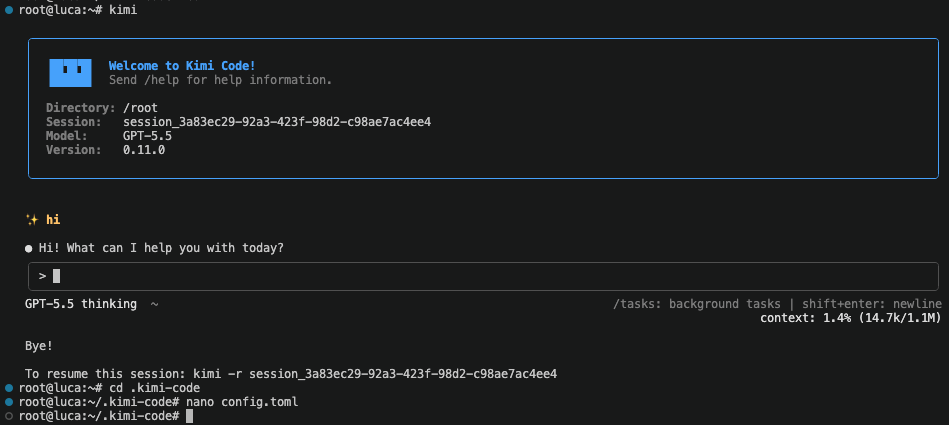
); }; ``` ```ts title="/lib/image-utils.ts" /** * Parses a file object containing image data and returns a properly formatted data URL * and normalized media type. * * Handles: * - Normalizing mediaType from various property names (mediaType, mime_type) * - Detecting existing data: URLs * - Detecting base64-looking content * - Stripping whitespace from base64 content * - Building proper data:...;base64,... URLs */ export function parseImageFile(file: { url?: string; mediaType?: string; mime_type?: string; }): { dataUrl: string; mediaType: string } { const mediaType = file.mediaType || file.mime_type || "image/png"; let url = String(file.url || ""); const isDataUrl = url.startsWith("data:"); const looksLikeBase64 = !isDataUrl && /^[A-Za-z0-9+/=\s]+$/.test(url.slice(0, 200)); if (looksLikeBase64) { url = url.replace(/\s+/g, ""); } const dataUrl = isDataUrl ? url : looksLikeBase64 ? `data:${mediaType};base64,${url}` : url; return { dataUrl, mediaType }; } /** * Extracts base64-only content from a data URL. * Returns empty string if the input is not a valid data URL. */ export function extractBase64FromDataUrl(dataUrl: string): string { if (!dataUrl.startsWith("data:")) { return ""; } const comma = dataUrl.indexOf(","); return comma >= 0 ? dataUrl.slice(comma + 1) : ""; } /** * Parses an image part (either image_url or file type) and returns * dataUrl, base64Only, and mediaType ready for rendering. * * Handles error cases gracefully by returning empty base64Only string * when parsing fails, allowing the renderer to skip invalid images. */ export function parseImagePartToDataUrl(part: any): { dataUrl: string; base64Only: string; mediaType: string; } { try { // Handle image_url parts if (part.type === "image_url" && part.image_url?.url) { const url = part.image_url.url; const mediaType = "image/png"; // Default for image_url parts if (url.startsWith("data:")) { // Extract media type from data URL if present const match = url.match(/data:([^;]+)/); const extractedMediaType = match?.[1] || mediaType; return { dataUrl: url, base64Only: extractBase64FromDataUrl(url), mediaType: extractedMediaType, }; } return { dataUrl: url, base64Only: "", mediaType, }; } // Handle file parts (AI SDK format) if (part.type === "file") { const { dataUrl, mediaType } = parseImageFile(part); return { dataUrl, base64Only: extractBase64FromDataUrl(dataUrl), mediaType, }; } return { dataUrl: "", base64Only: "", mediaType: "image/png", }; } catch { return { dataUrl: "", base64Only: "", mediaType: "image/png", }; } } ``` ## Image Configuration [#image-configuration] 你可以使用可选 `image_config` 参数(chat completions)或 `size`/`quality`/`style` 参数(images API)自定义生成图片。支持参数因 provider 而异。 ### Google Models [#google-models] 可用 Google models: | Model | Description | | -------------------------------- | ------------------------------------------------------------------------- | | `gemini-3-pro-image-preview` | Gemini 3 Pro with native image generation。支持 aspect ratios 和 1K–4K sizes。 | | `gemini-3.1-flash-image-preview` | Gemini 3.1 Flash with native image generation。支持 0.5K–4K sizes(默认 1K)。 | #### gemini-3-pro-image-preview [#gemini-3-pro-image-preview] ```bash curl -X POST "https://api.deepbus.cn/v1/chat/completions" \ -H "Authorization: Bearer $LLM_GATEWAY_API_KEY" \ -H "Content-Type: application/json" \ -d '{ "model": "gemini-3-pro-image-preview", "messages": [ { "role": "user", "content": "Generate an image of a mountain landscape at sunset" } ], "image_config": { "aspect_ratio": "16:9", "image_size": "4K" } }' ``` | Parameter | Type | Description | | -------------- | ------ | ----------------------------------------------------------------------------------------------------------------------- | | `aspect_ratio` | string | 生成图片的 aspect ratio。Options: `"1:1"`, `"2:3"`, `"3:2"`, `"3:4"`, `"4:3"`, `"4:5"`, `"5:4"`, `"9:16"`, `"16:9"`, `"21:9"` | | `image_size` | string | 生成图片的 resolution。Options: `"1K"` (1024x1024), `"2K"` (2048x2048), `"4K"` (4096x4096) | #### gemini-3.1-flash-image-preview [#gemini-31-flash-image-preview] ```bash curl -X POST "https://api.deepbus.cn/v1/chat/completions" \ -H "Authorization: Bearer $LLM_GATEWAY_API_KEY" \ -H "Content-Type: application/json" \ -d '{ "model": "gemini-3.1-flash-image-preview", "messages": [ { "role": "user", "content": "Generate an image of a mountain landscape at sunset" } ], "image_config": { "image_size": "1K" } }' ``` | Parameter | Type | Description | | -------------- | ------ | ----------------------------------------------------------------------------------------------------------------------------------------------------------- | | `aspect_ratio` | string | 生成图片的 aspect ratio。Options: `"1:1"`, `"1:4"`, `"1:8"`, `"2:3"`, `"3:2"`, `"3:4"`, `"4:1"`, `"4:3"`, `"4:5"`, `"5:4"`, `"8:1"`, `"9:16"`, `"16:9"`, `"21:9"` | | `image_size` | string | 生成图片的 resolution。Options: `"0.5K"` (512x512), `"1K"` (1024x1024, default), `"2K"` (2048x2048), `"4K"` (4096x4096) | `gemini-3.1-flash-image-preview` 独有支持 `"0.5K"` resolution,其他 Google image models 不提供该尺寸。 ### Alibaba Models [#alibaba-models] ```bash curl -X POST "https://api.deepbus.cn/v1/chat/completions" \ -H "Authorization: Bearer $LLM_GATEWAY_API_KEY" \ -H "Content-Type: application/json" \ -d '{ "model": "alibaba/qwen-image-plus", "messages": [ { "role": "user", "content": "Generate an image of a mountain landscape at sunset" } ], "image_config": { "image_size": "1024x1536", "n": 1, "seed": 42 } }' ``` | Parameter | Type | Description | | ------------ | ------- | ---------------------------------------------------------------------------- | | `image_size` | string | `WIDTHxHEIGHT` 格式的图片尺寸。Examples: `"1024x1024"`, `"1024x1536"`, `"1536x1024"` | | `n` | integer | 要生成的图片数量(1-4) | | `seed` | integer | 用于可复现 generation 的 random seed | 可用 Alibaba models: | Model | Price | Description | | ------------------------- | ------------ | --------------------------------- | | `alibaba/qwen-image` | $0.035/image | Standard quality image generation | | `alibaba/qwen-image-plus` | $0.03/image | Good balance of quality and cost | | `alibaba/qwen-image-max` | $0.075/image | Highest quality image generation | Alibaba models 使用明确 pixel dimensions(例如 `"1024x1536"`),而不是 aspect ratios。Portrait orientation 使用 `"1024x1536"`,landscape 使用 `"1536x1024"`。 ### Z.AI Models [#zai-models] ```bash curl -X POST "https://api.deepbus.cn/v1/chat/completions" \ -H "Authorization: Bearer $LLM_GATEWAY_API_KEY" \ -H "Content-Type: application/json" \ -d '{ "model": "zai/cogview-4", "messages": [ { "role": "user", "content": "Generate an image of a futuristic city skyline" } ], "image_config": { "image_size": "1024x1024" } }' ``` | Parameter | Type | Description | | ------------ | ------- | ---------------------------------------------------------------------------- | | `image_size` | string | `WIDTHxHEIGHT` 格式的图片尺寸。Examples: `"1024x1024"`, `"2048x1024"`, `"1024x2048"` | | `n` | integer | 要生成的图片数量 | 可用 Z.AI models: | Model | Price | Description | | --------------- | ------------ | ------------------------------------------------------------------------------------------------------------------- | | `zai/cogview-4` | $0.01/image | CogView-4 with bilingual support and excellent text rendering | | `zai/glm-image` | $0.015/image | GLM-Image with hybrid auto-regressive architecture, excellent for text-rendering and knowledge-intensive generation | CogView-4 支持中文和英文 prompts,并擅长生成嵌入文字的图片。 ### OpenAI Models [#openai-models] ```bash curl -X POST "https://api.deepbus.cn/v1/chat/completions" \ -H "Authorization: Bearer $LLM_GATEWAY_API_KEY" \ -H "Content-Type: application/json" \ -d '{ "model": "openai/gpt-image-2", "messages": [ { "role": "user", "content": "Generate a photo-real cinematic landscape at golden hour" } ], "image_config": { "image_size": "3072x2160", "image_quality": "low" } }' ``` | Parameter | Type | Description | | --------------- | ------ | ------------------------------------------------------ | | `image_size` | string | `WIDTHxHEIGHT` 格式的图片尺寸,或使用 `"auto"` 让模型选择。 | | `image_quality` | string | `"low"`、`"medium"`、`"high"` 或 `"auto"`。省略时默认 `"auto"`。 | OpenAI image models **不接受** `aspect_ratio`。请始终用 `WIDTHxHEIGHT` 指定 `image_size`(例如 `"1024x1024"`、`"3072x2160"`)。OpenAI 要求 width 和 height 都能被 16 整除,最长边 ≤ 3840,且总 pixel count 符合模型 pixel budget;超出边界的请求会被 HTTP 400 拒绝。 可用 OpenAI image models: | Model | Description | | -------------------- | ------------------------------------------------------------------------------------------------------------ | | `openai/gpt-image-2` | OpenAI's next-generation image model with improved quality and prompt adherence, supporting text and vision. | ### ByteDance Models [#bytedance-models] ```bash curl -X POST "https://api.deepbus.cn/v1/chat/completions" \ -H "Authorization: Bearer $LLM_GATEWAY_API_KEY" \ -H "Content-Type: application/json" \ -d '{ "model": "bytedance/seedream-4-5", "messages": [ { "role": "user", "content": "Generate an image of a futuristic cyberpunk city at night" } ], "image_config": { "image_size": "2048x2048" } }' ``` | Parameter | Type | Description | | ------------ | ------ | ---------------------------------------------------------------------------- | | `image_size` | string | `WIDTHxHEIGHT` 格式的图片尺寸。Examples: `"1024x1024"`, `"2048x2048"`, `"4096x4096"` | 可用 ByteDance models: | Model | Price | Description | | ------------------------ | ------------ | --------------------------------------------------------------- | | `bytedance/seedream-4-0` | $0.035/image | High-quality text-to-image generation with 2K default output | | `bytedance/seedream-4-5` | $0.045/image | Enhanced quality and consistency with improved prompt adherence | Seedream models 支持最多 2-10 张 reference images,用于 multi-image fusion 和 generation。默认 output resolution 为 2048×2048 (2K),并支持最高 4096×4096 (4K)。 ## Usage Notes [#usage-notes] 由于 image synthesis 的计算需求,image generation models 的 token costs 通常高于 text-only models。 Generated images 会以 base64-encoded data URLs 返回,体积可能较大。将 image generation 集成到应用中时,请考虑 payload size。 # LLM SDK URL: https://docs.doteb.com/features/llm-sdk # LLM SDK [#llm-sdk] LLM SDK 让你能像接入 Stripe Elements 支付一样,把 **AI + in-app credit purchases** 放进自己的产品。终端用户拥有**自己的 wallet**,在**你的 app 内**购买 credits,并与 gateway 支持的任意模型聊天。LLM Gateway 是 merchant of record;你设置 markup 并保留 margin。 它包含三个 packages: | Package | Runs in | Use it for | | ---------------------- | ------------------------- | ------------------------------------------------------------------------------------ | | `@llmgateway/server` | Your backend (secret key) | Mint end-user sessions, manage wallets/customers, verify webhooks, trigger payouts | | `@llmgateway/client` | Browser (headless) | Framework-agnostic chat/image/embeddings + balance/top-up, with auto session refresh | | `@llmgateway/elements` | React | Drop-in ``, ``, `` + hooks | [Templates 页面](https://deepbus.cn/templates) 提供完整可运行的 Next.js 示例。 ## How it works [#how-it-works] ``` Your backend ──(secret key sk_)──▶ POST /v1/sessions ──▶ ephemeral session token (es_, ~15 min) │ │ └────────── returns es_ to your frontend ◀────────────────┘ │ Browser (es_ + pk_) ──▶ chat / images / embeddings ──▶ debits the end-user wallet └──▶ buy credits (Stripe Elements) ─▶ credits land in the wallet ``` * 你的 **secret key**(`sk_…`)永远不离开 backend。它 mint 短生命周期的 **ephemeral session tokens**(`es_…`),并限定到单个 end-user wallet。 * **Browser** 只持有 `es_…` token(以及 publishable Stripe key)。它直接调用 gateway;usage 会计入该用户的钱包。 * **Markup 在 top-up 时应用**:如果设置 20% markup,用户购买 $10 后,其 wallet 会按扣除 markup 后的消费能力入账,你的 **margin 会累积到 organization**,之后可 payout。 ## Set up in the dashboard [#set-up-in-the-dashboard] 写代码前,先配置要嵌入的 project: 1. 打开 LLM Gateway dashboard 并选择你的 project。 2. 进入 **Settings → SDK** 并开启 **End-user sessions**。 3. *(Optional)* 设置 **markup percent**,这是你从每次 top-up 中获得的 margin。 4. 添加允许调用 gateway 的 browser origins,每行一个(例如 `https://app.example.com`),然后点击 **Save Settings**。 5. 在 **Platform Secret Keys** 下点击 **Create Live Key**(或 **Create Test Key**),并立即复制 `sk_…` 值。 6. 将它存为 server-side environment variable,例如 `LLMGATEWAY_SECRET_KEY`。 Platform secret key(`sk_…`)不同于普通 gateway API key(`llmgtwy_…`):它用于 mint end-user sessions,且只能从你的 backend 使用。 **Test mode.** `sk_test_…` key 是 sandbox key:end-user wallet top-ups 会走 Stripe sandbox(使用 Stripe [test cards](https://docs.stripe.com/testing),不会真实扣款),且其 wallets 与 live wallets 完全隔离,同一个 end-user 会拥有独立的 test 和 live wallets。为了避免 sandbox money 购买真实 inference,**test-mode wallets 只能调用 free models**:使用 `auto` route(它会自动选择 free model)或 free model id;paid models 会返回 `403`。在 backend 使用 test secret key,并在 `` 上使用 `mode="test"`(见下文),二者必须匹配。 Platform secret key 只显示一次。不要把它放入 frontend code、browser bundles、mobile apps 或 public repos。 ## 1. Install [#1-install] ```bash # backend npm install @llmgateway/server # frontend (pick one) npm install @llmgateway/elements # React drop-in components npm install @llmgateway/client # headless / non-React ``` ## 2. Mint a session on your backend [#2-mint-a-session-on-your-backend] 识别已登录用户,并 mint 一个绑定到其 wallet 的 session。你可以限定他们可调用哪些模型。 ```ts // app/api/llmgateway/session/route.ts (Next.js Route Handler) import { LLMGateway } from "@llmgateway/server"; const lg = new LLMGateway({ secretKey: process.env.LLMGATEWAY_SECRET_KEY! }); export async function POST() { const session = await lg.sessions.create({ customer: { externalId: "user_123" }, // your stable user id scope: { models: ["openai/gpt-4o-mini"] }, // lock down what they can call ttlSeconds: 900, // optional, default 15 min }); return Response.json(session); // { sessionToken, walletId, endCustomerId, expiresAt, publishableKey } } ``` 始终在 server-side mint sessions。不要把你的 `sk_…` secret key 发送到 browser。 ## 3a. Drop in the React components [#3a-drop-in-the-react-components] 用 `` 包裹 UI 并使用这些组件。`fetchSession` 用于在短生命周期 token 过期前刷新它。 ```tsx "use client"; import { LLMGatewayProvider, Chat, CreditBalance, BuyCredits, } from "@llmgateway/elements"; const fetchSession = () => fetch("/api/llmgateway/session", { method: "POST" }).then((r) => r.json()); export default function Assistant({ session }) { return ( ); } ``` 需要完全控制 rendering?使用 hooks 而不是 components: * `useBalance()` → `{ balance, currency, recentLedger, loading, error, refetch, refetchUntilChange }` * `useChat({ model })` → `{ turns, send, streaming, ... }` `useBalance().refetchUntilChange()` 会持续 polling,直到 balance 确实变化。Purchase 后使用它,因为 wallet 会在 Stripe webhook 到达后异步入账。 ## 3b. Or go headless (any framework) [#3b-or-go-headless-any-framework] ```ts import { LLMGatewayClient } from "@llmgateway/client"; const client = new LLMGatewayClient({ session: { token: session.sessionToken, expiresAt: session.expiresAt }, refresh: fetchSession, // auto-refreshes ~60s before expiry }); // stream a completion (billed to the user's wallet) for await (const delta of client.stream({ model: "openai/gpt-4o-mini", messages: [{ role: "user", content: "Hello!" }], })) { process.stdout.write(delta); } const { balance } = await client.getBalance(); ``` Headless client 还暴露 `chat()`、`image()`、`embeddings()`、`getBalance()`、`createTopUp(amount)` 和 `getConfig()`。 ## Buying credits [#buying-credits] `` 会创建一个 scoped 到用户 wallet 的 Stripe PaymentIntent,渲染 Stripe 的 `PaymentElement`,并确认支付。LLM Gateway 的 webhook 处理完成后,wallet 会入账 **net** amount(扣除你的 markup 后),你的 margin 会累积到 organization。 `@llmgateway/elements` 内置 LLM Gateway browser-safe Stripe publishable keys。开发时向 `` 传入 `mode="test"` 以使用 Stripe test mode;live payments 省略该参数或传入 `mode="prod"`(`"prod"` 是默认值)。你不需要自己提供 LLM Gateway 的 Stripe publishable key,end-user 也不会看到你的 `sk_…` secret key。 Frontend `mode` prop 必须和 backend secret key 匹配。`sk_test_…` key 会在 Stripe sandbox 中创建 top-up PaymentIntent,只有 `mode="test"` publishable key 可以确认它。混用 test key 和 `mode="prod"`(或反过来)会导致 `` 无法确认。 ## Managing wallets & customers (server-side) [#managing-wallets--customers-server-side] ```ts // grant credits directly (e.g. free trial) await lg.wallets.credit({ walletId, amount: 5, reason: "Signup bonus" }); const wallet = await lg.wallets.retrieve(walletId); // analytics: customers with balances + lifetime spend const { customers } = await lg.customers.list(); const detail = await lg.customers.retrieve(endCustomerId); ``` ## Webhooks [#webhooks] 注册 endpoint 来响应 wallet events。Events 会被签名(`X-LLMGateway-Signature`);像 Stripe 一样验证它们。 ```ts await lg.webhookEndpoints.create({ url: "https://yourapp.com/webhooks/llmgateway", enabledEvents: ["wallet.credited", "wallet.low_balance"], }); // in your handler const event = lg.webhooks.constructEvent( rawBody, signatureHeader, endpointSecret, ); ``` Webhook URLs 必须是 **https** 且 public。Private/internal addresses 会被拒绝(SSRF protection),无论注册时还是 delivery 时都是如此。 ## Margin payouts (Stripe Connect) [#margin-payouts-stripe-connect] 你的 accrued markup 会作为 margin balance 持有。Onboard connected account 后即可 payout: ```ts const { url } = await lg.connect.createOnboardingLink({ refreshUrl: "https://yourapp.com/settings/payouts", returnUrl: "https://yourapp.com/settings/payouts?done=1", }); // redirect the developer to `url`, then later: const status = await lg.connect.status(); // { onboarded, payoutsEnabled, marginBalance } const payout = await lg.connect.payout(); // transfer the accrued margin out ``` ## Security model [#security-model] * **Ephemeral tokens**(`es_…`)生命周期短且可撤销;请从 backend 为每个用户 mint。 * **Model scopes** 把每个 session 限制到 allow-list models。 * **Origin allowlist**(在 project 上配置)会阻止来自非预期 origins 的 browser calls。 * **Per-session spend caps**(`scope.maxSpend`)限制单个 session 可花费的金额。 ## Full example [#full-example] 端到端 Next.js app,包括 backend session route、provider、chat 和 buy-credits,可在 Templates 页面获取: ➡️ [**LLM SDK credits template**](https://deepbus.cn/templates) # Master Keys URL: https://docs.doteb.com/features/master-keys # Master Keys [#master-keys] Master keys 是 org-scoped bearer tokens,可让你在不经过 dashboard 的情况下以编程方式创建 projects 和 gateway API keys。它们适用于 server-to-server provisioning,例如从你自己的 backend 做 multi-tenant onboarding。 Master keys 仅在 **Enterprise** plan 可用。如需为你的 organization 启用,请通过 [contact@deepbus.cn](mailto:contact@deepbus.cn) 联系我们。 ## Security [#security] * Master keys 以 **HMAC-SHA256 hashes** 形式存储在数据库中(使用 `GATEWAY_API_KEY_HASH_SECRET` secret)。Plain token 只会在创建时显示**一次**。 * 每个 master key 仅限单个 organization,无法访问其他 organizations 中的资源。 * 删除或停用 master key 会立即撤销所有 programmatic access。 * 所有 create/delete/status changes 都会记录在 organization audit log 中。 ## Limits [#limits] * 每个 organization 最多 **10 个 active master keys**。 * Programmatic project 和 API-key creation 会执行与 dashboard flow 相同的 per-org 和 per-project limits。 ## Managing master keys [#managing-master-keys] 在 dashboard 中进入 **Organization → Master Keys**。你可以: * 创建新的 master key(plain token 只显示一次,请立即复制)。 * 查看每个现有 key 的 masked token、status、creator 和 last-used timestamp。 * Activate / deactivate 或 delete keys。 ## Authentication [#authentication] 所有 programmatic endpoints 都位于 `/v1/master/*` 下,并要求在 `Authorization` header 中提供 master key: ``` Authorization: Bearer llmgmk_... ``` 缺少、无效、inactive 或 non-enterprise master key 的请求会收到 401 / 403 response。 ## Endpoints [#endpoints] ### List projects [#list-projects] `GET /v1/master/projects` 返回 master key 所属 organization 中所有 non-deleted projects。 ```bash curl https://internal.deepbus.cn/v1/master/projects \ -H "Authorization: Bearer $MASTER_KEY" ``` Response (200): ```json { "projects": [ { "id": "proj_...", "name": "Customer ACME", "organizationId": "org_...", "cachingEnabled": false, "cacheDurationSeconds": 60, "mode": "hybrid", "status": "active", "createdAt": "...", "updatedAt": "..." } ] } ``` ### Create a project [#create-a-project] `POST /v1/master/projects` ```bash curl -X POST https://internal.deepbus.cn/v1/master/projects \ -H "Authorization: Bearer $MASTER_KEY" \ -H "Content-Type: application/json" \ -d '{ "name": "Customer ACME", "cachingEnabled": false, "mode": "hybrid" }' ``` Body parameters: | Field | Type | Description | | ---------------------- | ------------------------------------------------ | -------------------------- | | `name` | string | Project name (1–255 chars) | | `cachingEnabled` | boolean (optional) | Default `false` | | `cacheDurationSeconds` | number (optional) | 10–31536000,default 60 | | `mode` | `"api-keys" \| "credits" \| "hybrid"` (optional) | Default `"hybrid"` | Response (201): 创建出的 project。 ### Update a project [#update-a-project] `PATCH /v1/master/projects/{id}` 更新 master key 所属 organization 拥有的 project。所有 body fields 都是 optional;只提供需要更改的字段即可。 ```bash curl -X PATCH https://internal.deepbus.cn/v1/master/projects/proj_... \ -H "Authorization: Bearer $MASTER_KEY" \ -H "Content-Type: application/json" \ -d '{ "name": "Customer ACME (renamed)", "cachingEnabled": true, "status": "inactive" }' ``` Body parameters(均 optional,至少需要一个): | Field | Type | Description | | ---------------------- | ------------------------------------- | ----------------- | | `name` | string | 1–255 chars | | `cachingEnabled` | boolean | | | `cacheDurationSeconds` | number | 10–31536000 | | `mode` | `"api-keys" \| "credits" \| "hybrid"` | | | `status` | `"active" \| "inactive"` | 不删除 project,只切换状态 | Response (200): 更新后的 project。 ### Delete a project [#delete-a-project] `DELETE /v1/master/projects/{id}` Soft-deletes 一个 project(将 `status` 设为 `"deleted"`)。会级联到它的 API keys。 ```bash curl -X DELETE https://internal.deepbus.cn/v1/master/projects/proj_... \ -H "Authorization: Bearer $MASTER_KEY" ``` Response (200): ```json { "message": "Project deleted successfully" } ``` ### Create a gateway API key [#create-a-gateway-api-key] `POST /v1/master/keys` ```bash curl -X POST https://internal.deepbus.cn/v1/master/keys \ -H "Authorization: Bearer $MASTER_KEY" \ -H "Content-Type: application/json" \ -d '{ "projectId": "proj_...", "description": "Customer ACME — production key" }' ``` Body parameters: | Field | Type | Description | | -------------------------- | ------------------------------------------------- | --------------------------------- | | `projectId` | string | 必须属于 master key 的 organization | | `description` | string | API key description (1–255 chars) | | `usageLimit` | string (optional) | Lifetime usage limit | | `periodUsageLimit` | string (optional) | Recurring period usage limit | | `periodUsageDurationValue` | number (optional) | 设置 `periodUsageLimit` 时必填 | | `periodUsageDurationUnit` | `"hour" \| "day" \| "week" \| "month"` (optional) | 设置 `periodUsageLimit` 时必填 | 创建出的 gateway API key plain token 只会在 response 中返回**一次**。请立即在你侧持久化保存。 Response (201): ```json { "apiKey": { "id": "ak_...", "token": "llmgtwy_...", "description": "Customer ACME — production key", "status": "active", "projectId": "proj_...", "createdBy": "usr_...", "createdAt": "...", "updatedAt": "..." } } ``` ### Update a gateway API key [#update-a-gateway-api-key] `PATCH /v1/master/keys/{id}` 更新 master key 所属 organization 拥有的 project 中的 API key。所有 body fields 都是 optional;只提供需要更改的字段即可。 ```bash curl -X PATCH https://internal.deepbus.cn/v1/master/keys/ak_... \ -H "Authorization: Bearer $MASTER_KEY" \ -H "Content-Type: application/json" \ -d '{ "status": "inactive", "usageLimit": "100.00" }' ``` Body parameters(均 optional,至少需要一个): | Field | Type | Description | | -------------------------- | -------------------------------------- | --------------------------------- | | `description` | string | 1–255 chars | | `status` | `"active" \| "inactive"` | | | `usageLimit` | string \| null | Lifetime usage limit(null 表示清除) | | `periodUsageLimit` | string \| null | Recurring period limit(null 表示清除) | | `periodUsageDurationValue` | number \| null | 设置 `periodUsageLimit` 时必填 | | `periodUsageDurationUnit` | `"hour" \| "day" \| "week" \| "month"` | 设置 `periodUsageLimit` 时必填 | Response (200): 更新后的 API key(不会包含 plain token;plain token 只在创建时返回)。 ### Delete a gateway API key [#delete-a-gateway-api-key] `DELETE /v1/master/keys/{id}` Soft-deletes 该 API key(将 `status` 设为 `"deleted"`)。任何使用该 key 的 in-flight requests 会在下一次 auth check 时立即被拒绝。 ```bash curl -X DELETE https://internal.deepbus.cn/v1/master/keys/ak_... \ -H "Authorization: Bearer $MASTER_KEY" ``` Response (200): ```json { "message": "API key deleted successfully" } ``` Auto-generated playground API key 不能通过 master API 删除。 ## IAM rules [#iam-rules] 每个 gateway API key 可以拥有一条或多条 IAM rules,用于限制它允许使用哪些 models、providers 或 pricing tiers。Rules 会在 gateway 请求时求值。没有 active rules 的 key 不受 IAM 限制。 Rule types: | `ruleType` | Description | | ----------------- | --------------------------------- | | `allow_models` | 仅允许列出的 models | | `deny_models` | 阻止列出的 models | | `allow_providers` | 仅允许列出的 providers | | `deny_providers` | 阻止列出的 providers | | `allow_pricing` | 仅允许匹配 pricing constraint 的 models | | `deny_pricing` | 阻止匹配 pricing constraint 的 models | | `allow_ip_cidrs` | 仅允许来自列出的 IPv4/IPv6 CIDRs 的请求 | | `deny_ip_cidrs` | 阻止来自列出的 IPv4/IPv6 CIDRs 的请求 | `ruleValue` JSON object 保存 rule 参数。它接受的字段取决于 `ruleType`: | Field | Type | Used by | | ---------------- | ------------------ | ----------------------------------- | | `models` | string\[] | `allow_models`, `deny_models` | | `providers` | string\[] | `allow_providers`, `deny_providers` | | `pricingType` | `"free" \| "paid"` | `allow_pricing`, `deny_pricing` | | `maxInputPrice` | number | `allow_pricing`, `deny_pricing` | | `maxOutputPrice` | number | `allow_pricing`, `deny_pricing` | | `ipCidrs` | string\[] | `allow_ip_cidrs`, `deny_ip_cidrs` | ### IP CIDR rules [#ip-cidr-rules] IP CIDR rules 按 source IP 限制 gateway requests。IPv4(例如 `192.0.2.0/24`)和 IPv6(例如 `2001:db8::/32`)范围都支持,也可以在单条 rule 中混用。要限制到单个地址,请使用 `/32`(IPv4)或 `/128`(IPv6)prefix。 Gateway 从 `X-Forwarded-For` header 的第一项读取 client IP,该 header 由 GCP load balancer 设置。 IPv4-mapped IPv6 addresses(`::ffff:1.2.3.4`)会 normalize 为 IPv4,因此当上游连接恰好是 IPv6 时,单条 `1.2.3.0/24` rule 仍然能匹配。 配置 `allow_ip_cidrs` rule 后,如果 gateway 无法确定 client IP,请求会被拒绝。无效 CIDR syntax 会在 rule-creation time 被拒绝并返回 `400`。 所有 endpoints 都按 master key 的 organization 限定 scope:如果 API key(或 rule)不属于已认证 master key 的 organization,会返回 `404`。 ### List IAM rules [#list-iam-rules] `GET /v1/master/keys/{id}/iam` ```bash curl https://internal.deepbus.cn/v1/master/keys/ak_.../iam \ -H "Authorization: Bearer $MASTER_KEY" ``` Response (200): ```json { "rules": [ { "id": "iam_...", "apiKeyId": "ak_...", "ruleType": "allow_models", "ruleValue": { "models": ["openai/gpt-4o", "anthropic/claude-3-5-sonnet"] }, "status": "active", "createdAt": "...", "updatedAt": "..." } ] } ``` ### Create an IAM rule [#create-an-iam-rule] `POST /v1/master/keys/{id}/iam` ```bash curl -X POST https://internal.deepbus.cn/v1/master/keys/ak_.../iam \ -H "Authorization: Bearer $MASTER_KEY" \ -H "Content-Type: application/json" \ -d '{ "ruleType": "allow_models", "ruleValue": { "models": ["openai/gpt-4o", "anthropic/claude-3-5-sonnet"] } }' ``` Body parameters: | Field | Type | Description | | ----------- | ------------------------ | ---------------------- | | `ruleType` | rule type enum(见上文) | 必填 | | `ruleValue` | object(见上表) | 必须包含所选 type 对应的字段 | | `status` | `"active" \| "inactive"` | Optional,默认 `"active"` | 按 source IP 限制: ```bash curl -X POST https://internal.deepbus.cn/v1/master/keys/ak_.../iam \ -H "Authorization: Bearer $MASTER_KEY" \ -H "Content-Type: application/json" \ -d '{ "ruleType": "allow_ip_cidrs", "ruleValue": { "ipCidrs": ["192.0.2.0/24", "2001:db8::/32"] } }' ``` Response (201): 创建出的 IAM rule。 ### Update an IAM rule [#update-an-iam-rule] `PATCH /v1/master/keys/{id}/iam/{ruleId}` 所有 body fields 都是 optional;只提供需要更改的字段即可。 ```bash curl -X PATCH https://internal.deepbus.cn/v1/master/keys/ak_.../iam/iam_... \ -H "Authorization: Bearer $MASTER_KEY" \ -H "Content-Type: application/json" \ -d '{ "status": "inactive" }' ``` Body parameters(均 optional,至少需要一个): | Field | Type | Description | | ----------- | ------------------------ | -------------- | | `ruleType` | rule type enum(见上文) | 更改 rule type | | `ruleValue` | object(见上表) | 替换 rule value | | `status` | `"active" \| "inactive"` | 不删除 rule,只切换状态 | Response (200): 更新后的 IAM rule。 ### Delete an IAM rule [#delete-an-iam-rule] `DELETE /v1/master/keys/{id}/iam/{ruleId}` 从 API key 中永久移除 IAM rule。 ```bash curl -X DELETE https://internal.deepbus.cn/v1/master/keys/ak_.../iam/iam_... \ -H "Authorization: Bearer $MASTER_KEY" ``` Response (200): ```json { "message": "IAM rule deleted successfully" } ``` # Metadata URL: https://docs.doteb.com/features/metadata # Metadata [#metadata] LLM Gateway 支持使用自定义 header 随请求发送额外 metadata。你可以包含 user session、应用版本、tenant ID 或其他上下文数据,这些数据对分析和监控很有帮助。 之后,你可以按具体值筛选返回结果,例如特定用户或 session。未来你还可以基于这些 metadata 对分析和监控进行分段。例如,你可以按用户、应用、国家、功能或任何想追踪的维度展示成本和延迟拆分。 ## Custom Headers [#custom-headers] 你可以使用带 `X-LLMGateway-` 前缀的自定义 header,随 LLM 请求发送 metadata: ```bash curl -X POST https://api.deepbus.cn/v1/chat/completions \ -H "Content-Type: application/json" \ -H "Authorization: Bearer $LLM_GATEWAY_API_KEY" \ -H "X-LLMGateway-Country: US" \ -H "X-LLMGateway-User-ID: 9403f741-a524-4b18-b1b2-dbb71cdff2a4" \ -d '{ "model": "gpt-4o", "messages": [ { "role": "user", "content": "Hello, how are you?" } ] }' ``` ## 最佳实践 [#最佳实践] ### Header 命名 [#header-命名] * 所有自定义 metadata 都使用 `X-LLMGateway-` 前缀 * 使用描述清晰且一致的命名约定 * 避免特殊字符;用连字符分隔单词 ### 数据隐私 [#数据隐私] * 注意不要在 header 中放入敏感数据 * 考虑对用户标识进行 hash 或匿名化 * 遵循你组织的数据隐私政策 ### 性能 [#性能] * 保持 header 值合理简短 * 避免发送不会用于分析的无用 metadata * 考虑对请求大小的影响,尤其是高流量应用 ## 示例:多租户应用 [#示例多租户应用] 对多租户应用,你可以这样使用 metadata header: ```bash curl -X POST https://api.deepbus.cn/v1/chat/completions \ -H "Content-Type: application/json" \ -H "Authorization: Bearer $LLM_GATEWAY_API_KEY" \ -H "X-LLMGateway-Tenant-ID: acme-corp" \ -H "X-LLMGateway-User-ID: user-12345" \ -H "X-LLMGateway-App-Version: 2.1.4" \ -H "X-LLMGateway-Feature: chat-assistant" \ -d '{ "model": "gpt-4o", "messages": [ { "role": "user", "content": "Summarize this document..." } ] }' ``` 这样你就可以按 tenant、用户、应用版本和功能追踪使用量和成本,并深入了解平台中 LLM 集成的实际使用情况。 # Moderations URL: https://docs.doteb.com/features/moderations # Moderations [#moderations] LLMGateway 支持 OpenAI-compatible `/v1/moderations` endpoint,用于文本和 multimodal safety classification。 适用场景: * 在用户 prompt 到达模型前进行筛查 * 在展示生成输出前进行审核 * 继续使用你已经熟悉的 OpenAI clients moderation API shape 完整 request 和 response schema 见 [API reference](/v1/moderations)。 ## Endpoint [#endpoint] `POST https://api.deepbus.cn/v1/moderations` 使用你的 LLMGateway API key 认证: ```bash -H "Authorization: Bearer $LLM_GATEWAY_API_KEY" ``` ## Supported Inputs [#supported-inputs] `input` 字段接受: * 单个 string * strings 数组 * 包含 `text` 和 `image_url` 的 multimodal content items 数组 默认模型为 `omni-moderation-latest`。 ## curl [#curl] ### Single text input [#single-text-input] ```bash curl -X POST "https://api.deepbus.cn/v1/moderations" \ -H "Authorization: Bearer $LLM_GATEWAY_API_KEY" \ -H "Content-Type: application/json" \ -d '{ "input": "I want to harm someone." }' ``` ### Multiple text inputs [#multiple-text-inputs] ```bash curl -X POST "https://api.deepbus.cn/v1/moderations" \ -H "Authorization: Bearer $LLM_GATEWAY_API_KEY" \ -H "Content-Type: application/json" \ -d '{ "model": "omni-moderation-latest", "input": [ "This is a harmless sentence.", "I want to attack somebody." ] }' ``` ### Multimodal input [#multimodal-input] ```bash curl -X POST "https://api.deepbus.cn/v1/moderations" \ -H "Authorization: Bearer $LLM_GATEWAY_API_KEY" \ -H "Content-Type: application/json" \ -d '{ "input": [ { "type": "text", "text": "Check this image for violent content." }, { "type": "image_url", "image_url": { "url": "https://example.com/image.png" } } ] }' ``` ## OpenAI SDK [#openai-sdk] ```ts import OpenAI from "openai"; const client = new OpenAI({ baseURL: "https://api.deepbus.cn/v1", apiKey: process.env.LLM_GATEWAY_API_KEY, }); const response = await client.moderations.create({ model: "omni-moderation-latest", input: "I want to harm someone.", }); console.log(response.results[0]?.flagged); ``` ## Response Shape [#response-shape] 响应遵循标准 OpenAI moderation format: ```json { "id": "modr-123", "model": "omni-moderation-latest", "results": [ { "flagged": true, "categories": { "violence": true, "self_harm": false }, "category_scores": { "violence": 0.98, "self_harm": 0.01 } } ] } ``` ## When To Use This Instead Of Chat Content Filtering [#when-to-use-this-instead-of-chat-content-filtering] 当你需要在自己的 application flow 中获得明确 moderation decision 时,使用 `/v1/moderations`。 如果你希望 moderation 作为模型请求的一部分自动发生,请在 `/v1/chat/completions` 上使用 LLMGateway content filtering。 # Reasoning URL: https://docs.doteb.com/features/reasoning # Reasoning [#reasoning] LLMGateway 支持 reasoning-capable models,它们可以在给出最终答案前展示逐步思考过程。这个能力特别适合复杂问题求解、数学计算和逻辑推理任务。 ## Reasoning-Enabled Models [#reasoning-enabled-models] 你可以在 [带 reasoning filter 的 models page](https://deepbus.cn/models?filters=1\&reasoning=true) 找到所有 reasoning-enabled models。这些模型包括: * OpenAI 的 GPT-5 系列(例如 `gpt-5`、`gpt-5-mini`) * 注意:GPT-5 models 会使用 reasoning,但目前不会在响应中返回 reasoning content。 * Anthropic 的 Claude 3.7 Sonnet * Google 的 Gemini 2.0 Flash Thinking 和 Gemini 2.5 Pro * GPT OSS models,例如 `gpt-oss-120b` 和 `gpt-oss-20b` * Z.AI 的 reasoning models 即使未指定 `reasoning_effort` 参数,某些模型也可能在内部进行 reasoning。 ## Using the Reasoning Parameter [#using-the-reasoning-parameter] 有两种方式可以控制 reasoning effort: ### Option 1: Top-level `reasoning_effort` [#option-1-top-level-reasoning_effort] 直接在请求中添加 `reasoning_effort` 参数: * `none` - 关闭 reasoning。OpenAI 较新的 reasoning models 支持该值(例如 `gpt-5.4-mini` 及之后版本,它们接受 `none` 而不是 `minimal`)。对其他 providers,这会关闭 reasoning。 * `minimal` - 最快 reasoning,思考过程最少(仅 GPT-5 models) * `low` - 适合简单任务的轻量 reasoning * `medium` - 适合大多数任务的均衡 reasoning * `high` - 适合复杂问题的深度 reasoning * `xhigh` - 面向最复杂问题的最大 reasoning 深度 OpenAI reasoning models 接受的 effort values 并不完全相同。原始 GPT-5 models 支持 `minimal`,较新的模型(例如 `gpt-5.4-mini` 及之后版本)用 `none` 替代它。如果发送目标模型不支持的 effort value,OpenAI 会返回 `unsupported_value` 错误。 ```bash curl -X POST "https://api.deepbus.cn/v1/chat/completions" \ -H "Authorization: Bearer $LLM_GATEWAY_API_KEY" \ -H "Content-Type: application/json" \ -d '{ "model": "gpt-oss-120b", "messages": [ { "role": "user", "content": "What is 2/3 + 1/4 + 5/6?" } ], "reasoning_effort": "medium" }' ``` ### Option 2: Using the `reasoning` object [#option-2-using-the-reasoning-object] 使用带 `effort` 字段的统一 `reasoning` configuration object: * `none` - 关闭 reasoning * `minimal` - 最快 reasoning,思考过程最少 * `low` - 适合简单任务的轻量 reasoning * `medium` - 适合大多数任务的均衡 reasoning * `high` - 适合复杂问题的深度 reasoning * `xhigh` - 面向最复杂问题的最大 reasoning 深度 ```bash curl -X POST "https://api.deepbus.cn/v1/chat/completions" \ -H "Authorization: Bearer $LLM_GATEWAY_API_KEY" \ -H "Content-Type: application/json" \ -d '{ "model": "gpt-5", "messages": [ { "role": "user", "content": "What is 2/3 + 1/4 + 5/6?" } ], "reasoning": { "effort": "medium" } }' ``` 同一请求中不能同时使用 `reasoning_effort` 和 `reasoning.effort`。请选择一种方式。不过 `reasoning_effort` 或 `reasoning.effort` 可以与 `reasoning.max_tokens` 组合使用;指定 `max_tokens` 时,它会优先于 effort level。 ### Example Response [#example-response] 响应会在 message object 中包含 `reasoning` 字段,里面是模型逐步思考过程: ```json { "id": "chatcmpl-abc123", "object": "chat.completion", "created": 1234567890, "model": "gpt-oss-120b", "choices": [ { "index": 0, "message": { "role": "assistant", "content": "The answer is 1.75 or 7/4.", "reasoning": "First, I need to find a common denominator for 2/3, 1/4, and 5/6. The LCD is 12. Converting: 2/3 = 8/12, 1/4 = 3/12, 5/6 = 10/12. Adding: 8/12 + 3/12 + 10/12 = 21/12 = 1.75 or 7/4." }, "finish_reason": "completed" } ], "usage": { "prompt_tokens": 20, "completion_tokens": 45, "reasoning_tokens": 35, "total_tokens": 65 } } ``` ## Specifying Reasoning Token Budget [#specifying-reasoning-token-budget] 对支持的模型,你可以使用带 `max_tokens` 的 `reasoning` object 指定精确 reasoning token budget。这样可以准确控制模型分配给思考过程的 token 数。 指定 `reasoning.max_tokens` 时,它会覆盖 `reasoning.effort` 和 `reasoning_effort`。Anthropic Claude 和 Google Gemini thinking models 支持该能力。 ### Example Request [#example-request] ```bash curl -X POST "https://api.deepbus.cn/v1/chat/completions" \ -H "Authorization: Bearer $LLM_GATEWAY_API_KEY" \ -H "Content-Type: application/json" \ -d '{ "model": "anthropic/claude-sonnet-4-20250514", "messages": [ { "role": "user", "content": "Explain the P vs NP problem and why it matters." } ], "reasoning": { "max_tokens": 8000 } }' ``` ### Supported Models [#supported-models] `reasoning.max_tokens` 参数支持: * **Anthropic Claude**: Claude 3.7 Sonnet, Claude Sonnet 4, Claude Opus 4, Claude Opus 4.5 * **Google Gemini**: Gemini 2.5 Pro, Gemini 2.5 Flash, Gemini 3 Pro Preview 使用 auto-routing 或 root models 搭配 `reasoning.max_tokens` 时,只会考虑支持该能力的 providers。 ### Provider-Specific Constraints [#provider-specific-constraints] * **Anthropic**: Reasoning budget 必须在 1,024 到 128,000 tokens 之间。超出范围的值会被自动 clamp。 * **Google**: 对 reasoning budget 没有特定约束。 ### Error Handling [#error-handling] 如果为不支持该能力的模型指定 `reasoning.max_tokens`,会收到错误: ```json { "error": { "message": "Model gpt-4o does not support reasoning.max_tokens. Remove the reasoning parameter or use a model that supports explicit reasoning token budgets.", "type": "invalid_request_error", "code": "model_not_supported" } } ``` ## Streaming Reasoning Content [#streaming-reasoning-content] 启用 streaming 时,reasoning content 会作为 response chunks 的一部分流式返回: ```bash curl -X POST "https://api.deepbus.cn/v1/chat/completions" \ -H "Authorization: Bearer $LLM_GATEWAY_API_KEY" \ -H "Content-Type: application/json" \ -d '{ "model": "gpt-oss-120b", "messages": [ { "role": "user", "content": "Solve this logic puzzle: If all roses are flowers and some flowers fade quickly, can we conclude that some roses fade quickly?" } ], "reasoning_effort": "high", "stream": true }' ``` Reasoning content 会在最终答案之前出现在 stream chunks 中,让你可以实时展示模型的思考过程。 示例: ``` data: { "id": "chatcmpl-fb266880-1016-4797-9a70-f21a538edaf6", "object": "chat.completion.chunk", "created": 1761048126, "model": "openai/gpt-oss-20b", "choices": [ { "index": 0, "delta": { "reasoning": "It's ", "role": "assistant" }, "finish_reason": null } ] } ``` ## Usage Tracking [#usage-tracking] ### Response Payload [#response-payload] 响应中的 `usage` object 会包含 reasoning-specific token counts: * `reasoning_tokens` - reasoning process 使用的 tokens 数 * `completion_tokens` - 最终答案中的 tokens 数 * `prompt_tokens` - input 中的 tokens 数 * `total_tokens` - 所有 token counts 之和 ### Logs and Analytics [#logs-and-analytics] 所有使用 `reasoning_effort` 参数的请求都会在 dashboard logs 中记录: * 包含完整 reasoning text 的 `reasoningContent` 字段 * reasoning 与 completion 的独立 token counts * reasoning-enabled requests 的 performance metrics 你可以在 [dashboard](https://deepbus.cn/dashboard) 中查看每个请求的详细 logs,分析模型如何推理问题。 ## Auto-Routing with Reasoning [#auto-routing-with-reasoning] 使用 auto-routing(例如指定 `gpt-5` 而非特定版本)时,LLMGateway 会: 1. 自动为 GPT-5 models 设置 `reasoning_effort` 为 `minimal` 2. 为其他 auto-routed reasoning models 设置 `reasoning_effort` 为 `low` 3. 指定 `reasoning_effort` 时,只路由到支持 reasoning 的 providers 这确保使用 auto-routing 搭配 reasoning-capable models 时获得更合适的性能和成本。 ## Model-Specific Behavior [#model-specific-behavior] 并非所有 reasoning models 都以相同方式返回 reasoning content。某些模型(例如 OpenAI models)可能在内部 reasoning,但不会在响应中暴露 reasoning content。LLMGateway 会尽量统一不同 providers 的响应,但 reasoning 的深度和格式可能不同。 ## Best Practices [#best-practices] 1. **选择合适的 reasoning effort**:简单任务使用 `low` 或 `minimal`,大多数任务使用 `medium`,只有需要深度推理的复杂问题才使用 `high` 2. **监控 token usage**:Reasoning 可能显著增加 token 消耗,请监控 usage object 中的 `reasoning_tokens` 3. **为更好的 UX 使用 streaming**:构建面向用户的应用时,启用 streaming 来实时展示 reasoning process 4. **检查 logs**:查看 dashboard logs 中的 `reasoningContent`,理解模型如何解决问题 ## Error Handling [#error-handling-1] 如果为不支持 reasoning 的模型指定 `reasoning_effort`,会收到错误: ```json { "error": { "message": "Model gpt-4o does not support reasoning. Remove the reasoning_effort parameter or use a reasoning-capable model.", "type": "invalid_request_error", "code": "model_not_supported" } } ``` 要避免该错误,请只对 [reasoning-enabled models](https://deepbus.cn/models?filters=1\&reasoning=true) 使用 `reasoning_effort` 参数。 # Response Healing URL: https://docs.doteb.com/features/response-healing # Response Healing [#response-healing] Response Healing 是一个插件,会自动验证并修复 AI 模型返回的格式错误 JSON 响应。启用后,即使模型格式不完美,LLM Gateway 也会确保 API 响应符合你指定的 schema。 ## 为什么需要 Response Healing? [#为什么需要-response-healing] 大语言模型偶尔会生成无效 JSON,尤其是在复杂场景中: * **Markdown wrapping**:模型经常把 JSON 包在 \`\`\`json...\`\`\` 代码块中 * **Mixed content**:JSON 前后可能带有解释性文本 * **Syntax errors**:trailing commas、未加引号的 key,或用单引号代替双引号 * **Truncated output**:token 限制可能在 JSON 中途截断响应 Response Healing 会自动检测并修复这些问题,让你无需为每一种格式错误响应实现错误处理。 ## 启用 Response Healing [#启用-response-healing] 要启用 Response Healing,请在请求的 `plugins` 数组中添加 `response-healing`: ```bash curl -X POST "https://api.deepbus.cn/v1/chat/completions" \ -H "Authorization: Bearer $LLM_GATEWAY_API_KEY" \ -H "Content-Type: application/json" \ -d '{ "model": "gpt-4o", "messages": [{"role": "user", "content": "Return a JSON object with name and age"}], "response_format": {"type": "json_object"}, "plugins": [{"id": "response-healing"}] }' ``` Response Healing 只会在 `response_format` 设置为 `json_object` 或 `json_schema` 时激活。对常规文本响应,插件没有效果。 ## 工作方式 [#工作方式] 启用 Response Healing 后,LLM Gateway 会对格式错误 JSON 响应应用一系列修复策略: ### 1. Markdown Extraction [#1-markdown-extraction] 从 markdown 代码块中提取 JSON: ```text Here's the data: \`\`\`json {"name": "Alice", "age": 30} \`\`\` ``` 变为: ```json { "name": "Alice", "age": 30 } ``` ### 2. Mixed Content Extraction [#2-mixed-content-extraction] 从周围文本中分离 JSON: ```text Sure! Here is the JSON you requested: {"name": "Alice", "age": 30} Let me know if you need anything else. ``` 变为: ```json { "name": "Alice", "age": 30 } ``` ### 3. Syntax Fixes [#3-syntax-fixes] 修复常见 JSON 语法违规: | Issue | Before | After | | --------------- | ------------------- | ------------------- | | Trailing commas | `{"a": 1,}` | `{"a": 1}` | | Unquoted keys | `{name: "Alice"}` | `{"name": "Alice"}` | | Single quotes | `{'name': 'Alice'}` | `{"name": "Alice"}` | ### 4. Truncation Completion [#4-truncation-completion] 为被截断的响应补齐缺失的 closing brackets: ```text {"name": "Alice", "data": {"nested": true ``` 变为: ```json { "name": "Alice", "data": { "nested": true } } ``` ## 使用示例 [#使用示例] ### 配合 JSON Object Format [#配合-json-object-format] 请求结构化响应并自动修复: ```typescript const response = await fetch("https://api.deepbus.cn/v1/chat/completions", { method: "POST", headers: { Authorization: `Bearer ${process.env.LLM_GATEWAY_API_KEY}`, "Content-Type": "application/json", }, body: JSON.stringify({ model: "gpt-4o", messages: [ { role: "user", content: "Return a JSON object with fields: name (string) and age (number)", }, ], response_format: { type: "json_object" }, plugins: [{ id: "response-healing" }], }), }); const result = await response.json(); // Response is guaranteed to be valid JSON const data = JSON.parse(result.choices[0].message.content); ``` ### 配合 JSON Schema [#配合-json-schema] 如需更严格验证,可以与 `json_schema` 组合: ```typescript const response = await fetch("https://api.deepbus.cn/v1/chat/completions", { method: "POST", headers: { Authorization: `Bearer ${process.env.LLM_GATEWAY_API_KEY}`, "Content-Type": "application/json", }, body: JSON.stringify({ model: "gpt-4o", messages: [ { role: "user", content: "Generate a user profile", }, ], response_format: { type: "json_schema", json_schema: { name: "user_profile", schema: { type: "object", required: ["name", "email"], properties: { name: { type: "string" }, email: { type: "string" }, age: { type: "number" }, }, }, }, }, plugins: [{ id: "response-healing" }], }), }); const result = await response.json(); ``` ## Healing Metadata [#healing-metadata] 响应被修复时,修复方法会记录下来用于调试。可能应用以下 healing methods: | Method | Description | | -------------------------- | -------------------------------- | | `markdown_extraction` | 从 markdown 代码块中提取 JSON | | `mixed_content_extraction` | 从周围文本中提取 JSON | | `syntax_fix` | 修复 trailing commas、quotes 或 keys | | `truncation_completion` | 补齐缺失的 closing brackets | | `combined_strategies` | 应用了多种策略 | ## 限制 [#限制] Response Healing 仅适用于 non-streaming 请求。Streaming 响应会按原样返回,不会 healing。 Response Healing 最适合: * 简单到中等复杂度的 JSON 结构 * LLM 常见格式问题 它可能无法修复: * 严重损坏或无意义的输出 * 包含多个问题的复杂嵌套结构 * 不包含任何可识别 JSON 的响应 ## 最佳实践 [#最佳实践] ### 配合结构化 Prompt [#配合结构化-prompt] 将 Response Healing 与清晰指令结合使用,可以获得最佳结果: ```typescript const response = await fetch("https://api.deepbus.cn/v1/chat/completions", { method: "POST", headers: { Authorization: `Bearer ${process.env.LLM_GATEWAY_API_KEY}`, "Content-Type": "application/json", }, body: JSON.stringify({ model: "gpt-4o", messages: [ { role: "system", content: "Always respond with valid JSON. No explanations.", }, { role: "user", content: "List three colors as a JSON array", }, ], response_format: { type: "json_object" }, plugins: [{ id: "response-healing" }], }), }); const result = await response.json(); ``` ### 验证关键数据 [#验证关键数据] 对关键应用,请在代码中验证修复后的 JSON: ```typescript const result = await response.json(); const content = result.choices[0].message.content; const data = JSON.parse(content); // Add your own validation if (!data.name || typeof data.name !== "string") { throw new Error("Invalid response: missing name"); } ``` ### 监控 Healing Rates [#监控-healing-rates] 如果你在日志中发现频繁 healing,请考虑: * 改进 prompts,请求更干净的 JSON * 使用 JSON 输出更好的模型(例如 GPT-4o、Claude 3.5) * 在 prompt 中加入明确 JSON 示例 # Routing URL: https://docs.doteb.com/features/routing # Routing [#routing] LLMGateway 提供灵活且智能的路由选项,帮助你的 AI 应用获得最佳性能和成本效率。无论你想使用特定模型、特定 provider,还是让系统自动优化请求,都可以支持。 LLMGateway 还包含**自动 retry 和 fallback**:如果某个 provider 失败,请求会在同一次 API 调用内无缝重试到下一个最佳 provider。 ## Model Selection [#model-selection] ### Any Model Name [#any-model-name] 你可以使用 [models page](https://deepbus.cn/models) 中的任意模型名称,也可以通过 [/v1/models endpoint](/v1_models) 以编程方式发现可用模型。 ```bash curl -X POST "https://api.deepbus.cn/v1/chat/completions" \ -H "Authorization: Bearer $LLM_GATEWAY_API_KEY" \ -H "Content-Type: application/json" \ -d '{ "model": "gpt-4o", "messages": [{"role": "user", "content": "Hello!"}] }' ``` ### Model ID Routing [#model-id-routing] 选择特定 model ID,可以将请求路由到该模型的**最佳可用 provider**。LLMGateway 的 smart routing 算法会考虑多个因素,在所有已配置选项中找到最优 provider。 #### Smart Routing Algorithm [#smart-routing-algorithm] 当你使用不带 provider 前缀的 model ID 时,LLMGateway 的智能路由系统会分析多个因素来选择最佳 provider。 **Weighted Scoring System**: 每个因素都有一个**相对权重**。这些因素会按候选 provider 集合中的最佳 provider 计算比例得分(例如某个 provider 比最便宜者贵两倍,则价格得分为 `1.0`),每个比例再乘以其权重除以所有活跃权重之和。总分最低(最好)的 provider 获胜。 默认权重为: | Factor | Default weight | Notes | | --------------- | -------------- | ------------------------------------------------ | | **Price** | `0.6` | 成本效率(input 和 output 价格的平均值) | | **Uptime** | `0.5` | Provider 可靠性 / 低错误率 | | **Throughput** | `0.05` | 每秒生成 token 的速度 | | **Latency** | `0.025` | 首 token 时间,仅对 **streaming requests** 生效 | | **Cache** | `0.2` | Prompt-cache 支持,仅对**大 prompt**(≥ 5,000 tokens)生效 | | **Image price** | `1.0` | 对 image-generation 模型替代 price 权重 | 由于权重是相对值,并会按活跃权重总和归一化,实践中 price 和 uptime 会主导路由决策,而 throughput 和 latency 更多作为相近 provider 之间的决胜因素。 **Latency Weight for Non-Streaming Requests**: Latency 权重只适用于 streaming requests(只有这类请求会测量 time-to-first-token)。对 non-streaming requests,latency 权重会被移除,其份额会按比例重新分配给其他因素。 **Time-Decayed Metrics Window**: Provider metrics(uptime、throughput、latency)不是简单的“最近 N 分钟”快照。它们会在滚动 **60 分钟窗口**中聚合,并使用时间衰减权重,使最近行为占主导,同时旧数据仍然参与: * 最近 **1 分钟**权重为 **10×** * 最近 **5 分钟**权重为 **3×** * 60 分钟窗口中剩余部分权重为 **1×** 这让路由能快速响应刚开始失败或变慢的 provider,同时不会因为单个噪声点过度反应。 **Cache Support for Large Prompts**: 当估算 prompt 至少为 5,000 tokens 时,**cache weight**(默认 `0.2`)会按每个 provider 是否支持 prompt caching(通过 cached input price 声明)计入得分。支持缓存的 provider 得分更好,因为缓存可以显著降低大型或重复 prompt 的成本。低于 5,000-token 阈值时,该权重会完全移除,因为缓存对小 prompt 影响较小,会忽略 cache support。所选 provider 的缓存支持会在 routing metadata 中以 `cacheSupported` 暴露。 **Exponential Uptime Penalty**: Uptime 低于 95% 的 provider 会受到额外指数惩罚,uptime 越低惩罚增长越快: * 95-100% uptime:无惩罚 * 90% uptime:约 0.07 惩罚 * 80% uptime:约 0.62 惩罚 * 70% uptime:约 1.73 惩罚 * 50% uptime:约 5.61 惩罚 这确保存在明显问题的 provider 会被强烈降权,而轻微波动影响很小。惩罚阈值(默认 `95%`)可配置。 **Provider Priority**: 每个 provider 都有一个 **priority** 值(默认 `1`),可以在独立于实时 metrics 的情况下轻微推近或推远路由选择: * Provider 的 priority 会作为 `(1 - priority)` 调整项应用到得分上;更高 priority 会降低得分(更偏好),更低 priority 会提高得分(更不偏好)。 * priority 为 **0** 会完全禁用该 provider,将其从该模型的路由中移除。 Provider priorities 会在 routing metadata 中展示,因此你可以看到它们如何影响决策。 **Epsilon-Greedy Exploration**(默认 1% 请求): 为解决“cold start problem”(新 provider 或未使用 provider 永远得不到流量来建立 metrics),系统会在一小部分请求中随机探索不同 provider(默认 1%,可配置)。这确保: * 所有 provider 都会周期性收到流量 * 新 provider 可以证明其可靠性 * 系统能适应 provider 性能变化 * 随时间推移,你可以受益于更好的路由决策 Exploration rate 可以通过路由配置(`thresholds.explorationRate`)按项目配置,自托管部署也可以用 `EXPLORATION_RATE` 环境变量全局覆盖(介于 `0` 和 `1` 之间的数字)。 **Stable Provider Preference**: 为避免在得分相近的 provider 之间不必要地频繁切换,LLMGateway 会记住每个模型曾经选择的最佳 provider,并在请求间保持使用,即使下一次评分中另一个 provider 略微领先。 每次路由决策时,系统会检查之前选择的 provider 是否仍可接受: * **Uptime hard switch**:如果 preferred provider 的 uptime 低于 **85%**,立即切换到当前得分最高的 provider。 * **Score margin soft switch**:只有当更好选项的得分领先超过 **0.15** 时,才替换 preferred provider。由 metrics 噪声或轻微价格差引起的小波动不会触发切换。 * **Periodic re-evaluation**:preference 会在 **1 小时**后过期,届时下一个请求会重新选择得分最高的 provider,并将其存为新的 preferred provider。 属于 epsilon-greedy exploration 的请求会完全绕过该 preference,以便所有 provider 继续周期性获得流量并积累 metrics。 当请求由已存储 preference 服务,而不是由当时得分最高的 provider 服务时,routing metadata 中的 selection reason 会显示 `stable-preferred`。 自托管部署可以通过三个环境变量调优该行为:`PREFERRED_PROVIDER_TTL` (preference 生命周期,单位秒,默认 `3600`)、`PREFERRED_PROVIDER_UPTIME_THRESHOLD` (hard-switch uptime 下限,默认 `85`)和 `PREFERRED_PROVIDER_SCORE_MARGIN` (soft-switch 得分差,默认 `0.15`)。在 **Enterprise plan** 上,这些值也可以在 dashboard 中按项目自定义;请参见 [Per-Project Routing Configuration](#per-project-routing-configuration-enterprise)。 **Routing Metadata**: 每个请求都会在日志中包含详细 routing metadata,展示: * 被考虑的可用 providers * 选中的 provider 和 selection reason * 每个 provider 的 scores(包括 uptime、throughput、latency、price、priority 和 cache support) 这种透明度可以帮助你理解并调试路由决策。 使用不带 provider 前缀的 model ID 会自动基于可靠性、速度和成本路由到最优 provider。 系统会基于实时性能 metrics 持续学习和调整。 Smart routing 会优先考虑可靠性而不是成本,确保你的请求被路由到有稳定 uptime 和性能记录的 provider,同时仍会考虑成本效率。 ### Routing Strategy [#routing-strategy] 默认情况下,model-ID routing 会使用上文描述的完整加权得分(`routing: "auto"`)。当你只关注单一维度时,可以设置以优化因素命名的 `routing` 字段,使 provider 选择偏向该因素: | Strategy | Behavior | | ---------------------------- | ---------------------------------------------------------------- | | `auto` *(default)* | 完整加权 smart-routing 得分(price、uptime、throughput、latency、cache)。 | | `price` | 给予 price **90% 相对权重**,因此最便宜的 provider 几乎总会获胜。 | | `throughput` | 给予 throughput **90% 相对权重**,因此生成最快的 provider 会获胜。 | | `latency` | 给予 latency **90% 相对权重**,因此 time-to-first-token 最低的 provider 会获胜。 | 每个非 `auto` 策略都会保留较小(10%)的 uptime 权重,并且 [exponential uptime penalty](#smart-routing-algorithm) 仍会额外生效。这意味着当主导选择的 provider uptime 极差时,仍会跳过它,改选其他 provider;你会得到实际健康的最便宜(或最快)provider,而不是一个基本不可用的 provider。 由于 time-to-first-token 只对 streaming requests 测量,`routing: "latency"` 只会偏向 streaming requests;对 non-streaming requests 会回退为按 uptime 选择。 ```bash # Always pick the cheapest healthy provider for this model curl -X POST "https://api.deepbus.cn/v1/chat/completions" \ -H "Authorization: Bearer $LLM_GATEWAY_API_KEY" \ -H "Content-Type: application/json" \ -d '{ "model": "deepseek-v3.2", "messages": [{"role": "user", "content": "Hello!"}], "routing": "price" }' ``` ```bash # Always pick the highest-throughput healthy provider for this model curl -X POST "https://api.deepbus.cn/v1/chat/completions" \ -H "Authorization: Bearer $LLM_GATEWAY_API_KEY" \ -H "Content-Type: application/json" \ -d '{ "model": "deepseek-v3.2", "messages": [{"role": "user", "content": "Hello!"}], "routing": "throughput" }' ``` `routing` 字段只适用于 model-id routing。如果与特定 provider(例如 `openai/gpt-4o`) 组合使用,会返回 `400` 错误,因为策略无法影响已固定的 provider;要使用策略,请移除 provider 前缀。在 **coding (dev) plans** 上,只允许 `auto` 和 `price`;其他策略会返回 `400` 错误,因为它们会绕过这些套餐依赖的 prompt-cache-aware routing。 ### Sticky Session Routing [#sticky-session-routing] 当一个模型由多个 provider 提供服务时,每个请求通常独立评分,因此多轮对话可能会在 provider 间跳转。这会破坏 provider 侧 **prompt caching**,因为连续请求只有在共享前缀命中**同一个** provider 时才会收益。 Sticky session routing 解决了这个问题:附加 session 标识符后,LLMGateway 会把该 session 的所有请求固定到一个 provider(和 region),让整段对话的上游 prompt cache 保持热状态。 #### Setting the session id [#setting-the-session-id] 对 chat completions 来说,session key 会按优先级解析: 1. `x-session-id` header 2. `prompt_cache_key` body field(OpenAI-compatible) 3. `user` body field(OpenAI-compatible) ```bash curl -X POST "https://api.deepbus.cn/v1/chat/completions" \ -H "Authorization: Bearer $LLM_GATEWAY_API_KEY" \ -H "Content-Type: application/json" \ -H "x-session-id: conversation-9f8e7d6c" \ -d '{ "model": "claude-sonnet-4-6", "messages": [{"role": "user", "content": "Hello!"}] }' ``` 对 Anthropic Messages endpoint(`/v1/messages`)来说,session key 会自动从 `metadata.user_id` 派生;Claude Code 等 coding agents 会把 session id 嵌入那里,然后 gateway 会在内部转发。显式 `x-session-id` header 仍然优先。 #### How pinning works [#how-pinning-works] 在 session 的**第一个**请求上,provider 会由正常的加权 smart-routing 得分选择,即非 sticky 请求所用的同一套 price、priority、uptime 和 throughput 感知算法。该选择随后会**为该 session 持久化**,并在后续每个请求中复用,使上游 prompt cache 保持热状态,而不会让对话在 provider 间跳转。 由于 pinned provider 会直接复用,sticky 请求会**跳过 epsilon-greedy exploration**,session 不会在对话中途被随机跳到另一个 provider。 #### Falling back when a provider is down [#falling-back-when-a-provider-is-down] 已有 pin 只有在其 provider 无法再良好服务该 session 时才会让位。当 provider 出现以下情况时,session 会重新评分并重新固定到当前加权最佳 provider: * 低于 session uptime 阈值(默认 85%); * 被 health checks 过滤掉(例如因低 uptime 被排除);或 * 请求失败并被 [automatic retry & fallback](#automatic-retry--fallback) 循环丢弃。 重新 pin 会再次运行同一套加权算法,因此替代 provider 是当前最佳可用 provider,而不是任意选择。 当请求通过 session id 固定时,routing metadata 中的 selection reason 会显示 `session-sticky`。 Sticky routing 优先优化缓存局部性而不是单次请求切换。一旦 session 被固定,即使短时间内有 更便宜或更快的替代 provider,它也会留在当前 provider,因为 prompt-cache 节省通常会超过差异; 但初始选择仍会尊重 price 和 priority。没有 session id 的请求不受影响,并继续使用加权 smart-routing 算法。 ### Provider-Specific Routing [#provider-specific-routing] 如果想使用特定 provider 且不需要 fallback,请在模型名称前加 provider 名称和斜杠: ```bash # Use OpenAI specifically curl -X POST "https://api.deepbus.cn/v1/chat/completions" \ -H "Authorization: Bearer $LLM_GATEWAY_API_KEY" \ -H "Content-Type: application/json" \ -d '{ "model": "openai/gpt-4o", "messages": [{"role": "user", "content": "Hello!"}] }' # Use DeepSeek provider specifically curl -X POST "https://api.deepbus.cn/v1/chat/completions" \ -H "Authorization: Bearer $LLM_GATEWAY_API_KEY" \ -H "Content-Type: application/json" \ -d '{ "model": "deepseek/deepseek-v3.2", "messages": [{"role": "user", "content": "Hello!"}] }' ``` #### Regions [#regions] 部分 provider 会在多个 region 中暴露同一个模型。在这种情况下,LLMGateway 支持两种路由模式: * `provider/model` 会使用与其他地方相同的路由输入(近期 uptime、throughput、latency 和 price),为该 provider 选择最佳合格 region * `provider/model:region` 会把请求固定到一个精确 region ```bash # Let LLMGateway choose the best Alibaba region for DeepSeek V3.2 curl -X POST "https://api.deepbus.cn/v1/chat/completions" \ -H "Authorization: Bearer $LLM_GATEWAY_API_KEY" \ -H "Content-Type: application/json" \ -d '{ "model": "alibaba/deepseek-v3.2", "messages": [{"role": "user", "content": "Hello!"}] }' # Force a specific Alibaba region curl -X POST "https://api.deepbus.cn/v1/chat/completions" \ -H "Authorization: Bearer $LLM_GATEWAY_API_KEY" \ -H "Content-Type: application/json" \ -d '{ "model": "alibaba/deepseek-v3.2:cn-beijing", "messages": [{"role": "user", "content": "Hello!"}] }' ``` 如果你的 provider key 存储了显式 region,该 region 会像锁一样生效,LLMGateway 只会为 provider-specific 请求使用该 region。如果 provider key 没有配置显式 region,provider-specific 请求仍可以为该 provider 的所有合格 regions 评分。 Routing metadata 会反映这一点: * 动态 provider-region 选择会展示所有被考虑的合格 regional scores * 显式固定 region 只会在 score list 中显示该 pinned region Region-aware routing 只会比较当前 project mode 和 provider 设置下实际可用的 regions。在 credits mode 中,这意味着只有配置了 environment keys 支撑的 regions。在 API keys 和 hybrid mode 中,显式 provider-key region 会将请求限制到该 region。 #### Low-Uptime Protection [#low-uptime-protection] 当你显式指定 provider 时,LLMGateway 会检查该 provider 的近期 uptime(来自上面描述的时间衰减 metrics 窗口)。如果 uptime 低于 90%,系统会自动将请求路由到最佳可用替代 provider,以确保可靠性。这可以保护你的应用免受 provider 临时问题影响。Fallback 阈值(默认 `90%`)可配置。 如果请求的 provider uptime 较低,但该模型没有可用替代 provider,请求仍会发送到原本请求的 provider。 #### Disabling Fallback with X-No-Fallback Header [#disabling-fallback-with-x-no-fallback-header] 如果你需要绕过该保护,并始终使用你指定的确切 provider,无论其当前 uptime 如何,都可以使用 `X-No-Fallback` header: ```bash # Force use of a specific provider even if it has low uptime curl -X POST "https://api.deepbus.cn/v1/chat/completions" \ -H "Authorization: Bearer $LLM_GATEWAY_API_KEY" \ -H "Content-Type: application/json" \ -H "X-No-Fallback: true" \ -d '{ "model": "openai/gpt-4o", "messages": [{"role": "user", "content": "Hello!"}] }' ``` 使用 `X-No-Fallback: true` 会禁用自动 provider failover。即使指定 provider 正在出现问题, 你的请求也会发送给它,这可能导致更高错误率。当同一 provider 配置了多个 key 时,仍可能针对同一 provider 的另一个 key 重试。 使用 `X-No-Fallback` header 时,日志中的 routing metadata 会包含 `noFallback: true`,表明该请求禁用了 fallback。 ## Automatic Retry & Fallback [#automatic-retry--fallback] 使用 model ID routing(不带 provider 前缀)时,LLMGateway 会在替代 provider 上自动重试失败请求。这会在同一次 API 调用内透明发生;你的应用会像没有出错一样收到成功响应。 ### How Retry Works [#how-retry-works] 1. 请求使用 smart routing 算法路由到最佳可用 provider 2. 如果该 provider 返回 server error(5xx)、超时或连接失败,gateway 会将该 provider 标记为失败 3. 选择下一个最佳可用 provider 并重试请求 4. 最多尝试 **2 次重试**,然后才向客户端返回错误 ``` Request → Provider A (500 error) → Provider B (200 OK) → Response ``` Streaming 和 non-streaming 请求都支持自动 retry。 ### What Triggers a Retry [#what-triggers-a-retry] Retry 只会由**服务端失败**触发: * **5xx errors**(500 Internal Server Error、502 Bad Gateway、503 Service Unavailable 等) * **Timeouts**(上游 provider 响应过慢) * **Connection failures**(网络错误、DNS 失败等) Retry 不会由以下情况触发: * **4xx client errors**(400 Bad Request、401 Unauthorized、403 Forbidden、422 Unprocessable Entity) * **Content filter responses**(Azure ResponsibleAI 等) ### When Retry Is Disabled [#when-retry-is-disabled] 以下情况会禁用向不同 provider 的自动 retry: * 设置了 `X-No-Fallback: true` header * 请求了特定 provider(例如 `openai/gpt-4o`) * 请求模型没有可用替代 provider * 已耗尽最大 retry 次数(2) 当配置了多个 key 且当前 key 出现可重试错误时,仍可能在同一 provider 内重试。 ### Routing Transparency [#routing-transparency] 每次 provider 尝试,无论失败还是成功,都会记录在响应 metadata 和 activity logs 的 `routing` 数组中: ```json { "metadata": { "routing": [ { "provider": "openai", "model": "gpt-4o", "status_code": 500, "error_type": "server_error", "succeeded": false }, { "provider": "azure", "model": "gpt-4o", "status_code": 200, "error_type": "none", "succeeded": true } ] } } ``` ### Retried Log Tracking [#retried-log-tracking] 每次 provider 尝试都会创建自己的 log entry。被重试的失败尝试会标记为: * **`retried: true`** — 表明该失败请求已在另一个 provider 上重试 * **`retriedByLogId`** — 最终成功 log entry 的 ID 这让你可以区分未恢复的失败,以及通过 retry 透明恢复的失败。在 dashboard 中,被重试的日志会显示 "Retried" badge,并链接到成功日志。 ### Impact on Provider Health [#impact-on-provider-health] 即使请求最终在另一个 provider 上重试成功,失败尝试仍会计入 provider 的 uptime score。这意味着: * 持续失败的 provider 会看到 uptime score 降低 * 低于 95% 时会触发指数 uptime 惩罚(见 [Smart Routing Algorithm](#smart-routing-algorithm)) * 未来请求会自动避开不可靠 provider * 你的应用无需代码变更即可保持可靠 Automatic retry 和 fallback 与 smart routing 协同工作,提供自愈行为。失败 provider 会被自动避开, 你的请求会在可靠替代项上透明恢复。 ## Per-Project Routing Configuration (Enterprise) [#per-project-routing-configuration-enterprise] 上文描述的值,包括 scoring weights、thresholds、retry 行为、metrics window、sticky-routing 和 per-provider priorities,都是适用于每个项目的**默认值**。在 **Enterprise plan** 上,你可以在 dashboard 的 **Project Settings → Routing** 中按项目覆盖它们。其他套餐的项目始终使用默认值。 Override 会叠加在默认值之上,因此你只需要设置想更改的值。当自定义配置被禁用时,项目会回退到默认值。 以下分组可以按项目自定义: | Group | What it controls | Defaults | | ----------------------- | ------------------------------------------------------------------------------------------------------- | ---------------------------------------------------------------------------------------------------------------------------------------- | | **Weights** | 每个 scoring factor 的相对重要性 | `price 0.6`, `imagePrice 1.0`, `uptime 0.5`, `throughput 0.05`, `latency 0.025`, `cache 0.2` | | **Thresholds** | Cache prompt-size threshold、uptime-penalty threshold、exploration rate,以及无 metrics 时使用的 assumed defaults | `cachePromptTokens 5000`, `uptimePenalty 95`, `defaultUptime 100`, `defaultLatency 1000`, `defaultThroughput 50`, `explorationRate 0.01` | | **Retry** | 最大跨 provider fallback 次数和 low-uptime reroute threshold | `maxRetries 2`, `lowUptimeFallbackThreshold 90` | | **Timeouts** | 每请求时间限制(end-to-end、streaming、non-streaming)。受基础设施默认值上限限制,override 只能降低它们 | `gatewayMs 1,500,000`, `streamingMs 1,200,000`, `plainMs 600,000` | | **History** | Metrics window 以及 time-decay tier 边界和权重 | `windowMinutes 60` (max 120), `tier1Minutes 1`, `tier2Minutes 5`, `tier1Weight 10`, `tier2Weight 3`, `tier3Weight 1` | | **Sticky** | Stable-provider preference:开关、TTL、hard-switch uptime floor、soft-switch score margin | `enabled true`, `ttlSeconds 3600`, `uptimeThreshold 85`, `scoreMargin 0.15` | | **Provider priorities** | Per-provider priority multipliers;将 provider 设置为 `0` 可以在该项目中禁用它 | `1` for every provider | Per-project routing configuration 需要 Enterprise plan。如果你想针对自己的工作负载调优路由,请联系 [contact@deepbus.cn](mailto:contact@deepbus.cn)。 ## Optimized Auto Routing [#optimized-auto-routing] Auto routing 会自动为你的具体使用场景选择最佳模型,你无需指定模型。 ### Current Implementation [#current-implementation] 当前 auto routing 系统会: * 默认**选择高性价比模型**,优化价格/性能比 * 根据请求上下文大小**自动扩展到更强模型** * 通过选择合适上下文窗口的模型来**智能处理大上下文** ```bash # Let LLMGateway choose the optimal model curl -X POST "https://api.deepbus.cn/v1/chat/completions" \ -H "Authorization: Bearer $LLM_GATEWAY_API_KEY" \ -H "Content-Type: application/json" \ -d '{ "model": "auto", "messages": [{"role": "user", "content": "Your request here..."}] }' ``` ### Free Models Only [#free-models-only] 使用 auto routing 时,你可以将选择限制为免费模型(input 和 output 定价为零的模型),方法是把 `free_models_only` 参数设置为 `true`: ```bash # Auto route to free models only curl -X POST "https://api.deepbus.cn/v1/chat/completions" \ -H "Authorization: Bearer $LLM_GATEWAY_API_KEY" \ -H "Content-Type: application/json" \ -d '{ "model": "auto", "messages": [{"role": "user", "content": "Hello!"}], "free_models_only": true }' ``` 向账号添加哪怕少量额度(例如 $10)也会立即将免费模型 rate limits 从每 10 分钟 5 次请求升级到每分钟 20 次请求。 `free_models_only` 参数只适用于 auto routing(`"model": "auto"`)。如果没有满足请求要求的可用免费模型,API 会返回错误。 ### Reasoning models only [#reasoning-models-only] 只需指定 `reasoning_effort` 值,系统就只会选择支持 reasoning 的模型。该参数并不专属于 auto model。 ```bash # Auto route only to reasoning models curl -X POST "https://api.deepbus.cn/v1/chat/completions" \ -H "Authorization: Bearer $LLM_GATEWAY_API_KEY" \ -H "Content-Type: application/json" \ -d '{ "model": "auto", "messages": [{"role": "user", "content": "Hello!"}], "reasoning_effort": "medium" }' ``` ### Exclude Reasoning Models [#exclude-reasoning-models] 使用 auto routing 时,可以将 `no_reasoning` 参数设置为 `true`,从选择中排除 reasoning models。当你想要更快响应,或需要避免 reasoning models 的额外成本和延迟时,这很有用: ```bash # Auto route excluding reasoning models curl -X POST "https://api.deepbus.cn/v1/chat/completions" \ -H "Authorization: Bearer $LLM_GATEWAY_API_KEY" \ -H "Content-Type: application/json" \ -d '{ "model": "auto", "messages": [{"role": "user", "content": "Hello!"}], "no_reasoning": true }' ``` `no_reasoning` 参数只适用于 auto routing(`"model": "auto"`)。如果没有满足请求要求的可用 non-reasoning 模型,API 会返回错误。 Auto routing 会分析你的 payload,并在简单请求中自动选择高性价比模型,在复杂或大上下文请求中选择更强模型。 ### Coming Soon: Advanced Optimization [#coming-soon-advanced-optimization] 我们正在持续改进 auto routing 能力。很快你将受益于: * **Tool call optimization**:自动选择擅长 function calling 和 structured outputs 的模型 * **Content-aware routing**:分析 message content,为特定请求类型(coding、creative writing、analysis 等)选择最佳模型 * **Performance-based routing**:基于类似请求的历史性能数据进行路由 * **Multi-model orchestration**:为复杂 workflow 智能组合多个模型 ### How It Works [#how-it-works] 1. **Request Analysis**:系统分析请求,包括 message content、context size 和任何特殊参数 2. **Model Selection**:基于分析结果选择最合适模型,同时考虑成本、性能和能力 3. **Transparent Routing**:请求会无缝路由到所选模型和 provider 4. **Optimized Response**:你会在保持成本效率的同时获得最佳响应 Auto routing 决策会在 usage logs 中透明展示,因此你始终可以看到每个请求选择了哪个模型。 ## Best Practices [#best-practices] ### For Development [#for-development] * 开发和测试期间使用具体模型名称 * 在生产工作负载中使用 auto routing 来优化成本 ### For Production [#for-production] * 使用 auto routing(`"model": "auto"`)获得成本和性能的最佳平衡 * 通过 dashboard 监控使用模式,理解路由决策 * 为多个 provider 设置 provider keys,以最大化路由选项 ### For Cost Optimization [#for-cost-optimization] * 让 auto routing 处理模型选择,从而自动使用最具成本效益的选项 * 使用不带 provider 前缀的 model ID,始终获得最便宜的可用 provider * 监控 usage analytics,追踪智能路由带来的成本节省 # Service Tiers URL: https://docs.doteb.com/features/service-tiers # Service Tiers [#service-tiers] 部分 OpenAI 和 Google 模型支持可选的 **processing tiers**,用于在延迟、可用性和价格之间取舍。你可以用 OpenAI-compatible 的 `service_tier` 参数在每个请求中选择 tier;LLM Gateway 只会在所选 provider/model mapping 支持该 tier 时转发。 | Tier | `service_tier` | Cost vs. standard | Latency / availability | | ------------ | ------------------------- | ----------------- | ------------------------------------------- | | Standard | `default` / `auto` / omit | baseline | Normal on-demand latency | | **Flex** | `flex` | **−50%** | Best-effort; may be preempted under load | | **Priority** | `priority` | varies by model | Prioritized above standard and flex traffic | ## 使用 `service_tier` 参数 [#使用-service_tier-参数] ```bash curl -X POST "https://api.deepbus.cn/v1/chat/completions" \ -H "Authorization: Bearer $LLM_GATEWAY_API_KEY" \ -H "Content-Type: application/json" \ -d '{ "model": "google-vertex/gemini-2.5-pro", "service_tier": "priority", "messages": [ { "role": "user", "content": "Summarize this incident report." } ] }' ``` 接受的值为 `flex`、`priority` 以及 `default`/`auto`(standard)。如果你为不支持该 tier 的 provider/model mapping 请求 `flex` 或 `priority`,gateway 会返回 400 `unsupported_service_tier` 错误,并把该请求记录为 client error。 ## 支持的 providers [#支持的-providers] Service tiers 会按 provider/model mapping 显式配置。请在模型页面查看每个 provider card 暴露的具体 tiers。 * **OpenAI**(`openai`)— 对支持的 OpenAI 模型,会作为 OpenAI `service_tier` request field 发送。Flex 按标准 token 价格的 0.5x 计费,Priority 使用模型页面显示的模型专属 multiplier。 * **Google Vertex AI**(`google-vertex`)— 作为 `X-Vertex-AI-LLM-Shared-Request-Type` request header 发送。Flex 和 Priority 只在 **global** endpoint 上提供服务,该 endpoint 是 gateway 默认值。Google Flex PayGo 使用 0.5x multiplier;Google Priority PayGo 使用 1.8x multiplier。 * **Google AI Studio / Gemini API**(`google-ai-studio`)— 对已 opt in 的配置模型,会作为 request body 中的 `service_tier` 字段发送。 Tiers 只在**部分**模型上支持,且 Flex 和 Priority 的子集因 provider 而异。例如 Google Flex PayGo 列出了 Gemini 3 image / Nano Banana 模型,但 Google Priority PayGo 没有;这些已配置 image mappings 仅支持 Flex。 ## 定价使用 multiplier [#定价使用-multiplier] Service tiers 不会在 LLM Gateway 中定义单独模型价格。它们会对 provider mapping 的标准 token 价格做乘法: * Standard / `default` / `auto`:1x * Flex:0.5x * Priority:由模型/provider 决定,显示在模型页面 该 multiplier 会缩放按 token 计费的成本,包括 input、output、cached 和 image tokens。每请求固定费用和 web-search 费用不会按 tier 缩放。 ## 账单以实际服务 tier 为准 [#账单以实际服务-tier-为准] 当 provider 报告实际服务的 tier 时,LLM Gateway 会按返回的 tier 计费,而不是盲目使用请求值: * 作为 priority 运行的 `priority` 请求按 2.5x 计费。 * 作为 flex 运行的 `flex` 请求按 0.5x 计费。 * 作为 standard 服务的请求按标准 1x 费率计费。 服务 tier 会从 provider response 读回:Vertex 在 `usageMetadata.trafficType` 中报告(`ON_DEMAND_PRIORITY` / `ON_DEMAND_FLEX` / `ON_DEMAND`),Google AI Studio 在 `x-gemini-service-tier` response header 中报告,OpenAI 可以在 response payload 或 stream events 中返回 `service_tier`。 LLM Gateway 会在 provider routing 前拒绝不支持的 tier 请求。例如 `gemini-3-pro-image-preview` 目前对 Google AI Studio 和 Vertex 暴露 Flex,但不暴露 Priority。 你可以在每个模型的 [model page](https://deepbus.cn/models) 查看按 tier 的价格。支持的 provider cards 会在 card header 中包含 Service Tier selector,并在每个 tier 旁显示当前 multiplier。 ## 来源 [#来源] * [OpenAI API pricing](https://openai.com/api/pricing/) * [Google Flex PayGo](https://docs.cloud.google.com/vertex-ai/generative-ai/docs/flex-paygo) * [Google Priority PayGo](https://docs.cloud.google.com/gemini-enterprise-agent-platform/models/priority-paygo) # Sessions URL: https://docs.doteb.com/features/sessions # Sessions [#sessions] **session** 会把属于同一段对话或 workflow 的请求关联起来。通过为请求附加稳定的 session 标识符,LLMGateway 可以把它们作为一个整体处理:保持多轮请求中的 provider 路由一致,并让你在 dashboard 中追踪和筛选整段对话。 Sessions 是多项功能的基础。目前它们支撑 **sticky provider routing** 和 **session-level observability**;未来会有更多基于同一标识符的 session-scoped 能力。 ## 设置 session id [#设置-session-id] 对 chat completions 来说,session key 会按优先级解析,先出现的值胜出: 1. `x-session-id` header 2. `x-session-affinity` header(opencode 等 coding agents 会自动发送) 3. `prompt_cache_key` body field(OpenAI-compatible) 4. `user` body field(OpenAI-compatible) ```bash curl -X POST "https://api.deepbus.cn/v1/chat/completions" \ -H "Authorization: Bearer $LLM_GATEWAY_API_KEY" \ -H "Content-Type: application/json" \ -H "x-session-id: conversation-9f8e7d6c" \ -d '{ "model": "claude-sonnet-4-6", "messages": [{"role": "user", "content": "Hello!"}] }' ``` 一段对话中的每个请求都应复用同一个 session id。如果没有设置上述任何值,请求就没有 session,并会保持原有行为。 ### Anthropic Messages endpoint [#anthropic-messages-endpoint] 对 [Anthropic Messages endpoint](/features/anthropic-endpoint)(`/v1/messages`)来说,session key 会自动从 `metadata.user_id` 派生。Claude Code 等 coding agents 会在那里发送 JSON 对象(例如 `{"session_id":"",…}`);gateway 会使用其中的 `session_id` 字段。显式 `x-session-id` header 仍然优先。 ## Sticky provider routing [#sticky-provider-routing] 当一个模型由多个 provider 提供服务时,请求通常会独立评分,因此多轮对话可能在 provider 之间跳转。这会破坏 provider 侧 **prompt caching**,因为连续请求只有在共享前缀到达**同一个** provider 时,缓存才会发挥作用。 设置 session id 后,LLMGateway 会使用正常的加权 smart-routing 算法(price、priority、uptime、throughput)为 session 的第一个请求评分,然后**为该 session 固定该 provider**,在后续每个请求中复用它,让 prompt cache 保持热状态。该 session 会留在该 provider 上,跳过 epsilon-greedy exploration;只有当 provider 低于 session uptime 阈值,或离开可用池(health filtering,或被 retry/fallback 丢弃的失败请求)时,session 才会重新评分并重新固定到当前最佳 provider。 完整算法、fallback 行为以及 `session-sticky` routing metadata reason,请参见 [Routing → Sticky Session Routing](/features/routing)。 Session stickiness **默认开启**。Enterprise 项目可以在 **Settings → Routing → Session Stickiness** 下按项目关闭;关闭后,无论是否有 session id,每个请求都会独立评分(id 仍会记录用于 observability)。 Sticky routing 优先优化缓存局部性,而不是单次请求价格。即使短时间内出现更便宜或更快的替代 provider,session 也会留在当前 provider,因为 prompt-cache 节省通常会超过差价。 ## 在 activity log 中观察 sessions [#在-activity-log-中观察-sessions] 每个请求都会带解析后的 session id 记录。在 dashboard 的 **Activity** 视图中,你可以: * 在每个请求的 metadata 中查看 **Session ID**,它会与 request ID 和 trace ID 一起显示。 * 使用自定义 metadata 搜索旁边的搜索框按 session id **筛选**,把一段对话中的所有请求集中展示。 这让你可以轻松端到端跟踪完整对话,检查每一轮如何路由、产生了多少成本,以及由哪个 provider 服务。 session id 与自由形式的 [metadata](/features/metadata) 不同。任意标签(user、tenant、app version)请使用 metadata custom headers;需要保持对话固定并可追踪的唯一值请使用 session id。 # Source Attribution URL: https://docs.doteb.com/features/source # Source Attribution [#source-attribution] `X-Source` header 允许你在向 LLM Gateway 发起请求时标识自己的域名。该信息用于生成公开使用统计,展示 LLM Gateway 在不同网站和应用中的使用情况。 ## X-Source Header [#x-source-header] 在请求中包含带有域名的 `X-Source` header: ```bash curl -X POST https://api.deepbus.cn/v1/chat/completions \ -H "Content-Type: application/json" \ -H "Authorization: Bearer $LLM_GATEWAY_API_KEY" \ -H "X-Source: example.com" \ -d '{ "model": "gpt-4o", "messages": [ { "role": "user", "content": "Hello, how are you?" } ] }' ``` ## 域名格式 [#域名格式] `X-Source` header 接受多种格式的域名。以下格式都有效,并会规范化为同一个域名: * `example.com` * `https://example.com` * `https://www.example.com` * `www.example.com` 所有变体都会被剥离到基础域名(`example.com`),用于聚合。 ## 公开统计 [#公开统计] 来自 `X-Source` header 的数据会用于生成 LLM Gateway 使用情况的公开统计,包括: * **Popular Domains**:哪些网站和应用最频繁使用 LLM Gateway * **Model Usage**:不同域名正在使用哪些模型 * **Geographic Distribution**:不同 source 的请求来自哪些区域 * **Growth Trends**:不同域名的使用量如何随时间增长 这些统计有助于展示 LLM Gateway 在生态系统中的采用和影响。 ## 隐私注意事项 [#隐私注意事项] ### 公开内容 [#公开内容] * 域名(去除 protocol 和 www 前缀) * 聚合请求数和模型使用量 * 一般地理区域(国家级数据) ### 私有内容 [#私有内容] * 单个请求内容或响应 * 用户标识符或个人信息 * 超出聚合计数的详细使用模式 * API key 或认证详情 ## 好处 [#好处] 包含 `X-Source` header 有多个好处: ### 对你的项目 [#对你的项目] * **Recognition**:你的域名会出现在公开使用统计中 * **Credibility**:展示你的应用的真实使用情况 * **Community**:为更广泛的 LLM Gateway 生态做出贡献 ### 对社区 [#对社区] * **Transparency**:展示真实采用和使用模式 * **Inspiration**:其他开发者可以看到成功实现 * **Growth**:帮助展示开源 LLM 基础设施的价值 ## 可选但推荐 [#可选但推荐] 虽然 `X-Source` header 是可选的,但我们强烈建议使用它,以便: * 支持 LLM Gateway 生态系统的透明性 * 帮助展示成功集成 * 贡献对 LLM 使用模式的理解 * 展示你的应用在真实世界中的影响 你的参与有助于构建更透明、更协作的 LLM 生态系统。 # Speech Generation URL: https://docs.doteb.com/features/speech-generation # Speech Generation [#speech-generation] LLMGateway 通过 OpenAI-compatible **`/v1/audio/speech`** endpoint 支持 text-to-speech (TTS),由 ElevenLabs、Google Gemini 和 OpenAI speech models 提供能力。 想先听听声音再写代码?Playground 中的 [Audio Studio](https://chat.deepbus.cn/audio) 可以并排从最多三个模型生成语音,并提供每个模型的 voice、format 和 speed controls。 ## Available Models [#available-models] 可以在 [models page](https://deepbus.cn/models?filters=1\&audioGeneration=true) 浏览所有 speech generation models 和最新价格。 计费因模型家族而异。部分模型按 provider 报告的 token usage 计费(input text tokens 和 output audio tokens),其他模型按 input character count 计费(这些模型返回 audio bytes,不带 usage data)。各模型的精确价格见 [models page](https://deepbus.cn/models?filters=1\&audioGeneration=true)。 ## Parameters [#parameters] | Parameter | Type | Default | Description | | ----------------- | ------ | -------- | ---------------------------------------------------------------------------------------------------------------------------------------------------------- | | `model` | string | required | 要使用的 speech model | | `input` | string | required | 要合成为语音的文本 | | `voice` | string | model | 预置 voice。默认值为 `Kore` (Gemini)、`alloy` (OpenAI) 或 `Sarah` (ElevenLabs) | | `response_format` | string | model | Audio format。OpenAI: `mp3` (default), `opus`, `aac`, `flac`, `wav`, `pcm`。ElevenLabs: `mp3` (default), `wav`, `pcm`, `opus`。Gemini: `wav` (default), `pcm` | | `instructions` | string | — | 可选 style/delivery directive,会前置到 input 中(例如 `"Say cheerfully"`) | | `speed` | number | — | 为 OpenAI 兼容性接受,但 Gemini speech models 不会应用该参数 | Gemini speech models 返回 raw PCM audio。LLMGateway 默认将其包装在 WAV container 中(`response_format: "wav"`),如果请求 `response_format: "pcm"`,则返回 24 kHz raw 16-bit little-endian PCM。`mp3` 等其他格式只在 OpenAI models 上可用,这些模型会直接返回请求格式编码后的 audio。 ## curl [#curl] ```bash curl -X POST "https://api.deepbus.cn/v1/audio/speech" \ -H "Authorization: Bearer $LLM_GATEWAY_API_KEY" \ -H "Content-Type: application/json" \ -d '{ "model": "gemini-2.5-flash-preview-tts", "input": "Hello, welcome to LLM Gateway!", "voice": "Kore" }' \ --output speech.wav ``` ## OpenAI SDK [#openai-sdk] 可与标准 OpenAI client library 配合使用,只需把 base URL 指向 LLMGateway。 ```ts import OpenAI from "openai"; import { writeFileSync } from "fs"; const openai = new OpenAI({ apiKey: process.env.LLM_GATEWAY_API_KEY, baseURL: "https://api.deepbus.cn/v1", }); const response = await openai.audio.speech.create({ model: "gemini-2.5-flash-preview-tts", voice: "Kore", input: "Hello, welcome to LLM Gateway!", }); const buffer = Buffer.from(await response.arrayBuffer()); writeFileSync("speech.wav", buffer); ``` ## Streaming [#streaming] Streaming speech responses(chunked audio 或 `stream_format: "sse"`)暂不支持。该 endpoint 总是在单个 response 中返回完整 audio file,因此目前没有低延迟、边生成边播放的输出。 ## Voices [#voices] Gemini 暴露 30 个预置 voices。常见示例包括: `Kore`、`Puck`、`Zephyr`、`Charon`、`Fenrir`、`Leda`、`Orus`、`Aoede`。Gemini 模型省略 `voice` 时使用 `Kore`。 OpenAI voices 包括 `alloy`、`ash`、`ballad`、`coral`、`echo`、`fable`、`nova`、`onyx`、`sage`、`shimmer` 和 `verse`。OpenAI 模型省略 `voice` 时使用 `alloy`。 ElevenLabs models 接受 20 个命名 voices,包括 `Sarah`、`Aria`、`Roger`、`Laura`、`Charlie`、`George`、`Charlotte`、`Jessica`、`Brian` 和 `Lily`。ElevenLabs 模型省略 `voice` 时使用 `Sarah`。也可以直接传入 raw ElevenLabs voice id。 ## ElevenLabs [#elevenlabs] 四个 ElevenLabs 模型按 **input character** 计费(费率见 [models page](https://deepbus.cn/models?filters=1\&audioGeneration=true)): * `eleven-multilingual-v2` — 最逼真,情感表达丰富,29 种语言 * `eleven-v3` — 表达力最强、最接近真人,70+ 种语言 * `eleven-flash-v2-5` — 超低延迟,32 种语言 * `eleven-turbo-v2-5` — 快速且均衡,32 种语言 ```bash curl -X POST "https://api.deepbus.cn/v1/audio/speech" \ -H "Authorization: Bearer $LLM_GATEWAY_API_KEY" \ -H "Content-Type: application/json" \ -d '{ "model": "eleven-multilingual-v2", "input": "Hello, welcome to LLM Gateway!", "voice": "Sarah" }' \ --output speech.mp3 ``` # Video Generation URL: https://docs.doteb.com/features/video-generation # Video Generation [#video-generation] LLMGateway 通过 OpenAI-compatible `POST /v1/videos` flow 支持异步 video generation。 当前可用模型: * **Veo 3.1**,通过 `avalanche`(1080p, 4k)和 `google-vertex`(720p, 1080p, 4k) * **Seedance 2.0**、**Seedance 2.0 Fast** 和 **Seedance 1.5 Pro**,通过 `bytedance`(720p, 1080p) 你可以在 [开启 video filter 的 models page](https://deepbus.cn/models?filters=1\&videoGeneration=true) 查看当前支持视频的模型列表,也可以通过 [/v1/models endpoint](/v1_models) 以编程方式获取。 ## What Works Today [#what-works-today] * `POST /v1/videos` * `GET /v1/videos/{video_id}` * `GET /v1/videos/{video_id}/content` * 可选 signed callbacks:`callback_url` 和 `callback_secret` ## Request Format [#request-format] LLMGateway 目前支持 OpenAI video API 的一个聚焦子集。 ### Supported fields [#supported-fields] | Field | Type | Required | Description | | ------------------ | ------- | -------- | ------------------------------------------------------------ | | `model` | string | yes | 来自 filtered models page 的任意 video-capable model | | `prompt` | string | yes | 视频 text prompt | | `seconds` | number | yes | Duration in seconds。支持值取决于模型(见下文) | | `size` | string | no | `widthxheight`,受所选 model 和 provider 支持的 sizes 限制 | | `audio` | boolean | no | 是否在输出中包含 audio(默认 `true`)。仅在模型同时支持 audio 和 silent output 时生效 | | `image` | object | no | image-to-video generation 的可选 first frame | | `last_frame` | object | no | 提供 `image` 时的可选 ending frame | | `reference_images` | array | no | 1 到 3 个 provider-specific image inputs | | `input_reference` | object | no | 一个或多个 `reference_images` 的 alias | | `reference_videos` | array | no | 1 到 3 个 reference video HTTPS URLs(仅 Seedance 2.0,见下文) | | `reference_audios` | array | no | 1 到 3 个 reference audio HTTPS URLs(仅 Seedance 2.0,见下文) | | `callback_url` | string | no | completion webhooks 的 LLMGateway extension | | `callback_secret` | string | no | 用于签名 webhook deliveries 的 LLMGateway extension | ### Sizes and durations by model [#sizes-and-durations-by-model] | Model family | Provider | Supported sizes | Supported durations | | --------------------------------- | --------------- | -------------------------------------------------------------------------- | ------------------- | | Veo 3.1 | `google-vertex` | `1280x720`, `720x1280`, `1920x1080`, `1080x1920`, `3840x2160`, `2160x3840` | `4`, `6`, `8`, `10` | | Veo 3.1 | `avalanche` | `1920x1080`, `1080x1920`, `3840x2160`, `2160x3840` | `8` | | Seedance 2.0 / 2.0 Fast / 1.5 Pro | `bytedance` | `1280x720`, `720x1280`, `1920x1080`, `1080x1920` | `5`, `10` | 当所选 provider 无法服务请求的 `size` 或 `seconds` 时,请求返回 `400`。Seedance 会从请求的 `size` 推导 `aspect_ratio`(横屏为 16:9,竖屏为 9:16)。 ### Reference-guided generation (Seedance 2.0) [#reference-guided-generation-seedance-20] Seedance 2.0(`seedance-2-0`、`seedance-2-0-fast`)可以基于 reference **images**、**videos** 和 **audio** 生成视频,有时称为 omni-reference。你可以把 references 作为同一个 `POST /v1/videos` payload 的 top-level fields 附加;gateway 会用正确 role 标记后转发给 provider,因此你不需要自己设置 roles。 | Reference type | Payload field | Count | Accepted input | Available on | | -------------- | -------------------------------------------- | ----- | -------------------------------- | ---------------------------------------------------- | | Image | `reference_images` (`input_reference` alias) | 1–3 | HTTPS URL **or** base64 data URL | Seedance 2.0, Veo 3.1 (`google-vertex`, `avalanche`) | | Video | `reference_videos` | 1–3 | HTTPS URL only | Seedance 2.0 | | Audio | `reference_audios` | 1–3 | HTTPS URL only | Seedance 2.0 | 每个 list item 都接受 bare URL string 或 object 形式: * `reference_images`: `"https://…/subject.png"` 或 `{ "image_url": "https://…/subject.png" }` * `reference_videos`: `"https://…/motion.mp4"` 或 `{ "video_url": "https://…/motion.mp4" }` * `reference_audios`: `"https://…/track.mp3"` 或 `{ "audio_url": "https://…/track.mp3" }` 你可以在一个请求中混合三种 reference types。`prompt` 可以是轻量 instruction(例如 `"adapt this to show more detail"`),结果主要由 references 驱动。 #### Rules and limits [#rules-and-limits] * **Video 和 audio 仅支持 HTTPS。** `reference_videos` 和 `reference_audios` 必须是公开可访问的 HTTPS URLs(provider 会抓取它们)。Video/audio 的 base64 data URLs 会被拒绝;images 可以是 HTTPS URLs 或 base64 data URLs。 * **Reference video resolution。** Seedance 要求 reference video frames 至少约 409,600 pixels(大约 480p 或更大)。360p 等低分辨率 clips 会被 `400` 拒绝。 * **不能与 frames 组合。** Reference inputs(`reference_images`、`reference_videos`、`reference_audios`)不能与 first/last frame inputs(`image`、`last_frame`)组合。 * **Provider scope。** Reference videos 和 audio 仅在 Seedance 2.0 models 上支持;发送给其他 models 会返回 `400`。 * **Moderation 仍然生效。** 输出受 provider content moderation 约束。被拦截的 generations 会以 `failed` 结束,并以 `content_filter` finish reason 记录。 #### Examples [#examples] Reference images only(subjects / style): ```bash curl -X POST "https://api.deepbus.cn/v1/videos" \ -H "Authorization: Bearer $LLM_GATEWAY_API_KEY" \ -H "Content-Type: application/json" \ -d '{ "model": "seedance-2-0", "prompt": "The subject walks through a neon-lit market at night", "seconds": 5, "size": "1280x720", "reference_images": [ { "image_url": "https://example.com/subject.png" }, { "image_url": "https://example.com/style.png" } ] }' ``` Reference video only(motion / scene,让 clip 驱动输出): ```bash curl -X POST "https://api.deepbus.cn/v1/videos" \ -H "Authorization: Bearer $LLM_GATEWAY_API_KEY" \ -H "Content-Type: application/json" \ -d '{ "model": "seedance-2-0", "prompt": "adapt this to show more detail", "seconds": 5, "size": "1280x720", "reference_videos": ["https://example.com/reference-motion.mp4"] }' ``` 三种 reference types 同时组合: ```bash curl -X POST "https://api.deepbus.cn/v1/videos" \ -H "Authorization: Bearer $LLM_GATEWAY_API_KEY" \ -H "Content-Type: application/json" \ -d '{ "model": "seedance-2-0", "prompt": "The subject performs the choreography from the reference video", "seconds": 5, "size": "1280x720", "reference_images": [ { "image_url": "https://example.com/subject.png" } ], "reference_videos": [ "https://example.com/reference-motion.mp4" ], "reference_audios": [ "https://example.com/reference-track.mp3" ] }' ``` ### Not supported yet [#not-supported-yet] * multipart uploads * `n` values other than `1` * remix/list/delete video endpoints ## Create a Video [#create-a-video] Video generation 在 job 提交给上游前要求 organization 有至少 `$1.00` 可用 credits。 价格按生成视频秒数计费。对 Seedance,在分别计价 audio 和 video 的模型上启用 audio 可能提高每秒费率。 Veo 3.1: | Model | Provider | Supported sizes | Price | | ------------------------------- | --------------- | ------------------------------------------------ | ---------------- | | `veo-3.1-generate-preview` | `google-vertex` | `1280x720`, `720x1280`, `1920x1080`, `1080x1920` | `$0.40 / second` | | `veo-3.1-fast-generate-preview` | `google-vertex` | `1280x720`, `720x1280`, `1920x1080`, `1080x1920` | `$0.15 / second` | | `veo-3.1-generate-preview` | `google-vertex` | `3840x2160`, `2160x3840` | `$0.60 / second` | | `veo-3.1-fast-generate-preview` | `google-vertex` | `3840x2160`, `2160x3840` | `$0.35 / second` | | `veo-3.1-generate-preview` | `avalanche` | `1920x1080`, `1080x1920` | `$0.40 / second` | | `veo-3.1-fast-generate-preview` | `avalanche` | `1920x1080`, `1080x1920` | `$0.15 / second` | | `veo-3.1-generate-preview` | `avalanche` | `3840x2160`, `2160x3840` | `$0.60 / second` | | `veo-3.1-fast-generate-preview` | `avalanche` | `3840x2160`, `2160x3840` | `$0.35 / second` | Seedance (ByteDance): | Model | Provider | Resolution | With audio | Video only | | ------------------- | ----------- | ---------- | ------------------- | ------------------- | | `seedance-2-0` | `bytedance` | 720p | `$0.1512 / second` | `$0.1512 / second` | | `seedance-2-0` | `bytedance` | 1080p | `$0.3402 / second` | `$0.3402 / second` | | `seedance-2-0-fast` | `bytedance` | 720p | `$0.121 / second` | `$0.121 / second` | | `seedance-2-0-fast` | `bytedance` | 1080p | `$0.2722 / second` | `$0.2722 / second` | | `seedance-1-5-pro` | `bytedance` | 720p | `$0.05184 / second` | `$0.02592 / second` | | `seedance-1-5-pro` | `bytedance` | 1080p | `$0.1166 / second` | `$0.05832 / second` | ```bash curl -X POST "https://api.deepbus.cn/v1/videos" \ -H "Authorization: Bearer $LLM_GATEWAY_API_KEY" \ -H "Content-Type: application/json" \ -d '{ "model": "veo-3.1-generate-preview", "prompt": "A cinematic aerial shot flying above a rainforest waterfall at sunrise", "seconds": 8, "size": "1920x1080" }' ``` Example response: ```json { "id": "v_123", "object": "video", "model": "veo-3.1-generate-preview", "status": "queued", "progress": 0, "created_at": 1773600000, "completed_at": null, "expires_at": null, "error": null } ``` ## Retrieve Job Status [#retrieve-job-status] ```bash curl "https://api.deepbus.cn/v1/videos/v_123" \ -H "Authorization: Bearer $LLM_GATEWAY_API_KEY" ``` 典型 statuses: * `queued` * `in_progress` * `completed` * `failed` * `canceled` * `expired` `avalanche` 的 `1080p` 和 `4k` 请求会保持 `in_progress`,直到升级后的输出准备好。Gateway 会持续 polling upstream upgrade endpoints,并只在请求分辨率可用后把 job 标记为 `completed`。 `google-vertex` 遵循 Vertex AI long-running operation flow。Gateway 使用 `predictLongRunning` 提交 Veo generation,用 `fetchPredictOperation` polling,并在 operation 完成后通过 gateway content endpoint stream 最终 bytes。 `bytedance` 使用 ModelArk `/contents/generations/tasks` endpoint。Gateway 提交 job,poll upstream task status,并在 task 成功后通过 gateway content endpoint 暴露最终 video bytes。 ## Download the Video [#download-the-video] Job 完成后,从 content endpoint stream 生成的视频 bytes: ```bash curl "https://api.deepbus.cn/v1/videos/v_123/content" \ -H "Authorization: Bearer $LLM_GATEWAY_API_KEY" \ --output video.mp4 ``` ## Signed Callbacks [#signed-callbacks] 当 job 到达 terminal state 时,LLMGateway 可以通知你的 application。 ```bash curl -X POST "https://api.deepbus.cn/v1/videos" \ -H "Authorization: Bearer $LLM_GATEWAY_API_KEY" \ -H "Content-Type: application/json" \ -d '{ "model": "veo-3.1-fast-generate-preview", "prompt": "A slow-motion close-up of waves crashing against black volcanic rock", "seconds": 8, "callback_url": "https://example.com/webhooks/video", "callback_secret": "whsec_your_secret_here" }' ``` ### Delivery behavior [#delivery-behavior] * Callbacks 仅针对 v1 的 terminal states 发送 * Event types 为 `video.completed` 和 `video.failed` * 网络错误、timeouts 和 non-2xx responses 会触发 exponential backoff retry * 每次 attempt 都会记录在内部 webhook delivery log table 中 ### Headers [#headers] * `webhook-id` * `webhook-timestamp` * `webhook-signature` ### Signature format [#signature-format] LLMGateway 对如下 string 签名: ```text {webhook-id}.{webhook-timestamp}.{raw-request-body} ``` 使用你的 `callback_secret` 进行 HMAC-SHA256,然后发送: ```text webhook-signature: v1,{base64_signature} ``` ### Verification example [#verification-example] ```ts import { createHmac, timingSafeEqual } from "node:crypto"; function verifyWebhook( body: string, webhookId: string, webhookTimestamp: string, webhookSignature: string, secret: string, ) { const expected = createHmac("sha256", secret) .update(`${webhookId}.${webhookTimestamp}.${body}`) .digest("base64"); const provided = webhookSignature.replace(/^v1,/, ""); return timingSafeEqual(Buffer.from(expected), Buffer.from(provided)); } ``` ## Related Docs [#related-docs] * [Image Generation](/features/image-generation) * [Routing](/features/routing) * [Models API](/v1_models) # Vision Support URL: https://docs.doteb.com/features/vision # Vision Support [#vision-support] LLMGateway 支持能够分析和描述图片的 vision-enabled models。你可以通过 HTTPS URLs 或 inline base64-encoded data 提供图片。 ## Vision-Enabled Models [#vision-enabled-models] 你可以在 [带 vision filter 的 models page](https://deepbus.cn/models?filters=1\&vision=true) 找到所有 vision-enabled models。这些模型可以在同一个请求中同时处理文本和图片内容。 ## Image Formats [#image-formats] ### Using HTTPS URLs [#using-https-urls] 你可以提供任意公开可访问、指向图片的 HTTPS URL: ```bash curl -X POST "https://api.deepbus.cn/v1/chat/completions" \ -H "Authorization: Bearer $LLM_GATEWAY_API_KEY" \ -H "Content-Type: application/json" \ -d '{ "model": "gpt-4o", "messages": [ { "role": "user", "content": [ { "type": "text", "text": "What do you see in this image?" }, { "type": "image_url", "image_url": { "url": "https://example.com/image.jpg" } } ] } ] }' ``` ### Using Base64 Inline Data [#using-base64-inline-data] 也可以用 base64-encoded data URIs 提供图片: ```bash curl -X POST "https://api.deepbus.cn/v1/chat/completions" \ -H "Authorization: Bearer $LLM_GATEWAY_API_KEY" \ -H "Content-Type: application/json" \ -d '{ "model": "gpt-4o", "messages": [ { "role": "user", "content": [ { "type": "text", "text": "Describe this image" }, { "type": "image_url", "image_url": { "url": "data:image/jpeg;base64,/9j/4AAQSkZJRgABAQEASABIAAD..." } } ] } ] }' ``` ## Content Array Format [#content-array-format] 使用 vision models 时,`content` 字段应为数组,包含文本和图片 content blocks: * **Text content**: `{"type": "text", "text": "Your message"}` * **Image content**: `{"type": "image_url", "image_url": {"url": "image_url_or_data_uri"}}` ## Multiple Images [#multiple-images] 你可以在单个请求中包含多张图片: ```bash curl -X POST "https://api.deepbus.cn/v1/chat/completions" \ -H "Authorization: Bearer $LLM_GATEWAY_API_KEY" \ -H "Content-Type: application/json" \ -d '{ "model": "gpt-4o", "messages": [ { "role": "user", "content": [ { "type": "text", "text": "Compare these two images" }, { "type": "image_url", "image_url": { "url": "https://example.com/image1.jpg" } }, { "type": "image_url", "image_url": { "url": "https://example.com/image2.jpg" } } ] } ] }' ``` ## Simple String Content [#simple-string-content] 对 vision models,如果消息只有文本,你仍然可以使用 simple string content。只有包含图片时才需要 array format。 ```bash curl -X POST "https://api.deepbus.cn/v1/chat/completions" \ -H "Authorization: Bearer $LLM_GATEWAY_API_KEY" \ -H "Content-Type: application/json" \ -d '{ "model": "gpt-4o", "messages": [ { "role": "user", "content": "Hello! How can you help me today?" } ] }' ``` ## Supported Image Types [#supported-image-types] Vision models 通常支持常见图片格式,包括: * JPEG (.jpg, .jpeg) * PNG (.png) * WebP (.webp) * GIF (.gif) 具体支持格式可能因 model provider 而异。请查看单个模型文档,了解格式限制和文件大小限制。 ## Error Handling [#error-handling] 如果图片 URL 无法访问或图片格式不受支持,gateway 会优雅处理错误,并可能在发送给底层模型的请求中替换为 placeholder 或 error message。 # Native Web Search URL: https://docs.doteb.com/features/web-search # Native Web Search [#native-web-search] LLM Gateway 支持 native web search,让模型可以从互联网访问实时信息。这个功能适合回答当前事件、近期新闻、实时数据,以及其他模型训练数据中可能没有的时效性信息。 ## How It Works [#how-it-works] 在请求中包含 `web_search` tool 后,模型可以在生成响应前搜索 web 来收集相关信息: 1. 你发送启用 `web_search` tool 的请求 2. 模型根据 query 判断是否需要 web search 3. 如有需要,模型执行 web searches 收集当前信息 4. 模型综合 search results 并生成响应 5. 响应中包含 citations,用于展示信息来源 ## Supported Providers [#supported-providers] Native web search 在部分模型上可用。请在 [models page](https://deepbus.cn/models?filters=1\&webSearch=true) 查看所有支持 native web search 的模型。 ## Basic Usage [#basic-usage] 要启用 web search,请把 `web_search` tool 加入请求: ```bash curl -X POST "https://api.deepbus.cn/v1/chat/completions" \ -H "Authorization: Bearer $LLM_GATEWAY_API_KEY" \ -H "Content-Type: application/json" \ -d '{ "model": "gpt-5.2", "messages": [ { "role": "user", "content": "What is the current weather in San Francisco?" } ], "tools": [ { "type": "web_search" } ] }' ``` ### Example Response [#example-response] ```json { "id": "chatcmpl-abc123", "object": "chat.completion", "created": 1234567890, "model": "openai/gpt-5.2", "choices": [ { "index": 0, "message": { "role": "assistant", "content": "The current weather in San Francisco is 57°F (14°C) with mostly cloudy skies...", "annotations": [ { "type": "url_citation", "url": "https://weather.com/...", "title": "San Francisco Weather" } ] }, "finish_reason": "stop" } ], "usage": { "prompt_tokens": 15, "completion_tokens": 150, "total_tokens": 165, "cost": 0.0315 } } ``` ## Web Search Options [#web-search-options] `web_search` tool 接受可选配置参数: ### User Location [#user-location] 提供 location context,可以获得更相关的本地搜索结果: ```json { "type": "web_search", "user_location": { "city": "San Francisco", "region": "California", "country": "US", "timezone": "America/Los_Angeles" } } ``` ### Search Context Size [#search-context-size] 控制检索的 web content 数量(仅 OpenAI): ```json { "type": "web_search", "search_context_size": "medium" } ``` 可用值: * `low` - 最小 search context,响应更快 * `medium` - 均衡 context(默认) * `high` - 最大 search context,更全面 ### Max Uses [#max-uses] 限制每个请求的搜索次数(取决于 provider): ```json { "type": "web_search", "max_uses": 3 } ``` ## Using with SDKs [#using-with-sdks] ### OpenAI SDK (Python) [#openai-sdk-python] ```python from openai import OpenAI client = OpenAI( base_url="https://api.deepbus.cn/v1", api_key="your-api-key" ) response = client.chat.completions.create( model="gpt-5.2", messages=[ {"role": "user", "content": "What are the latest news headlines today?"} ], tools=[{"type": "web_search"}] ) print(response.choices[0].message.content) ``` ### OpenAI SDK (TypeScript) [#openai-sdk-typescript] ```typescript import OpenAI from "openai"; const client = new OpenAI({ baseURL: "https://api.deepbus.cn/v1", apiKey: "your-api-key", }); const response = await client.chat.completions.create({ model: "gpt-5.2", messages: [{ role: "user", content: "What are the latest tech news?" }], tools: [{ type: "web_search" }], }); console.log(response.choices[0].message.content); ``` ## Streaming [#streaming] Web search 可与 streaming responses 配合使用。Citations 会包含在最终 chunks 中: ```bash curl -X POST "https://api.deepbus.cn/v1/chat/completions" \ -H "Authorization: Bearer $LLM_GATEWAY_API_KEY" \ -H "Content-Type: application/json" \ -d '{ "model": "gpt-5.2", "messages": [ {"role": "user", "content": "What is the current stock price of Apple?"} ], "tools": [{"type": "web_search"}], "stream": true }' ``` ## Citations and Sources [#citations-and-sources] Web search responses 会包含 citations,用于展示信息来源。它们出现在 message 的 `annotations` 字段中: ```json { "annotations": [ { "type": "url_citation", "url": "https://example.com/article", "title": "Article Title", "start_index": 0, "end_index": 50 } ] } ``` Citation format 在不同 providers 间可能略有差异,但 LLM Gateway 会将其 normalize 为一致结构。 ## Cost Tracking [#cost-tracking] Web search costs 会计入 usage object 中报告的总 `cost`: ```json { "usage": { "prompt_tokens": 15, "completion_tokens": 150, "total_tokens": 165, "cost": 0.0125, "cost_details": { "upstream_inference_cost": 0.0115, "upstream_inference_prompt_cost": 0.0015, "upstream_inference_completions_cost": 0.01, "total_cost": 0.0125, "input_cost": 0.0015, "output_cost": 0.01, "web_search_cost": 0.001 } } } ``` Reasoning models(GPT-5、o-series)的 web search 按每次 search call `$0.01` 计费,non-reasoning models 按每次 `$0.025` 计费。Web search charge 包含在 top-level `cost` 中,并单独作为 `cost_details.web_search_cost` 暴露。 ## Combining with Function Tools [#combining-with-function-tools] 你可以同时使用 web search 和常规 function tools: ```json { "tools": [ { "type": "web_search" }, { "type": "function", "function": { "name": "get_weather", "description": "Get weather for a location", "parameters": { "type": "object", "properties": { "location": { "type": "string" } } } } } ] } ``` 某些专用 search models 只支持 web search,不支持额外 function tools。如果同时需要 web search 和 function tools,请使用 `gpt-5.2` 或其他 GPT-5 series models。 ## Use Cases [#use-cases] ### Current Events and News [#current-events-and-news] ```json { "messages": [ { "role": "user", "content": "What are the major news stories today?" } ], "tools": [{ "type": "web_search" }] } ``` ### Real-Time Data [#real-time-data] ```json { "messages": [ { "role": "user", "content": "What is the current price of Bitcoin?" } ], "tools": [{ "type": "web_search" }] } ``` ### Research and Fact-Checking [#research-and-fact-checking] ```json { "messages": [ { "role": "user", "content": "What are the latest findings on climate change?" } ], "tools": [{ "type": "web_search" }] } ``` ### Local Information [#local-information] ```json { "messages": [ { "role": "user", "content": "What restaurants are open near me right now?" } ], "tools": [ { "type": "web_search", "user_location": { "city": "New York", "country": "US" } } ] } ``` ## Best Practices [#best-practices] 1. **使用 GPT-5.2**:为了获得支持完整工具能力的最佳 web search 体验,请使用 `gpt-5.2` 2. **提供 location context**:当 query 与地点有关时,包含 `user_location` 可以获得更相关结果 3. **监控成本**:Web search 除 token cost 外还会产生 per-query cost 4. **检查 citations**:始终检查响应中的 citations,验证信息来源 5. **使用 streaming**:构建面向用户的应用时,启用 streaming 让响应边生成边显示 ## Error Handling [#error-handling] 如果尝试在不支持 web search 的模型上使用它: ```json { "error": { "message": "Model gpt-4o does not support native web search. Remove the web_search tool or use a model that supports it. See https://deepbus.cn/models?features=webSearch for supported models.", "type": "invalid_request_error" } } ``` 要避免该错误,请只对 [native web search enabled models](https://deepbus.cn/models?filters=1\&webSearch=true) 使用 `web_search` tool。 # Agent Skills URL: https://docs.doteb.com/guides/agent-skills **Agent Skills** 是面向 AI coding agents 的结构化指南,并针对 LLM Gateway 和 AI SDK 使用场景优化。它们提供 best practices 和可复用 instructions,帮助 AI agents 生成更高质量的代码。 ## What Are Agent Skills? [#what-are-agent-skills] Agent Skills 是一组打包 rules 和 guidelines,用来教 AI coding agents 正确实现特定功能。每个 skill 覆盖: * API integration patterns * Frontend rendering best practices * Error handling strategies * Performance optimization techniques ## Available Skills [#available-skills] ### Image Generation [#image-generation] Image Generation skill 会教 AI agents 如何正确实现 image generation features: * **API Integration** — 正确调用 image generation APIs * **Frontend Rendering** — 高效展示 generated images * **Error Handling** — graceful degradation 和 retry logic * **Performance** — caching、lazy loading 和 optimization ## Installation [#installation] ### Prerequisites [#prerequisites] 确保已安装 Node.js 18+ 和 pnpm 9+: ```bash node --version # v18.0.0 or higher pnpm --version # 9.0.0 or higher ``` ### 准备 Skills Bundle [#准备-skills-bundle] 请使用部署包中提供的 skills bundle。下面的命令假设你已经进入该 bundle 目录。 ### Install Dependencies [#install-dependencies] ```bash pnpm install ``` ### Build Skills [#build-skills] 构建所有 skills 以生成 documentation: ```bash pnpm build:all ``` 或构建指定 skill: ```bash pnpm build ``` ## Using Skills in Your Project [#using-skills-in-your-project] 构建完成后,每个 skill 都会生成一个 `AGENTS.md` 文件,可与 Claude、Cursor、Copilot 等 AI coding agents 配合使用。 ### With Claude Code [#with-claude-code] 把生成的 `AGENTS.md` 内容添加到项目的 `CLAUDE.md` 文件: ```bash cat skills/image-generation/AGENTS.md >> CLAUDE.md ``` ### With Cursor [#with-cursor] 把 skill 内容添加到 `.cursorrules` 文件: ```bash cat skills/image-generation/AGENTS.md >> .cursorrules ``` ### With Other AI Agents [#with-other-ai-agents] 大多数 AI coding tools 都支持 custom instructions。将 skill 内容复制到工具配置中即可。 ## Project Structure [#project-structure] ``` agent-skills/ ├── packages/ │ └── skills-build/ # Build tooling ├── skills/ │ └── image-generation/ # Individual skill │ ├── rules/ # Rule files │ ├── AGENTS.md # Generated documentation │ └── metadata.json # Skill metadata └── package.json ``` ## Contributing [#contributing] ### Adding New Rules [#adding-new-rules] ### Fork and Clone [#fork-and-clone] Fork repository 并创建 feature branch: ```bash git checkout -b feat/new-rule ``` ### Create a Rule File [#create-a-rule-file] Rules 遵循标准模板,YAML frontmatter 包含 `title`、`impact`(high/medium/low)和 `tags`。正文包含 Context、Incorrect examples 和 Correct examples,并使用 TypeScript code blocks。 参考 `skills/image-generation/rules/` 中的现有 rules。 ### Validate and Build [#validate-and-build] ```bash pnpm validate pnpm build:all ``` ### Submit a Pull Request [#submit-a-pull-request] Push 你的 changes 并打开 PR。 ### Impact Levels [#impact-levels] 创建 rules 时,请使用这些 impact levels: * **high** — 对 correctness 或 security 至关重要 * **medium** — 对 quality 和 maintainability 很重要 * **low** — 可选的改进项 ## Development Commands [#development-commands] | Command | Description | | ---------------- | --------------- | | `pnpm install` | 安装 dependencies | | `pnpm build:all` | 构建所有 skills | | `pnpm build` | 构建指定 skill | | `pnpm validate` | 验证 rule files | | `pnpm dev` | 带 watch 的开发模式 | ## More Resources [#more-resources] * [LLM Gateway CLI](/guides/cli) — Project scaffolding tool * [Templates](https://deepbus.cn/templates) — Production-ready starter projects 想请求新的 skill 或 rule?请发送邮件到 [dotebceo@gmail.com](mailto:dotebceo@gmail.com?subject=%5BAgent%20Skill%20Request%5D%20)。 # Autohand Code Integration URL: https://docs.doteb.com/guides/autohand Autohand Code 是一个 autonomous AI coding agent,可用于终端、IDE 和 Slack。通过 LLM Gateway,你可以把所有 Autohand Code 请求路由到统一 gateway,使用来自 60+ providers 的 180+ 模型,并获得完整成本追踪和 smart routing。 ## Setup [#setup] ### Sign Up for LLM Gateway [#sign-up-for-llm-gateway] [免费注册](https://deepbus.cn/signup) — 无需信用卡。从 dashboard 复制你的 API key。 ### Set Environment Variables [#set-environment-variables] 配置 Autohand Code 使用 LLM Gateway: ```bash export OPENAI_BASE_URL=https://api.deepbus.cn/v1 export OPENAI_API_KEY=llmgtwy_your_api_key_here ``` ### Run Autohand Code [#run-autohand-code] ```bash autohand ``` 之后所有请求都会通过 LLM Gateway 路由。 ## Why Use LLM Gateway with Autohand Code [#why-use-llm-gateway-with-autohand-code] * **180+ models** — 来自 60+ providers 的 GPT-5、Claude Opus、Gemini、Llama 等模型 * **Smart routing** — 根据 uptime、throughput、price 和 latency 自动选择最佳 provider * **Cost tracking** — 精确监控每个 autonomous agent 的成本 * **Single bill** — 不再管理多个 API provider accounts * **Response caching** — 重复请求会自动命中 cache * **Automatic failover** — 如果某个 provider 不可用,请求会路由到另一个 provider ## Configuration File [#configuration-file] 你也可以在 Autohand Code 的 config file 中配置 LLM Gateway: ```json { "provider": { "llmgateway": { "baseUrl": "https://api.deepbus.cn/v1", "apiKey": "llmgtwy_your_api_key_here" } }, "model": "gpt-5" } ``` ## Choosing Models [#choosing-models] 你可以使用 [models page](https://deepbus.cn/models) 中的任意模型。 | Model | Best For | | ------------------- | ------------------------------------ | | `gpt-5` | 最新 OpenAI flagship,质量最高 | | `claude-opus-4-6` | Anthropic 能力最强的模型 | | `claude-sonnet-4-6` | 带 extended thinking 的快速 reasoning | | `gemini-2.5-pro` | Google 最新 flagship,1M context window | | `o3` | Advanced reasoning tasks | | `gpt-5-mini` | 成本友好、响应快速 | | `gemini-2.5-flash` | 响应快,适合 high-volume | | `deepseek-v3.1` | 支持 vision 和 tools 的开源模型 | ## Autohand Code Features with LLM Gateway [#autohand-code-features-with-llm-gateway] ### Terminal (CLI) [#terminal-cli] Autohand Code CLI 可以与 LLM Gateway 无缝配合。设置环境变量后,照常使用所有 Autohand Code commands,多文件编辑、agentic search 和 autonomous code generation 都开箱即用。 ### IDE Integration [#ide-integration] Autohand Code 的 VS Code 和 Zed extensions 遵循相同的环境变量。把它们设置到 shell profile 后,IDE integration 会自动通过 LLM Gateway 路由。 ### Slack Integration [#slack-integration] 通过 Slack 使用 Autohand Code 时,在 Autohand Code server settings 中配置 LLM Gateway base URL,即可把所有 Slack-triggered coding tasks 路由到 gateway。 ## Monitoring Usage [#monitoring-usage] 配置完成后,所有 Autohand Code 请求都会出现在 LLM Gateway dashboard 中: * **Request logs** — 查看每个 prompt 和 response * **Cost breakdown** — 按模型和时间段追踪支出 * **Usage analytics** — 理解 AI usage patterns 在 [models page](https://deepbus.cn/models) 查看所有可用模型。 需要帮助?请发送邮件至 [dotebceo@gmail.com](mailto:dotebceo@gmail.com?subject=%5BSupport%20Request%5D%20),获取支持和故障排查协助。 # Claude Code Integration URL: https://docs.doteb.com/guides/claude-code Claude Code 默认锁定 Anthropic API。使用 LLM Gateway 后,你可以让它指向任意模型,例如 GPT-5、Gemini、Llama 或其他 180+ 模型,同时保持 Claude Code 期望的 Anthropic API 格式不变。 三个环境变量。无需代码改动。Dashboard 中完整追踪成本。 ## 设置 [#设置] ### 注册 LLM Gateway [#注册-llm-gateway] [免费注册](https://deepbus.cn/signup) — 无需信用卡。从 dashboard 复制你的 API key。 ### 设置环境变量 [#设置环境变量] 配置 Claude Code 使用 LLM Gateway: ```bash export ANTHROPIC_BASE_URL=https://api.deepbus.cn export ANTHROPIC_AUTH_TOKEN=llmgtwy_your_api_key_here # optional: specify a model, otherwise it uses the default Claude model export ANTHROPIC_MODEL=gpt-5 # or any model from our catalog ``` ### 运行 Claude Code [#运行-claude-code] ```bash claude ``` 之后所有请求都会通过 LLM Gateway 路由。 ## 为什么这样可行 [#为什么这样可行] LLM Gateway 的 `/v1/messages` endpoint 原生使用 Anthropic API 格式。我们会在背后处理到各个 provider 的转换。这意味着: * **Use any model** — GPT-5、Gemini、Llama,或 Claude 本身 * **Keep your workflow** — Claude Code 不会感知差异 * **Track costs** — 每个请求都会出现在你的 LLM Gateway dashboard 中 * **Automatic caching** — 重复请求会命中缓存,节省成本 ## 选择模型 [#选择模型] 你可以使用 [models page](https://deepbus.cn/models) 中的任意模型。 ### 使用 OpenAI 最新模型 [#使用-openai-最新模型] ```bash # Use the latest GPT model export ANTHROPIC_MODEL=gpt-5 # Use a cost-effective alternative export ANTHROPIC_MODEL=gpt-5-mini ``` ### 使用 Google Gemini [#使用-google-gemini] ```bash export ANTHROPIC_MODEL=gemini-2.5-pro ``` ### 使用 Anthropic Claude 模型 [#使用-anthropic-claude-模型] ```bash export ANTHROPIC_MODEL=anthropic/claude-3-5-sonnet-20241022 ``` ## 环境变量 [#环境变量] ### ANTHROPIC\_MODEL [#anthropic_model] 指定 primary requests 使用的主模型。 ```bash export ANTHROPIC_MODEL=gpt-5 ``` ### 完整配置示例 [#完整配置示例] ```bash export ANTHROPIC_BASE_URL=https://api.deepbus.cn export ANTHROPIC_AUTH_TOKEN=llmgtwy_your_api_key_here export ANTHROPIC_MODEL=gpt-5 export ANTHROPIC_SMALL_FAST_MODEL=gpt-5-nano ``` ## 手动发起 API 请求 [#手动发起-api-请求] 如果你想直接测试 endpoint,可以手动发起请求: ```bash curl -X POST "https://api.deepbus.cn/v1/messages" \ -H "Authorization: Bearer $LLM_GATEWAY_API_KEY" \ -H "Content-Type: application/json" \ -d '{ "model": "gpt-5", "messages": [ {"role": "user", "content": "Hello, how are you?"} ], "max_tokens": 100 }' ``` ### 响应格式 [#响应格式] Endpoint 会返回 Anthropic message 格式的响应: ```json { "id": "msg_abc123", "type": "message", "role": "assistant", "model": "gpt-5", "content": [ { "type": "text", "text": "Hello! I'm doing well, thank you for asking. How can I help you today?" } ], "stop_reason": "end_turn", "stop_sequence": null, "usage": { "input_tokens": 13, "output_tokens": 20 } } ``` ## 你会获得什么 [#你会获得什么] * **Any model in Claude Code** — 使用 GPT-5 处理重任务,用 GPT-4o Mini 处理常规任务 * **Cost visibility** — 准确查看每个 coding agent 的成本 * **One bill** — 不再分别管理 OpenAI、Anthropic、Google 账号 * **Response caching** — 重复请求(例如 lint 同一个文件)会命中缓存 * **Discounts** — 查看 [discounted models](https://deepbus.cn/models?discounted=true),最高可节省 90% 在 [models page](https://deepbus.cn/models) 查看所有可用模型。 需要帮助?请发送邮件至 [dotebceo@gmail.com](mailto:dotebceo@gmail.com?subject=%5BSupport%20Request%5D%20),获取支持和故障排查协助。 # LLM Gateway CLI URL: https://docs.doteb.com/guides/cli **LLM Gateway CLI**(`@llmgateway/cli`)是一个 command-line utility,可直接从 terminal 脚手架项目、发现模型,并管理 LLM Gateway account,包括 API keys、spending budgets 和 usage analytics。 ## Installation [#installation] 无需安装,直接运行命令: ```bash npx @llmgateway/cli init ``` 全局安装以获得更快访问: ```bash npm install -g @llmgateway/cli ``` 然后直接运行命令(`lg` 是 shorthand alias): ```bash llmgateway init lg init ``` ## Quick Start [#quick-start] ### Initialize a Project [#initialize-a-project] 从 template 创建新项目: ```bash npx @llmgateway/cli init ``` 或直接指定 template 和 name: ```bash npx @llmgateway/cli init --template image-generation --name my-ai-app ``` ### Sign In [#sign-in] 登录 LLM Gateway account,以解锁 key management、budgets 和 usage analytics: ```bash npx @llmgateway/cli auth login --email you@example.com ``` 或仅存储 gateway API key(足够用于发起 gateway requests): ```bash npx @llmgateway/cli auth login --key ``` Credentials 会存储在 `~/.llmgateway/config.json`。`LLMGATEWAY_API_KEY` environment variable 优先于已存 key。 ### Start Development [#start-development] 进入项目并启动 development server: ```bash cd my-ai-app npx @llmgateway/cli dev ``` 或指定 custom port: ```bash npx @llmgateway/cli dev --port 3000 ``` ## Project Commands [#project-commands] ### `init` [#init] 从 template 初始化新项目。 ```bash npx @llmgateway/cli init [directory] [options] ``` **Options:** * `-t, --template ` — 使用的 template(默认:`image-generation`) * `-n, --name ` — Project name **Examples:** ```bash # Interactive mode npx @llmgateway/cli init # With options npx @llmgateway/cli init --template image-generation --name my-app ``` ### `list` [#list] 按 category 分组展示可用 project templates。Alias: `ls`。 ```bash npx @llmgateway/cli list ``` **Options:** * `--json` — 以 JSON format 输出 ### `models` [#models] 浏览并过滤可用 AI models。 ```bash npx @llmgateway/cli models [options] ``` **Options:** * `-c, --capability ` — 按 capability 过滤(例如 `image`、`text`) * `-p, --provider ` — 按 provider 过滤(例如 `openai`、`anthropic`) * `-s, --search ` — 按名称搜索 models * `--json` — 以 JSON format 输出 **Examples:** ```bash # List all models npx @llmgateway/cli models # Filter by provider npx @llmgateway/cli models --provider openai # Search models npx @llmgateway/cli models --search gpt ``` ### `add` [#add] 向现有项目添加 tools 或 API routes。 ```bash npx @llmgateway/cli add [type] [name] ``` 省略 `type`(`tool` 或 `route`)和 `name` 时,会以 interactive mode 运行。 **Tools available:** * `weather` — Weather lookup functionality * `search` — Web search capability * `calculator` — Mathematical operations **API routes available:** * `generate` — Text generation endpoint * `chat` — Chat completion endpoint with streaming ### `dev` [#dev] 使用项目 package manager 启动 local development server。 ```bash npx @llmgateway/cli dev [options] ``` **Options:** * `-p, --port ` — 运行端口 ### `upgrade` [#upgrade] 更新项目中的 LLM Gateway dependencies(`@llmgateway/ai-sdk-provider`、`@llmgateway/models`、`@llmgateway/cli`)。 ```bash npx @llmgateway/cli upgrade [options] ``` **Options:** * `--check` — 仅检查更新,不安装 ### `docs` [#docs] 在 browser 中打开文档。 ```bash npx @llmgateway/cli docs [topic] ``` **Topics:** `models`, `api`, `sdk`, `quickstart` — 省略时打开 docs home 并查看所有 topics。 ## Account Commands [#account-commands] 以下命令需要 dashboard session,请先使用 `llmgateway auth login --email` 登录。仅有 gateway API key 不足以进行 account management。 ### `auth` [#auth] 管理 authentication(dashboard session 和 gateway API key)。 ```bash # Sign in with email & password (full access), or paste an API key npx @llmgateway/cli auth login npx @llmgateway/cli auth login --email you@example.com npx @llmgateway/cli auth login --key # Check authentication status (session + API key) npx @llmgateway/cli auth status # Show the signed-in user npx @llmgateway/cli auth whoami # Remove stored session and API key npx @llmgateway/cli auth logout ``` ### `keys` [#keys] 创建和管理 gateway API keys。 ```bash npx @llmgateway/cli keys ``` #### `keys create` [#keys-create] 创建新的 API key,可选 spending limits 和 expiry。 ```bash npx @llmgateway/cli keys create --description "CI key" --limit 100 --expires 30d ``` **Options:** * `-p, --project ` — Key 所属 project * `-d, --description ` — Key description * `-l, --limit ` — USD 总 spending limit(例如 `100` 或 `49.99`) * `--period-limit ` — 每个 rolling period 的 USD spending limit * `--period ` — `--period-limit` 的 rolling period(`12h`、`1d`、`2w`、`1mo`;默认 `1mo`) * `-e, --expires ` — TTL,可为 duration(`30d`、`12h`)或 ISO date * `--json` — 以 JSON format 输出 Token 只会在创建时显示一次,请立即保存。 #### `keys list` [#keys-list] 列出 API keys 以及 spend、budget 和 expiry。Alias: `keys ls`。 **Options:** * `-p, --project ` — 按 project 过滤 * `--all` — 显示 org 中所有 keys(仅 admin/owner) * `--json` — 以 JSON format 输出 #### `keys update ` [#keys-update-id] 启用或停用 API key。 **Options:** * `--activate` — 将 key 设为 active * `--deactivate` — 将 key 设为 inactive * `-e, --expires ` — 新 expiry,可为 duration(`30d`)或 ISO date(reactivate expired keys 时需要) #### `keys limit ` [#keys-limit-id] 设置 API key spending limits(等同于 `budget set`)。 **Options:** * `-l, --limit ` — USD 总 spending limit * `--period-limit ` — 每个 rolling period 的 USD spending limit * `--period ` — Rolling period(`12h`、`1d`、`2w`、`1mo`;默认 `1mo`) * `--clear` — 移除所有 spending limits #### `keys roll ` [#keys-roll-id] 重新生成 API key token。旧 token 立即失效。 **Options:** * `-y, --yes` — 跳过确认 #### `keys delete ` [#keys-delete-id] 删除 API key。Alias: `keys rm`。 **Options:** * `-y, --yes` — 跳过确认 ### `budget` [#budget] 管理 API key spending limits。 ```bash # Set a total and/or rolling-period budget npx @llmgateway/cli budget set --limit 100 --period-limit 25 --period 1w # Remove all spending limits npx @llmgateway/cli budget set --clear # Show budget and current spend npx @llmgateway/cli budget get ``` **`budget set` options:** `-l, --limit `, `--period-limit `, `--period `, `--clear` **`budget get` options:** `-p, --project `, `--json` ### `usage` [#usage] 查看 usage 和 cost analytics。 ```bash npx @llmgateway/cli usage [options] ``` **Options:** * `-o, --org ` — 聚合整个 organization 的 usage * `-p, --project ` — 按 project 过滤 * `-k, --api-key ` — 按 API key 过滤 * `--by ` — 按 `model` 或 `key` 拆分 * `-r, --range ` — 时间范围:`1h`、`4h`、`24h`、`7d`、`30d`、`365d`(默认 `7d`) * `--days ` — 回看 N 天,而不是使用 `--range` * `--from ` / `--to ` — Custom date range(`YYYY-MM-DD`) * `--json` — 以 JSON format 输出 **Examples:** ```bash # Last 7 days for the default project npx @llmgateway/cli usage # Cost per model over the last 30 days npx @llmgateway/cli usage --by model --range 30d # Whole-org aggregate npx @llmgateway/cli usage --org ``` #### `usage sources` [#usage-sources] 按 session/agent source 拆分 usage,查看哪些 agents 或 sessions 正在花费。 ```bash npx @llmgateway/cli usage sources [options] ``` **Options:** `-p, --project `, `-r, --range `(`7d`、`30d`), `--from `, `--to `, `--json` ### `orgs` [#orgs] 列出你的 organizations、plan 和 credit balance。Alias: `orgs ls`。 ```bash npx @llmgateway/cli orgs list [--json] ``` ### `projects` [#projects] 管理 projects 和 CLI default project。 ```bash # List projects (optionally filtered by org) npx @llmgateway/cli projects list [--org ] [--json] # Set the default project used by keys/budget/usage commands npx @llmgateway/cli projects use ``` ### `credits` [#credits] 显示 organization credit balances。 ```bash npx @llmgateway/cli credits [--org ] [--json] ``` ## Available Templates [#available-templates] ### Web Applications [#web-applications] * **`image-generation`** — Full-stack AI image generation app(Next.js 16、React 19)。Multi-provider support with a unified API。 * **`ai-chatbot`** — AI chatbot with streaming responses。 * **`og-image-generator`** — AI-powered OG image generator。 * **`feedback-dashboard`** — Customer feedback sentiment dashboard。 * **`writing-assistant`** — AI writing assistant with text actions。 * **`qa-agent`** — AI-powered QA testing agent,包含 browser automation、real-time action timeline 和 live browser preview。 ### CLI Agents [#cli-agents] * **`weather-agent`** — 使用 tool calling 回答 weather queries。 * **`lead-agent`** — Researches people and posts results through a configurable webhook。 * **`changelog-generator-agent`** — 从 git history 生成 changelogs。 * **`email-drafter-agent`** — 从 rough notes 起草 polished emails。 * **`sentiment-analyzer-agent`** — 分析 text sentiment。 * **`data-extractor-agent`** — 从文本提取 structured entities。 ```bash npx @llmgateway/cli init --template qa-agent ``` ## Configuration [#configuration] CLI 将 configuration 存储在 `~/.llmgateway/config.json`: ```json { "apiKey": "llmgtwy_...", "defaultTemplate": "image-generation", "sessionEmail": "you@example.com", "defaultOrgId": "org_...", "defaultProjectId": "proj_..." } ``` 使用 `auth login --email` 登录还会存储 dashboard session,供 account commands(`keys`、`budget`、`usage`、`orgs`、`projects`、`credits`)使用。 ### Environment Variables [#environment-variables] * `LLMGATEWAY_API_KEY` — Gateway API key;优先于 config file: ```bash export LLMGATEWAY_API_KEY="llmgtwy_..." ``` * `LLMGATEWAY_API_URL` — 覆盖 management API base URL(默认 `https://internal.deepbus.cn`),适合 self-hosted deployments。 ## More Resources [#more-resources] * [Agents](https://deepbus.cn/agents) — Pre-built AI agents * [Templates](https://deepbus.cn/templates) — Production-ready starter projects 需要帮助或想 request feature?请发送邮件到 [dotebceo@gmail.com](mailto:dotebceo@gmail.com?subject=%5BFeature%20Request%5D%20)。 # Cline Integration URL: https://docs.doteb.com/guides/cline [Cline](https://cline.bot) 是一个运行在 VS Code editor 中的 autonomous AI coding assistant。它可以创建和编辑文件、运行 terminal commands,并帮助你构建复杂项目。你可以配置 Cline 使用 LLM Gateway,以统一 billing 和 cost tracking 访问多个 AI providers。 ## Prerequisites [#prerequisites] * 已安装 VS Code based IDE * 一个 LLM Gateway API key ## Setup [#setup] Cline 支持 OpenAI-compatible API endpoints,因此很容易与 LLM Gateway 集成。 ### Install Cline Extension [#install-cline-extension] 1. 打开 VS Code 2. 进入 Extensions view(Cmd/Ctrl + Shift + X) 3. 搜索 "Cline" 4. 在 Cline extension 上点击 **Install** Install Cline Extension ### Open Cline Settings [#open-cline-settings] 1. 点击 VS Code sidebar 中的 Cline icon 2. 点击 Cline panel 中的 settings gear icon Cline Settings ### Configure API Provider [#configure-api-provider] 1. 在 API Provider dropdown 中选择 **OpenAI Compatible** 2. 输入以下信息: * **Base URL**: `https://api.deepbus.cn/v1` * **API Key**: 你的 LLM Gateway API key * **Model ID**: 选择模型(例如 `claude-opus-4-5-20251101`、`gpt-5.2`、`gemini-3-pro-preview`、`deepseek-3.2`)。更多选项见 [provider-specific routing](/features/routing#provider-specific-routing)。 Configure API Provider ### Test the Integration [#test-the-integration] 1. 在 VS Code 中打开一个项目 2. 点击 sidebar 中的 Cline icon 3. 输入类似 "Create a hello world function in Python" 的消息 4. Cline 应该会响应并提出创建文件 Test Cline 之后所有请求都会通过 LLM Gateway 路由。 在 [models page](https://deepbus.cn/models) 查看所有可用模型。 ## Features [#features] 配置完成后,你可以通过 LLM Gateway 使用 Cline 的所有功能: ### Autonomous Coding [#autonomous-coding] * 从零创建新文件和项目 * 根据自然语言指令编辑现有代码 * Refactor 并提升代码质量 ### Terminal Commands [#terminal-commands] * 运行 build commands、tests 和 scripts * 安装 dependencies * 执行任意 terminal operation ### File Management [#file-management] * 创建、读取和修改文件 * 导航代码库 * 搜索相关代码 ## Model Selection Tips [#model-selection-tips] ### Using Provider-Specific Models [#using-provider-specific-models] 要使用某个模型的特定 provider 版本,请在 model ID 前加上 provider name。更多选项见 [provider-specific routing](/features/routing#provider-specific-routing)。 ### Using Discounted Models [#using-discounted-models] LLM Gateway 为部分模型提供折扣访问。在 [models page](https://deepbus.cn/models?view=grid\&filters=1\&discounted=true) 找到它们并复制 model ID。 ### Using Free Models [#using-free-models] 部分模型可免费使用。可在 [models page](https://deepbus.cn/models?view=grid\&filters=1\&free=true) 浏览。 需要帮助?请发送邮件至 [dotebceo@gmail.com](mailto:dotebceo@gmail.com?subject=%5BSupport%20Request%5D%20),获取支持和故障排查协助。 ## Benefits of Using LLM Gateway with Cline [#benefits-of-using-llm-gateway-with-cline] * **Multi-Provider Access**: 通过单一 API 使用 OpenAI、Anthropic、Google 等 provider 的模型 * **Cost Control**: 通过详细 usage analytics 追踪并限制 AI spending * **Unified Billing**: 用一个账号管理所有 providers,而不是维护多个 API keys * **Caching**: 对重复请求使用 response caching 降低成本 * **Analytics**: 在 dashboard 中监控 usage patterns 和 costs # Codex CLI Integration URL: https://docs.doteb.com/guides/codex-cli Codex CLI 是 OpenAI 的开源终端编码 agent。默认情况下它会连接 OpenAI API,但使用 LLM Gateway 后,你可以通过一个统一 gateway 路由它,使用 GPT-5.3 Codex、Gemini、Claude 或 180+ 个模型,同时保留完整成本可见性。 一个配置文件。无需代码改动。Dashboard 中完整追踪成本。 ## 设置 [#设置] ### 注册 LLM Gateway [#注册-llm-gateway] [免费注册](https://deepbus.cn/signup) — 无需信用卡。从 dashboard 复制你的 API key。 ### 退出 ChatGPT [#退出-chatgpt] 如果你在 Codex CLI 中登录了 ChatGPT,已存储 session 会覆盖自定义配置。请先退出: ```bash codex logout ``` ### 创建配置文件 [#创建配置文件] 创建或编辑 `~/.codex/config.toml`: ```bash model = "auto" model_reasoning_effort = "high" openai_base_url = "https://api.deepbus.cn/v1" ``` ### 运行 Codex CLI [#运行-codex-cli] ```bash codex ``` 首次启动时,Codex 会提示你认证。选择 **Provide your own API key**,然后输入你的 LLM Gateway API key(以 `llmgtwy_` 开头)。 之后所有请求都会通过 LLM Gateway 路由。 ## 为什么这样可行 [#为什么这样可行] LLM Gateway 的 `/v1` endpoint 完全 OpenAI-compatible。Codex CLI 会把请求发送到我们的 gateway,而不是直接发送给 OpenAI;我们会在背后把它路由到正确的 provider。这意味着: * **Use any model** — GPT-5.3 Codex、Gemini、Claude 或其他 180+ 模型 * **Keep your workflow** — Codex CLI 不会感知差异 * **Track costs** — 每个请求都会出现在你的 LLM Gateway dashboard 中 * **Automatic caching** — 重复请求会命中缓存,节省成本 ## 配置说明 [#配置说明] ### Base URL [#base-url] `openai_base_url` 字段会将 Codex CLI 指向 LLM Gateway,而不是 OpenAI: ```bash openai_base_url = "https://api.deepbus.cn/v1" ``` ### 模型选择 [#模型选择] 使用 `auto` 让 LLM Gateway 选择最佳模型,或从 [models page](https://deepbus.cn/models) 指定某个模型: ```bash model = "auto" # or pick a specific model model = "gpt-5.3-codex" ``` ### Reasoning Effort [#reasoning-effort] 控制模型使用多少 reasoning。可选值为 `low`、`medium` 和 `high`: ```bash model_reasoning_effort = "high" ``` ## 选择模型 [#选择模型] 使用 `auto` 让 LLM Gateway 自动选择最佳模型,或从 [models page](https://deepbus.cn/models) 选择具体模型: ```bash # let LLM Gateway pick the best model model = "auto" # or pick a specific model model = "gpt-5.3-codex" ``` ## 你会获得什么 [#你会获得什么] * **Any model in Codex CLI** — 使用 GPT-5.3 Codex 处理重任务,用更轻量模型处理常规任务 * **Cost visibility** — 准确查看每个 coding agent 的成本 * **One bill** — 不再分别管理 OpenAI、Anthropic、Google 账号 * **Response caching** — 重复请求自动命中缓存 * **Discounts** — 查看 [discounted models](https://deepbus.cn/models?discounted=true),最高可节省 90% ## 故障排查 [#故障排查] ### 需要启用数据保留 [#需要启用数据保留] 如果看到类似错误: ``` The Responses API requires data retention to be enabled. ``` Codex CLI 使用 OpenAI Responses API(`/v1/responses`),这要求启用数据保留。修复方式: 1. 前往你的 [organization settings](https://deepbus.cn/dashboard),并进入 **Settings > Policies** 2. 选择 **Retain All Data**,然后点击 **Save Settings** 如果你不想启用数据保留,可以配置 Codex CLI 改用 Chat Completions API,方法是在你的 Codex CLI 版本支持时设置 `OPENAI_CHAT_COMPLETIONS_PATH` 环境变量。 ### 认证错误 [#认证错误] 如果看到 `401 Unauthorized`,或请求发往 `api.openai.com` 而不是 LLM Gateway: 1. 确保已运行 `codex logout` 清除任何 ChatGPT session 2. 验证 `~/.codex/config.toml` 中设置了 `openai_base_url` 3. 当 Codex 提示认证时,选择 **Provide your own API key** 并输入你的 LLM Gateway key(以 `llmgtwy_` 开头) ### 找不到模型 [#找不到模型] 确认 model ID 与 [models page](https://deepbus.cn/models) 中列出的内容完全一致。Model ID 区分大小写。 ### 连接问题 [#连接问题] 检查 `openai_base_url` 是否设置为 `https://api.deepbus.cn/v1`(注意末尾的 `/v1`)。 在 [models page](https://deepbus.cn/models) 查看所有可用模型。 需要帮助?请发送邮件至 [dotebceo@gmail.com](mailto:dotebceo@gmail.com?subject=%5BSupport%20Request%5D%20),获取支持和故障排查协助。 # Continue CLI Integration URL: https://docs.doteb.com/guides/continue [Continue](https://docs.continue.dev) 是一个开源 AI code assistant,可作为 CLI tool 使用。配置它使用 LLM Gateway 后,你可以访问来自 60+ providers 的 210+ 模型,并获得统一 cost tracking。 一个配置文件。任意模型。完整成本可见性。 ## Prerequisites [#prerequisites] * 一个 LLM Gateway API key — [免费注册](https://deepbus.cn/signup)(无需信用卡) ## Setup [#setup] ### Install Continue CLI [#install-continue-cli] 全局安装 Continue CLI: ```bash npm install -g @continuedev/cli ``` Installing Continue CLI ### Get Your API Key [#get-your-api-key] [注册](https://deepbus.cn/signup) 或登录你的 LLM Gateway dashboard。进入 **API Keys** 并创建新的 key。复制它,它以 `llmgtwy_` 开头。 ### Create a Config File [#create-a-config-file] 创建 Continue config directory 和 config file: ```bash mkdir -p ~/.continue ``` 然后创建 `~/.continue/config.yaml`,写入 LLM Gateway 配置: ```yaml name: llmgateway version: 0.0.1 models: - name: claude-sonnet-4-6 provider: openai model: claude-sonnet-4-6 apiBase: https://api.deepbus.cn/v1 apiKey: llmgtwy_your-api-key-here ``` Editing config.yaml 将 `llmgtwy_your-api-key-here` 替换为你从 dashboard 获取的真实 API key。 ### Add More Models (Optional) [#add-more-models-optional] 从 [models page](https://deepbus.cn/models) 添加任意数量的模型: ```yaml name: llmgateway version: 0.0.1 models: - name: claude-sonnet-4-6 provider: openai model: claude-sonnet-4-6 apiBase: https://api.deepbus.cn/v1 apiKey: llmgtwy_your-api-key-here - name: gpt-5.5 provider: openai model: gpt-5.5 apiBase: https://api.deepbus.cn/v1 apiKey: llmgtwy_your-api-key-here - name: gemini-3.1-pro provider: openai model: gemini-3.1-pro apiBase: https://api.deepbus.cn/v1 apiKey: llmgtwy_your-api-key-here ``` 所有模型都使用 `provider: openai`,因为 LLM Gateway 暴露的是 OpenAI-compatible API。 ### Start Using Continue [#start-using-continue] 使用 `--config` flag 启动 Continue CLI,并指向你的 config file: ```bash cn --config ~/.continue/config.yaml ``` Continue CLI running with LLM Gateway 现在所有请求都会通过 LLM Gateway 路由。你可以在 dashboard 中查看 usage、costs 和 logs。 ## Why Use LLM Gateway with Continue [#why-use-llm-gateway-with-continue] * **210+ models** — Claude、GPT、Gemini、Llama、DeepSeek 等模型 * **One API key** — 不再为每个 provider 分别管理 key * **Cost tracking** — 在 dashboard 中精确查看每个 session 的成本 * **Response caching** — 重复请求会自动命中 cache * **Automatic fallback** — 如果某个 provider 不可用,请求会路由到 alternative * **Volume discounts** — 查看 [discounted models](https://deepbus.cn/models?discounted=true),最高可节省 90% ## Configuration Details [#configuration-details] ### Provider Setting [#provider-setting] 在 Continue config 中始终使用 `provider: openai`。LLM Gateway 暴露 OpenAI-compatible API,因此 Continue 的 OpenAI provider 可以正确处理 Claude、Gemini 和其他所有模型。 ### Project-Specific Config [#project-specific-config] 在项目根目录放置 `.continue/config.yaml`,即可覆盖该项目的 global config: ```yaml name: project-config version: 0.0.1 models: - name: gpt-5.5 provider: openai model: gpt-5.5 apiBase: https://api.deepbus.cn/v1 apiKey: llmgtwy_your-api-key-here ``` ### Using with the --config Flag [#using-with-the---config-flag] 指向任意 config file: ```bash cn --config path/to/config.yaml ``` ## Switching Models [#switching-models] 在 config 中添加多个模型,并在 Continue interface 中切换。CLI 中如果支持,可以使用 `--model` flag 指定模型,也可以更新 config file。 ## Locking to a Specific Provider [#locking-to-a-specific-provider] 默认情况下,如果你选择的 provider 出现 downtime,LLM Gateway 会自动 fail over 到 alternative providers。要禁用 fallback,请添加 custom header: ```yaml models: - name: claude-sonnet-4-6 provider: openai model: claude-sonnet-4-6 apiBase: https://api.deepbus.cn/v1 apiKey: llmgtwy_your-api-key-here requestOptions: headers: X-No-Fallback: "true" ``` 禁用 fallback 意味着当所选 provider 不可用时,请求会失败。详情见 [routing docs](/docs/features/routing)。 ## Troubleshooting [#troubleshooting] ### "Failed to parse config" error [#failed-to-parse-config-error] 确保 config file 顶层包含 `name` 和 `version` 字段: ```yaml name: llmgateway version: 0.0.1 models: - ... ``` ### Onboarding wizard still appears [#onboarding-wizard-still-appears] 如果不带 `--config` 运行 `cn` 时出现 onboarding prompt,请创建 sentinel file 跳过: ```bash touch ~/.continue/.onboarding_complete ``` 或者始终使用 `--config` flag 启动,以完全绕过 onboarding。 ### Model not found [#model-not-found] 确认 model ID 与 [models page](https://deepbus.cn/models) 中列出的内容完全一致。Model IDs 区分大小写。 ### Connection timeout [#connection-timeout] 检查 `apiBase` 是否设置为 `https://api.deepbus.cn/v1`(注意末尾 `/v1`)。 ### Authentication errors [#authentication-errors] 确保 `apiKey` 以 `llmgtwy_` 开头并且有效。到 [dashboard](https://deepbus.cn/dashboard) 确认 key 处于 active 状态。 ### Provider must be "openai" [#provider-must-be-openai] LLM Gateway 使用 OpenAI-compatible API。即使使用 Claude 或 Gemini models,也要在 Continue config 中设置 `provider: openai`。Gateway 会负责路由到正确的 upstream provider。 在 [models page](https://deepbus.cn/models) 查看所有可用模型。 需要帮助?请发送邮件至 [dotebceo@gmail.com](mailto:dotebceo@gmail.com?subject=%5BSupport%20Request%5D%20),获取支持和故障排查协助。 # Cursor Integration URL: https://docs.doteb.com/guides/cursor Cursor 是基于 VSCode 构建的 AI code editor。你可以把 Cursor 的 custom OpenAI base URL 指向 LLM Gateway,从而在 **plan mode**(chat / planning panel)中使用我们的 210+ 模型。 **仅限 Plan mode。** Cursor 的 coding agent(Composer、inline edit、autocomplete、 apply/edit)不支持外部 OpenAI-compatible endpoints;这些功能锁定到 Cursor 自己的 backend,不会通过 LLM Gateway 路由。只有 chat / plan panel 会遵循 custom API key + base URL。如果你需要由 LLM Gateway 支撑的完整 coding agent,请改用 [Claude Code](/guides/claude-code)、[Codex CLI](/guides/codex-cli)、[Cline](/guides/cline)、 [Continue CLI](/guides/continue) 或 [Hermes Agent](/guides/hermes-agent)。 Cursor with LLM Gateway ## 前置条件 [#前置条件] * 拥有 API key 的 LLM Gateway 账号 * 已安装 Cursor IDE * 基本了解 Cursor 的 AI 功能 ## 设置 [#设置] Cursor 支持 OpenAI-compatible API endpoints,因此很容易与 LLM Gateway 集成。 ### 获取 API Key [#获取-api-key] 1. 登录 [LLM Gateway dashboard](https://deepbus.cn/dashboard) 2. 进入 **API Keys** 区域 3. 创建新的 API key 并复制 LLM Gateway API Keys ### 配置 Cursor Settings [#配置-cursor-settings] 1. 打开 Cursor,进入 **Settings**,然后点击 "Cursor Settings" 2. 点击 "Models" 3. 点击 "Add OpenAI API Key" Cursor Settings 3. 向下滚动到 **OpenAI API Key** 区域 4. 点击 **Add OpenAI API Key** Cursor API Key Input 5. 输入你的 LLM Gateway API key 6. 在同一个 Models settings 中,找到 **Override OpenAI Base URL** 选项 7. 启用 override 选项 8. 输入 LLM Gateway endpoint:`https://api.deepbus.cn/v1` ### 选择模型 [#选择模型] 1. 在 **Models** 区域中,现在可以从可用模型中选择 2. 选择任意 [LLM Gateway supported model](https://deepbus.cn/models): Cursor Model Selection * Chat:使用 `gpt-5`、`gpt-4o`、`claude-sonnet-4-5` 等模型 * Custom models:在模型名前添加 provider name(例如 `custom/my-model`) * Discounted models:从 [models page](https://deepbus.cn/models?view=grid\&filters=1\&discounted=true) 复制 ids * Free models:从 [models page](https://deepbus.cn/models?view=grid\&filters=1\&free=true) 复制 ids * Reasoning models:从 [models page](https://deepbus.cn/models?view=grid\&filters=1\&reasoning=true) 复制 ids ### 测试集成 [#测试集成] 1. 在 Cursor 中打开任意代码文件 2. 尝试使用 AI chat(Cmd/Ctrl + L) 3. 或在输入时测试 autocomplete 功能 Cursor AI Chat Cursor AI Chat 2 之后所有 AI 请求都会通过 LLM Gateway 路由。 ## 哪些可用,哪些不可用 [#哪些可用哪些不可用] Cursor 只会在 **plan mode**,也就是 chat / planning panel(Cmd/Ctrl + L)中遵循 custom OpenAI base URL。保存 LLM Gateway key 后,其他功能仍会使用 Cursor 自己的 backend。 ### 通过 LLM Gateway 工作 [#通过-llm-gateway-工作] * **AI Chat / Plan mode (Cmd/Ctrl + L)** — 提问、规划变更、获取解释、调试。所有请求都会通过 LLM Gateway 路由,并出现在 dashboard 中。 ### 不通过 LLM Gateway 工作 [#不通过-llm-gateway-工作] * **Composer / Coding agent** — 锁定到 Cursor backend。 * **Inline Edit (Cmd/Ctrl + K)** — 锁定到 Cursor backend。 * **Autocomplete / Tab completion** — 锁定到 Cursor backend。 * **Apply / Edit suggestions** — 锁定到 Cursor backend。 如果你需要通过 LLM Gateway 路由的完整 coding agent,请使用 [Claude Code](/guides/claude-code)、[Codex CLI](/guides/codex-cli)、[Cline](/guides/cline)、[Continue CLI](/guides/continue) 或 [Hermes Agent](/guides/hermes-agent)。 ### Model Routing [#model-routing] 借助 LLM Gateway 的 [routing features](/features/routing),你可以: * 默认**选择高性价比模型**,优化价格/性能比 * 根据请求上下文大小**自动扩展到更强模型** * 通过选择合适上下文窗口的模型来**智能处理大上下文** ## 故障排查 [#故障排查] ### 认证错误 [#认证错误] 如果看到认证错误: * 验证 API key 是否正确 * 检查 base URL 是否设置为 `https://api.deepbus.cn/v1` * 确保 LLM Gateway 账号有足够额度 ### 找不到模型 [#找不到模型] 如果看到 "model not found" 错误: * 验证 model ID 存在于 [models page](https://deepbus.cn/models) * 检查是否使用了正确的模型名称格式 * 部分模型可能需要在 LLM Gateway dashboard 中配置特定 provider ### 响应慢 [#响应慢] 如果响应较慢: * 检查网络连接 * 在 LLM Gateway dashboard 中监控使用情况 * 从 [models page](https://deepbus.cn/models) 切换到更快的 chat 模型 ### Composer / agent / autocomplete 仍在使用 Cursor 模型 [#composer--agent--autocomplete-仍在使用-cursor-模型] 这是预期行为。Cursor 只会通过 custom API key 路由 chat / plan panel;Composer、inline edit 和 autocomplete 都锁定到 Cursor 自己的 backend。请参见上方 [哪些可用,哪些不可用](#哪些可用哪些不可用)。 需要帮助?请发送邮件至 [dotebceo@gmail.com](mailto:dotebceo@gmail.com?subject=%5BSupport%20Request%5D%20),获取支持和故障排查协助。 ## 使用 LLM Gateway 搭配 Cursor 的好处 [#使用-llm-gateway-搭配-cursor-的好处] * **Multi-Provider Access**:使用来自 OpenAI、Anthropic、Google、开源模型等的模型 * **Cost Control**:通过详细使用分析追踪并限制 AI 支出 * **Caching**:用 response caching 降低成本 * **Analytics**:监控使用模式和成本 # Hermes Agent Integration URL: https://docs.doteb.com/guides/hermes-agent Hermes Agent 是 Nous Research 构建的 terminal AI coding agent。它支持 tool use、browser automation、multi-provider routing、skills 和 MCP servers。将它指向 LLM Gateway 后,你可以访问来自 60+ providers 的 210+ 模型,并在一个 dashboard 中统一追踪。 一次配置修改。不需要改代码。完整成本追踪。 ## Prerequisites [#prerequisites] * 已安装 Hermes Agent — 参见下方 [installation](#installation) * 一个 LLM Gateway API key — [免费注册](https://deepbus.cn/signup)(无需信用卡) ## Installation [#installation] 请使用适合当前操作系统的官方安装包安装 Hermes Agent。 安装后,重新加载 shell 并验证: ```bash source ~/.bashrc hermes --version ``` Installer 会自动处理 Python 3.11、Node.js、ripgrep 和其他 dependencies。需要 Windows (PowerShell) 或 manual install 时,请使用对应操作系统的安装说明。 ## Setup [#setup] ### Run the Setup Wizard [#run-the-setup-wizard] 运行 `hermes setup` 启动 interactive setup wizard。你可以选择 **Quick setup**(option 1)配置 provider、model 和 messaging,也可以选择 **Full setup**(option 2)配置包括 tools、skills 和高级选项在内的全部内容: ```bash hermes setup ``` Hermes Agent Setup Wizard 本指南使用 Quick setup,但 Full setup 方式相同,只是包含更多配置步骤。 ### Configure Inference Provider [#configure-inference-provider] Wizard 会要求你配置 inference provider。选择 **Custom OpenAI-compatible endpoint**,并输入 LLM Gateway base URL: ``` API base URL: https://api.deepbus.cn/v1 ``` 然后粘贴你的 LLM Gateway API key(以 `llmgtwy_` 开头): Inference Provider Configuration ### Choose a Model [#choose-a-model] Wizard 会展示 200+ 可用模型列表。输入模型名称,或直接从列表中选择。热门选择包括 `claude-sonnet-4-6`、`gpt-5.5` 或 `gemini-3.1-pro`: Model Selection List ### Set Context Length [#set-context-length] 将 context length 留空即可 auto-detect(推荐),也可以指定 custom value: Context Length Configuration ### Set Display Name [#set-display-name] 给 provider configuration 设置 display name。聊天时,它会出现在 Hermes status bar 中: Display Name Configuration ### Select Terminal Backend [#select-terminal-backend] 选择 terminal backend。本指南使用 **Local**(直接在本机运行),但你可以根据需要选择任意选项:Docker 用于 isolated containers,SSH 用于 remote machines,Modal 用于 serverless sandboxes,Daytona 用于 cloud dev environments 等: Terminal Backend Selection ### Setup Complete [#setup-complete] 完成后,Hermes 会显示 config files 的存储位置和编辑方式。它会提示 **"Launch hermes chat now? \[Y/n]"**,按 `Y` 即可立即启动 interactive agent session: Setup Complete 你的配置文件: * **Settings:** `~/.hermes/config.yaml` * **API Keys:** `~/.hermes/.env` * **Data:** `~/.hermes/cron/`, `sessions/`, `logs/` 按下 `Y` 后,Hermes 会启动一个连接到 LLM Gateway 的完整 agent session。你可以马上开始聊天。 ## DevPass Compatibility [#devpass-compatibility] Hermes Agent 完全兼容 [DevPass coding plans](/docs/features/coding-agents)。Gateway 会通过多种信号自动检测 Hermes: * **X-Source header** — Hermes 发送 `X-Source: https://hermes-agent.nousresearch.com`(自动检测) * **User-Agent** — 识别 `HermesAgent/` * **X-Title** — 匹配包含 "hermes agent" 的 title * **HTTP-Referer** — 匹配任何包含 `hermes-agent.nousresearch.com` 的 referer URL 你侧无需配置;DevPass plans 会自动允许 Hermes traffic。 Hermes Agent upstream 正在添加原生 LLM Gateway provider 支持。合并后,你将能在 `hermes setup` 中直接选择 "LLM Gateway" provider,而不是使用 "Custom OpenAI-compatible endpoint"。 ## Using Hermes with LLM Gateway [#using-hermes-with-llm-gateway] 配置完成后,所有请求都会通过 LLM Gateway 路由。你会在 Hermes status bar 中看到 provider name(例如 "LLMGATEWAY")。 ### Switching Models at Runtime [#switching-models-at-runtime] 你可以在 session 中途使用 `/model` slash command 切换模型,方式类似 Claude Code 的 slash commands。只需输入 `/model` 后跟模型名称: Switching to Claude Haiku via LLM Gateway 无需离开当前 session,就能切换到 LLM Gateway 支持的任意模型,从 Claude 到 GPT 再到 open-source models 都可以: Switching to GPT-5.4-nano via LLM Gateway 添加 `--global` 可以让模型变更在后续 sessions 中保持生效。 ### CLI Model Override [#cli-model-override] 也可以从命令行覆盖模型: ```bash # Use a specific model for this session hermes chat --model gpt-5.5 # Use a powerful model for complex tasks hermes chat --model claude-opus-4-6 ``` ## Why Use LLM Gateway with Hermes Agent [#why-use-llm-gateway-with-hermes-agent] * **210+ models** — Claude、GPT、Gemini、Llama、DeepSeek 等模型 * **One API key** — 不再为每个 provider 分别管理 key * **Cost tracking** — 在 dashboard 中精确查看每个 session 的成本 * **Response caching** — 重复请求会自动命中 cache * **Automatic fallback** — 如果某个 provider 不可用,请求会路由到 alternative * **Volume discounts** — 查看 [discounted models](https://deepbus.cn/models?discounted=true),最高可节省 90% ## One-Shot Mode [#one-shot-mode] 对于 scripts 或 CI pipelines,可以使用 `-q` flag 发送 one-shot prompt: ```bash hermes chat -q "Explain what this function does" -Q ``` `-Q` flag 会启用 quiet mode,隐藏 banner 和 spinner,输出更干净。纯 one-shot mode(无 interactive session)可使用: ```bash hermes chat -z "Generate a README for this project" ``` ## Useful Hermes Commands [#useful-hermes-commands] | Command | Purpose | | ---------------------- | --------------------------- | | `hermes` | 启动 interactive chat(默认) | | `hermes setup` | 运行 setup wizard | | `hermes setup model` | 更改 model/provider | | `hermes chat -q "..."` | One-shot prompt | | `hermes model` | 交互式选择 provider 和 model | | `hermes config edit` | 在 editor 中打开 config | | `hermes doctor` | 诊断 connection/config issues | | `hermes sessions` | 浏览和管理 past sessions | | `hermes --continue` | 恢复最近一次 session | | `hermes update` | 更新到 latest version | ## Locking to a Specific Provider [#locking-to-a-specific-provider] 默认情况下,如果你选择的 provider 出现 downtime,LLM Gateway 会自动 fail over 到 alternative providers。要禁用 fallback 并始终路由到单个 provider,可以通过 Hermes request configuration 添加 header。 禁用 fallback 意味着当所选 provider 不可用时,请求会失败。详情见 [routing docs](/docs/features/routing)。 ## Troubleshooting [#troubleshooting] ### Model not found [#model-not-found] 如果遇到 "model not supported" 错误,请检查 model ID 是否与 [models page](https://deepbus.cn/models) 中列出的内容完全一致。Model IDs 区分大小写。 ### Connection timeout [#connection-timeout] 确认 `base_url` 设置为 `https://api.deepbus.cn/v1`(注意末尾 `/v1`)。如果长时间运行的请求出现 timeouts,也可以检查 `HERMES_API_TIMEOUT` environment variable。 ### Authentication errors [#authentication-errors] 确保 `api_key` 以 `llmgtwy_` 开头并且有效。到 [dashboard](https://deepbus.cn/dashboard) 确认 key 处于 active 状态。 ### Diagnosing issues [#diagnosing-issues] 运行 `hermes doctor` 检查 configuration、connectivity 和 credentials: ```bash hermes doctor ``` ### Old config overrides [#old-config-overrides] 如果之前使用过其他 provider(例如 OpenRouter),请确保同时更新 `provider` 和 `base_url` 字段。对 LLM Gateway 来说,`provider` 必须设置为 `"custom"`。也请检查 `~/.hermes/.env` 中是否残留 `OPENROUTER_API_KEY` 或其他可能优先生效的 provider keys。 在 [models page](https://deepbus.cn/models) 查看所有可用模型。 需要帮助?请发送邮件至 [dotebceo@gmail.com](mailto:dotebceo@gmail.com?subject=%5BSupport%20Request%5D%20),获取支持和故障排查协助。 # Kilo Code Integration URL: https://docs.doteb.com/guides/kilo-code [Kilo Code](https://kilo.ai/) 是一个以 VS Code extension 形式运行的 AI coding assistant。它支持 autonomous coding、file editing、terminal commands 和 browser automation。LLM Gateway 是 Kilo Code 的内置 provider,因此设置不到一分钟,不需要手动配置 base URL。 ## Prerequisites [#prerequisites] * VS Code 或基于 VS Code 的 editor(Cursor、Windsurf 等) * 一个 LLM Gateway API key — [免费注册](https://deepbus.cn/signup)(无需信用卡) ## Setup [#setup] ### Install Kilo Code [#install-kilo-code] 打开 VS Code,进入 Extensions view(Ctrl+Shift+X / Cmd+Shift+X),搜索 **Kilo Code**,然后点击 **Install**。 也可以从 [VS Code Marketplace](https://marketplace.visualstudio.com/items?itemName=kilocode.kilo-code) 安装。 ### Open Providers Settings [#open-providers-settings] 点击 VS Code sidebar 中的 Kilo Code icon,然后打开 **Settings > Providers**。你会看到 popular providers 列表: Kilo Code Providers screen ### Find LLM Gateway [#find-llm-gateway] 点击列表底部的 **Show more providers**。在 "Connect provider" dialog 中,在搜索框输入 `llm`,**LLM Gateway** 会出现: Searching for LLM Gateway 点击 LLM Gateway 旁边的 **+** 按钮。 ### Enter Your API Key [#enter-your-api-key] Kilo Code 会显示 **Connect LLM Gateway** dialog。粘贴你的 LLM Gateway API key(以 `llmgtwy_` 开头),然后点击 **Submit**: Connect LLM Gateway — enter API key [注册](https://deepbus.cn/signup) 或登录 LLM Gateway dashboard,进入 **API Keys** 获取 key。 ### Start Coding [#start-coding] 连接完成后,在 chat panel 底部的 model picker 中选择一个 LLM Gateway model。所有请求都会通过 LLM Gateway 路由,你可以在 [dashboard](https://deepbus.cn/dashboard) 中查看 usage、costs 和 logs: Kilo Code chat active with LLM Gateway ## Why Use LLM Gateway with Kilo Code [#why-use-llm-gateway-with-kilo-code] * **210+ models** — 来自 60+ providers 的 Claude、GPT、Gemini、Llama、DeepSeek 等模型 * **One API key** — 不再为每个 provider 分别管理 key * **Cost tracking** — 在 dashboard 中精确查看每个 session 的成本 * **Response caching** — 重复请求会自动命中 cache * **Automatic fallback** — 如果某个 provider 不可用,请求会路由到 alternative * **Volume discounts** — 查看 [discounted models](https://deepbus.cn/models?discounted=true),最高可节省 90% ## Features [#features] 配置完成后,你可以通过 LLM Gateway 使用 Kilo Code 的所有功能: * **Autonomous coding** — 创建和编辑文件,用自然语言构建功能 * **Terminal commands** — 直接从 chat 运行 builds、tests 和 scripts * **Browser automation** — 预览并交互 web apps * **Checkpoints** — 保存并恢复 session states * **Multiple modes** — 在 Code、Architect、Ask 和 Debug modes 之间切换 ## Switching Models [#switching-models] 点击 Kilo Code chat panel 底部的 model name,打开 model picker。选择任意 LLM Gateway model,下一条消息会立即使用新模型。 ## Troubleshooting [#troubleshooting] ### LLM Gateway not in provider list [#llm-gateway-not-in-provider-list] 点击 Providers page 底部的 **Show more providers**。在 search dialog 中输入 "llm" 或 "gateway" 即可找到。 ### Authentication errors [#authentication-errors] 确保 API key 以 `llmgtwy_` 开头并处于 active 状态。到 [dashboard](https://deepbus.cn/dashboard) 确认 key 有效。 ### Model not found [#model-not-found] 确认 model ID 与 [models page](https://deepbus.cn/models) 中列出的内容完全一致。Model IDs 区分大小写。 在 [models page](https://deepbus.cn/models) 查看所有可用模型。 需要帮助?请发送邮件至 [dotebceo@gmail.com](mailto:dotebceo@gmail.com?subject=%5BSupport%20Request%5D%20),获取支持和故障排查协助。 # Kimi Code Integration URL: https://docs.doteb.com/guides/kimi-code Kimi Code CLI 是 Moonshot AI 开发的 AI-powered coding agent,旨在直接在终端中自动化软件开发任务。它可以读取和编辑代码、执行 shell commands、搜索文件,并自主管理复杂 coding workflows。 通过配置 Kimi Code CLI 使用 LLM Gateway,你可以把它指向任意模型,包括 GPT-5、Gemini、Llama、Claude 或 210+ 其他模型,同时保持 Kimi Code 期望的 API formats,并在 dashboard 中获得完整 cost tracking。 ## Prerequisites [#prerequisites] * 一个 LLM Gateway API key — [免费注册](https://deepbus.cn/signup)(无需信用卡) ## Setup [#setup] ### Install Kimi Code CLI [#install-kimi-code-cli] 如果你还没有安装 Kimi Code CLI,请先安装。 * **macOS or Linux**: ```bash curl -fsSL https://code.kimi.com/kimi-code/install.sh | bash ``` * **Homebrew (macOS/Linux)**: ```bash brew install kimi-code ``` * **Windows (PowerShell)**: ```powershell irm https://code.kimi.com/kimi-code/install.ps1 | iex ``` 确认安装: ```bash kimi --version ``` ### Configure config.toml [#configure-configtoml] 创建或编辑 Kimi Code 配置文件 `~/.kimi-code/config.toml`(Windows 上通常位于 `C:\Users\\.kimi-code\config.toml`)。 添加 `llmgateway` provider,并定义你想使用的模型。下面示例配置了 **GPT-5.5**、**Claude Opus 4.6**、**DeepSeek V4 Pro**、**MiniMax M3** 和 **Qwen3.7 Max**: ```toml default_model = "llmgateway/gpt-5.5" [providers.llmgateway] type = "openai" api_key = "llmgtwy_your_api_key_here" base_url = "https://api.deepbus.cn/v1" [models."llmgateway/gpt-5.5"] provider = "llmgateway" model = "gpt-5.5" max_context_size = 1050000 max_output_size = 128000 capabilities = [ "image_in", "thinking", "tool_use" ] display_name = "GPT-5.5" [models."llmgateway/claude-opus-4-6"] provider = "llmgateway" model = "claude-opus-4-6" max_context_size = 1000000 max_output_size = 128000 capabilities = [ "image_in", "thinking", "tool_use" ] display_name = "Claude Opus 4.6" [models."llmgateway/deepseek-v4-pro"] provider = "llmgateway" model = "deepseek-v4-pro" max_context_size = 1050000 max_output_size = 393216 capabilities = [ "thinking", "tool_use" ] display_name = "DeepSeek V4 Pro" [models."llmgateway/minimax-m3"] provider = "llmgateway" model = "minimax-m3" max_context_size = 1048576 max_output_size = 131072 capabilities = [ "image_in", "thinking", "tool_use" ] display_name = "MiniMax M3" [models."llmgateway/qwen3.7-max"] provider = "llmgateway" model = "qwen3.7-max" max_context_size = 1000000 max_output_size = 65536 capabilities = [ "thinking", "tool_use" ] display_name = "Qwen3.7 Max" ``` Configuring config.toml 将 `llmgtwy_your_api_key_here` 替换为你从 dashboard 获取的真实 LLM Gateway API key。 ### Run Kimi Code CLI [#run-kimi-code-cli] 进入你的项目目录并启动 interactive terminal: ```bash kimi ``` 现在所有请求都会通过 LLM Gateway 路由,让你可以在本地 autonomous coding 中使用高级模型,并在 LLM Gateway dashboard 上查看实时 usage 和 cost statistics。 Running Kimi Code with LLM Gateway ## Configuration Details [#configuration-details] ### The Providers Section [#the-providers-section] 要连接到 LLM Gateway,请定义一个 `type = "openai"` 的 custom provider,并指定指向 LLM Gateway endpoint 的 base URL。 ```toml [providers.llmgateway] type = "openai" api_key = "llmgtwy_your_api_key_here" base_url = "https://api.deepbus.cn/v1" ``` ### Defining Custom Models [#defining-custom-models] 为每个你想访问的模型添加一个 `[models."/"]` block: * **provider**: 必须匹配 `[providers.]` 下的 provider key(例如 `llmgateway`)。 * **model**: LLM Gateway catalog 中精确的 model ID。 * **capabilities**: 包含模型支持能力的数组,例如 `"image_in"`、`"thinking"` 和 `"tool_use"`。 * **max\_context\_size**: 模型的最大 context window。 ## Why Use LLM Gateway with Kimi Code CLI [#why-use-llm-gateway-with-kimi-code-cli] * **210+ models** — 在一个 CLI configuration 中访问 GPT-5、Gemini、Llama、DeepSeek 等模型。 * **Unified cost tracking** — 在 dashboard 中按 prompt 和 session 获取详细 cost breakdown。 * **Response caching** — 自动缓存重复请求(例如解析或构建 commands),节省 API costs。 * **Automatic fallback** — 即使某个 provider 暂时 downtime,也能继续编码。 * **Volume discounts** — 访问部分模型时,相比标准 pricing 最高可节省 90%。 在 [models page](https://deepbus.cn/models) 查看所有可用模型。 需要帮助?请发送邮件至 [dotebceo@gmail.com](mailto:dotebceo@gmail.com?subject=%5BSupport%20Request%5D%20),获取支持和故障排查协助。 # Model Context Protocol (MCP) URL: https://docs.doteb.com/guides/mcp LLM Gateway 提供 Model Context Protocol (MCP) server,让 Claude Code 等 AI assistants 可以通过统一 interface 访问多个 LLM providers。这使你可以直接从 AI coding assistant 使用 OpenAI、Anthropic、Google 等 provider 的任意模型。 ## What is MCP? [#what-is-mcp] Model Context Protocol (MCP) 是一个开放标准,允许 AI assistants 连接外部 tools 和 data sources。LLM Gateway 的 MCP server 暴露以下 tools: * **Chat completions** - 向任意支持的 LLM 发送消息并获得响应 * **Image generation** - 使用 Qwen Image 等模型生成图片 * **Nano Banana image generation** - 使用 Gemini 3 Pro Image Preview 生成图片,并可选择保存到磁盘 * **Model discovery** - 列出可用 models,包括 capabilities 和 pricing ## Available Tools [#available-tools] ### `chat` [#chat] 向任意 LLM 发送消息并获得响应。 **Parameters:** * `model` (string) - 要使用的模型(例如 `"gpt-4o"`、`"claude-sonnet-4-20250514"`) * `messages` (array) - 包含 `role` 和 `content` 的 messages 数组 * `temperature` (number, optional) - Sampling temperature (0-2) * `max_tokens` (number, optional) - 要生成的最大 tokens 数 **Example:** ```json { "model": "gpt-4o", "messages": [{ "role": "user", "content": "Explain quantum computing" }], "temperature": 0.7 } ``` ### `generate-image` [#generate-image] 使用 AI image models 从 text prompts 生成图片。 **Parameters:** * `prompt` (string) - 要生成图片的文本描述 * `model` (string, optional) - Image model(默认:`"qwen-image-plus"`) * `size` (string, optional) - Image size(默认:`"1024x1024"`) * `n` (number, optional) - 图片数量(1-4,默认:1) **Example:** ```json { "prompt": "A serene mountain landscape at sunset", "model": "qwen-image-max", "size": "1024x1024" } ``` ### `generate-nano-banana` [#generate-nano-banana] 使用 Gemini 3 Pro Image Preview("Nano Banana")生成图片。会返回 inline image preview;当 server 配置了 upload directory 时,也可以选择保存到磁盘。 **Parameters:** * `prompt` (string) - 要生成图片的文本描述 * `filename` (string, optional) - 保存图片的文件名,不允许 path separators(默认:`nano-banana-{timestamp}.png`) * `aspect_ratio` (string, optional) - Aspect ratio:`"1:1"`、`"16:9"`、`"4:3"` 或 `"5:4"` **Example:** ```json { "prompt": "A pixel-art cat sitting on a rainbow", "filename": "hero-image.png", "aspect_ratio": "16:9" } ``` **Saving images to disk** 要求在 MCP server 上设置 `UPLOAD_DIR` environment variable。设置后,图片会保存到该目录;未设置时,图片仅 inline 返回,不会写入文件。设置方法见 [Enabling local image saving](#enabling-local-image-saving)。 ### `list-models` [#list-models] 列出可用 LLM models,包括 capabilities 和 pricing。 **Parameters:** * `include_deactivated` (boolean, optional) - 包含 deactivated models * `exclude_deprecated` (boolean, optional) - 排除 deprecated models * `limit` (number, optional) - 最多返回的 models 数(默认:20) * `family` (string, optional) - 按 family 过滤(例如 `"openai"`、`"anthropic"`) ### `list-image-models` [#list-image-models] 列出所有可用 image generation models。 **Example output:** ``` # Image Generation Models ## Qwen Image Plus - **Model ID:** `qwen-image-plus` - **Description:** Text-to-image with excellent text rendering - **Price:** $0.03 per request ## Qwen Image Max - **Model ID:** `qwen-image-max` - **Description:** Highest quality text-to-image - **Price:** $0.075 per request ``` ## Setup [#setup] ### Get Your API Key [#get-your-api-key] 1. 登录 [LLM Gateway dashboard](https://deepbus.cn/dashboard) 2. 进入 **API Keys** 区域 3. 创建新的 API key 并复制 ### Configure Claude Code [#configure-claude-code] 在 terminal 中运行以下命令: ```bash claude mcp add --transport http --scope user llmgateway https://api.deepbus.cn/mcp \ --header "Authorization: Bearer your-api-key-here" ``` **Alternative: Manual configuration** 也可以通过编辑 `~/.claude.json`(user scope)或项目 root 的 `.mcp.json`(project scope)手动添加 MCP server: ```json { "mcpServers": { "llmgateway": { "url": "https://api.deepbus.cn/mcp", "headers": { "Authorization": "Bearer your-api-key-here" } } } } ``` 手动修改配置后请重启 Claude Code。 ### Test the Integration [#test-the-integration] 在 Claude Code 中尝试使用 tools: * "Use the chat tool to ask GPT-4o about TypeScript best practices" * "Generate an image of a futuristic city using the generate-image tool" * "Use generate-nano-banana to create a hero image for my landing page" * "List all available models from Anthropic" ### Get Your API Key [#get-your-api-key-1] 1. 登录 [LLM Gateway dashboard](https://deepbus.cn/dashboard) 2. 进入 **API Keys** 区域 3. 创建新的 API key 并复制 4. 设置为 environment variable:`export LLM_GATEWAY_API_KEY="your-api-key-here"` ### Configure Codex [#configure-codex] 在 terminal 中运行以下命令: ```bash codex mcp add llmgateway --url https://api.deepbus.cn/mcp \ --bearer-token-env-var LLM_GATEWAY_API_KEY ``` **Alternative: Manual configuration** 也可以通过编辑 `~/.codex/config.toml` 手动添加 MCP server: ```toml [mcp_servers.llmgateway] url = "https://api.deepbus.cn/mcp" bearer_token_env_var = "LLM_GATEWAY_API_KEY" ``` ### Test the Integration [#test-the-integration-1] 在 Codex TUI 中运行 `/mcp`,确认 `llmgateway` server 已连接。可以尝试: * "Use the chat tool to ask GPT-4o about TypeScript best practices" * "Generate an image of a futuristic city using the generate-image tool" * "Use generate-nano-banana to create a hero image for my landing page" * "List all available models from Anthropic" ### Get Your API Key [#get-your-api-key-2] 1. 登录 [LLM Gateway dashboard](https://deepbus.cn/dashboard) 2. 进入 **API Keys** 区域 3. 创建新的 API key 并复制 ### Configure Cursor [#configure-cursor] 将以下内容添加到 Cursor MCP configuration file(`~/.cursor/mcp.json`): ```json { "mcpServers": { "llmgateway": { "url": "https://api.deepbus.cn/mcp", "headers": { "Authorization": "Bearer your-api-key-here" } } } } ``` 或打开 Command Palette(`Cmd/Ctrl + Shift + P`),搜索 **"Cursor Settings"**,然后进入 **Tools & Integrations** > **Add Custom MCP** 并粘贴上述配置。 Streamable HTTP MCP support 需要 Cursor v0.48.0+。 ### Test the Integration [#test-the-integration-2] 在 **Agent Mode** 中打开 chat,点击 **Select Tools** icon,并确认 LLM Gateway tools 出现。可以尝试: * "Use the chat tool to ask GPT-4o about TypeScript best practices" * "Generate an image of a futuristic city using the generate-image tool" * "Use generate-nano-banana to create a hero image for my landing page" * "List all available models from Anthropic" LLM Gateway 的 MCP server 支持标准 HTTP Streamable transport。配置 client: * **Endpoint:** `https://api.deepbus.cn/mcp` * **Authentication:** 通过 `Authorization` header 或 `x-api-key` header 使用 Bearer token * **Protocol Version:** 2024-11-05 **Direct HTTP Example:** ```bash curl -X POST https://api.deepbus.cn/mcp \ -H "Content-Type: application/json" \ -H "Authorization: Bearer your-api-key" \ -d '{ "jsonrpc": "2.0", "id": 1, "method": "tools/list" }' ``` **Server-Sent Events (SSE):** 对实时更新,使用 `Accept: text/event-stream` 连接: ```bash curl -N https://api.deepbus.cn/mcp \ -H "Accept: text/event-stream" \ -H "Authorization: Bearer your-api-key" ``` ## Use Cases [#use-cases] ### Multi-Model Access in Claude Code [#multi-model-access-in-claude-code] 使用 Claude Code 与它不原生支持的模型交互: ``` Use the chat tool with model "gpt-4o" to analyze this code for security issues. ``` ### Image Generation [#image-generation] 直接从 AI assistant 生成图片: ``` Use generate-image to create a logo for my new startup. It should be minimalist, blue and white, representing AI and cloud computing. ``` ### Nano Banana (Gemini Image Generation) [#nano-banana-gemini-image-generation] 使用 Gemini 3 Pro 生成项目中可用的图片: ``` Use generate-nano-banana to create a hero image for my landing page with a 16:9 aspect ratio. ``` ### Cost-Effective Model Selection [#cost-effective-model-selection] 查询可用 models,为任务找到最佳选项: ``` List models from OpenAI and Anthropic, then use the cheapest one for this simple task. ``` ## Authentication [#authentication] MCP server 支持两种 authentication methods: 1. **Bearer Token** - `Authorization: Bearer your-api-key` 2. **API Key Header** - `x-api-key: your-api-key` 你的 API key 与 REST API 使用的是同一个,并可用于所有 LLM Gateway services。 ## OAuth Support [#oauth-support] 对偏好 OAuth authentication 的应用,LLM Gateway 的 MCP server 实现 OAuth 2.0: * **Authorization Endpoint:** `/oauth/authorize` * **Token Endpoint:** `/oauth/token` * **Registration Endpoint:** `/oauth/register` * **Supported Flows:** Authorization Code, Client Credentials ## Enabling Local Image Saving [#enabling-local-image-saving] 默认情况下,`generate-nano-banana` 会 inline 返回图片,不会写入磁盘。要启用将 generated images 保存到 server filesystem,必须在 **gateway host** 启动时设置 `UPLOAD_DIR` environment variable。这是 server-side setting,不能从 client 配置。 这只适用于 **self-hosted** MCP deployments。请用你的部署方式配置 `UPLOAD_DIR`: * **Docker:** 传入 `-e UPLOAD_DIR=/data/images`,或添加到 `docker-compose.yml` 的 environment section。 * **systemd:** 在 service unit file 中添加 `Environment=UPLOAD_DIR=/data/images`。 * **.env file:** 在 gateway process 加载的 `.env` 文件中添加 `UPLOAD_DIR=/data/images`。 Shared hosted endpoint(`api.deepbus.cn`)不支持配置 `UPLOAD_DIR`。Hosted service 上图片始终 inline 返回,不会写入文件。要启用 server-side image saving,必须 self-host MCP server,并在启动时设置 `UPLOAD_DIR`。 ## Troubleshooting [#troubleshooting] ### Connection Errors [#connection-errors] 如果连接有问题: 1. 验证 API key 是否有效 2. 检查 endpoint URL 是否正确:`https://api.deepbus.cn/mcp` 3. 确认 firewall 允许 outbound HTTPS connections ### Tool Not Found [#tool-not-found] 如果 tools 没有出现: 1. 重启 MCP client 2. 检查 configuration syntax 3. 验证 MCP server 是否响应:`GET https://api.deepbus.cn/mcp` ### Rate Limiting [#rate-limiting] MCP server 遵循你的 account rate limits。如果遇到 limits: 1. 在 dashboard 中检查 usage 2. 考虑升级 plan 3. 在 application 中实现 request queuing 需要帮助?请发送邮件至 [dotebceo@gmail.com](mailto:dotebceo@gmail.com?subject=%5BSupport%20Request%5D%20),获取支持和故障排查协助。 ## Benefits [#benefits] * **Unified Access** - 通过一个 interface 使用来自 20+ providers 的 200+ models * **Cost Tracking** - 在 LLM Gateway dashboard 中监控 usage 和 costs * **Caching** - Automatic response caching 降低成本和 latency * **Fallback** - Automatic provider failover 确保 reliability * **Image Generation** - 直接从 AI assistant 生成图片 # MiMo Code Integration URL: https://docs.doteb.com/guides/mimocode [MiMo Code](https://mimo.xiaomi.com/mimocode) 是小米开发的 AI-powered coding agent command-line tool。它可以理解你的 code repository、规划变更、安全执行 shell commands、编辑文件,并在终端中自主管理复杂 software development tasks。 通过配置 MiMo Code 将请求路由到 LLM Gateway,你可以把它指向任意模型,包括 GPT-5.5、Gemini、Llama、Claude 或 210+ 其他模型,同时保持 MiMo Code 期望的 API format,并在 dashboard 中获得完整 cost tracking。 ## Prerequisites [#prerequisites] * 一个 LLM Gateway API key — [免费注册](https://deepbus.cn/signup)(无需信用卡) ## Setup [#setup] ### Install MiMo Code [#install-mimo-code] 如果你还没有安装 MiMo Code,请在 terminal 中运行官方安装命令: ```bash curl -fsSL https://mimo.xiaomi.com/install | bash ``` 通过 help command 确认安装: ```bash mimo --help ``` ### Configure mimocode.json [#configure-mimocodejson] 创建或编辑 MiMo Code 配置文件:Linux/macOS 位于 `~/.config/mimocode/mimocode.json`,也可以使用 `~/.mimocode/mimocode.json`。 指定你想使用的默认模型,并将 `anthropic` provider 路由到 LLM Gateway endpoint。下面示例配置了 **Claude Opus 4.8**、**GPT-5.5**、**DeepSeek V4 Pro**、**MiniMax M3** 和 **Qwen3.7 Max**: ```json { "model": "anthropic/claude-opus-4-8", "small_model": "anthropic/claude-4-5-haiku-latest", "provider": { "anthropic": { "options": { "apiKey": "llmgtwy_your_api_key_here", "baseURL": "https://api.deepbus.cn/v1" }, "models": { "gpt-5.5": { "name": "gpt-5.5" }, "claude-opus-4-8": { "name": "claude-opus-4-8" }, "deepseek-v4-pro": { "name": "deepseek-v4-pro" }, "minimax-m3": { "name": "minimax-m3" }, "qwen3.7-max": { "name": "qwen3.7-max" } } } } } ``` Configuring mimocode.json 将 `llmgtwy_your_api_key_here` 替换为你从 dashboard 获取的真实 LLM Gateway API key。 ### Alternatively: Use Environment Variables [#alternatively-use-environment-variables] 如果你更希望动态配置 provider,可以在启动 MiMo Code 前导出标准 Anthropic environment variables: ```bash export ANTHROPIC_API_KEY=llmgtwy_your_api_key_here export ANTHROPIC_BASE_URL=https://api.deepbus.cn/v1 ``` ### Run MiMo Code [#run-mimo-code] 进入项目目录,启动 TUI,或直接运行一个 prompt: ```bash mimo ``` 也可以携带消息运行: ```bash mimo run "Your coding prompt here" ``` 现在所有请求都会通过 LLM Gateway 路由,让你可以在本地 autonomous coding 中使用高级模型,并在 LLM Gateway dashboard 上查看实时 usage 和 cost statistics。 Running MiMo Code with LLM Gateway ## Configuration Details [#configuration-details] ### The Provider Options [#the-provider-options] 要将 MiMo Code 指向 LLM Gateway,需要在 `anthropic` provider block 的 `options` 中定义 `baseURL` 和 `apiKey`。 ```json "provider": { "anthropic": { "options": { "apiKey": "llmgtwy_your_api_key_here", "baseURL": "https://api.deepbus.cn/v1" } } } ``` ### Defining Custom Models [#defining-custom-models] 由于 MiMo Code CLI 默认限制请求只能使用 built-in models,你希望使用的任何 custom model(例如 `gpt-5.5` 或 `deepseek-v4-pro`)都必须注册到 `anthropic` provider config 的 `models` dictionary 中: ```json "models": { "gpt-5.5": { "name": "gpt-5.5" } } ``` 注册完成后,可以用 `anthropic/` prefix 将它们设为 default model 或 small model,例如 `"model": "anthropic/gpt-5.5"`。 ## Why Use LLM Gateway with MiMo Code [#why-use-llm-gateway-with-mimo-code] * **210+ models** — 在一个 CLI configuration 中访问 GPT-5.5、Gemini、Llama、DeepSeek 等模型。 * **Unified cost tracking** — 在 dashboard 中按 prompt 和 session 获取详细 cost breakdown。 * **Response caching** — 自动缓存重复请求(例如解析或构建 commands),节省 API costs。 * **Automatic fallback** — 即使某个 provider 暂时 downtime,也能继续编码。 * **Volume discounts** — 访问部分模型时,相比标准 pricing 最高可节省 90%。 在 [models page](https://deepbus.cn/models) 查看所有可用模型。 需要帮助?请发送邮件至 [dotebceo@gmail.com](mailto:dotebceo@gmail.com?subject=%5BSupport%20Request%5D%20),获取支持和故障排查协助。 # N8n Integration URL: https://docs.doteb.com/guides/n8n n8n 是强大的 workflow automation 工具,可以通过 LLM Gateway 增强 AI 能力。本指南展示如何把 LLM Gateway 集成到你的 n8n workflows 中。 n8n workflow with LLM Gateway ## 前置条件 [#前置条件] * 拥有 API key 的 LLM Gateway 账号 * n8n instance(self-hosted 或 cloud) * 基本了解 n8n workflows ## 设置 [#设置] 在 n8n 中使用 LLM Gateway 最简单的方式,是使用带自定义配置的 OpenAI node。 ### 添加 OpenAI Credentials [#添加-openai-credentials] 1. 在 n8n 中,前往 **Settings** → **Credentials** n8n credentials 2. 点击 **Add Credential** → **OpenAI** n8n credentials 3. 按如下方式配置: * **API Key**:你的 LLM Gateway API key * **Base URL**:`https://api.deepbus.cn/v1` * **Organization ID**:留空 n8n credentials ### 配置 OpenAI Node [#配置-openai-node] 1. 向 workflow 添加 **AI Agent** node 2. 为该 node 添加 **Chat Model** edge n8n credentials 3. 配置该 node 使用 LLMGateway provider n8n credentials 注意:你必须关闭 responses API。LLMGateway 不支持它。 responses api 4. 选择你需要的选项 * **Model**:使用任意 [LLMGateway model](https://deepbus.cn/models) ID,例如 `gpt-5` * **Options**:可选,配置 LLM 参数 n8n credentials ### 测试 Workflow [#测试-workflow] 最后,尝试使用测试 prompt 运行你的 workflow。 n8n credentials # OpenClaw Integration URL: https://docs.doteb.com/guides/openclaw [OpenClaw](https://docs.openclaw.ai/) 是一个 self-hosted gateway,可以把支持的聊天应用连接到 AI coding agents。将 LLM Gateway 作为 custom provider 后,你可以通过单一 API 路由所有 OpenClaw traffic,使用 180+ 任意模型,并完整查看 usage 和 costs。 ## Setup [#setup] ### Sign Up for LLM Gateway [#sign-up-for-llm-gateway] [免费注册](https://deepbus.cn/signup) — 无需信用卡。从 dashboard 复制 API key。 ### Set Your API Key [#set-your-api-key] ```bash export LLMGATEWAY_API_KEY=llmgtwy_your_api_key_here ``` ### Configure OpenClaw [#configure-openclaw] 在 `~/.openclaw/openclaw.json` 中把 LLM Gateway 添加为 custom provider: ```json { "models": { "mode": "merge", "providers": { "llmgateway": { "baseUrl": "https://api.deepbus.cn/v1", "apiKey": "${LLMGATEWAY_API_KEY}", "api": "openai-completions", "models": [ { "id": "gpt-5.4", "name": "GPT-5.4", "contextWindow": 128000, "maxTokens": 32000 }, { "id": "claude-opus-4-6", "name": "Claude Opus 4.6", "contextWindow": 200000, "maxTokens": 8192 }, { "id": "gemini-3-1-pro-preview", "name": "Gemini 3.1 Pro", "contextWindow": 1000000, "maxTokens": 8192 } ] } } }, "agents": { "defaults": { "model": { "primary": "llmgateway/gpt-5.4" } } } } ``` ### Start Chatting [#start-chatting] 启动 OpenClaw,并在已连接渠道中开始聊天。所有请求都会通过 LLM Gateway 路由。 ## Why Use LLM Gateway with OpenClaw [#why-use-llm-gateway-with-openclaw] * **Model flexibility** — 在 GPT-5.4、Claude Opus、Gemini 或 180+ 任意模型之间切换 * **Cost tracking** — 精确监控 chat agents 的运行成本 * **Single bill** — 不再管理多个 API provider accounts * **Response caching** — 重复 queries 命中 cache,降低成本 * **Rate limit handling** — providers 之间 automatic fallback ## Switching Models [#switching-models] 修改 config 中的 primary model,即可切换到任意模型: ```json { "agents": { "defaults": { "model": { "primary": "llmgateway/claude-opus-4-6" } } } } ``` ## Model Fallback Chain [#model-fallback-chain] OpenClaw 支持 fallback models。如果 primary model 不可用,它会自动 fallback: ```json { "agents": { "defaults": { "model": { "primary": "llmgateway/gpt-5.4", "fallbacks": ["llmgateway/claude-opus-4-6"] } } } } ``` ## Available Models [#available-models] LLM Gateway 使用 root model IDs 和 smart routing,根据 uptime、throughput、price 和 latency 自动选择最佳 provider。你可以使用 [models page](https://deepbus.cn/models) 中的任意模型。Flagship models 包括: | Model | Best For | | ------------------------ | ------------------------------------ | | `gpt-5.4` | 最新 OpenAI flagship,质量最高 | | `claude-opus-4-6` | Anthropic 能力最强的模型 | | `claude-sonnet-4-6` | 带 extended thinking 的快速 reasoning | | `gemini-3-1-pro-preview` | Google 最新 flagship,1M context window | | `o3` | Advanced reasoning tasks | | `gpt-5.4-pro` | Premium tier with extended reasoning | | `gemini-2.5-flash` | 响应快,适合 high-volume | | `claude-haiku-4-5` | 成本友好、响应快速 | | `grok-3` | xAI flagship | | `deepseek-v3.1` | 支持 vision 和 tools 的 open-source 模型 | 更多 routing behavior 见 [routing](/features/routing)。 在 [models page](https://deepbus.cn/models) 查看所有可用模型。 ## Tips for Chat Agents [#tips-for-chat-agents] ### Optimize Costs [#optimize-costs] 1. **Use smaller models for simple tasks** — Claude Haiku 或 Gemini Flash 可以很好处理基础 Q\&A 2. **Enable caching** — LLM Gateway 会自动缓存相同 requests 3. **Set token limits** — 配置 max tokens,避免成本失控 ### Improve Response Quality [#improve-response-quality] 1. **Choose the right model** — Claude Opus 擅长细腻对话,GPT-5.4 擅长通用任务 2. **Use system prompts** — 配置 agent personality 和 capabilities 3. **Test multiple models** — LLM Gateway 让你可以轻松 A/B test 不同 providers 需要帮助?请发送邮件至 [dotebceo@gmail.com](mailto:dotebceo@gmail.com?subject=%5BSupport%20Request%5D%20),获取支持和故障排查协助。 # OpenCode Desktop Integration URL: https://docs.doteb.com/guides/opencode-desktop [OpenCode Desktop](https://opencode.ai/download) 是 OpenCode 的 GUI desktop app 版本。OpenCode 是一个开源 AI coding agent,桌面版提供完整 visual interface,用于管理 providers、models 和 sessions。LLM Gateway 是内置 provider,因此设置不到一分钟,也不需要 config files。 寻找 CLI 版本?请参见 [OpenCode CLI guide](/guides/opencode)。 ## Prerequisites [#prerequisites] * 已安装 OpenCode Desktop — [下载 Windows 或 macOS 版本](https://opencode.ai/download) * 一个 LLM Gateway API key — [免费注册](https://deepbus.cn/signup)(无需信用卡) ## Installation [#installation] 从 [opencode.ai/download](https://opencode.ai/download) 下载 OpenCode Desktop,并为你的平台安装: * **macOS (Apple Silicon)** — `.dmg` installer * **macOS (Intel)** — `.dmg` installer * **Windows** — `.exe` installer 也可以在 macOS 上通过 Homebrew 安装: ```bash brew install --cask opencode-desktop ``` ## Setup [#setup] ### Open Providers Settings [#open-providers-settings] 启动 OpenCode Desktop。在左侧 sidebar 的 **Server** 下点击 **Providers** 区域。你会看到 built-in providers 列表: OpenCode Desktop Providers screen ### Find LLM Gateway [#find-llm-gateway] 点击列表底部的 **Show more providers**,或点击任意条目上的 **+ Connect** 打开 provider search。在搜索框输入 `LLM`,**LLM Gateway** 会出现在 "Other" 下: Searching for LLM Gateway 从列表中选择 **LLM Gateway**。 ### Enter Your API Key [#enter-your-api-key] OpenCode 会显示 **Connect LLM Gateway** dialog。粘贴你的 LLM Gateway API key(以 `llmgtwy_` 开头),然后点击 **Continue**: Connect LLM Gateway — enter API key [注册](https://deepbus.cn/signup) 或登录 LLM Gateway dashboard,进入 **API Keys** 获取 key。 ### Select a Model [#select-a-model] 连接完成后,从 chat input bar 打开 model picker。输入 `llm` 过滤 LLM Gateway models,你会看到所有可用模型,包括 Claude Opus 4.7、Claude Sonnet 4.6、DeepSeek、Gemini 等: LLM Gateway model selection ### Start Building [#start-building] 选择模型并开始聊天。所有请求都会通过 LLM Gateway 路由,你可以在 [dashboard](https://deepbus.cn/dashboard) 中查看 usage、costs 和 logs: OpenCode Desktop chat active with LLM Gateway ## Why Use LLM Gateway with OpenCode Desktop [#why-use-llm-gateway-with-opencode-desktop] * **210+ models** — 来自 60+ providers 的 Claude、GPT、Gemini、Llama、DeepSeek 等模型 * **One API key** — 不再为每个 provider 分别管理 key * **Cost tracking** — 在 dashboard 中精确查看每个 session 的成本 * **Response caching** — 重复请求会自动命中 cache * **Automatic fallback** — 如果某个 provider 不可用,请求会路由到 alternative * **Volume discounts** — 查看 [discounted models](https://deepbus.cn/models?discounted=true),最高可节省 90% ## Switching Models [#switching-models] 你可以随时从 chat input bar 中的 model picker 切换模型。点击当前 model name,输入 `llm` 过滤到 LLM Gateway models,然后选择新模型。下一条消息会立即使用新模型。 ## Locking to a Specific Provider [#locking-to-a-specific-provider] 默认情况下,如果你选择的 provider 出现 downtime,LLM Gateway 会自动 fail over 到 alternative providers。要对特定模型禁用 fallback,可以在 project root 的 custom `opencode.json` 中传入 `X-No-Fallback` header: ```json { "provider": { "llmgateway": { "options": { "headers": { "X-No-Fallback": "true" } } } } } ``` 禁用 fallback 意味着当所选 provider 不可用时,请求会失败。详情见 [routing docs](/docs/features/routing)。 ## Troubleshooting [#troubleshooting] ### LLM Gateway doesn't appear in provider list [#llm-gateway-doesnt-appear-in-provider-list] 点击 Providers page 底部的 **Show more providers** 展开完整列表,然后搜索 "LLM"。 ### Authentication errors [#authentication-errors] 确保 API key 以 `llmgtwy_` 开头,并处于 active 状态。到 [dashboard](https://deepbus.cn/dashboard) 确认 key 有效。 ### Models not loading after connect [#models-not-loading-after-connect] 尝试在 Settings > Providers 中断开并重新连接 provider。如果 models 仍无法加载,请检查网络连接并确认 key 有效。 在 [models page](https://deepbus.cn/models) 查看所有可用模型。 需要帮助?请发送邮件至 [dotebceo@gmail.com](mailto:dotebceo@gmail.com?subject=%5BSupport%20Request%5D%20),获取支持和故障排查协助。 # OpenCode Integration URL: https://docs.doteb.com/guides/opencode [OpenCode](https://opencode.ai) 是一个可用于终端、IDE 或 desktop 的 open-source AI coding agent。LLM Gateway 是 OpenCode 的 built-in provider,因此设置不到一分钟,不需要 config files 或 npm adapters。你可以访问来自 60+ providers 的 210+ 模型,并在一个 dashboard 中统一追踪。 ## Prerequisites [#prerequisites] * 已安装 OpenCode — 访问 [OpenCode download page](https://opencode.ai/download) 获取对应平台版本 * 一个 LLM Gateway API key ## Setup [#setup] ### Launch OpenCode [#launch-opencode] 从 terminal 启动 OpenCode: ```bash opencode ``` **In VS Code/Cursor:** 1. 从 marketplace 安装 OpenCode extension 2. 打开 Command Palette(Ctrl+Shift+P 或 Cmd+Shift+P) 3. 输入 "OpenCode" 并选择 "Open opencode" ### Open the Provider List [#open-the-provider-list] OpenCode 启动后,运行 `/providers` 或 `/connect` command 打开 provider selection screen。 ### Select LLM Gateway [#select-llm-gateway] LLM Gateway 会作为 built-in provider 出现在列表中。从 provider list 中选择 "LLM Gateway"。 ### Enter Your API Key [#enter-your-api-key] OpenCode 会提示输入 API key。输入 LLM Gateway API key 并按 Enter。OpenCode 会自动安全保存 credentials。 [Sign up for LLM Gateway](https://deepbus.cn/signup),并从 dashboard 创建 API key。 ### Start Using OpenCode [#start-using-opencode] 完成。OpenCode 现在已连接到 LLM Gateway。你可以开始提问并用 AI 构建。 ## Why Use LLM Gateway with OpenCode [#why-use-llm-gateway-with-opencode] * **210+ models** — 来自 60+ providers 的 GPT-5、Claude、Gemini、Llama 等模型 * **One API key** — 不再为每个 provider 管理凭据 * **Cost tracking** — 在 dashboard 中查看每个 coding agent 的成本 * **Response caching** — 重复请求会自动命中 cache * **Volume discounts** — 用得越多,省得越多 ## Adding Custom Models [#adding-custom-models] Built-in provider 可让你访问所有标准 LLM Gateway models。如果需要添加 custom model aliases,或配置尚未列入 built-in provider 的模型,可以在 OpenCode configuration directory 中创建 `config.json`: **macOS/Linux:** `~/.config/opencode/config.json` **Windows:** `C:\Users\YourUsername\.config\opencode\config.json` ```json { "provider": { "llmgateway": { "npm": "@ai-sdk/openai-compatible", "name": "LLM Gateway", "options": { "baseURL": "https://api.deepbus.cn/v1" }, "models": { "deepseek/deepseek-chat": { "name": "DeepSeek Chat" }, "meta/llama-3.3-70b": { "name": "Llama 3.3 70B" } } } } } ``` 更新 `config.json` 后,重启 OpenCode 以查看新模型。 ## Locking to a Specific Provider [#locking-to-a-specific-provider] 默认情况下,如果你选择的 provider 出现 downtime,LLM Gateway 会自动 fail over 到 alternative providers。如果希望锁定到特定 provider/model mapping,例如保证固定价格或始终使用单个 provider,请传入 `X-No-Fallback` header。这样请求只会发送到你指定的 provider,不会自动 fallback。 ```json { "provider": { "llmgateway": { "npm": "@ai-sdk/openai-compatible", "name": "LLM Gateway", "options": { "baseURL": "https://api.deepbus.cn/v1", "headers": { "X-No-Fallback": "true" } } } } } ``` 禁用 fallback 意味着当所选 provider 不可用时,请求会失败。详情见 [routing docs](/docs/features/routing)。 ## Switching Models [#switching-models] 直接在 OpenCode interface 中选择不同模型,或更新 configuration 中的 `model` 字段: ```json { "model": "llmgateway/gpt-5-mini" } ``` 在 [models page](https://deepbus.cn/models) 查看所有可用模型。 ## Troubleshooting [#troubleshooting] ### Connection timeout [#connection-timeout] 检查网络连接是否可用,并确认 API key 在 [dashboard](https://deepbus.cn/dashboard) 中有效。 ### Custom models not showing up [#custom-models-not-showing-up] 编辑 `config.json` 后,需要完全重启 OpenCode 才会生效。 ### 404 Not Found errors with custom config [#404-not-found-errors-with-custom-config] 如果使用 custom `config.json`,确认 `baseURL` 设置为 `https://api.deepbus.cn/v1`(注意末尾 `/v1`)。 ## Configuration Tips [#configuration-tips] * **Global configuration**: 使用 `~/.config/opencode/config.json` 将 settings 应用到所有 projects * **Project-specific**: 在 project root 放置 `opencode.json`,覆盖该项目的 global settings * **Model selection**: 可以使用 OpenCode 的 agent configuration,为不同类型任务指定不同 models 需要帮助?请发送邮件至 [dotebceo@gmail.com](mailto:dotebceo@gmail.com?subject=%5BSupport%20Request%5D%20),获取支持和故障排查协助。 # Pi Integration URL: https://docs.doteb.com/guides/pi [Pi](https://pi.dev) 是一个极简 terminal-based coding agent,可以让 AI 在你的项目中完整读取、写入、编辑并运行 shell commands。把 Pi 指向 LLM Gateway 后,你可以使用我们提供的 200+ 模型,包括 GPT-5.5、Gemini 3.1 Pro、Claude Opus 4.7、DeepSeek V4 等,并获得完整 cost tracking 和 caching。 ## Prerequisites [#prerequisites] * 拥有 API key 的 LLM Gateway account * 已安装 Pi(`curl -fsSL https://pi.dev/install.sh | bash`) * 基本 terminal 使用经验 ## Setup [#setup] Pi 使用 `models.json` configuration file 定义 providers 和 models。这里我们将 LLM Gateway 添加为 custom provider。 ### Get Your API Key [#get-your-api-key] 1. 登录 [LLM Gateway dashboard](https://deepbus.cn/dashboard) 2. 进入 **API Keys** 区域 3. 创建新的 API key 并复制 ### Configure Pi [#configure-pi] 打开(或创建)Pi models configuration file:`~/.pi/agent/models.json`,并添加 LLM Gateway provider: ```json { "providers": { "llmgateway": { "baseUrl": "https://api.deepbus.cn/v1", "api": "openai-completions", "apiKey": "llmgtwy_your_api_key_here", "models": [ { "id": "gpt-5.5", "name": "GPT-5.5" }, { "id": "claude-opus-4-7", "name": "Claude Opus 4.7" }, { "id": "gemini-3.1-pro", "name": "Gemini 3.1 Pro" }, { "id": "deepseek-v4", "name": "DeepSeek V4", "reasoning": true } ] } } } ``` 将 `llmgtwy_your_api_key_here` 替换为第 1 步获取的真实 API key。 Pi models.json Configuration Pi 会在打开 `/model` menu 时重新加载 `models.json`,编辑后无需 restart。 ### Select Your Model [#select-your-model] 1. 在任意 project directory 中运行 `pi` 2. 输入 `/model` 打开 model selector 3. 从列表中选择 LLM Gateway model 所有请求现在都会通过 LLM Gateway 路由,并带有完整 cost tracking。 ### Test the Integration [#test-the-integration] 让 Pi 在项目中做一件事,以验证一切正常: ``` > hello ``` Pi Test with LLM Gateway 你应该能看到响应从所选模型 stream 返回。检查 [LLM Gateway dashboard](https://deepbus.cn/dashboard),确认请求出现在 usage logs 中。 ## Adding More Models [#adding-more-models] 你可以把 [LLM Gateway models page](https://deepbus.cn/models) 中的任意模型添加到 `models.json`。只需向 `models` array 添加 entries: ```json { "providers": { "llmgateway": { "baseUrl": "https://api.deepbus.cn/v1", "api": "openai-completions", "apiKey": "llmgtwy_your_api_key_here", "models": [ { "id": "gpt-5.5", "name": "GPT-5.5" }, { "id": "gpt-5.5-mini", "name": "GPT-5.5 Mini" }, { "id": "claude-opus-4-7", "name": "Claude Opus 4.7" }, { "id": "claude-sonnet-4-6", "name": "Claude Sonnet 4.6" }, { "id": "gemini-3.1-pro", "name": "Gemini 3.1 Pro" }, { "id": "gemini-3.1-flash", "name": "Gemini 3.1 Flash" }, { "id": "deepseek-v4", "name": "DeepSeek V4", "reasoning": true }, { "id": "deepseek-v4-mini", "name": "DeepSeek V4 Mini", "reasoning": true } ] } } } ``` ## Using Environment Variables for the API Key [#using-environment-variables-for-the-api-key] 你可以引用 environment variable,而不是把 key 硬编码到配置中: ```json { "providers": { "llmgateway": { "baseUrl": "https://api.deepbus.cn/v1", "api": "openai-completions", "apiKey": "LLM_GATEWAY_API_KEY", "models": [{ "id": "gpt-5.5", "name": "GPT-5.5" }] } } } ``` 然后在 shell profile 中设置变量: ```bash export LLM_GATEWAY_API_KEY=llmgtwy_your_api_key_here ``` ## Troubleshooting [#troubleshooting] ### Authentication Errors [#authentication-errors] * 验证 `~/.pi/agent/models.json` 中的 API key 是否正确 * 检查 base URL 是否设置为 `https://api.deepbus.cn/v1` * 确保 LLM Gateway account 有足够 credits ### Model Not Found [#model-not-found] * 验证 model ID 存在于 [models page](https://deepbus.cn/models) * Model IDs 区分大小写,请按页面展示精确复制 ### Connection Issues [#connection-issues] * 检查网络连接 * 确保 `api` 设置为 `"openai-completions"`(不是 `"openai-responses"`) * 在 LLM Gateway dashboard 中监控 usage 需要帮助?请发送邮件至 [dotebceo@gmail.com](mailto:dotebceo@gmail.com?subject=%5BSupport%20Request%5D%20),获取支持和故障排查协助。 ## Benefits of Using LLM Gateway with Pi [#benefits-of-using-llm-gateway-with-pi] * **Any Model**: 使用 GPT-5.5、Claude Opus 4.7、Gemini 3.1 Pro、DeepSeek V4 或 200+ 其他模型 * **Cost Tracking**: 每个 Pi request 都会出现在 dashboard 中,并带有 token counts 和 costs * **Caching**: 重复 requests 自动命中 cache,节省成本 * **One Key**: 通过单个 API key 管理所有 providers * **No Vendor Lock-in**: 修改 config 中一行即可切换模型 # AWS Bedrock 集成 URL: https://docs.doteb.com/integrations/aws-bedrock AWS Bedrock 是 Amazon 提供的全托管服务,可访问领先 AI 公司提供的 foundation models。本指南说明如何创建 AWS Bedrock Long-Term API Keys,并将其与 LLM Gateway 集成。 ## 前置条件 [#前置条件] * 一个已启用 Bedrock 访问权限的 AWS 账户 * LLM Gateway 账户或自托管实例 ## 概览 [#概览] AWS Bedrock 支持 **Long-Term API Keys**,用于简化认证。这些 key 可以直接访问 API,无需 IAM credentials 或复杂认证流程。 ## 创建 AWS Bedrock Long-Term API Key [#创建-aws-bedrock-long-term-api-key] ### 在 Bedrock 中启用模型访问 [#在-bedrock-中启用模型访问] 1. 登录 **AWS Console** 2. 进入 **AWS Bedrock** 服务 3. 在左侧边栏进入 **Model access** 4. 点击 **Manage model access** 5. 启用你想使用的模型(例如 Claude 3.5、Llama 3) 6. 等待访问权限获批(大多数模型通常会立即生效) ### 创建 Long-Term API Key [#创建-long-term-api-key] 1. 在 AWS Bedrock console 中,进入左侧边栏的 **API Keys** 2. 点击 **Create Long-Term API Key** 3. 设置过期日期(建议选择 "Never expires") 4. 点击 **Generate** 5. **重要**:立即复制 API key,它只会显示一次! ## 添加到 LLM Gateway [#添加到-llm-gateway] ### 进入 Provider Keys [#进入-provider-keys] 1. 登录 [LLM Gateway Dashboard](https://deepbus.cn/dashboard) 2. 选择你的 organization 和 project 3. 在侧边栏进入 **Provider Keys** ### 添加 AWS Bedrock Provider Key [#添加-aws-bedrock-provider-key] 1. 点击 **AWS Bedrock** 的 **Add** 2. 粘贴你的 Long-Term API Key 3. 根据你希望使用模型的区域选择 **Region Prefix**: * **us.** - 适用于美国区域 (`us-east-1`, `us-west-2`) * **eu.** - 适用于欧洲区域 (`eu-central-1`, `eu-west-1`) * **global.** - 适用于 global/cross-region endpoints 4. 点击 **Add Key** 系统会校验你的 key 并确认连接状态。 ### 测试集成 [#测试集成] 用一个简单 API 调用测试你的集成: ```bash curl -X POST https://api.deepbus.cn/v1/chat/completions \ -H "Authorization: Bearer YOUR_LLMGATEWAY_API_KEY" \ -H "Content-Type: application/json" \ -d '{ "model": "aws-bedrock/claude-3-5-sonnet", "messages": [ { "role": "user", "content": "Hello from AWS Bedrock!" } ] }' ``` 将 `YOUR_LLMGATEWAY_API_KEY` 替换为你的 LLM Gateway API key。 ## 可用模型 [#可用模型] 配置完成后,你可以通过 LLM Gateway 访问所有 AWS Bedrock 模型: * **Anthropic Claude**: `aws-bedrock/claude-3-5-sonnet`, `aws-bedrock/claude-3-5-haiku` * **Meta Llama**: `aws-bedrock/llama-3-2-90b`, `aws-bedrock/llama-3-2-11b` * **Amazon Titan**: `aws-bedrock/amazon.titan-text-express-v1` * **更多模型...** 在 [deepbus.cn/models](https://deepbus.cn/models?provider=aws-bedrock) 浏览所有可用模型。 ## 故障排查 [#故障排查] ### "Model not available" 错误 [#model-not-available-错误] * 确认你已经在 AWS Bedrock console 中启用模型访问 * 检查创建 key 的区域是否有该模型的访问权限 * 有些模型只在特定区域可用 ### 速率限制 [#速率限制] * AWS Bedrock 按模型和区域设置 request quota * 在 AWS Bedrock console 中监控用量 * 对高流量工作负载,考虑申请提升 quota # Azure 集成 URL: https://docs.doteb.com/integrations/azure Azure 通过 Microsoft enterprise cloud infrastructure 提供对 OpenAI 强大语言模型的访问。本指南说明如何创建 Azure resource、部署模型,并将其与 LLM Gateway 集成。 目前通过 Azure 仅支持 OpenAI models。如需支持其它模型类型,请 [发送邮件](mailto:dotebceo@gmail.com?subject=%5BAzure%20Model%20Support%20Request%5D%20)。 ## 前置条件 [#前置条件] * 一个拥有 active subscription 的 Azure 账户 * LLM Gateway 账户或自托管实例 ## 概览 [#概览] Azure 以增强的安全性、合规能力和区域可用性,提供 enterprise-grade OpenAI 模型访问。LLM Gateway 可以与 Azure deployments 顺畅集成。 ## 创建 Azure Resource [#创建-azure-resource] ### 创建 Azure OpenAI Resource [#创建-azure-openai-resource] 1. 登录 **Azure Portal** ([https://portal.azure.com](https://portal.azure.com)) 2. 点击 **Create a resource** 3. 搜索 **Azure OpenAI** 并选择它 4. 点击 **Create** 5. 配置 resource: * **Subscription**: 选择你的 Azure subscription * **Resource group**: 新建或选择已有 resource group * **Region**: 选择一个区域(例如 East US、West Europe) * **Name**: 输入唯一 resource name(它会成为你的 ``) * **Pricing tier**: 选择 Standard S0 6. 点击 **Review + create**,然后点击 **Create** 7. 等待部署完成 **重要**:记下你的 resource name,它会用于 base URL:`https://.openai.azure.com` ### 部署模型 [#部署模型] 1. 在 Azure Portal 中进入你的 Azure resource 2. 点击 **Go to Azure OpenAI Studio**,或访问 [https://oai.azure.com](https://oai.azure.com) 3. 在 Azure Studio 中,从左侧边栏选择 **Deployments** 4. 点击 **Create new deployment** 5. 配置你的 deployment: * **Model**: 选择一个模型(例如 gpt-4o、gpt-4o-mini、gpt-4-turbo) * **Deployment name**: 输入名称(它必须与你要使用的模型标识符匹配;建议使用预填名称) * **Model version**: 选择最新版本 * **Deployment type**: Global Standard 6. 点击 **Create** 7. 对你想使用的其它模型重复以上步骤 **注意**:deployment name 必须匹配预期的模型名: * 对于 `gpt-4o-mini` → deployment name 应为 `gpt-4o-mini` * 对于 `gpt-35-turbo` → deployment name 应为 `gpt-35-turbo` 等。 ### 获取 API Key [#获取-api-key] 1. 在 Azure Portal 中进入你的 Azure resource 2. 点击左侧边栏的 **Keys and Endpoint** 3. 复制 **Key 1** 或 **Key 2** 4. 记下你的 **Endpoint** URL(应为 `https://.openai.azure.com`) **重要**:妥善保管 API key,它可以访问你的 Azure deployments。 ## 添加到 LLM Gateway [#添加到-llm-gateway] ### 进入 Provider Keys [#进入-provider-keys] 1. 登录 [LLM Gateway Dashboard](https://deepbus.cn/dashboard) 2. 选择你的 organization 和 project 3. 在侧边栏进入 **Provider Keys** ### 添加 Azure Provider Key [#添加-azure-provider-key] 1. 点击 **Azure** 的 **Add** 2. 输入来自 Azure Portal 的 **API Key** 3. 输入你的 **Resource Name**(来自 Azure endpoint URL 的名称) * 示例:如果 endpoint 是 `https://my-openai-resource.openai.azure.com`,请输入 `my-openai-resource` 4. 选择你偏好的 **type**(Azure OpenAI 或 AI Foundry) 5. 将 **Validation Model** 调整为一个你已经部署且可用的模型 这是一次性检查,用于确认 API key 有效,并且可以访问该模型。 6. 点击 **Add Key** 系统会校验你的 key 并确认连接状态。 ### 测试集成 [#测试集成] 用一个简单 API 调用测试你的集成: ```bash curl -X POST https://api.deepbus.cn/v1/chat/completions \ -H "Authorization: Bearer YOUR_LLMGATEWAY_API_KEY" \ -H "Content-Type: application/json" \ -d '{ "model": "azure/gpt-4o-mini", "messages": [ { "role": "user", "content": "Hello from Azure!" } ] }' ``` 将 `YOUR_LLMGATEWAY_API_KEY` 替换为你的 LLM Gateway API key。 ## 可用模型 [#可用模型] 配置完成后,你可以通过 LLM Gateway 访问你的 Azure deployments: * **GPT-4o**: `azure/gpt-4o` * **GPT-4o Mini**: `azure/gpt-4o-mini` * **GPT-3.5 Turbo**: `azure/gpt-3.5-turbo`(注意:使用 gpt-3.5-turbo 作为 llmgateway model name,而不是 gpt-35-turbo) **注意**:只有你已经在 Azure Studio 中部署的模型才可用。请确保 deployment name 与预期模型标识符匹配。 在 [deepbus.cn/models](https://deepbus.cn/models?provider=azure) 浏览所有可用模型。 ## 故障排查 [#故障排查] ### "Deployment not found" 错误 [#deployment-not-found-错误] * 确认你已经在 Azure Studio 中创建 deployment * 确保 deployment name 与你请求的模型名完全匹配 * 检查 deployment 与 API key 是否属于同一个 resource ### "Resource not found" 错误 [#resource-not-found-错误] * 确认 resource name 正确(检查 Azure Portal endpoint URL) * 确保 API key 属于正确的 Azure resource * 确认 resource 在 Azure Portal 中处于 active state ### 速率限制 [#速率限制] * Azure 对每个 deployment 有 Tokens Per Minute (TPM) quotas * 在 Azure Studio 的 **Quotas** 下监控用量 * 对高流量工作负载,如有需要可通过 Azure Portal 申请提升 quota ### 区域可用性 [#区域可用性] * 并非所有模型都在所有 Azure region 可用 * 请查看 [Azure model availability](https://learn.microsoft.com/en-us/azure/ai-services/openai/concepts/models#model-summary-table-and-region-availability),确认你的区域支持情况 * 可以考虑在多个区域创建 resource,以提升可用性 # Vertex AI Anthropic 集成 URL: https://docs.doteb.com/integrations/vertex-anthropic 通过 LLM Gateway 在 Google Cloud Vertex AI 上运行 Claude models(Sonnet、Opus、Haiku)。本指南说明如何设置 GCP service account,并使用自动 OAuth2 token 管理将其与 LLM Gateway 集成,无需手动轮换 token。 ## 前置条件 [#前置条件] * 一个已启用 billing 的 Google Cloud project * LLM Gateway 账户或自托管实例 ## 设置 Google Cloud [#设置-google-cloud] ### 启用 Vertex AI API [#启用-vertex-ai-api] 在 [Google Cloud Console](https://console.cloud.google.com/apis/library/aiplatform.googleapis.com) 中,为你的 project 启用 **Vertex AI API**。 ### 在 Model Garden 中启用 Claude Models [#在-model-garden-中启用-claude-models] 在 Cloud Console 中进入 **Vertex AI > Model Garden**。搜索你想使用的 Claude models,并逐个点击 **Enable**。 可用模型: * `claude-sonnet-4-6` * `claude-sonnet-4-5` * `claude-haiku-4-5` * `claude-opus-4-5` * `claude-opus-4-6` * `claude-opus-4-7` ### 创建 Service Account [#创建-service-account] 创建具备所需权限的 service account: ```bash # Create the service account gcloud iam service-accounts create vertex-ai-caller \ --display-name="Vertex AI Caller" \ --project=YOUR_PROJECT_ID # Grant the Vertex AI User role gcloud projects add-iam-policy-binding YOUR_PROJECT_ID \ --member="serviceAccount:vertex-ai-caller@YOUR_PROJECT_ID.iam.gserviceaccount.com" \ --role="roles/aiplatform.user" ``` ### 下载 Service Account Key [#下载-service-account-key] ```bash gcloud iam service-accounts keys create service-account.json \ --iam-account=vertex-ai-caller@YOUR_PROJECT_ID.iam.gserviceaccount.com ``` 然后将其转换成单行字符串: ```bash cat service-account.json | tr -d '\n' ``` 保留输出内容,下一步需要把它粘贴到 LLM Gateway。 ## 添加到 LLM Gateway [#添加到-llm-gateway] ### 进入 Provider Keys [#进入-provider-keys] 1. 登录 [LLM Gateway Dashboard](https://deepbus.cn/dashboard) 2. 选择你的 organization 和 project 3. 在侧边栏进入 **Provider Keys** ### 添加 Vertex Anthropic Provider Key [#添加-vertex-anthropic-provider-key] 1. 点击 **Vertex AI (Anthropic)** 的 **Add** 2. 将单行 service account JSON 粘贴为 **API Key** 3. 将 **Region** 留空以使用推荐的 `global` endpoint;如果需要 data residency,也可以设置特定区域(例如 `us-east5`) 4. 点击 **Add Key** Project ID 会从 service account JSON 中自动提取,不需要单独的 project 字段。 ### 测试集成 [#测试集成] ```bash curl -X POST https://api.deepbus.cn/v1/chat/completions \ -H "Authorization: Bearer YOUR_LLMGATEWAY_API_KEY" \ -H "Content-Type: application/json" \ -d '{ "model": "vertex-anthropic/claude-sonnet-4-6", "messages": [ { "role": "user", "content": "Hello from Vertex Anthropic!" } ] }' ``` 将 `YOUR_LLMGATEWAY_API_KEY` 替换为你的 LLM Gateway API key。 ## 自托管配置 [#自托管配置] 如果你在自托管 LLM Gateway,请通过环境变量配置 provider,而不是使用 dashboard: ```bash LLM_VERTEX_ANTHROPIC_SERVICE_ACCOUNT_JSON={"type":"service_account","project_id":"YOUR_PROJECT_ID","private_key":"-----BEGIN RSA PRIVATE KEY-----\n...\n-----END RSA PRIVATE KEY-----\n","client_email":"vertex-ai-caller@YOUR_PROJECT_ID.iam.gserviceaccount.com","token_uri":"https://oauth2.googleapis.com/token"} LLM_VERTEX_ANTHROPIC_REGION=global ``` Project ID 会从 service account JSON 中自动提取,不需要单独的 `LLM_VERTEX_ANTHROPIC_PROJECT` 变量。 ## Token 刷新机制 [#token-刷新机制] LLM Gateway 会自动处理 OAuth2 token lifecycle: 1. 首次请求时,service account JSON 会被解析并用于签名 JWT 2. JWT 会通过 Google token endpoint 交换为 OAuth2 access token 3. Token 会缓存在 Redis 中,**TTL 为 50 分钟**(Google tokens 会在 60 分钟后过期) 4. In-memory cache 会避免后续请求重复访问 Redis 5. 当缓存 token 过期后,新的 token 会被透明生成 这意味着: * 不需要手动执行 `gcloud auth print-access-token` * 不需要用 cron jobs 刷新 tokens * 适用于任何请求速率(token generation 最多每 50 分钟发生一次) * 多实例部署会通过 Redis 共享缓存 token ## 可用区域 [#可用区域] LLM Gateway 默认使用 **`global`** endpoint,这是 Anthropic 推荐的方式:请求会被动态路由到有容量的任一区域,并且没有价格溢价。 | Region | Notes | | ----------------- | -------------------------------------- | | `global` | 默认 — dynamic routing,无 pricing premium | | `us` | Multi-region(仅美国);10% premium | | `eu` | Multi-region(仅欧盟);10% premium | | `us-east5` | Columbus, Ohio;10% premium | | `us-central1` | Iowa;10% premium | | `europe-west1` | Belgium;10% premium | | `europe-west4` | Netherlands;10% premium | | `asia-southeast1` | Singapore;10% premium | Regional 和 multi-region endpoints 会对 Claude Sonnet 4.5 及更新模型增加 10% pricing premium。如果你需要单一区域 data residency 或 provisioned throughput,也必须使用这些 endpoint。 详情请参阅 [Anthropic 的 Vertex docs](https://platform.claude.com/docs/en/api/claude-on-vertex-ai#global-multi-region-and-regional-endpoints)。 ## 可用模型 [#可用模型] 配置完成后,你可以通过 LLM Gateway 访问 Vertex AI 上的 Claude models: * **Sonnet**: `vertex-anthropic/claude-sonnet-4-6`, `vertex-anthropic/claude-sonnet-4-5` * **Opus**: `vertex-anthropic/claude-opus-4-7`, `vertex-anthropic/claude-opus-4-6`, `vertex-anthropic/claude-opus-4-5` * **Haiku**: `vertex-anthropic/claude-haiku-4-5` 在 [deepbus.cn/models](https://deepbus.cn/models?provider=vertex-anthropic) 浏览所有可用模型。 ## 故障排查 [#故障排查] ### 401 UNAUTHENTICATED / ACCESS\_TOKEN\_TYPE\_UNSUPPORTED [#401-unauthenticated--access_token_type_unsupported] Gateway 正在发送无效 token。请检查: * service account JSON 是否有效且完整 * service account 是否在 project 上拥有 `roles/aiplatform.user` ### 403 Permission Denied [#403-permission-denied] Service account 缺少权限。授予 `Vertex AI User` role: ```bash gcloud projects add-iam-policy-binding YOUR_PROJECT_ID \ --member="serviceAccount:vertex-ai-caller@YOUR_PROJECT_ID.iam.gserviceaccount.com" \ --role="roles/aiplatform.user" ``` ### Model Not Found [#model-not-found] Claude model 可能尚未在你 project 的 Model Garden 中启用,或在所选区域不可用。请在 Cloud Console 中检查 [Model Garden](https://console.cloud.google.com/vertex-ai/model-garden)。 # Activity URL: https://docs.doteb.com/learn/activity Activity 页面会实时展示所有经由 LLM Gateway 路由的 API 请求日志。你可以用它调试请求、监控性能,并追踪每次调用的成本。 ## 筛选器 [#筛选器] 使用顶部控件筛选活动日志: | 筛选器 | 说明 | | --------------------------- | ------------------------------------------- | | **Time range** | 按特定时间段筛选 | | **Unified reasons** | 按 completion reason 筛选,例如 stop、length、error | | **Providers** | 只显示指定 provider 的请求 | | **Models** | 只显示指定模型的请求 | | **Custom header key/value** | 按请求附带的自定义 metadata header 筛选 | ## 活动列表 [#活动列表] 每个活动条目会显示: * **Status icon** — 已完成显示绿色勾号,错误显示红色圆点 * **Response preview** — 模型响应的第一行预览(如果可用) * **Model** — 使用的 provider 和模型,例如 `google-vertex/gemini-3-pro-image-preview` * **Cache status** — 响应是否来自缓存 * **Tokens** — 消耗的 token 总数(input + output) * **Duration** — 请求耗时 * **Cost** — 该请求的推理成本 * **Source** — 请求来源 * **Discount** — 已应用的折扣,例如 "20% off" * **Status badge** — `completed`、`upstream_error`、`gateway_error` 等 * **Timestamp** — 相对时间,例如 "about 4 hours ago" ### 单条记录操作 [#单条记录操作] * **Open in new tab** — 在新的浏览器标签页中查看完整请求详情 * **Expand** — 在当前列表中展开查看更多详情 ## 活动详情 [#活动详情] 点击任意活动条目可以查看完整详情页。 ### 摘要卡片 [#摘要卡片] 顶部五张卡片提供快速概览: | 卡片 | 说明 | | ------------------ | ------------ | | **Duration** | 请求总耗时,单位为秒 | | **Tokens** | 消耗的 token 总数 | | **Throughput** | 每秒 token 数 | | **Inference Cost** | 该请求产生的费用 | | **Cache** | 响应是否命中缓存 | ### Request 区域 [#request-区域] 展示原始请求的详情: * **Requested Model** — API 调用中发送的模型 ID * **Used Model** — 实际响应该请求的模型 * **Model Mapping** — 底层模型标识 * **Provider** — 处理该请求的 provider * **Requested Provider** — 请求中指定的 provider * **Streamed** — 响应是否以流式返回 * **Canceled** — 请求是否被取消 * **Source** — 发起请求的应用或服务 ### Tokens 区域 [#tokens-区域] 展示详细 token 拆分: * Prompt Tokens、Completion Tokens、Total Tokens * Reasoning Tokens(用于 reasoning 模型) * Image Input/Output Tokens(用于 vision/image 模型) * Response Size ### Routing 区域 [#routing-区域] 展示 LLM Gateway 如何路由该请求: * **Selection** — 使用的路由策略,例如 `direct-provider-specified` * **Available** — 该模型可用的 provider * **Provider Scores** — 展示每个 provider 的可用性、uptime 和 latency 评分拆分 ### Parameters 区域 [#parameters-区域] 展示随请求发送的模型参数: * Temperature、Max Tokens、Top P * Frequency Penalty、Reasoning Effort * Response Format # Agents URL: https://docs.doteb.com/learn/agents Agents 页面用于监控你的 AI 编码 agent,例如 Claude Code、SoulForge、OpenCode 等,并按 session 追踪它们的活动、成本和 token 使用量。 ## Agent 卡片 [#agent-卡片] 每个 agent 会以卡片形式展示: * **Name** — agent 标识,例如 SoulForge、Claude Code * **Total cost** — 该 agent 的累计花费 * **Requests** — 发起的 API 请求总数 * **Tokens** — 消耗的 token 总数 * **Last Active** — 最近一次使用时间 点击任意 agent 卡片可以查看其详细活动。 ## Agent 详情 [#agent-详情] 详情视图会展示某个 agent 的所有 session。每个 session 行会显示: * **Time range** — session 的开始和结束时间 * **Requests** — session 中的 API 调用次数 * **Tokens** — 消耗的 token 总数 * **Duration** — session 持续时间 * **Cost** — session 总成本 展开 session 可以查看单次请求,包括响应预览、使用的模型、缓存状态、token 数量、成本和来源。 # API Keys URL: https://docs.doteb.com/learn/api-keys API Keys 页面是创建、保护和运维 key 的主要入口;你的应用会使用这些 key 向 LLM Gateway 进行认证。 你可以在此页面: * 创建项目专属 API key * 为每个 key 设置全生命周期和周期性支出限制 * 设置过期时间(TTL),让 key 自动停用 * 追踪每个 key 的使用情况,包括当前周期窗口 * 在不删除 key 的情况下启用或禁用它 * 配置面向模型、provider 和价格访问的 IAM rules API key 只会在创建后立即完整显示一次。关闭对话框前,请复制并安全保存。 ## 创建 API Key [#创建-api-key] 点击 **Create API Key** 并配置: * **Name**:例如 `production`、`staging` 或 `ci` 的标签 * **Expiration (TTL)**:可选的存活时间,到期后 key 会自动停用 * **All-time usage limit**:可选的 key 全生命周期支出上限 * **Recurring usage limit**:可选的周期性支出上限,会按计划重置 周期性限制支持: * 最小窗口:**1 hour** * 最大窗口:**12 months** * 单位:**hour**、**day**、**week** 或 **month** 当你希望某个 key 在每小时、每天、每周或每月都保持在固定预算以下,同时在需要时仍保留单独的生命周期总上限时,这会很有用。 ## 过期时间(TTL) [#过期时间ttl] 创建 key 时开启 **Set expiration (TTL)**,即可为它设置有限生命周期。选择数值和单位(**minutes**、**hours** 或 **days**),到期后 key 会自动停用。如果希望 key 永不过期,则保持关闭。 已过期的 key 会在列表中显示 **Expired** 标记,并移动到 **Inactive** 标签页。要重新使用,需要重新激活并选择一个**新的未来过期时间**: * **Activate** 一个已过期 key 时,系统会提示你先设置新的 TTL,然后 key 才会重新上线 * 没有 TTL,或 TTL 仍在未来的 key,可以直接启用和禁用,无需设置新的过期时间 这让 TTL key 非常适合临时访问场景,例如短期 demo、CI 运行,或不应长期保留的 contractor key。 ## 使用限制 [#使用限制] 每个 API key 可以执行两类彼此独立的限制: | 限制类型 | 作用 | | ------------------------- | ------------------- | | **All-time usage limit** | key 达到生命周期支出阈值后停止使用 | | **Recurring usage limit** | key 达到当前活跃窗口预算后停止使用 | 示例: * 临时集成 key 设置 `$50` 全生命周期上限 * 开发 key 设置 `$10 / 1 day` * 生产服务 key 设置 `$500 / 1 month` 如果 key 命中任一限制,使用该 key 的请求会被拒绝,直到更新 key;对于周期性限制,则需要等下一个窗口开始。 ### 周期窗口如何工作 [#周期窗口如何工作] 周期性使用量与生命周期总使用量分开追踪。 * Dashboard 会显示 key 的 **Current Period** 使用量 * 活跃窗口也会显示何时 **resets** * 配置的窗口到期后,该窗口内的使用量会自动重置 * 更新周期性限制配置会重置当前窗口并开始一个新窗口 使用量包括 LLM Gateway 额度,以及在适用时通过你自己的 provider key 路由的请求。 ## API Keys 列表 [#api-keys-列表] 列表中的每个 key 会显示: | 字段 | 说明 | | ------------------ | ----------------------------------- | | **Name** | 你为 key 设置的标签 | | **API Key** | key 的脱敏预览 | | **Status** | key 是 active 还是 inactive,以及已设置的过期信息 | | **Created** | key 的创建时间 | | **Usage** | 该 key 的总追踪使用量 | | **Current Period** | 已配置时,当前活跃周期窗口内的支出 | | **Limits** | 全生命周期和周期性限制摘要 | | **IAM Rules** | 是否配置了模型、provider 或 pricing 访问控制 | ## 操作 [#操作] 每个 API key 都可以执行: * **Update limits**:修改全生命周期或周期性限制 * **Disable or enable**:暂停使用而不删除 key(重新激活过期 key 时会要求设置新的过期时间) * **Configure IAM rules**:限制该 key 可使用的模型、provider 或 pricing tier * **Open usage details**:查看与该 key 相关的请求和使用情况 * **Delete**:永久移除该 key ## IAM Rules [#iam-rules] IAM rules 让你收窄 API key 可访问的范围。 支持的规则类型包括: * **Allow/Deny models** * **Allow/Deny providers** * **Allow/Deny pricing** 当你希望某个 key 有效,但只允许访问特定模型或 provider 子集时,可以使用 IAM rules。更深入的说明请参见 [API Keys & IAM Rules feature page](/features/api-keys)。 ## 套餐限制 [#套餐限制] 页面还会显示当前项目已使用的 API key 数量,相对于套餐允许数量的占比。 * **Free**:标准 API key 数量限制 * **Enterprise**:自定义限制 如果达到项目 key 数量上限,**Create API Key** 按钮会被禁用,直到你删除未使用的 key 或升级套餐。 # Audit Logs URL: https://docs.doteb.com/learn/audit-logs Audit Logs 页面提供组织内所有操作的完整历史,对合规和安全监控至关重要。 Audit Logs 可在 [**Enterprise plan**](https://deepbus.cn/enterprise) 中使用。需要 Owner 或 Admin 角色。 ## 筛选器 [#筛选器] 缩小日志条目范围: * **Action** — 按 action type 筛选,例如 create、delete、update 等 * **Resource type** — 按资源筛选,例如 API、IAM、API Keys 等 两个筛选器都会根据组织内已记录的操作动态填充。 ## Audit Log 条目 [#audit-log-条目] 每个日志条目会显示: | 字段 | 说明 | | ----------------- | --------------------------------- | | **Timestamp** | 操作的精确时间(格式为 MMM d, yyyy HH:mm:ss) | | **User** | 执行操作的用户姓名和邮箱 | | **Action** | 执行的操作,例如 "API Keys → create" | | **Resource type** | 受影响的资源类型(以 badge 显示) | | **Resource ID** | 受影响资源的标识符(带复制按钮) | | **Details** | 关于该操作的额外 metadata | ## 分页 [#分页] 日志支持使用 **Load More** 按钮无限滚动查看更早的条目。条目按最新优先排序。 # Billing URL: https://docs.doteb.com/learn/billing Billing 页面是管理额度、套餐和支付方式的中心入口。 ## 额度 [#额度] 显示当前额度余额。通过 gateway 发起 API 请求时会消耗额度。点击 **Top Up Credits** 可以为账号添加更多额度。 ## 费用 [#费用] 充值会收取额度金额以及以下费用: * **Platform fee** — 每次购买额度都会收取固定 5% 平台费用。 * **International card fee** — 使用非美国发行的银行卡支付时会额外收取 1.5% 费用。这用于覆盖银行卡网络对国际交易收取的更高处理成本。美国发行的银行卡不收取此费用。 在确认付款前,充值对话框会展示完整拆分(额度、platform fee,以及适用时的 international card fee),因此总扣款始终透明。 ## 套餐管理 [#套餐管理] 查看和管理订阅: * 查看当前套餐(Free 或 Enterprise) * 查看账单周期信息 * 点击 **Manage Subscription** 升级、降级或取消 ## 支付方式 [#支付方式] 管理已保存的支付方式: * 添加新的信用卡或支付方式 * 查看已有支付方式 * 更新账单信息 ## 自动充值设置 [#自动充值设置] 配置自动额度充值,避免额度耗尽: * **Enable/disable** auto top-up * **Threshold** — 触发充值的额度余额 * **Amount** — 达到阈值时添加的额度数量 当额度偏低时,系统会自动补充余额,从而确保服务不中断。 # Chat Plans URL: https://docs.doteb.com/learn/chat-plans Chat Plans 是 chat playground 的可选月度订阅。它不从你的按量付费余额中逐次扣费,而是提供一组月度额度,使用价值高于你支付的金额,因此重度聊天使用成本更低。 ## 套餐 [#套餐] 共有三个档位,按月计费: | 套餐 | 价格 | 月度价值 | 模型 | | ----------- | ------ | --------- | -------------------------------------------------------------- | | **Starter** | $9/mo | 约 2× 价值 | 大多数 chat 模型,包括 Claude Haiku & Sonnet、GPT-5-mini、Gemini Flash 等 | | **Plus** | $19/mo | 约 2.5× 价值 | Starter 的全部内容,**加上** frontier 模型 | | **Pro** | $49/mo | 约 3× 价值 | 所有模型,最高月度额度 | 额度倍数是递进的:套餐越大,按 provider 费率计算时每一美元能购买到的使用价值越高。 **Frontier models** — Claude Opus、GPT-5、Gemini 2.5 Pro、Grok 4 等 flagship 模型包含在 **Plus** 和 **Pro** 中。Starter 套餐覆盖广泛的日常 chat 模型目录,但不包含这些 frontier 模型。 ## 额度如何工作 [#额度如何工作] * **Monthly reset** — 套餐额度会在每个账单周期开始时刷新。未使用额度**不会**滚入下个月。 * **Plan credits drain first** — 从 chat app 发起的请求会先消耗套餐月度额度。 * **Pay-as-you-go fallback** — 月度额度用完后,chat app 会回退到常规按量付费余额;该余额永不过期。你可以继续聊天,不会中断。 ## 管理套餐 [#管理套餐] * 从 chat playground 侧边栏打开 **Pricing** 页面,可以比较各档套餐并订阅。 * 有效套餐会显示在 playground 侧边栏中,并带有 badge,同时显示当前周期剩余额度。 * 你可以随时升级、降级或取消。取消会在已付款周期结束时生效,在此之前你仍可继续使用。 # Dashboard URL: https://docs.doteb.com/learn/dashboard Dashboard 是登录后看到的第一个页面。它提供项目 LLM 使用量、成本和性能的高层概览,让你一眼了解当前状态。 ## 日期范围 [#日期范围] 页面顶部可以切换所有 dashboard 指标的日期范围: * **7 days** — 最近 7 天的数据(默认) * **30 days** — 最近 30 天的数据 * **Custom** — 自定义开始和结束日期 ## 指标卡片 [#指标卡片] Dashboard 会用两行展示八张指标卡片: ### 第一行 [#第一行] | 卡片 | 说明 | | ------------------------ | ------------------------- | | **Organization Credits** | 当前可用的组织额度余额 | | **Total Requests** | 所选时间段内的 API 请求数,以及缓存命中百分比 | | **Total Cost** | 该时间段的总推理成本,包括存储成本 | | **Total Savings** | 所选时间段内由折扣带来的节省金额 | ### 第二行 [#第二行] | 卡片 | 说明 | | ------------------------ | ----------------------------- | | **Input Tokens & Cost** | 已发送的 prompt token 总数及对应成本 | | **Output Tokens & Cost** | 已接收的 completion token 总数及对应成本 | | **Cached Tokens & Cost** | 从缓存返回的 token(如果启用了缓存)以及节省的成本 | | **Most Used Model** | 请求量最高的模型及其 provider | ## Usage Overview 图表 [#usage-overview-图表] 指标卡片下方的图表会按时间展示使用情况。你可以通过下拉菜单在两种视图之间切换: * **Costs** — 以堆叠面积图展示 input、output 和 cached input 成本 * **Requests** — 按时间展示请求量 图表会按当前选中的项目过滤。 ## 快捷操作 [#快捷操作] 侧边栏面板提供常用任务的快捷入口: * **Manage API Keys** — 前往 API Keys 页面 * **Provider Keys** — 配置你自己的 provider key * **View Activity** — 查看详细请求日志 * **Usage & Metrics** — 深入查看使用分析 * **Model Usage** — 查看按模型拆分的使用情况 ## 成本拆分 [#成本拆分] 环形图会展示成本如何分布在不同模型和 provider 之间。每个分段都有颜色和模型名称、成本标签,便于识别最大的成本驱动因素。 ## 错误与可靠性 [#错误与可靠性] 显示两个关键可靠性指标: * **Error Rate** — 所选时间段内失败请求的百分比 * **Uptime** — Gateway 的可用性百分比 ## 最近活动 [#最近活动] 表格会展示最近的 API 请求,并包含模型、状态、token、耗时和成本等关键详情。点击任意条目可以查看完整请求详情。 ## 顶部操作 [#顶部操作] 右上角有两个按钮: * **Create API Key** — 为项目快速创建新的 API key * **Top Up Credits** — 为组织余额充值额度 # Guardrails URL: https://docs.doteb.com/learn/guardrails Guardrails 页面允许你配置内容安全规则,在 API 请求到达 LLM provider 之前自动扫描和过滤。 Guardrails 可在 [**Enterprise plan**](https://deepbus.cn/enterprise) 中使用。需要 Owner 或 Admin 角色。 ## 主开关 [#主开关] 顶部的全局开关用于为组织启用或禁用所有 guardrails。点击 **Save Changes** 应用。 ## 系统规则 [#系统规则] 六个内置规则都有独立的启用/禁用开关: | 规则 | 说明 | | ------------------------------- | ------------------- | | **Prompt Injection Detection** | 检测试图覆盖或操纵系统指令的行为 | | **Jailbreak Prevention** | 识别绕过安全措施的尝试 | | **PII Detection** | 识别邮箱、电话号码、SSN 等个人信息 | | **Secrets Detection** | 检测 API key、密码和凭证 | | **File Type Restrictions** | 控制可以上传的文件类型 | | **Document Leakage Prevention** | 检测试图提取机密文档的行为 | 每条规则都有 action 下拉菜单,用于配置响应方式: * **Block** — 完全拒绝请求 * **Redact** — 移除或遮蔽敏感内容,然后继续 * **Warn** — 记录违规,但允许请求继续 ## 文件限制 [#文件限制] 配置文件上传限制: * **Max file size** — 设置最大文件大小,单位 MB * **Allowed file types** — 添加或移除允许的 MIME type ## 自定义规则 [#自定义规则] 点击 **Add Rule** 创建组织专属规则: * **Blocked Terms** — 阻止特定词语或短语 * **Custom Regex** — 使用正则表达式匹配模式 * **Topic Restriction** — 限制与特定主题相关的内容 每条自定义规则都可以单独启用/禁用或删除。 在 [Guardrails feature docs](/features/guardrails) 中了解更多 guardrails 信息。 # 简介 URL: https://docs.doteb.com/learn LLM Gateway 控制台让你完整掌控 LLM API 的使用量、成本和配置。本节会逐页介绍控制台中的各个页面,帮助你充分使用平台能力。 ## 项目页面 [#项目页面] 这些页面限定在组织内的某个具体项目范围内: * [**Dashboard**](/learn/dashboard) — 查看使用量、成本和性能概览 * [**Activity**](/learn/activity) — 查看每一次 API 请求的详细日志 * [**Agents**](/learn/agents) — 监控 AI 编码 agent 及其活动 * [**Model Usage**](/learn/model-usage) — 按模型查看使用量拆分 * [**Model Categories & Fair Use**](/learn/model-categories) — 了解模型分类和 premium 公平使用上限 * [**Usage & Metrics**](/learn/usage-metrics) — 查看请求、错误、缓存命中率和成本趋势 * [**API Keys**](/learn/api-keys) — 创建和管理 API key * [**Preferences**](/learn/preferences) — 配置缓存、项目模式等项目级设置 * [**LLM SDK**](/learn/sdk-settings) — 在你自己的应用中嵌入 AI 和额度购买能力 ## 组织页面 [#组织页面] 这些页面作用于整个组织: * [**Provider Keys**](/learn/provider-keys) — 接入你自己的 provider API key * [**Guardrails**](/learn/guardrails) — 配置内容安全规则和过滤器 * [**Security Events**](/learn/security-events) — 监控 guardrail 违规事件 * [**Billing**](/learn/billing) — 管理额度、套餐和支付方式 * [**Transactions**](/learn/transactions) — 查看付款和额度历史 * [**Referrals**](/learn/referrals) — 通过邀请他人获得额度奖励 * [**Policies**](/learn/policies) — 配置数据保留策略 * [**Org Preferences**](/learn/org-preferences) — 管理组织名称和账单信息 * [**Team**](/learn/team) — 管理团队成员和角色 * [**Audit Logs**](/learn/audit-logs) — 查看组织操作的完整历史 ## Playground [#playground] 用于测试和试验 LLM 模型的交互式工具: * [**Chat Playground**](/learn/playground) — 通过交互式聊天界面测试模型 * [**Group Chat**](/learn/playground-group) — 观察多个模型围绕你的提示进行讨论和协作 * [**Image Studio**](/learn/playground-image) — 使用 AI 模型生成图片 * [**Video Studio**](/learn/playground-video) — 使用 AI 模型生成视频 * [**Chat Plans**](/learn/chat-plans) — 面向 chat playground 的月度订阅套餐 # Model Categories & Fair Use URL: https://docs.doteb.com/learn/model-categories Gateway 中的每个模型都会被归入一个类别。类别用于 dashboard 筛选、分析,以及 DevPass 编码套餐中的公平使用限制,确保 flagship 模型对所有人保持可用。 ## 类别 [#类别] | 类别 | 说明 | | ------------ | ----------------------------------------------------------------------------------------------- | | **Premium** | 高成本 frontier / flagship 模型,定价为每百万 output token **$15+** 或每百万 input token **$5+** | | **Standard** | 其他所有模型,也就是快速、低成本、适合日常使用的广泛模型目录 | 你可以在 [**Supported Models**](https://deepbus.cn/models) 页面浏览完整模型目录,并按使用场景、能力、provider、价格和上下文大小筛选。 ## premium 模型公平使用上限(仅 DevPass) [#premium-模型公平使用上限仅-devpass] 公平使用上限**只适用于 DevPass**,也就是面向编码工具的固定月费套餐 (Lite、Pro、Max)。它**不适用于** LLM Gateway API 或按量付费额度:直接调用 API 时,premium 模型只受你的额度余额限制,没有每周上限。 Premium 模型运行成本最高,因此 DevPass 套餐会对 premium 使用量设置**每周公平使用上限**。这是一个连续滚动的 7 天窗口,会持续重置,并叠加在套餐正常的月度额度之上。 | DevPass 套餐 | Premium 公平使用上限 | | ---------- | ------------------ | | **Lite** | 10 credits / week | | **Pro** | 50 credits / week | | **Max** | 140 credits / week | 在 DevPass 中,每周上限只适用于 **premium** 模型。Standard 模型只受套餐额度余额限制,不受公平使用窗口限制。 当 DevPass 套餐达到每周 premium 上限后,premium 请求会暂停,直到滚动窗口释放出额度;standard 模型会继续正常工作。升级 DevPass 套餐会提高每周上限。 # Model Usage URL: https://docs.doteb.com/learn/model-usage Model Usage 页面展示你的 API 请求如何随时间分布在不同 LLM 模型之间。 ## 筛选器 [#筛选器] 两个筛选器可以帮助你缩小数据范围: * **API Key** — 选择特定 API key,或查看所有 key 的使用情况 * **Date range** — 选择要分析的时间段 ## 使用量图表 [#使用量图表] 主图表会按时间序列展示每个模型的请求量拆分。每个模型使用不同颜色表示,因此可以很容易看出: * 哪些模型使用最频繁 * 使用模式如何随时间变化 * 使用量是集中在单一模型,还是分散在多个模型 这个页面有助于理解模型分布,并发现通过将特定工作负载切换到更具成本效益的模型来优化成本的机会。 # Org Preferences URL: https://docs.doteb.com/learn/org-preferences Org Preferences 页面包含组织身份和账单信息相关设置。 ## 组织名称 [#组织名称] 更新组织显示名称。该名称会出现在整个 dashboard 和账单沟通中。 ## 账单邮箱 [#账单邮箱] 设置或更新用于账单相关沟通的邮箱地址,包括收据、发票和付款通知。 ## 账单信息 [#账单信息] 配置组织用于发票的账单详情: | 字段 | 说明 | | ---------------------------------- | ------------------------------ | | **Email Address** | 账单沟通的主要邮箱 | | **Company Name** (optional) | 发票上的公司或组织名称 | | **Billing Address** | 街道地址、城市、州/省、邮政编码和国家 | | **Tax ID / VAT Number** (optional) | 用于合规开票的税号或 VAT number | | **Invoice Notes** (optional) | 需要加入发票的自定义备注,例如 PO number、部门代码 | # Group Chat URL: https://docs.doteb.com/learn/playground-group Group Chat 页面允许你把多个 AI 模型加入同一段对话,让它们相互讨论并基于彼此的回答继续展开,形成动态的多模型对话。 ## 工作方式 [#工作方式] 1. 向对话中添加 2–5 个不同 AI 模型 2. 输入初始 prompt 或问题来启动讨论 3. 点击 **Start Conversation** 开始 4. 模型会按顺序轮流回应彼此 5. 每个模型都会基于之前的回答继续展开,形成动态对话 6. 你可以随时停止对话并开始新的对话 ## 使用场景 [#使用场景] * **Model evaluation** — 比较不同模型如何处理同一主题 * **Brainstorming** — 从多个 AI 模型获取多样视角 * **Debate** — 观察模型围绕某个主题讨论正反观点 * **Research** — 收集多个模型对复杂问题的分析 # Image Studio URL: https://docs.doteb.com/learn/playground-image Image Studio 让你可以通过直观界面使用 AI 模型生成图片。选择模型、描述你想要的内容,就能立即获得结果。 ## 模型选择 [#模型选择] 从下拉菜单中选择受支持的图片生成模型。不同模型在能力、分辨率和价格上各不相同。 ## 生成图片 [#生成图片] 1. 选择图片生成模型 2. 输入你想要的图片描述 3. 点击发送开始生成 4. 生成的图片会出现在对话中 ## 图片数量 [#图片数量] 你可以一次生成 1、2 或 4 张图片。多张图片会以网格布局显示。 ## 分辨率选项 [#分辨率选项] 可用分辨率取决于所选模型。常见选项包括 1K、2K 和 4K。 # Video Studio URL: https://docs.doteb.com/learn/playground-video Video Studio 让你可以使用 AI 模型生成视频。选择模型、描述你想要的内容,即可获得视频结果。 ## 模型选择 [#模型选择] 从下拉菜单中选择受支持的视频生成模型。不同模型在能力、分辨率和价格上各不相同。 ## 生成视频 [#生成视频] 1. 选择视频生成模型 2. 输入你想要的视频描述 3. 点击发送开始生成 4. 生成的视频会出现在对话中 ## 分辨率选项 [#分辨率选项] 可用分辨率取决于所选模型。 # Chat Playground URL: https://docs.doteb.com/learn/playground Chat Playground 是一个独立应用,用于通过对话界面测试 LLM 模型。你可以选择任意受支持的模型、调整参数,并实时查看响应。 ## 模型选择 [#模型选择] 使用顶部下拉菜单选择模型和 provider。**Auto Route** 选项会根据可用性和成本自动选择最佳 provider。 ## 聊天界面 [#聊天界面] * 在底部输入框输入消息 * 点击发送按钮或按 Enter 提交 * 响应会实时流式返回 * 历史对话会显示在侧边栏 ## Prompt Suggestions [#prompt-suggestions] 开始新聊天时,分类标签可以帮助你选择 prompt: * **Create** — 内容生成 prompt * **Explore** — 研究和分析 prompt * **Code** — 编程和开发 prompt * **Image gen** — 图片生成 prompt ## 侧边栏 [#侧边栏] 左侧边栏会显示聊天历史。点击 **+ New Chat** 开始新对话,或选择之前的聊天继续。 ## 对比模式 [#对比模式] 打开右上角的 **Comparison mode**,可以把同一个 prompt 并排发送给多个模型。详情请参见 [Group Chat](/learn/playground-group) 页面。 ## Image Studio [#image-studio] 点击侧边栏中的 **Image Studio** 切换到图片生成界面。详情请参见 [Image Studio](/learn/playground-image) 页面。 # Policies URL: https://docs.doteb.com/learn/policies Policies 页面用于配置组织级策略,控制数据如何处理。 ## 数据保留 [#数据保留] 控制请求日志和活动数据的保存时长。保留周期取决于你的套餐: | 套餐 | 保留周期 | | -------------- | ------- | | **Free** | 30 days | | **Enterprise** | Custom | 保留周期到期后,请求日志及相关数据会自动删除。 在 [Data Retention feature docs](/features/data-retention) 中了解更多数据保留信息。 # Preferences URL: https://docs.doteb.com/learn/preferences Preferences 页面包含控制项目行为的项目级设置。 ## 项目名称 [#项目名称] 更新项目显示名称。该名称会出现在侧边栏以及整个 dashboard 中。 ## 项目模式 [#项目模式] 配置组织如何处理项目。此设置会决定项目内 API 请求的路由和隔离行为。 ## 缓存 [#缓存] 启用或配置 API 请求的响应缓存。启用后,相同请求会返回缓存响应,而不是再次调用 provider,从而节省时间和成本。 在 [Caching feature docs](/features/caching) 中了解更多缓存信息。 ## 危险区域 [#危险区域] Danger Zone 区域包含不可逆操作: * **Archive Project** — 永久归档项目。此操作无法撤销。归档后的项目会停止处理请求,其 API key 会变为 inactive。 # Provider Keys URL: https://docs.doteb.com/learn/provider-keys Provider Keys 页面允许你添加来自 LLM provider(OpenAI、Anthropic、Google 等)的自有 API key,让请求直接通过你的账号路由,而不产生额外 gateway 费用。 ## 添加 Provider Key [#添加-provider-key] 点击 **Add Provider Key** 配置新 key: * **Provider** — 选择该 key 所属的 provider * **Custom name** — 可选标签,用于识别这个 key * **API key** — 你的 provider API key * **Base URL** — 可选的自定义 endpoint(适用于 Azure OpenAI 或自定义部署) ## Provider Keys 列表 [#provider-keys-列表] 每个已配置 key 会显示: | 字段 | 说明 | | --------------- | -------------------------------- | | **Provider** | LLM provider,例如 OpenAI、Anthropic | | **Custom name** | 你为该 key 设置的标签 | | **Status** | Active、inactive 或 deleted | | **Base URL** | 已配置时显示自定义 endpoint | | **Token** | 脱敏 key,只显示最后 4 个字符 | ## 操作 [#操作] 每个 provider key 都可以执行: * **Edit** — 更新 key 名称、值或 base URL * **Deactivate** — 临时禁用 key 而不删除 * **Delete** — 永久移除 key 使用你自己的 provider key 时,请求会直接路由到 provider。你只需支付 provider 的标准费率,不会产生额外 gateway markup。 # Referrals URL: https://docs.doteb.com/learn/referrals Referrals 页面允许你通过邀请他人使用 LLM Gateway 来获得额度。 ## 资格 [#资格] 要解锁 referral program,你的组织必须累计完成至少 **$100 的额度充值**。达到该阈值前,页面会显示: * 展示你距离 $100 进度的进度条 * 解锁所需的剩余金额 * 对 1% 收益模式的说明 ## Referral Dashboard [#referral-dashboard] 符合资格后,页面会显示: ### 你的 Referral Link [#你的-referral-link] 与你的组织绑定的唯一可分享链接。点击复制按钮可以将它复制到剪贴板,并分享给他人。 ### 你的统计 [#你的统计] | 统计 | 说明 | | ------------------ | -------------------- | | **Users Referred** | 通过你的链接注册的用户总数 | | **Total Earnings** | 通过 referrals 获得的累计额度 | ### 工作方式 [#工作方式] 1. **Share Your Link** — 将 referral link 发送给他人 2. **They Sign Up** — 对方使用你的链接创建 LLM Gateway 账号 3. **Earn Credits** — 你会获得其消费额 1% 的额度奖励 额度会自动添加到你的组织余额中。 # LLM SDK URL: https://docs.doteb.com/learn/sdk-settings **LLM SDK** 设置页让你可以把 AI 和应用内额度购买嵌入自己的应用中;你的终端用户会拥有自己的 wallet,你则可以控制 markup 和访问权限。它位于项目的 **Settings → SDK**。 ## End-user sessions [#end-user-sessions] 开启 **Enable end-user sessions** 后,该项目可以为你的用户签发短生命周期的浏览器 session token。 | 字段 | 说明 | | ------------------- | ---------------------------------------------------------------- | | **Markup percent** | 你在 provider 成本之上为每个 end-user 请求加收的百分比(0–100%) | | **Allowed origins** | 允许使用 session token 的浏览器 origin,每行一个,例如 `https://app.example.com` | 点击 **Save Settings** 应用更改。 ## Platform secret keys [#platform-secret-keys] Platform secret key 是用于签发 end-user session 的**服务端** key。请只放在后端,绝不要暴露到浏览器中。 * **Create Live Key** — 生产 key。使用它完成的 top-up 会走真实账单。 * **Create Test Key** — 沙盒 key。Top-up 使用 Stripe sandbox,因此可以在不产生真实扣款的情况下开发和测试。 secret key 只会在创建时**显示一次**。请立即复制;之后不会再次显示。如果丢失 key,请撤销它并创建新的 key。 列表中的每个 key 会显示描述、适用时的 **test** 标记、状态和脱敏 token。使用 **Revoke** 可以永久禁用 key。 完整 SDK 集成指南(server、client 和 React components)请参见 [LLM SDK feature docs](/features/llm-sdk)。 # Security Events URL: https://docs.doteb.com/learn/security-events Security Events 页面会展示组织内检测到的所有 guardrail 违规,帮助你监控内容安全和策略执行情况。 Security Events 可在 [**Enterprise plan**](https://deepbus.cn/enterprise) 中使用。需要 Owner 或 Admin 角色。 ## 统计卡片 [#统计卡片] 顶部有四张摘要卡片: | 卡片 | 说明 | | -------------------- | ---------- | | **Total Violations** | 历史累计违规数量 | | **Last 24 Hours** | 过去一天内的违规数量 | | **Blocked** | 被阻止的请求数量 | | **Redacted** | 内容被脱敏的请求数量 | ## 筛选器 [#筛选器] 缩小事件列表范围: * **Action** — 按 Blocked、Redacted、Warned 或 All actions 筛选 * **Category** — 按 Prompt Injection、Jailbreak、PII Detection、Secrets、Blocked Terms、Custom Regex 或 Topic Restriction 筛选 ## 违规列表 [#违规列表] 每个违规条目会显示: | 字段 | 说明 | | ------------------- | --------------------------------- | | **Timestamp** | 违规发生时间 | | **Rule name** | 触发的 guardrail 规则 | | **Category** | 违规类型(以 badge 显示) | | **Action** | 已采取的操作(Blocked、Redacted 或 Warned) | | **Matched pattern** | 触发规则的内容 | 列表支持使用 **Load More** 按钮分页,以查看更早的事件。 # Team URL: https://docs.doteb.com/learn/team Team 页面允许你邀请团队成员、分配角色,并控制对组织的访问。 ## 添加成员 [#添加成员] 点击 **Add Member** 通过邮箱邀请他人。你需要: 1. 输入对方邮箱地址 2. 选择角色(Developer、Admin 或 Owner) 你的套餐最多包含 **5 个 team seats**。当前数量会显示在页面上;当 seats 用完时,Add 按钮会被禁用。如需更多 seats,请联系销售。 ## 团队成员列表 [#团队成员列表] 每个成员会显示: | 字段 | 说明 | | --------- | --------------- | | **Name** | 成员显示名称 | | **Email** | 成员邮箱地址 | | **Role** | 当前角色(可通过下拉菜单更改) | ## 操作 [#操作] * **Update role** — 使用下拉菜单更改成员角色 * **Remove** — 从组织中移除成员(需要确认) ## 角色权限 [#角色权限] | 角色 | 权限 | | ------------- | --------------------------------- | | **Owner** | 拥有所有设置、账单、团队管理和所有项目的完整访问权限 | | **Admin** | 可以管理团队成员、项目和 API key,但不能访问账单或删除组织 | | **Developer** | 只能查看和使用资源。不能修改设置或管理团队 | Developer 还可以在 API key 层级获得**受限访问**,限制他们可以查看和使用哪些 key。 # Transactions URL: https://docs.doteb.com/learn/transactions Transactions 页面展示组织内所有财务交易的完整历史。 ## 交易历史 [#交易历史] 每条交易记录包含: | 字段 | 说明 | | --------------- | ---------- | | **Date** | 交易发生时间 | | **Type** | 交易类型(见下方) | | **Credits** | 增加或扣除的额度数量 | | **Total Paid** | 扣款金额(美元) | | **Status** | 当前交易状态 | | **Description** | 交易的额外详情 | ## 交易类型 [#交易类型] | 类型 | 说明 | | ----------------------- | --------- | | **Credit Top-up** | 手动或自动购买额度 | | **Credit Refund** | 退回到账户的额度 | | **Subscription Start** | 新套餐订阅开始 | | **Subscription Cancel** | 套餐订阅取消 | | **Subscription End** | 套餐订阅周期结束 | ## 状态标记 [#状态标记] * **Completed** — 交易已成功处理 * **Pending** — 交易正在处理 * **Failed** — 交易无法完成 # Usage & Metrics URL: https://docs.doteb.com/learn/usage-metrics Usage & Metrics 页面通过五个标签页提供全面分析,让你深入理解 LLM API 的使用模式。 ## 筛选器 [#筛选器] * **API Key** — 按特定 API key 筛选指标,或查看全部 * **Date range** — 选择时间段(默认最近 7 天) ## 标签页 [#标签页] ### Requests [#requests] 时间序列图会展示所选时间段内的请求量。可用它识别流量模式、峰值使用时间和增长趋势。 ### Models [#models] 表格会按请求量对最常用模型排序。每个模型都可以看到: * 总请求数 * token 消耗 * 相关成本 这有助于理解哪些模型贡献了最多使用量和成本。 ### Errors [#errors] 图表会展示错误率随时间变化。你可以追踪: * 错误频率和趋势 * 可能表明 provider 问题的峰值 * API 调用整体可靠性 ### Cache [#cache] 图表会展示缓存命中率随时间变化。你可以监控: * 缓存减少重复请求的效果 * 缓存命中与未命中的比例 * 缓存响应带来的成本节省 ### Costs [#costs] 成本拆分图表会展示支出模式。你可以分析: * 成本随时间的趋势 * 按 provider 或模型拆分的成本分布 * 降低支出的机会 # 从 LiteLLM 迁移 URL: https://docs.doteb.com/migrations/litellm
自己运行 LiteLLM proxy 可以工作,直到它不再轻松:扩缩容、监控和保持稳定运行都会变成额外工作。LLM Gateway 提供相同的统一 API,并内置 analytics、caching 和 dashboard,免去基础设施负担。 ## 快速迁移 [#快速迁移] 两个服务都使用 OpenAI-compatible endpoints,因此迁移只需要两行改动: ```diff - const baseURL = "http://localhost:4000/v1"; // LiteLLM proxy + const baseURL = "https://api.deepbus.cn/v1"; - const apiKey = process.env.LITELLM_API_KEY; + const apiKey = process.env.LLM_GATEWAY_API_KEY; ```
## 为什么团队会切换到 LLM Gateway [#为什么团队会切换到-llm-gateway] | 你得到的能力 | LiteLLM(自托管) | LLM Gateway | | --------------------- | ------------ | ---------------------- | | OpenAI-compatible API | 是 | 是 | | 需要管理基础设施 | 是(你来运行) | 否(我们来运行) | | 托管云版本 | 否 | 是 | | Analytics dashboard | 基础 | 每个请求的详细信息 | | Response caching | 手动设置 | 内置、自动 | | 成本跟踪 | 通过 callbacks | 原生、实时 | | Provider key 管理 | 配置文件 | Web UI,支持 rotation | | Uptime 与扩缩容 | 你来处理 | 99.9% SLA (Enterprise) | 仍然想自托管?LLM Gateway 支持 [self-hosted deployment](https://deepbus.cn/blog/how-to-self-host-llm-gateway),你可以在自己的基础设施上获得相同功能。 如需详细拆解,请参阅 [LLM Gateway vs LiteLLM](https://deepbus.cn/compare/litellm)。
## 迁移步骤 [#迁移步骤] ### 获取你的 LLM Gateway API Key [#获取你的-llm-gateway-api-key] 在 [deepbus.cn/signup](https://deepbus.cn/signup) 注册,并从 dashboard 创建 API key。 ### 映射你的模型 [#映射你的模型] LLM Gateway 支持两种 model ID 格式: **Root Model IDs**(不带 provider prefix)- 使用 smart routing,根据 uptime、throughput、price 和 latency 自动选择最佳 provider: ``` gpt-5.2 claude-opus-4-5-20251101 gemini-3-flash-preview ``` **Provider-Prefixed Model IDs** - 路由到指定 provider;如果 uptime 低于 90%,会自动 failover: ``` openai/gpt-5.2 anthropic/claude-opus-4-5-20251101 google-ai-studio/gemini-3-flash-preview ``` 这意味着很多 LiteLLM model name 可以直接在 LLM Gateway 中使用: | LiteLLM Model | LLM Gateway Model | | -------------------------------- | ----------------------------------------------------------------- | | gpt-5.2 | gpt-5.2 or openai/gpt-5.2 | | claude-opus-4-5-20251101 | claude-opus-4-5-20251101 or anthropic/claude-opus-4-5-20251101 | | gemini/gemini-3-flash-preview | gemini-3-flash-preview or google-ai-studio/gemini-3-flash-preview | | bedrock/claude-opus-4-5-20251101 | claude-opus-4-5-20251101 or aws-bedrock/claude-opus-4-5-20251101 | 路由行为的更多细节,请参阅 [routing documentation](/features/routing)。 ### 更新你的代码 [#更新你的代码] #### Python with OpenAI SDK [#python-with-openai-sdk] ```python from openai import OpenAI # Before (LiteLLM proxy) client = OpenAI( base_url="http://localhost:4000/v1", api_key=os.environ["LITELLM_API_KEY"] ) response = client.chat.completions.create( model="gpt-4", messages=[{"role": "user", "content": "Hello!"}] ) # After (LLM Gateway) - model name can stay the same! client = OpenAI( base_url="https://api.deepbus.cn/v1", api_key=os.environ["LLM_GATEWAY_API_KEY"] ) response = client.chat.completions.create( model="gpt-4", # or "openai/gpt-4" to target a specific provider messages=[{"role": "user", "content": "Hello!"}] ) ``` #### Python with LiteLLM Library [#python-with-litellm-library] 如果你直接使用 LiteLLM library,可以把它指向 LLM Gateway: ```python import litellm # Before (direct LiteLLM) response = litellm.completion( model="gpt-4", messages=[{"role": "user", "content": "Hello!"}] ) # After (via LLM Gateway) - same model name works response = litellm.completion( model="gpt-4", # or "openai/gpt-4" to target a specific provider messages=[{"role": "user", "content": "Hello!"}], api_base="https://api.deepbus.cn/v1", api_key=os.environ["LLM_GATEWAY_API_KEY"] ) ``` #### TypeScript/JavaScript [#typescriptjavascript] ```typescript import OpenAI from "openai"; // Before (LiteLLM proxy) const client = new OpenAI({ baseURL: "http://localhost:4000/v1", apiKey: process.env.LITELLM_API_KEY, }); // After (LLM Gateway) - same model name works const client = new OpenAI({ baseURL: "https://api.deepbus.cn/v1", apiKey: process.env.LLM_GATEWAY_API_KEY, }); const completion = await client.chat.completions.create({ model: "gpt-4", // or "openai/gpt-4" to target a specific provider messages: [{ role: "user", content: "Hello!" }], }); ``` #### cURL [#curl] ```bash # Before (LiteLLM proxy) curl http://localhost:4000/v1/chat/completions \ -H "Authorization: Bearer $LITELLM_API_KEY" \ -H "Content-Type: application/json" \ -d '{ "model": "gpt-4", "messages": [{"role": "user", "content": "Hello!"}] }' # After (LLM Gateway) - same model name works curl https://api.deepbus.cn/v1/chat/completions \ -H "Authorization: Bearer $LLM_GATEWAY_API_KEY" \ -H "Content-Type: application/json" \ -d '{ "model": "gpt-4", "messages": [{"role": "user", "content": "Hello!"}] }' # Use "openai/gpt-4" to target a specific provider ``` ### 迁移配置 [#迁移配置] #### LiteLLM Config (Before) [#litellm-config-before] ```yaml # litellm_config.yaml model_list: - model_name: gpt-4 litellm_params: model: gpt-4 api_key: sk-... - model_name: claude-3 litellm_params: model: claude-3-sonnet-20240229 api_key: sk-ant-... ``` #### LLM Gateway (After) [#llm-gateway-after] 使用 LLM Gateway 时,你不需要配置文件。Provider keys 会在 web dashboard 中管理,或者你可以使用默认的 LLM Gateway keys。 如果你想使用自己的 provider keys,请在 dashboard 的 Settings > Provider Keys 中配置它们。
## 流式支持 [#流式支持] LLM Gateway 对 streaming 的支持与 LiteLLM 相同: ```python from openai import OpenAI client = OpenAI( base_url="https://api.deepbus.cn/v1", api_key=os.environ["LLM_GATEWAY_API_KEY"] ) stream = client.chat.completions.create( model="openai/gpt-4", messages=[{"role": "user", "content": "Write a story"}], stream=True ) for chunk in stream: if chunk.choices[0].delta.content: print(chunk.choices[0].delta.content, end="") ```
## Function/Tool Calling [#functiontool-calling] LLM Gateway 支持 function calling: ```python from openai import OpenAI client = OpenAI( base_url="https://api.deepbus.cn/v1", api_key=os.environ["LLM_GATEWAY_API_KEY"] ) tools = [{ "type": "function", "function": { "name": "get_weather", "description": "Get the weather for a location", "parameters": { "type": "object", "properties": { "location": {"type": "string"} }, "required": ["location"] } } }] response = client.chat.completions.create( model="openai/gpt-4", messages=[{"role": "user", "content": "What's the weather in Tokyo?"}], tools=tools ) ```
## 移除 LiteLLM 基础设施 [#移除-litellm-基础设施] 确认 LLM Gateway 适用于你的用例后,可以下线 LiteLLM proxy: 1. 更新所有 clients,使它们使用 LLM Gateway endpoints 2. 在 LLM Gateway dashboard 中监控请求是否成功 3. 关闭 LiteLLM proxy server 4. 删除 LiteLLM configuration files ## 迁移后会发生什么变化 [#迁移后会发生什么变化] * **不再需要看护服务器** — 我们处理扩缩容、uptime 和更新 * **实时成本可见性** — 查看每个请求的成本,并按模型拆分 * **自动 caching** — 重复请求命中缓存,降低支出 * **基于 Web 的管理** — 配置变更不再需要编辑 YAML 文件 * **新模型立即可用** — 48 小时内接入新发布模型,无需重新部署
## 自托管 LLM Gateway [#自托管-llm-gateway] 如果你像使用 LiteLLM 一样偏好自托管,请参考 [self-hosting guide](https://deepbus.cn/blog/how-to-self-host-llm-gateway),或使用为你的环境提供的部署包。 这让你获得与 LiteLLM 自托管 proxy 相同的收益,同时拥有 LLM Gateway 的 analytics 和 caching 功能。 ## 完整对比 [#完整对比] 想查看所有功能的详细拆解?请查看 [LLM Gateway vs LiteLLM comparison page](https://deepbus.cn/compare/litellm)。
## 需要帮助? [#需要帮助] * 在 [deepbus.cn/models](https://deepbus.cn/models) 浏览可用模型 * 阅读 [API documentation](https://docs.deepbus.cn) * 通过 [contact@deepbus.cn](mailto:contact@deepbus.cn) 联系支持
# 从 OpenRouter 迁移 URL: https://docs.doteb.com/migrations/openrouter
LLM Gateway 的使用方式与 OpenRouter 类似:相同的 API 格式、相同的模型命名方式,但内置 analytics,并且可以选择自托管。迁移只需要两行代码。 ## 快速迁移 [#快速迁移] 修改你的 base URL 和 API key: ```diff - const baseURL = "https://openrouter.ai/api/v1"; - const apiKey = process.env.OPENROUTER_API_KEY; + const baseURL = "https://api.deepbus.cn/v1"; + const apiKey = process.env.LLM_GATEWAY_API_KEY; ```
## 迁移步骤 [#迁移步骤] ### 获取你的 LLM Gateway API Key [#获取你的-llm-gateway-api-key] 在 [deepbus.cn/signup](https://deepbus.cn/signup) 注册,并从 dashboard 创建 API key。 ### 更新环境变量 [#更新环境变量] ```bash # Remove OpenRouter credentials # OPENROUTER_API_KEY=sk-or-... # Add LLM Gateway credentials LLM_GATEWAY_API_KEY=llmgtwy_your_key_here ``` ### 更新你的代码 [#更新你的代码] #### 使用 fetch/axios [#使用-fetchaxios] ```typescript // Before (OpenRouter) const response = await fetch("https://openrouter.ai/api/v1/chat/completions", { method: "POST", headers: { Authorization: `Bearer ${process.env.OPENROUTER_API_KEY}`, "Content-Type": "application/json", }, body: JSON.stringify({ model: "openai/gpt-5.2", messages: [{ role: "user", content: "Hello!" }], }), }); // After (LLM Gateway) const response = await fetch("https://api.deepbus.cn/v1/chat/completions", { method: "POST", headers: { Authorization: `Bearer ${process.env.LLM_GATEWAY_API_KEY}`, "Content-Type": "application/json", }, body: JSON.stringify({ model: "gpt-5.2", messages: [{ role: "user", content: "Hello!" }], }), }); ``` #### 使用 OpenAI SDK [#使用-openai-sdk] ```typescript import OpenAI from "openai"; // Before (OpenRouter) const client = new OpenAI({ baseURL: "https://openrouter.ai/api/v1", apiKey: process.env.OPENROUTER_API_KEY, }); // After (LLM Gateway) const client = new OpenAI({ baseURL: "https://api.deepbus.cn/v1", apiKey: process.env.LLM_GATEWAY_API_KEY, }); // Usage remains the same const completion = await client.chat.completions.create({ model: "anthropic/claude-3-5-sonnet-20241022", messages: [{ role: "user", content: "Hello!" }], }); ``` #### 使用 Vercel AI SDK [#使用-vercel-ai-sdk] OpenRouter 和 LLM Gateway 都有原生 AI SDK providers,因此迁移很直接: ```typescript import { generateText } from "ai"; // Before (OpenRouter AI SDK Provider) import { createOpenRouter } from "@openrouter/ai-sdk-provider"; const openrouter = createOpenRouter({ apiKey: process.env.OPENROUTER_API_KEY, }); const { text } = await generateText({ model: openrouter("gpt-5.2"), prompt: "Hello!", }); // After (LLM Gateway AI SDK Provider) import { createLLMGateway } from "@llmgateway/ai-sdk-provider"; const llmgateway = createLLMGateway({ apiKey: process.env.LLMGATEWAY_API_KEY, }); const { text } = await generateText({ model: llmgateway("gpt-5.2"), prompt: "Hello!", }); ```
## 模型名称映射 [#模型名称映射] 大多数模型名是兼容的,下面是一些常见映射: | OpenRouter Model | LLM Gateway Model | | -------------------------------- | ----------------------------------------------------------------- | | openai/gpt-5.2 | gpt-5.2 or openai/gpt-5.2 | | gemini/gemini-3-flash-preview | gemini-3-flash-preview or google-ai-studio/gemini-3-flash-preview | | bedrock/claude-opus-4-5-20251101 | claude-opus-4-5-20251101 or aws-bedrock/claude-opus-4-5-20251101 | 完整可用模型列表请查看 [models page](https://deepbus.cn/models)。
## 流式支持 [#流式支持] LLM Gateway 对 streaming responses 的支持与 OpenRouter 相同: ```typescript const stream = await client.chat.completions.create({ model: "anthropic/claude-3-5-sonnet-20241022", messages: [{ role: "user", content: "Write a story" }], stream: true, }); for await (const chunk of stream) { process.stdout.write(chunk.choices[0]?.delta?.content || ""); } ```
## 完整对比 [#完整对比] 想查看所有功能的详细拆解?请查看我们的 [LLM Gateway vs OpenRouter comparison page](https://deepbus.cn/compare/open-router)。
## 需要帮助? [#需要帮助] * 在 [deepbus.cn/models](https://deepbus.cn/models) 浏览可用模型 * 阅读 [API documentation](https://docs.deepbus.cn) * 通过 [contact@deepbus.cn](mailto:contact@deepbus.cn) 联系支持
# 从 Vercel AI Gateway 迁移 URL: https://docs.doteb.com/migrations/vercel-ai-gateway
## 快速迁移 [#快速迁移] 替换 provider imports,你的 AI SDK 代码可以保持不变: ```diff - import { openai } from "@ai-sdk/openai"; - import { anthropic } from "@ai-sdk/anthropic"; + import { generateText } from "ai"; + import { createLLMGateway } from "@llmgateway/ai-sdk-provider"; + const llmgateway = createLLMGateway({ + apiKey: process.env.LLM_GATEWAY_API_KEY + }); const { text } = await generateText({ - model: openai("gpt-5.2"), + model: llmgateway("gpt-5.2"), prompt: "Hello!" }); ``` 关键差异是:一个 provider、一个 API key、所有模型,并且内置 caching 和 analytics。
## 迁移步骤 [#迁移步骤] ### 获取你的 LLM Gateway API Key [#获取你的-llm-gateway-api-key] 在 [deepbus.cn/signup](https://deepbus.cn/signup) 注册,并从 dashboard 创建 API key。 ### 安装 LLM Gateway AI SDK Provider [#安装-llm-gateway-ai-sdk-provider] 安装 Vercel AI SDK 的原生 LLM Gateway provider: ```bash pnpm add @llmgateway/ai-sdk-provider ``` 该 package 与 Vercel AI SDK 完全兼容,并支持所有 LLM Gateway 功能。 ### 更新你的代码 [#更新你的代码] #### 基本文本生成 [#基本文本生成] ```typescript // Before (Vercel AI Gateway with native providers) import { openai } from "@ai-sdk/openai"; import { anthropic } from "@ai-sdk/anthropic"; import { generateText } from "ai"; const { text: openaiText } = await generateText({ model: openai("gpt-4o"), prompt: "Hello!", }); const { text: claudeText } = await generateText({ model: anthropic("claude-3-5-sonnet-20241022"), prompt: "Hello!", }); // After (LLM Gateway - single provider for all models) import { createLLMGateway } from "@llmgateway/ai-sdk-provider"; import { generateText } from "ai"; const llmgateway = createLLMGateway({ apiKey: process.env.LLM_GATEWAY_API_KEY, }); const { text: openaiText } = await generateText({ model: llmgateway("openai/gpt-4o"), prompt: "Hello!", }); const { text: claudeText } = await generateText({ model: llmgateway("anthropic/claude-3-5-sonnet-20241022"), prompt: "Hello!", }); ``` #### 流式响应 [#流式响应] ```typescript import { createLLMGateway } from "@llmgateway/ai-sdk-provider"; import { streamText } from "ai"; const llmgateway = createLLMGateway({ apiKey: process.env.LLM_GATEWAY_API_KEY, }); const { textStream } = await streamText({ model: llmgateway("anthropic/claude-3-5-sonnet-20241022"), prompt: "Write a poem about coding", }); for await (const text of textStream) { process.stdout.write(text); } ``` #### 在 Next.js API Routes 中使用 [#在-nextjs-api-routes-中使用] ```typescript // app/api/chat/route.ts import { createLLMGateway } from "@llmgateway/ai-sdk-provider"; import { streamText } from "ai"; const llmgateway = createLLMGateway({ apiKey: process.env.LLM_GATEWAY_API_KEY, }); export async function POST(req: Request) { const { messages } = await req.json(); const result = await streamText({ model: llmgateway("openai/gpt-4o"), messages, }); return result.toDataStreamResponse(); } ``` #### 替代方案:使用 OpenAI SDK Adapter [#替代方案使用-openai-sdk-adapter] 如果你不想安装新的 package,也可以用带自定义 base URL 的 `@ai-sdk/openai`: ```typescript import { createOpenAI } from "@ai-sdk/openai"; import { generateText } from "ai"; const llmgateway = createOpenAI({ baseURL: "https://api.deepbus.cn/v1", apiKey: process.env.LLM_GATEWAY_API_KEY, }); const { text } = await generateText({ model: llmgateway("openai/gpt-4o"), prompt: "Hello!", }); ``` ### 更新环境变量 [#更新环境变量] ```bash # Remove individual provider keys (optional - can keep as backup) # OPENAI_API_KEY=sk-... # ANTHROPIC_API_KEY=sk-ant-... # Add LLM Gateway key export LLM_GATEWAY_API_KEY=llmgtwy_your_key_here ```
## 模型名称格式 [#模型名称格式] LLM Gateway 支持两种 model ID 格式: **Root Model IDs**(不带 provider prefix)- 使用 smart routing,根据 uptime、throughput、price 和 latency 自动选择最佳 provider: ``` gpt-4o claude-3-5-sonnet-20241022 gemini-1.5-pro ``` **Provider-Prefixed Model IDs** - 路由到指定 provider;如果 uptime 低于 90%,会自动 failover: ``` openai/gpt-4o anthropic/claude-3-5-sonnet-20241022 google-ai-studio/gemini-1.5-pro ``` 路由行为的更多细节,请参阅 [routing documentation](/features/routing)。 ### 模型映射示例 [#模型映射示例] | Vercel AI SDK | LLM Gateway | | ----------------------------------------- | -------------------------------------------------------------------------------------------------- | | `openai("gpt-4o")` | `llmgateway("gpt-4o")` or `llmgateway("openai/gpt-4o")` | | `anthropic("claude-3-5-sonnet-20241022")` | `llmgateway("claude-3-5-sonnet-20241022")` or `llmgateway("anthropic/claude-3-5-sonnet-20241022")` | | `google("gemini-1.5-pro")` | `llmgateway("gemini-1.5-pro")` or `llmgateway("google-ai-studio/gemini-1.5-pro")` | 完整可用模型列表请查看 [models page](https://deepbus.cn/models)。
## Tool Calling [#tool-calling] LLM Gateway 通过 AI SDK 支持 tool calling: ```typescript import { createLLMGateway } from "@llmgateway/ai-sdk-provider"; import { generateText, tool } from "ai"; import { z } from "zod"; const llmgateway = createLLMGateway({ apiKey: process.env.LLM_GATEWAY_API_KEY, }); const { text, toolResults } = await generateText({ model: llmgateway("openai/gpt-4o"), tools: { weather: tool({ description: "Get the weather for a location", parameters: z.object({ location: z.string(), }), execute: async ({ location }) => { return { temperature: 72, condition: "sunny" }; }, }), }, prompt: "What's the weather in San Francisco?", }); ```
## 自托管 LLM Gateway [#自托管-llm-gateway] 如果你偏好自托管,请参考 [self-hosting guide](https://deepbus.cn/blog/how-to-self-host-llm-gateway),或使用为你的环境提供的部署包。 这让你在完全掌控基础设施的同时,获得相同的托管体验。
## 需要帮助? [#需要帮助] * 在 [deepbus.cn/models](https://deepbus.cn/models) 浏览可用模型 * 阅读 [API documentation](https://docs.deepbus.cn) * 通过 [contact@deepbus.cn](mailto:contact@deepbus.cn) 联系支持
# 错误处理 URL: https://docs.doteb.com/resources/error-handling # 错误处理 [#错误处理] 在 OpenAI-compatible endpoints 上,LLMGateway 会以与 OpenAI API 相同的格式返回错误,因此现有 OpenAI SDK 和工具无需修改就能解析 gateway 错误。这里既包括上游 provider 转发回来的错误,也包括 gateway 自身抛出的错误(认证失败、用量限制、校验问题、超时等)。Anthropic-compatible Messages endpoint (`/v1/messages`) 会返回 Anthropic 原生错误,见下方的 [Anthropic Endpoint](#anthropic-endpoint)。 ## 错误格式 [#错误格式] OpenAI-compatible endpoints (`/v1/chat/completions`, `/v1/embeddings`, `/v1/images`, `/v1/models`, `/v1/moderations`, `/v1/responses`, `/v1/videos`) 上的错误会使用标准 OpenAI error envelope: ```json { "error": { "message": "Unauthorized: LLMGateway API key reached its usage limit.", "type": "invalid_request_error", "param": null, "code": "invalid_api_key" } } ``` | 字段 | 说明 | | --------------- | ----------------------------------- | | `error.message` | 面向人的错误说明。 | | `error.type` | 高层级错误类别(见下表)。 | | `error.param` | 触发错误的请求参数;如果不是由某个具体参数导致,则为 `null`。 | | `error.code` | 更具体的机器可读错误码;如果没有可用的具体错误码,则为 `null`。 | 响应中的 HTTP status code 始终与错误匹配,并且是权威信号。请从 response status line 读取它,而不是从 body 中推断。 ## 状态码 [#状态码] Gateway 会按如下方式将 HTTP status code 映射到 OpenAI error type 和 code: | Status | `type` | `code` | | ------ | ----------------------- | ------------------------ | | 400 | `invalid_request_error` | *(varies / `null`)* | | 401 | `invalid_request_error` | `invalid_api_key` | | 402 | `invalid_request_error` | `billing_error` | | 403 | `invalid_request_error` | `permission_denied` | | 404 | `invalid_request_error` | `not_found` | | 408 | `timeout_error` | `timeout` | | 413 | `invalid_request_error` | `request_too_large` | | 415 | `invalid_request_error` | `unsupported_media_type` | | 429 | `rate_limit_error` | `rate_limit_exceeded` | | 499 | `invalid_request_error` | `request_cancelled` | | 504 | `timeout_error` | `timeout` | | 5xx | `api_error` | *(`null`)* | 请求到达 provider 前由 gateway 抛出的校验错误,通常会带有更具体的 `code` 以及指向问题字段的 `param`,例如 `invalid_json`、`model_not_found` 或 `unsupported_parameter_combination`。 ## 流式错误 [#流式错误] 对于流式请求 (`"stream": true`),如果错误发生在 stream **已经开始之后**,错误会作为 SSE `error` event 发送,其 payload 使用相同的 `{ "error": { ... } }` envelope。如果错误发生在 stream **开始之前**(例如认证失败),则会以普通 JSON 错误响应返回,并带上对应的 status code。 ## Anthropic Endpoint [#anthropic-endpoint] Anthropic-compatible Messages endpoint (`/v1/messages`) 会返回 Anthropic 原生格式错误,因此 Anthropic SDK 可以解析: ```json { "type": "error", "error": { "type": "authentication_error", "message": "Unauthorized: invalid API key." } } ``` ## 相关内容 [#相关内容] * [速率限制](/resources/rate-limits) — `429` 响应和 rate limit headers 的详细说明。 # 速率限制 URL: https://docs.doteb.com/resources/rate-limits # 速率限制 [#速率限制] LLMGateway 会实施速率限制,以确保所有用户都能公平使用并获得良好性能。速率限制会根据你的账户状态和所使用模型类型而不同。 ## 免费模型 [#免费模型] 免费模型(输入和输出价格都为零的模型)的速率限制取决于你账户的 credit 状态: ### 基础速率限制 [#基础速率限制] 对于 **zero credits** 的 organization: * **每 10 分钟 5 个请求** * 适用于所有免费模型请求 * 每 10 分钟重置 ### 提升后的速率限制 [#提升后的速率限制] 对于**至少购买过一些 credits** 的 organization: * **每分钟 20 个请求** * 适用于所有免费模型请求 * 每分钟重置 使用提升额度后的免费模型时,不会扣除你的 credits。提升后的速率限制只是为已向账户添加 credits 的用户提供的一项权益。 ## 付费模型 [#付费模型] **付费 AI 模型目前不受速率限制。** 你可以按需向付费模型发起任意数量的请求,仅受账户 credit 余额以及 provider-specific limits 约束。 ## Rate Limit Headers [#rate-limit-headers] 所有 API 响应都会在 headers 中包含 rate limit 信息: ```http X-RateLimit-Limit: 20 X-RateLimit-Remaining: 19 X-RateLimit-Reset: 1640995200 ``` * `X-RateLimit-Limit`: 当前窗口允许的最大请求数 * `X-RateLimit-Remaining`: 当前窗口剩余请求数 * `X-RateLimit-Reset`: 速率限制窗口重置时的 Unix timestamp ## 超出速率限制 [#超出速率限制] 当你超出速率限制时,会收到 `429 Too Many Requests` 响应: ```json { "error": { "message": "Rate limit exceeded. Try again later.", "type": "rate_limit_error", "code": "rate_limit_exceeded" } } ``` 这使用标准 OpenAI-compatible error envelope。完整格式和 status-code 参考请见[错误处理](/resources/error-handling)。 ## 最佳实践 [#最佳实践] ### 提升你的限制 [#提升你的限制] 若要解锁免费模型的提升速率限制: 1. 通过仪表盘向账户添加 credits 2. 你的速率限制会自动提升到每分钟 20 个请求 3. 免费模型的使用仍不会扣除 credits ### 处理速率限制 [#处理速率限制] * 收到 429 响应时,实现 exponential backoff * 监控 `X-RateLimit-Remaining` header,避免触发限制 * 对高流量应用,考虑使用付费模型 ### 成本优化 [#成本优化] * 在开发和测试中使用免费模型 * 对需要更高吞吐量的生产工作负载切换到付费模型 * 通过仪表盘监控你的使用模式 即使只向账户添加少量 credits(例如 $10),也会立即把免费模型速率限制从每 10 分钟 5 个请求提升到每分钟 20 个请求。 # Gateway Caching URL: https://docs.doteb.com/features/caching/gateway-caching # Gateway Caching [#gateway-caching] Gateway caching 会把之前见过的、逐字节完全相同的请求直接从 LLM Gateway 返回,不再转发给上游 provider。重复的相同调用成本为 **$0**,没有推理,也没有 provider 费用。它最适合输入确定性的 API 工作负载(分类、批处理任务、FAQ 查询、重试),而不是自由形式聊天。 如果你想降低 chat app 或编码工具中长 prompt 的部分共享成本,请使用 [Provider Cache Control](/features/caching/provider-cache-control)。它会在每次调用中对 prompt 的缓存部分打折,不要求请求逐字节相同。请参见 [Caching Overview](/features/caching) 进行并排比较。 ## 工作方式 [#工作方式] 当你发起 API 请求时: 1. LLM Gateway 根据请求参数生成 cache key 2. 如果存在匹配的缓存响应,则立即返回 3. 如果不存在缓存,请求会转发给 provider 4. 响应会被缓存,用于未来的相同请求 这意味着重复的相同请求会立即从缓存返回,不产生额外 provider 成本。 ## 成本节省 [#成本节省] 对有重复请求的应用来说,缓存可以显著降低成本: | 场景 | Without Caching | With Caching | Savings | | --------------------------- | --------------- | ------------ | ------- | | 1,000 identical requests | $10.00 | $0.01 | 99.9% | | 50% duplicate rate | $10.00 | $5.00 | 50% | | Retry after transient error | $0.02 | $0.01 | 50% | 缓存响应不产生 provider 成本。你只需为首次填充缓存的请求付费。 ## 要求 [#要求] Caching 是**免费**的,并且与 [Data Retention](/features/data-retention) **独立**。 缓存响应存在短生命周期缓存中(受 TTL 限制,通常为数秒到数分钟),不会作为长期请求数据存储; 使用 caching 不需要启用 data retention。 要使用缓存: 1. 在项目设置的 Preferences 中启用 **Caching** 2. 根据需要配置缓存时长(TTL) 3. 像平常一样发起请求,缓存会自动生效 ## Cache Key 生成 [#cache-key-生成] Cache key 由以下请求参数生成: * Model identifier * Messages array(roles 和 content) * Temperature * Max tokens * Top P * Tools/functions * Tool choice * Response format * System prompt * 其他模型专属参数 参数值不同的请求,即使只有细微差异,也不会共享缓存条目。 ## 缓存行为 [#缓存行为] ### Cache Hits [#cache-hits] 发生 cache hit 时: * 响应立即返回(亚毫秒级延迟) * 不会调用 provider API * 不产生推理成本 ### Cache Misses [#cache-misses] 发生 cache miss 时: * 请求会转发给 LLM provider * 响应会被写入缓存 * 正常推理成本适用 * 未来相同请求会命中缓存 ## Streaming 与 Caching [#streaming-与-caching] 缓存同时适用于 streaming 和 non-streaming 请求: * **Non-streaming**:完整响应被缓存并返回 * **Streaming**:完整响应从缓存重建,并以流式形式返回 ## Cache TTL(Time-to-Live) [#cache-ttltime-to-live] 缓存时长可在项目设置中按项目配置。你可以把 cache TTL 设置为 10 秒到 1 年(31,536,000 秒)。 默认缓存时长为 60 秒。请根据使用场景调整:静态内容适合更长时长,频繁变化的数据适合更短时长。 ## 识别缓存响应 [#识别缓存响应] 缓存响应会显示零或极少 token 使用量,因为没有发生推理: ```json { "usage": { "prompt_tokens": 0, "completion_tokens": 0, "total_tokens": 0, "cost": 0, "cost_details": { "total_cost": 0, "input_cost": 0, "output_cost": 0 } } } ``` ## 使用场景 [#使用场景] ### 开发和测试 [#开发和测试] 开发过程中,你经常会反复发送相同 prompt: ```typescript // This prompt will only incur costs once const response = await client.chat.completions.create({ model: "gpt-4o", messages: [{ role: "user", content: "Explain quantum computing" }], }); ``` ### 常见问题 Chatbot [#常见问题-chatbot] FAQ 风格交互通常包含重复问题: ```typescript // Common questions are served from cache const faqs = [ "What are your business hours?", "How do I reset my password?", "What is your return policy?", ]; ``` ### 批处理 [#批处理] 处理可能包含重复项的大型数据集: ```typescript // Duplicate items in batch are served from cache for (const item of items) { const response = await client.chat.completions.create({ model: "gpt-4o", messages: [{ role: "user", content: `Classify: ${item}` }], }); } ``` ## 最佳实践 [#最佳实践] ### 最大化 Cache Hit [#最大化-cache-hit] * 使用一致的 prompt 格式 * 发送前标准化输入数据 * 使用确定性参数(temperature: 0) * 避免在 prompt 中包含时间戳或随机值 ### 合适的使用场景 [#合适的使用场景] 缓存最适合: * 静态知识查询 * 分类任务 * FAQ 响应 * 开发/测试 * 重试场景 ### 何时避免缓存 [#何时避免缓存] 缓存可能不适合: * 实时数据需求 * 高度个性化响应 * 对时间敏感的信息 * 需要多样性的创意任务 * prompt 有重叠但不是逐字节相同的 chat 或编码工具;这类场景请改用 [Provider Cache Control](/features/caching/provider-cache-control) ## 定价 [#定价] Caching **完全免费**。缓存响应保存在短生命周期内存缓存中(受你配置的 TTL 限制),不会产生存储费用。只有在你单独启用 [Data Retention](/features/data-retention) 保存完整请求/响应 payload 时,才会产生存储成本。 Caching 可以在不增加费用的情况下降低推理成本和延迟。 # Caching URL: https://docs.doteb.com/features/caching # Caching [#caching] LLM Gateway 支持**两种不同类型的缓存**,它们解决的问题不同。请选择与你的工作负载匹配的类型,也可以同时使用两者。 ## Provider / Model Caching [#provider--model-caching] 缓存由 provider 执行。当请求复用了上一次调用中的长前缀(system prompt、对话历史、工具定义、长文档)时,模型会从其 prompt cache 中返回该前缀,并按更低费率计费。新的 input token 和**所有 output token 仍按正常费率计费**,只有命中的缓存部分会打折。 这类缓存支撑了高效的 chat 和 assistant 交互,包括 chat app 以及 Cursor、Cline、Claude Code 等编码工具,因为这些场景会在一轮又一轮请求中反复使用相同上下文。 你会在使用量中看到 `prompt_tokens_details.cached_tokens`。对大多数 provider 来说它会自动工作;部分 provider(尤其是 Anthropic)还允许你用 `cache_control` 显式标记可缓存 block,并选择更长 TTL。 → **[阅读 Provider Cache Control 文档](/features/caching/provider-cache-control)** ## Gateway Caching [#gateway-caching] 缓存由 LLM Gateway 执行。当一个请求与之前的请求**逐字节完全相同**(相同模型、相同 messages、相同参数)时,响应会直接从 gateway 缓存返回,不再调用 provider。重复的完全相同调用成本为 **$0**。 它最适合确定性的 API 工作负载,例如分类、批处理任务、FAQ 查询、重试等,而不是自由形式聊天,因为聊天 prompt 几乎总会在最新一轮有所变化。 → **[阅读 Gateway Caching 文档](/features/caching/gateway-caching)** ## 我应该使用哪一种? [#我应该使用哪一种] | 如果你… | 使用 | | ------------------------------ | -------------------------------------------------------------------------------------- | | 构建 chat app、assistant 或编码工具 | [Provider Cache Control](/features/caching/provider-cache-control) | | 发送很长的 system prompt 或不断增长的对话历史 | [Provider Cache Control](/features/caching/provider-cache-control) | | 想要比 provider 默认值更长的缓存生命周期 | [Provider Cache Control](/features/caching/provider-cache-control)(显式 `cache_control`) | | 多次发送完全相同的请求(批处理、重试、FAQ) | [Gateway Caching](/features/caching/gateway-caching) | | 希望重复调用成本为 $0,而不是只获得折扣 | [Gateway Caching](/features/caching/gateway-caching) | 两者并不互斥。编码工具可以依赖 provider caching 处理很长的 system prompt, 同时启用 gateway caching,让确定性的工具调用(例如文件查询)在重试时不产生费用。 # Provider Cache Control URL: https://docs.doteb.com/features/caching/provider-cache-control # Provider Cache Control [#provider-cache-control] 大多数现代 LLM provider 都提供 **prompt caching**:当请求复用之前请求中的长前缀(例如数千 token 的 system prompt 或不断增长的对话历史)时,provider 会存储该前缀,并在后续调用中以大幅折扣返回。只有缓存命中的部分享受折扣;新的 input token 和所有 output token 仍按正常费率计费。 这就是你在使用量 payload 中看到的 `cached_tokens` 行为,也是 chat app、assistant 和编码工具(Cursor、Cline、Claude Code 等)在长上下文下保持经济可行的基础。 如果你想让重复调用成本为 $0,而不是只对缓存部分打折,请使用 [Gateway Caching](/features/caching/gateway-caching)。它会让逐字节完全相同的请求完全从 LLM Gateway 返回,不触达 provider。相较于 chat,它更适合确定性的 API 工作负载。 请参见 [Caching Overview](/features/caching) 进行并排比较。 ## 自动缓存 [#自动缓存] 对大多数用户来说,prompt caching 会直接工作,你不需要更改请求 payload。 OpenAI、Anthropic(当 prompt 超过 provider 最小尺寸)、Google、DeepSeek、xAI 和 Alibaba 等 provider 会检查传入请求中的共享前缀并自动缓存。LLM Gateway 会把 provider 的缓存 metadata 回传给你,并按模型的 `cached_input` 费率对缓存部分计费。 对 **Anthropic** 和 **AWS Bedrock Claude** 来说,prompt caching 严格通过请求体中的 `cache_control` / `cachePoint` 标记显式 opt-in。为了让你无需重写请求也能获得自动缓存收益,LLM Gateway 默认会在较长的 system 和 user message 上为你注入这些标记。如果你只是偶尔发送长 prompt,且间隔超过 5 分钟 TTL,可能应该完全关闭此能力,否则你会支付 cache-write 溢价(5m 为 1.25× input,1h 为 2×),却无法从 cache read 中获益。 要关闭,请打开 **Project Settings → Caching → Provider Cache Writes**,并关闭 "Allow provider cache writes"。关闭后,gateway 会从该项目的外发请求中剥离**所有** `cache_control` 标记,包括它自动添加的标记,以及客户端自己发送的标记。这覆盖了始终发送标记、而不考虑用户请求频率的调用方(例如 Claude Code、Cursor、Cline)。由于项目设置缓存,此更改最多需要 5 分钟生效。 要利用自动缓存: * 将稳定内容(system prompt、instructions、tool definitions、长文档)放在 messages 的**开头** * 将可变部分(最新 user turn)放在**结尾** * 跨请求复用相同前缀,哪怕很小的更改也会让缓存失效 你可以通过检查响应中的 `usage.prompt_tokens_details.cached_tokens` 来确认缓存是否生效。完整 usage 字段列表请参见 [Cost Breakdown](/features/cost-breakdown)。 ```json { "usage": { "prompt_tokens": 8200, "completion_tokens": 150, "prompt_tokens_details": { "cached_tokens": 8000 }, "cost_details": { "input_cost": 0.0006, "cached_input_cost": 0.0008 } } } ``` 在这个示例中,8,200 个 prompt token 中有 8,000 个由 provider 缓存返回,并按 cached 费率计费。 ### 定价和路由 [#定价和路由] Cached input token 按模型公开的 `cached_input` 价格计费(通常是常规 input 价格的 10–25%,取决于 provider 和模型)。Output token 以及任何未缓存的 input token 按正常费率计费。 当 [Smart Routing](/features/routing) 算法为大 prompt(估算 ≥ 5,000 token)选择 provider 时,会额外偏向声明支持缓存的 provider,因为缓存可以显著降低重复大 prompt 的成本。 ## 使用 `cache_control` 显式缓存 [#使用-cache_control-显式缓存] 部分 provider,尤其是 **Anthropic**,还支持显式 cache control:你可以用 `cache_control` 字段标记特定 content block 为可缓存。这让你可以精确控制缓存对象,并选择比默认值更长的缓存生命周期。 显式缓存与 provider 相关。撰写本文时支持的 provider 和 TTL: | Provider | Models | Supported TTLs | | -------------------- | ------------------------------ | -------------------- | | Anthropic (Claude) | All Claude models | `5m` (default), `1h` | | AWS Bedrock (Claude) | All Claude models | `5m` (default), `1h` | | Alibaba (Qwen) | Qwen models with cache support | Provider-defined | 要标记内容可缓存,请将 message content 作为 block 数组发送,并在要缓存的 block 上添加 `cache_control` 字段: ```json { "model": "claude-haiku-4-5", "messages": [ { "role": "system", "content": [ { "type": "text", "text": "You are a helpful assistant. ", "cache_control": { "type": "ephemeral", "ttl": "1h" } } ] }, { "role": "user", "content": "What is the capital of France?" } ] } ``` 对只匹配单个用户 session 的短生命周期缓存,使用 `ttl: "5m"`(省略时默认值);当同一个前缀会在更长窗口内复用时(例如编码 agent 在许多请求中保持同一个项目上下文热缓存),使用 `ttl: "1h"`。 ### 混合显式标记和自动注入 [#混合显式标记和自动注入] Anthropic 要求较长 TTL 的 cache breakpoint 必须出现在较短 TTL 之前(block 按 `tools`、`system`、`messages` 的顺序处理)。LLM Gateway 自动注入的标记使用默认 5 分钟 TTL,因此它们不能合法地位于你 messages 中显式 `ttl: "1h"` 标记之前。为了保持两种能力兼容: * 当请求的 **messages** 中包含显式 `ttl: "1h"` 标记时,LLM Gateway 会完全跳过该请求的自动标记注入,只转发你的标记;这与你直接调用 provider 时的行为一致。 * 只在 **system** prompt 上有 `ttl: "1h"` 标记不会禁用自动注入,因为它后面的 5 分钟 breakpoint 仍满足排序规则。 * 使用默认 5 分钟 TTL 的显式标记可以与自动注入共存(受 Anthropic 最多 4 个 breakpoint 限制)。 首次创建缓存 block 时,cache write 会按溢价计费(Anthropic 通常 5m 为 1.25x,1h 为 2x)。之后的 cache read 成本约为常规 input 价格的 10%。通常复用一到两次即可 达到盈亏平衡;只要标记 block 会在 TTL 内发送超过一次,显式缓存就值得使用。 当你混合 `5m` 和 `1h` block 时,Anthropic 会返回按 TTL 拆分的 cache write: ```json { "usage": { "cache_creation": { "ephemeral_5m_input_tokens": 0, "ephemeral_1h_input_tokens": 8000 }, "cache_read_input_tokens": 0 } } ``` 对于公开单独显式缓存 read 费率的 provider(例如 Alibaba Qwen 显式 cache read 收 10%,自动 cache read 收 20%),LLM Gateway 会检测请求中的 `cache_control` 标记,并自动应用显式费率。 ## 相关 [#相关] * [Gateway Caching](/features/caching/gateway-caching) — 以 $0 成本从 LLM Gateway 完全返回逐字节相同的请求 * [Caching Overview](/features/caching) — 并排比较 provider caching 和 gateway caching * [Cost Breakdown](/features/cost-breakdown) — 每个响应中 usage 和 cost 字段的完整参考 * [Smart Routing](/features/routing) — 缓存支持如何影响大 prompt 的 provider 选择